



audiovisuals/exporting-audiovisual-clipsAudiovisualsaudiovisuals4Can I export clips? I created several video clips. How do I send them to someone?Can I export clips? | I created several video clips. How do I send them to someone?export video, export clips, media script, closed captions2025-07-23/articles/exporting-audiovisuals-clips
Exporting Audiovisuals Clips
Updated July 23, 2025
This article answers
- Can I export clips?
- I created several video clips. How do I send them to someone?
You can export any created clips using Media Scripts.
First, create a Media Script (see Creating Media Scripts for more information).
Arrange the clips by dragging them within the script, or add them in the order you want them to play.
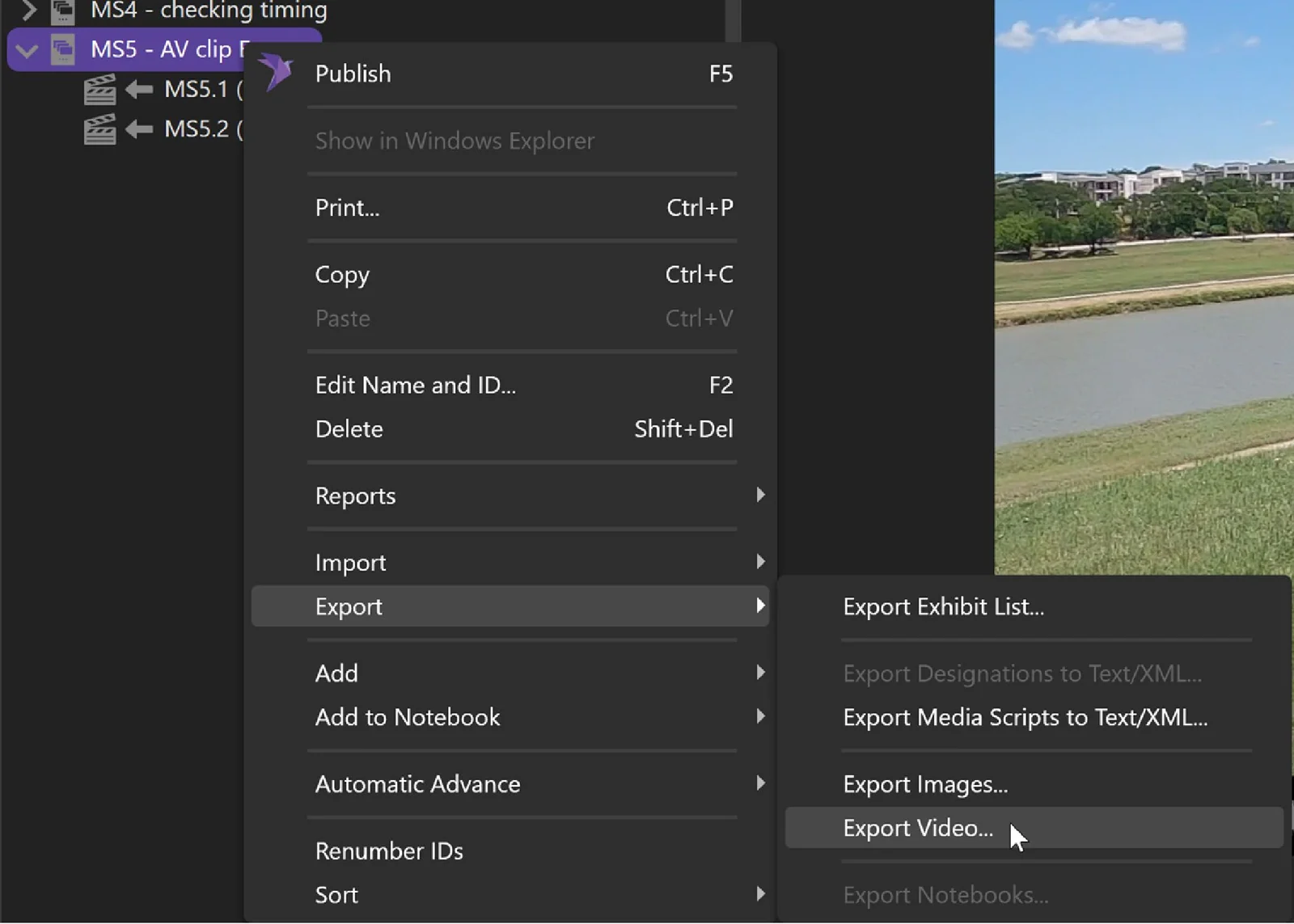
Right-click the Media Script, select Export, then select Export Video.
Choose your format and click OK.
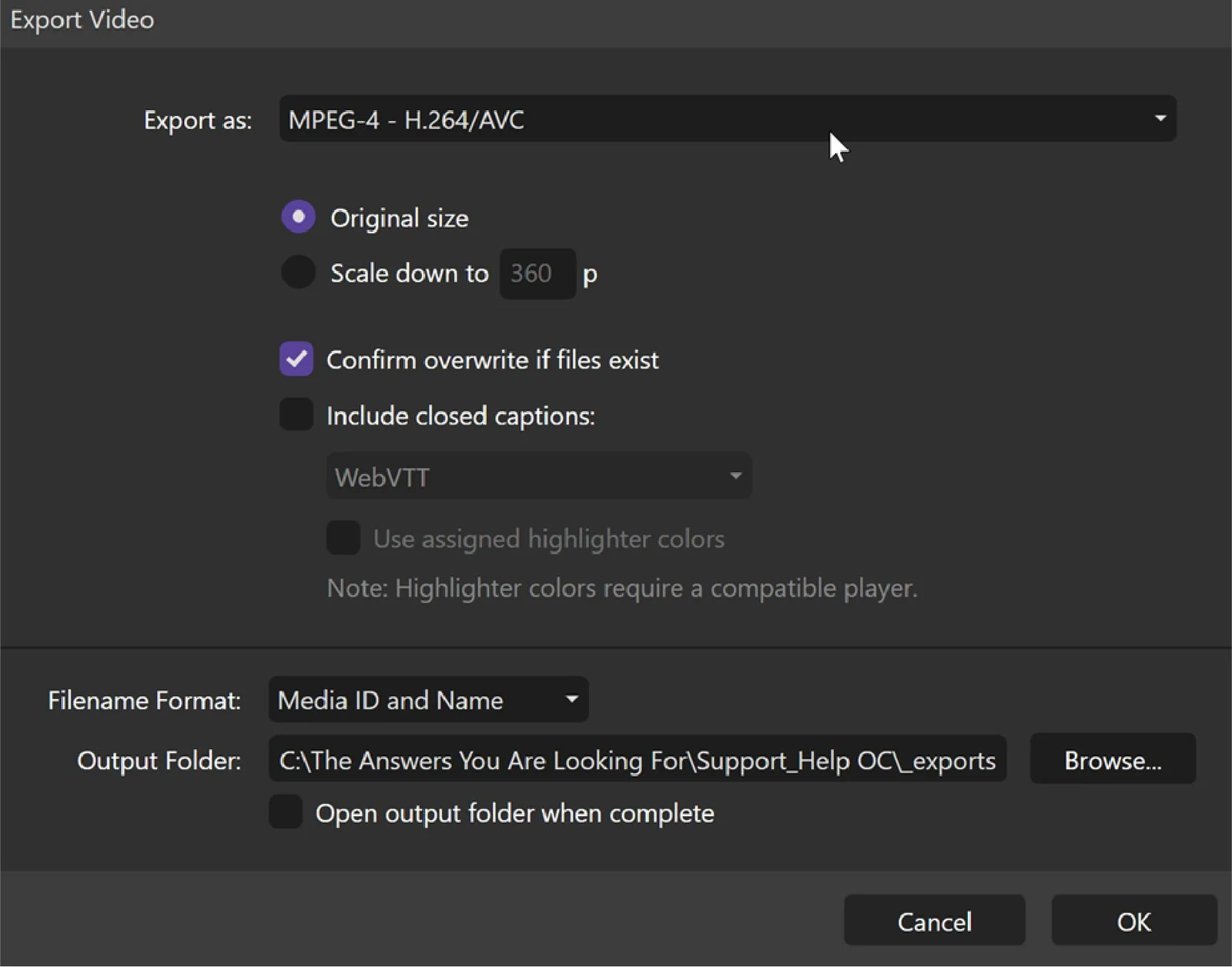
Once your non-synced video or audio clips are in a Media Script, you can export them for review or play them in order from the script.
Note: Closed captions are available only for synced video (usually depositions).
export video, export clips, media script, closed captions
Still stuck? Email support@oncuetech.com.