



Importing Designation Lists
Updated October 28, 2026
This article answers
- Can I import tuned lists or import all of my designations at once?
Designation Lists are the page/line clips of the deposition testimony for the purpose of playback in court. You will need a synchronized transcript file (.mdb or an OnCue xml) and the raw deposition video to use this feature (see Adding Synchronized Transcripts).
You can export designation lists to video, text, or XML files, and import them from text files or OnCue XML files from other cases.
Importing a List from an XML File
Designation Lists can be imported two ways: OnCue XMLs from other cases and text files.
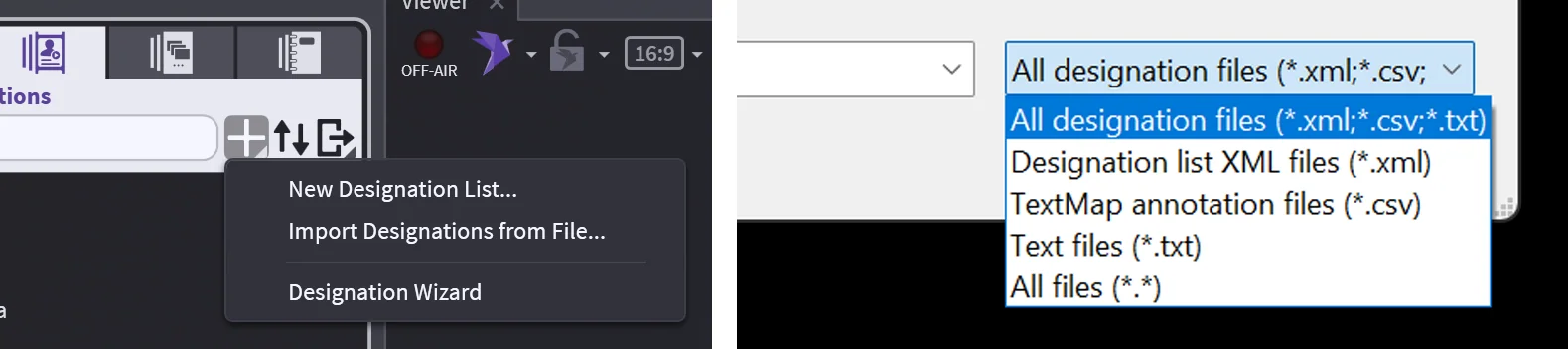
The XML file carries more information than a text file. It can contain the entire deposition transcript (if the option is checked upon export), as well as tuning information and text edits for the designations. This is the best way to share work with a colleague who doesn’t have access to your database. For example, you create a list and export it as XML. A colleague imports and tunes it, then exports it as XML and sends it back. When you import it, the tuning and text edits come into your database.
Note: Both users need to have the deposition video files. They do not transfer as part of this process.
If the XML file includes transcripts, they are imported to the Transcripts tab as well. Importing XML keeps text edits and tuning, and overwrites any existing list with the same ID.
For more about XML files, see the Export to XML File section of Exporting Designation Lists.
Importing a List from a Text File
You can also import text files that have been exported from a different OnCue database by selecting Text files instead of Designation list XML files.
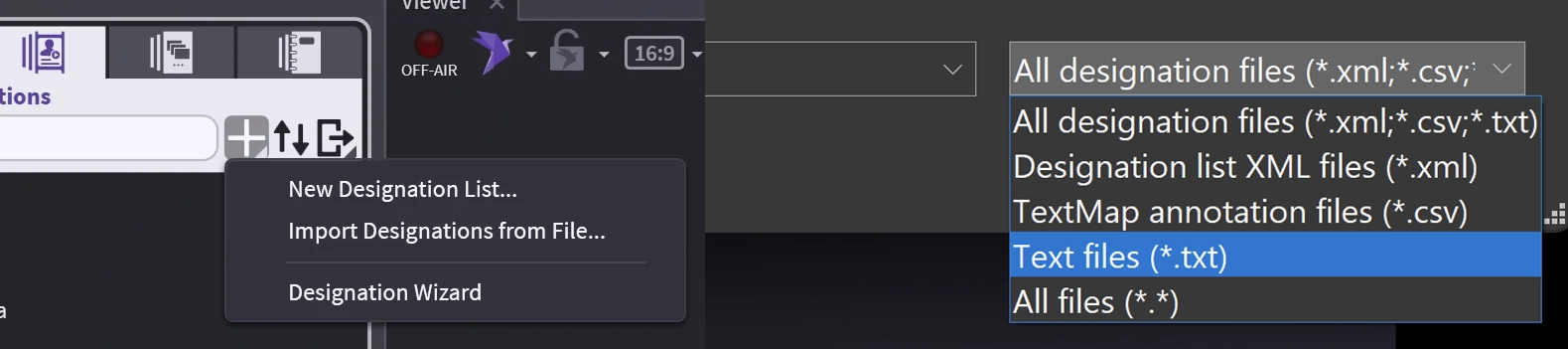
Text files are a quick way to load many designations at once. The format is not complex, and it does not necessarily have to be precise to be successful. Any text editor can be used to create the file, but it does need to have some basic information and must be saved as a .txt file (comma-delimited, tab-delimited, or plain text).
The text file must include three headers: Media ID, Transcript ID, and highlighter color number. All headers must be contained in brackets [].
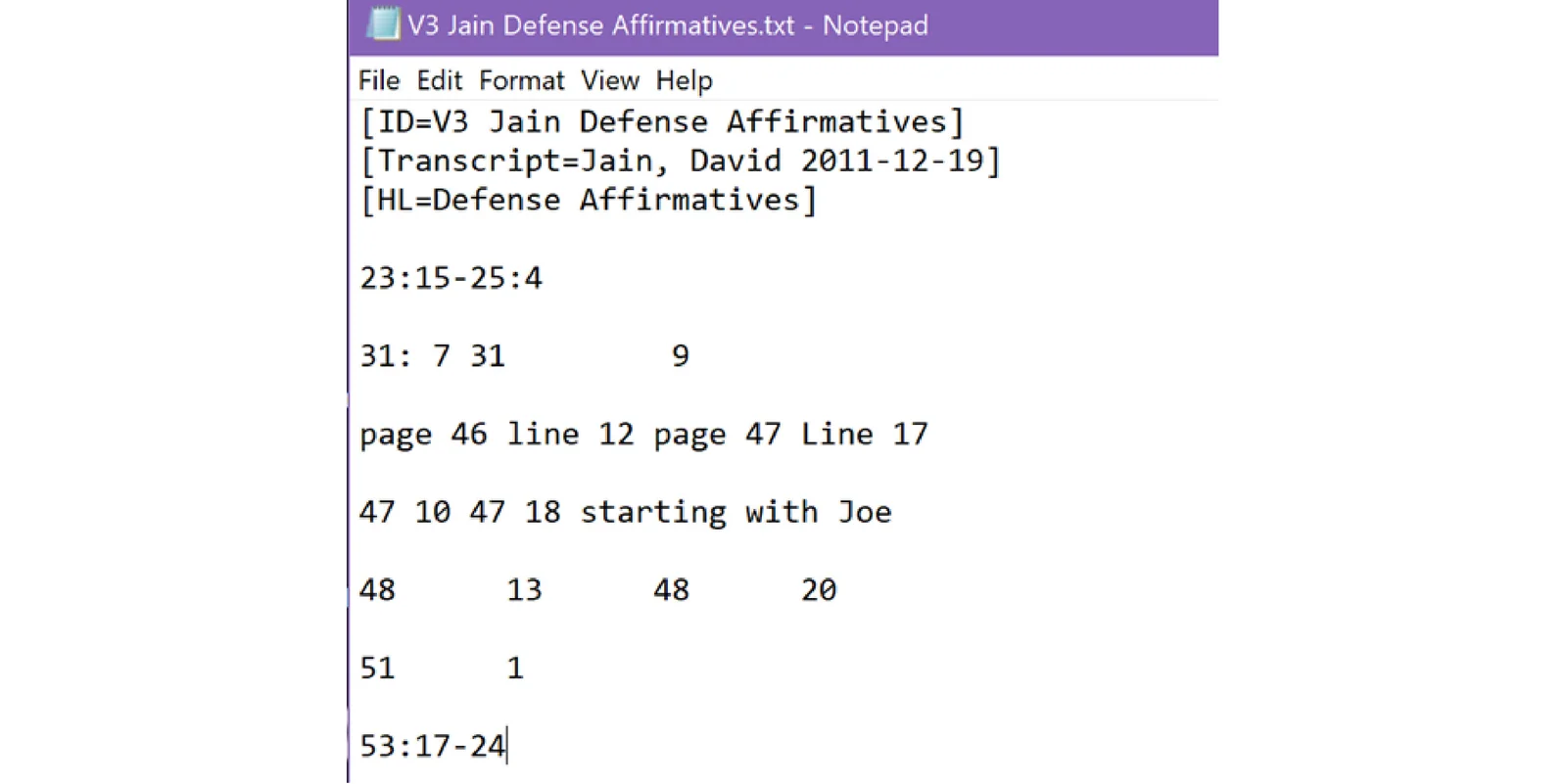
A sample import file:
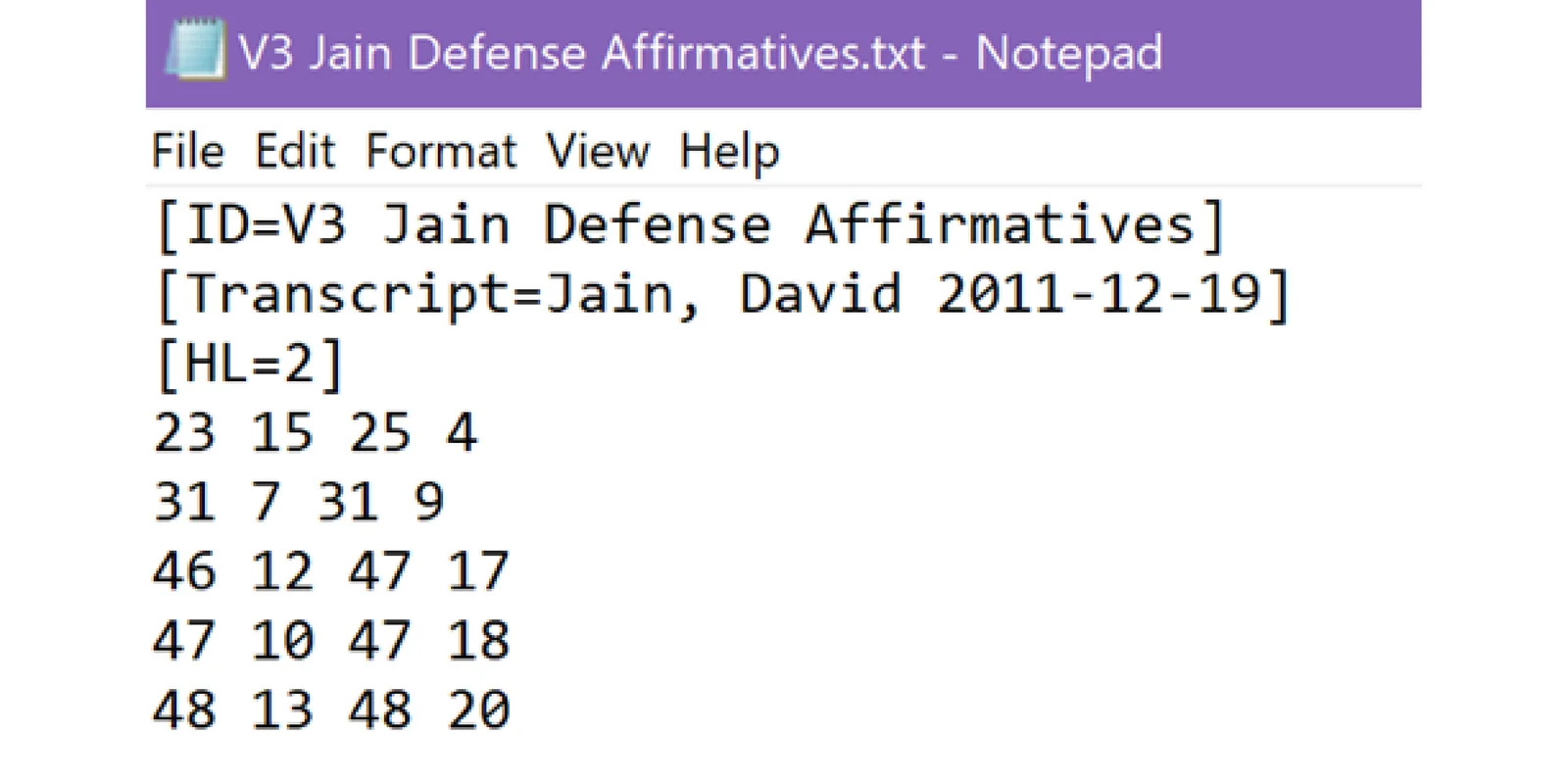
The first header, “ID=”, holds the list’s Media ID and name, separated by the first space.
For example: [ID=V1 Bart Defense Affirmatives]
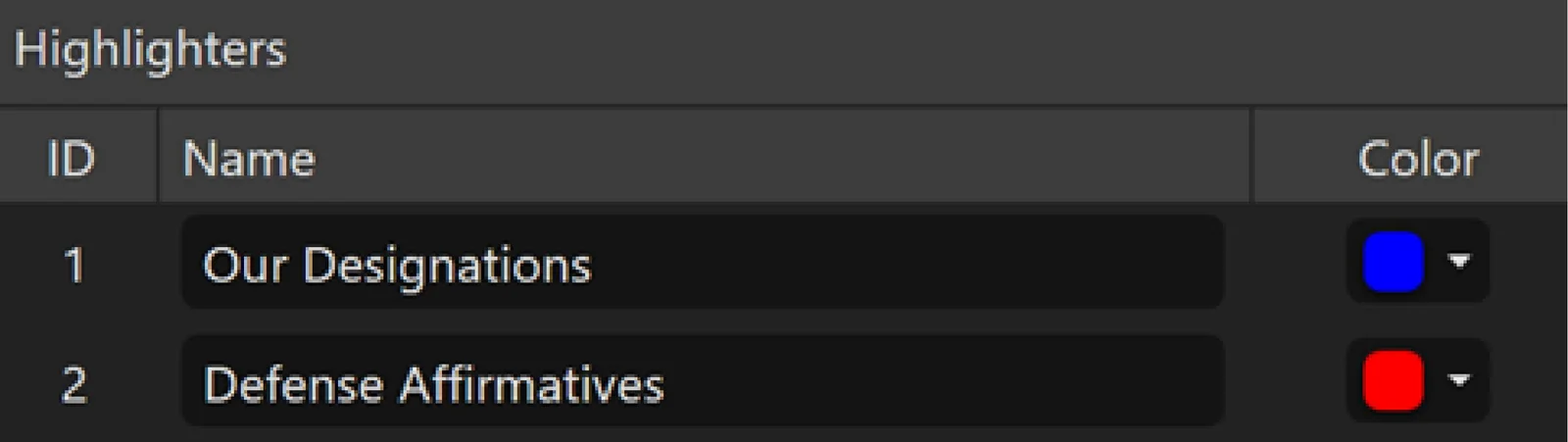
In OnCue, the list appears like this:

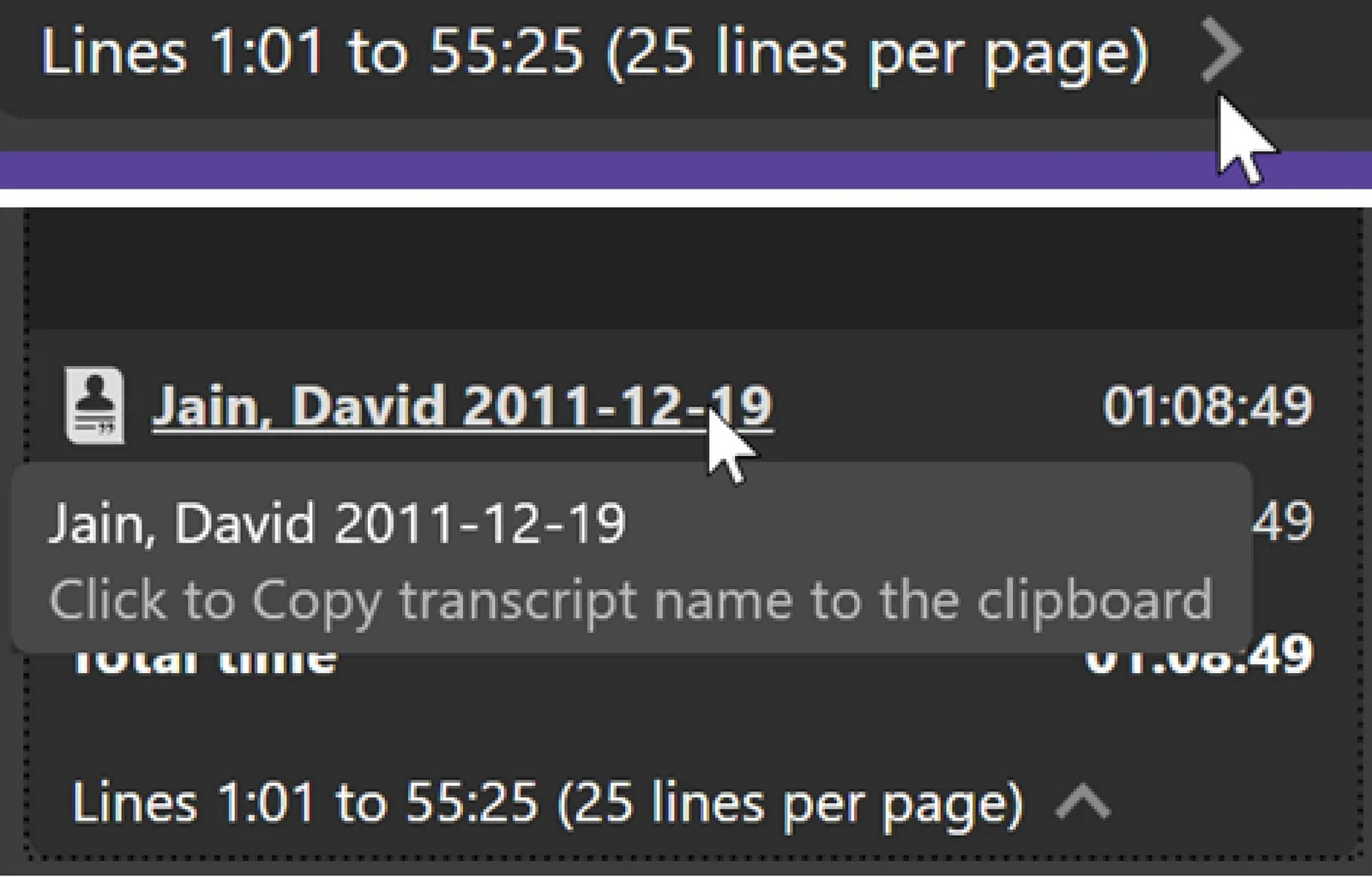
The second header line contains the Transcript ID. This is the ID shown on the Transcripts tab, for example: [Transcript=Jain, David 2011-12-19]
To copy it, select the transcript on the Transcripts tab and expand the arrow at the bottom of the screen.
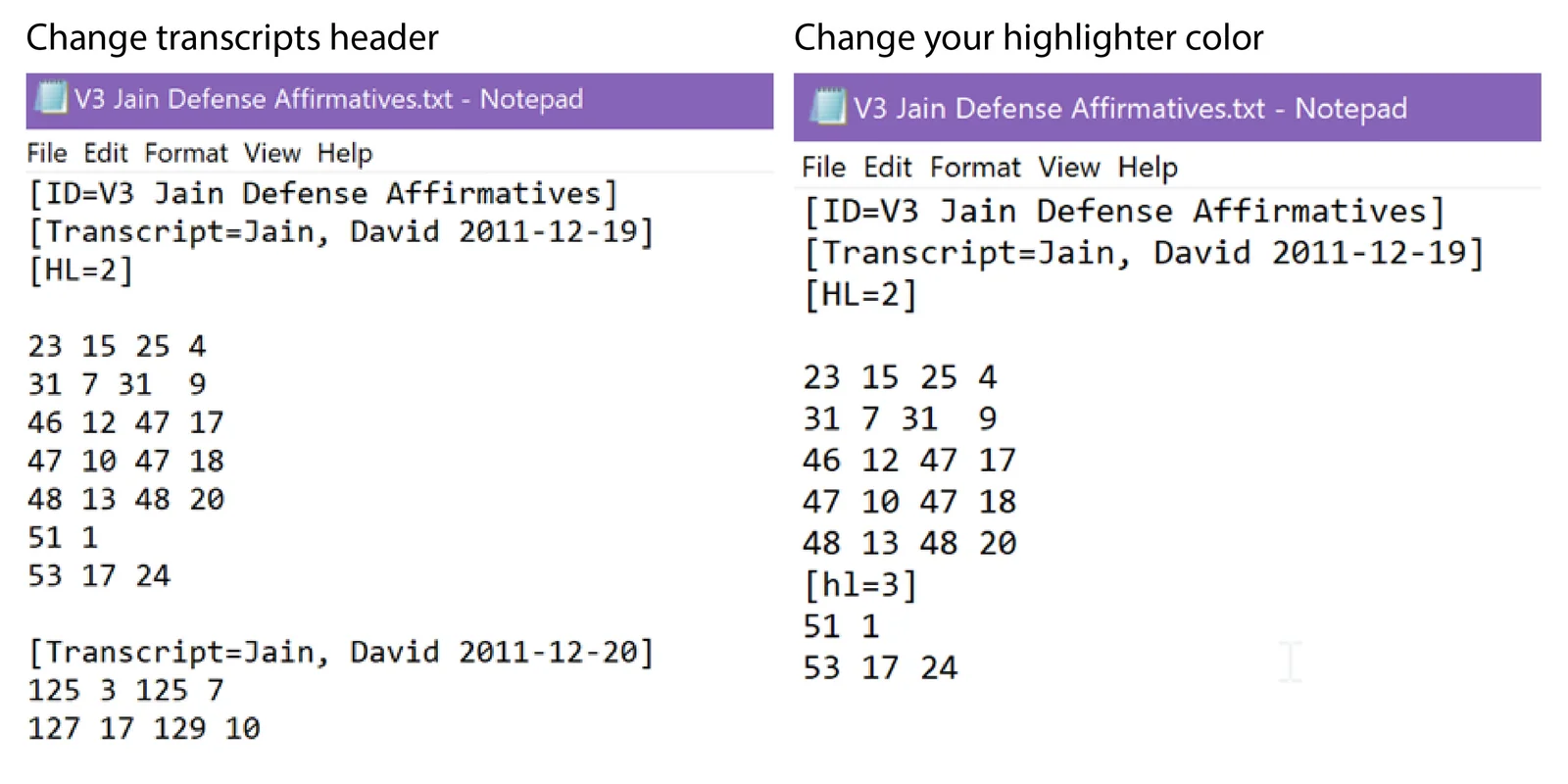
The final header identifies the highlighter color to be used for the designations directly below it. “hl=” is followed by the number or name of the highlighter (see Designation Highlighters for more details). If no color is chosen, the default is 1.
[hl=2] or [hl=Defense Affirmatives]
Following the header, begin listing each designation, with one designation on each line. Because import files are rarely clean, OnCue is tolerant of formatting. Files can be tab-, comma-, or space-delimited, or use colons and dashes, as in the example below. OnCue ignores other characters and reads the numbers. Single-page ranges are supported: OnCue recognizes a page number followed by two line numbers.
Advanced Text Imports
A single import file can include multiple transcripts or highlighter colors. OnCue reads the information from the headers from top to bottom.
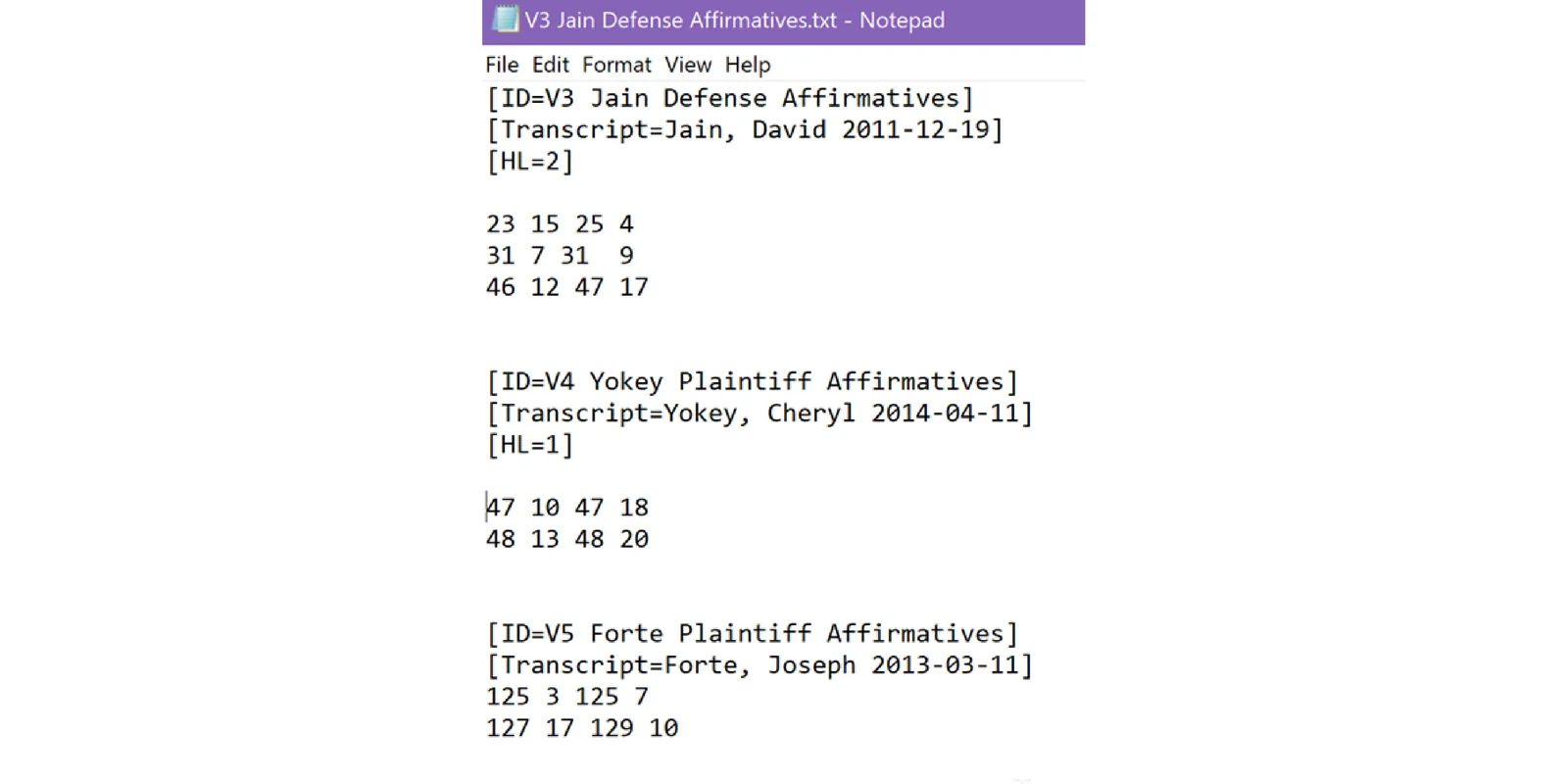
A single file can also contain multiple designation lists.
To import lists, hover over the “+” on the Designations Tab.
There is a very important option for importing.
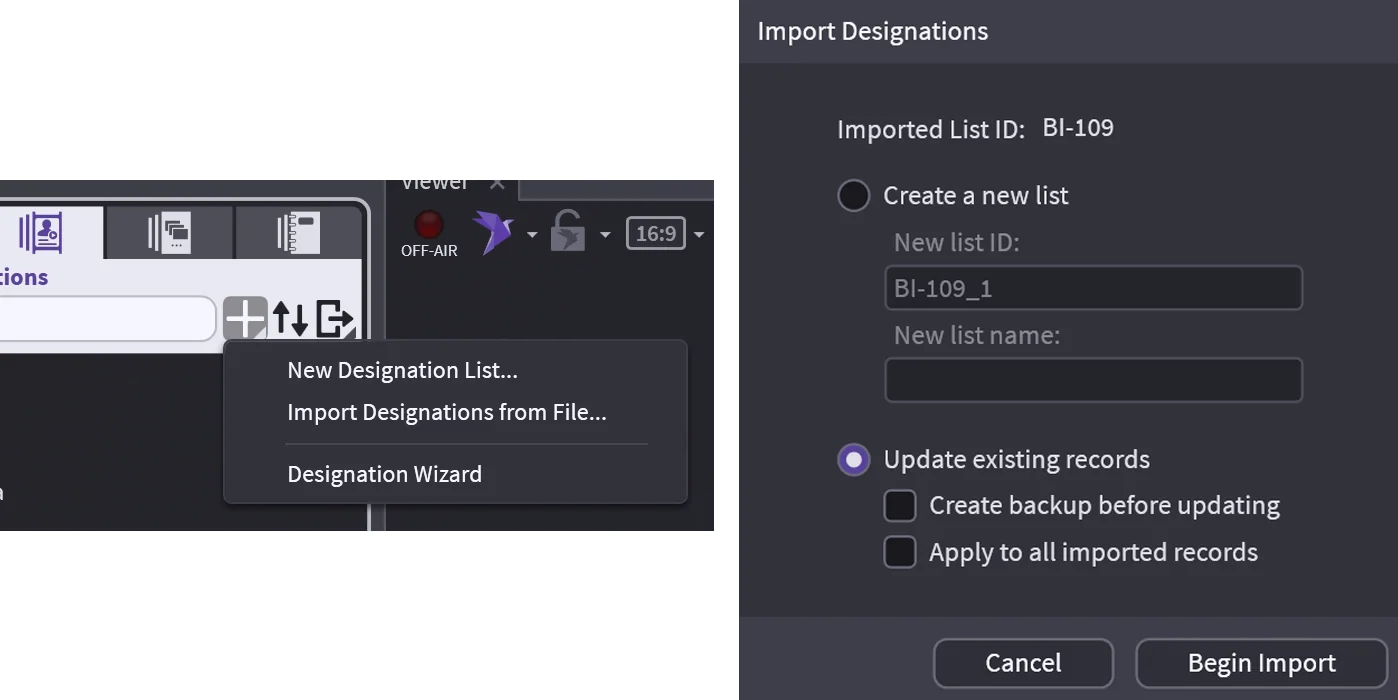
“Update existing records” has a very specific purpose designed to cut your workload down after you have tuned designations and then receive a new list of edited designations without an indication of what has changed. If you import this new list with the same ID as what you have tuned in the database, selecting the update option will do two things:
- Update your existing Designation List with the new designations from that file.
- Retain any tuning or document linking you had on your list before you updated the designations.
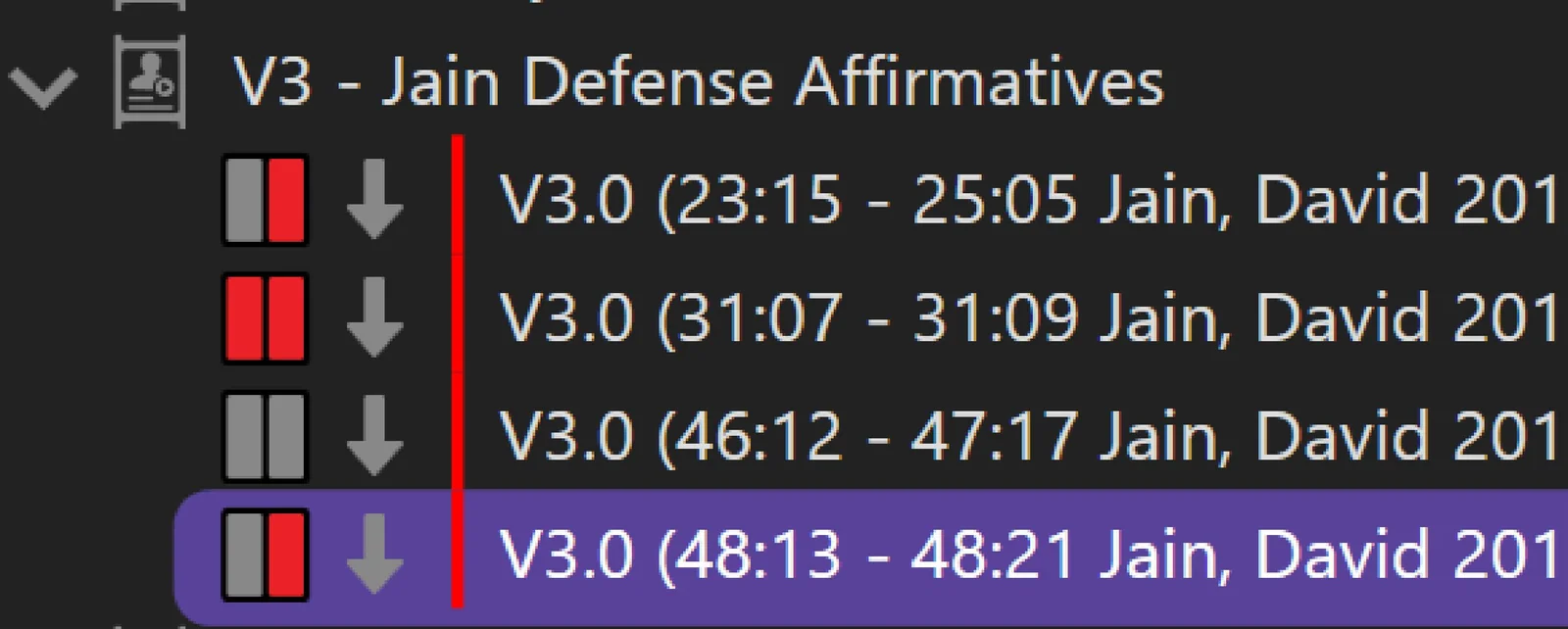
In short, importing a list with an existing ID replaces its designations and keeps whatever tuning still applies. After the update, the list looks like this:
import designations, import list, excel, text file
Still stuck? Email support@oncuetech.com.