



Optimizing Your PDFs
Updated October 19, 2026
This article answers
- Why does my PDF document take a long time to load in the Viewer?
- Why is my document slow to open?
OnCue uses the native PDF files that you load into it.
Note: Keep a backup copy of your documents in another location.
If a document loads slowly, the file itself may have problems, such as excess metadata or internal errors. The Optimize PDF command can correct many of these problems.
How to Optimize PDFs
Right-click on your document and select Optimize PDF…
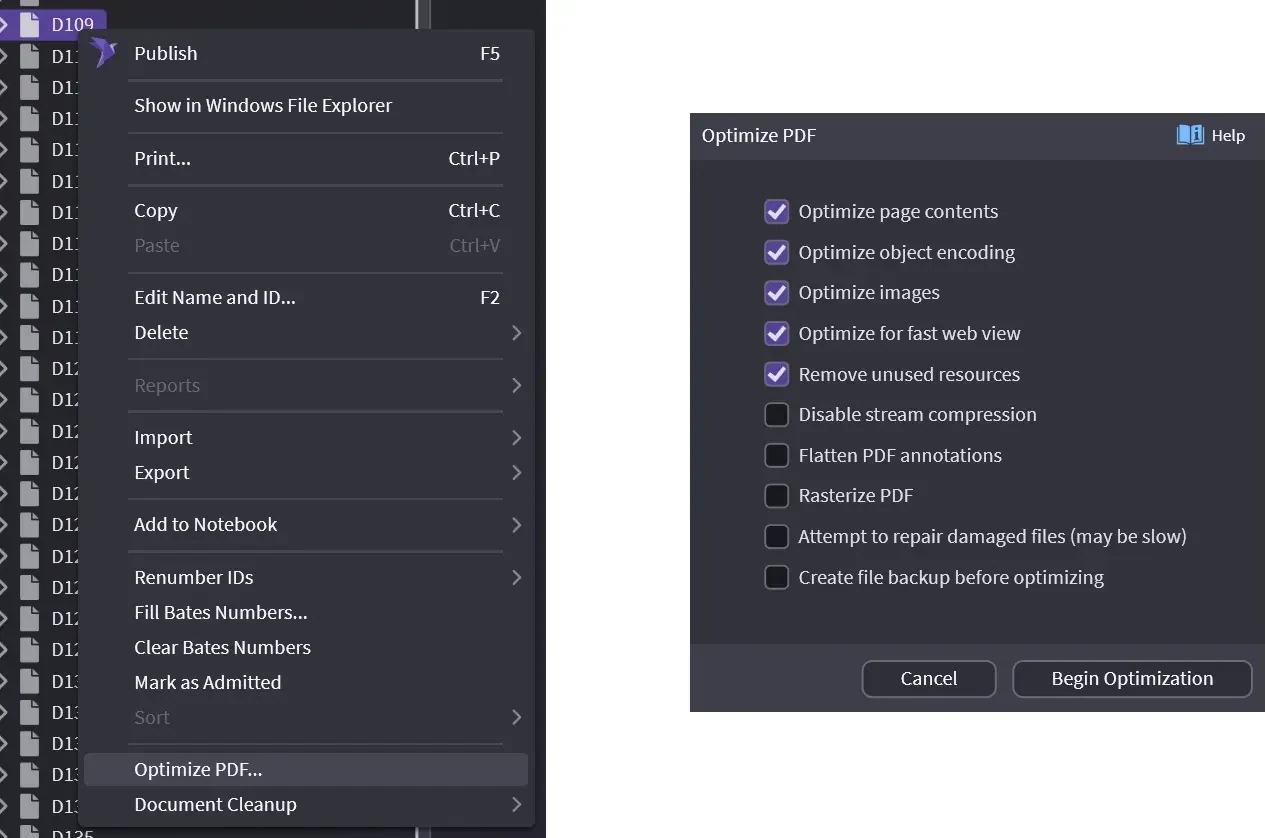
-
Optimize page contents – Improves splitting performance
Restructures the PDF so that all information on each page is located within that page
-
Optimize object encoding – Makes PDF load faster
Stores PDF data as decoded objects rather than streams
-
Optimize images – Makes the PDF load faster
Encodes images as JPEG
-
Optimize for fast web view – Makes PDF load faster
Restructures the PDF so that pages can be loaded without reading the entire file
-
Remove unused resources – Makes PDF smaller, might improve load time
Removes unnecessary resources from PDF
-
Disable stream compression – Makes PDF load faster
Extracts PDF data into uncompressed streams, making the PDF larger but faster to load
-
Flatten PDF annotations – Might help with missing overlays/stickers
Converts PDF annotations into regular PDF objects
-
Rasterize PDF – Makes the PDF load faster by replacing its pages with flattened snapshots of how they appear
Converts the vector images, text, and other elements in the PDF into a bitmap (pixel-based) image PDF
-
Attempt to repair damaged files – Can fix broken PDFs
Rebuilds the cross-reference table by scanning the entire PDF file
-
Create backup before optimizing – Saves a copy of the original, unoptimized PDF before optimizing
optimize PDF, slow PDF, slow loading, performance, large PDF, flatten annotations
Still stuck? Email support@oncuetech.com.