



Video Issues – Common Problems
Updated January 26, 2026
Here are common video problems and how to fix or troubleshoot them.
First, check that the video plays all the way through in another media player (preferably not VLC, which plays files other players reject). This is to make sure the video is not corrupted and is good all the way through.
OnCue video playback doesn’t work in a virtual desktop environment, because it needs local graphics drivers.
Issue #1: When fine-tuning a designation, my video starts at the beginning of the video instead of where the designation starts.
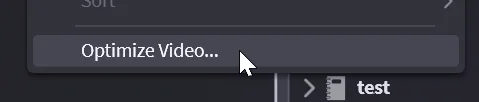
Fix: Right-click on your transcript and select Optimize Video – this may take a while, but it fixes issues with the raw deposition video in your “_synchedvideos” folder.
Issue #2: File not found

Check: Confirm the file name and extension: click Show folder in the error message. This takes you to the “_synchedvideos” folder in File Explorer and you can verify the name and extension (file type). The raw deposition video files must be in the root of the “_synchedvideos” folder.
Fix: If the names or extension don’t match, remap the video: right-click the transcript and choose Remap Media Files (see Missing Media – How to Remap Media Files).
Issue #3: Unable to load media

Fix #1: Update your graphics drivers (Intel, Nvidia, AMD) via the manufacturer’s website.
Fix #2: Check your Advanced Settings. Go to Edit > Preferences > Options > Audio & Video and set every H/W accelerated playback option to None.

Fix #3: Right-click the transcript or non-synced audiovisual and select Optimize Video. This may take a while, but it fixes many problems with the raw video.
Issue #4: My video is black, but I can hear the audio and see scrolling text.
The fixes are similar to those for Issue #3.
Fix #1: Make sure your graphics drivers are up to date.
Fix #2: Advanced Settings – see issue #3 for instructions.
Fix #3: In the same Audio & Video settings, change the playback renderer.

Issue #5: My video is not lining up with the transcript on designations. This is usually caused by the sync file.
Fix: Use the manual sync tool to correct small errors with the timing on your sync file. See the Manual Transcript Sync article for more information.
Issue #6: My non-deposition video is choppy and pixelated.
Fix: Right-click on the file and select Optimize Video.
Exporting Problems
Export errors usually have the same fixes, except that you change the encoding settings instead of the playback settings.
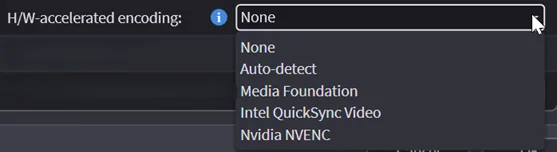
Fix #1: Set H/W accelerated encoding to None.
Fix #2: Optimize your video.
video not playing, black video, file not found, unable to load media, graphics drivers, optimize video, playback renderer, out of sync, virtual desktop
Still stuck? Email support@oncuetech.com.