



Target Notebooks – Autosaving Published IDs
Updated October 21, 2026
This article answers
- Is there a way to record what I display in court?
Notebooks can be very helpful for workflow. They can be a digital 3-ring binder, a notepad recording what you display, or you can use them to group types of documents or work product together.
How to Set a Target Notebook
Every time you display saved work product (page or an annotation), you can hit Ctrl + B and a copy of that saved work product goes to that Target Notebook.
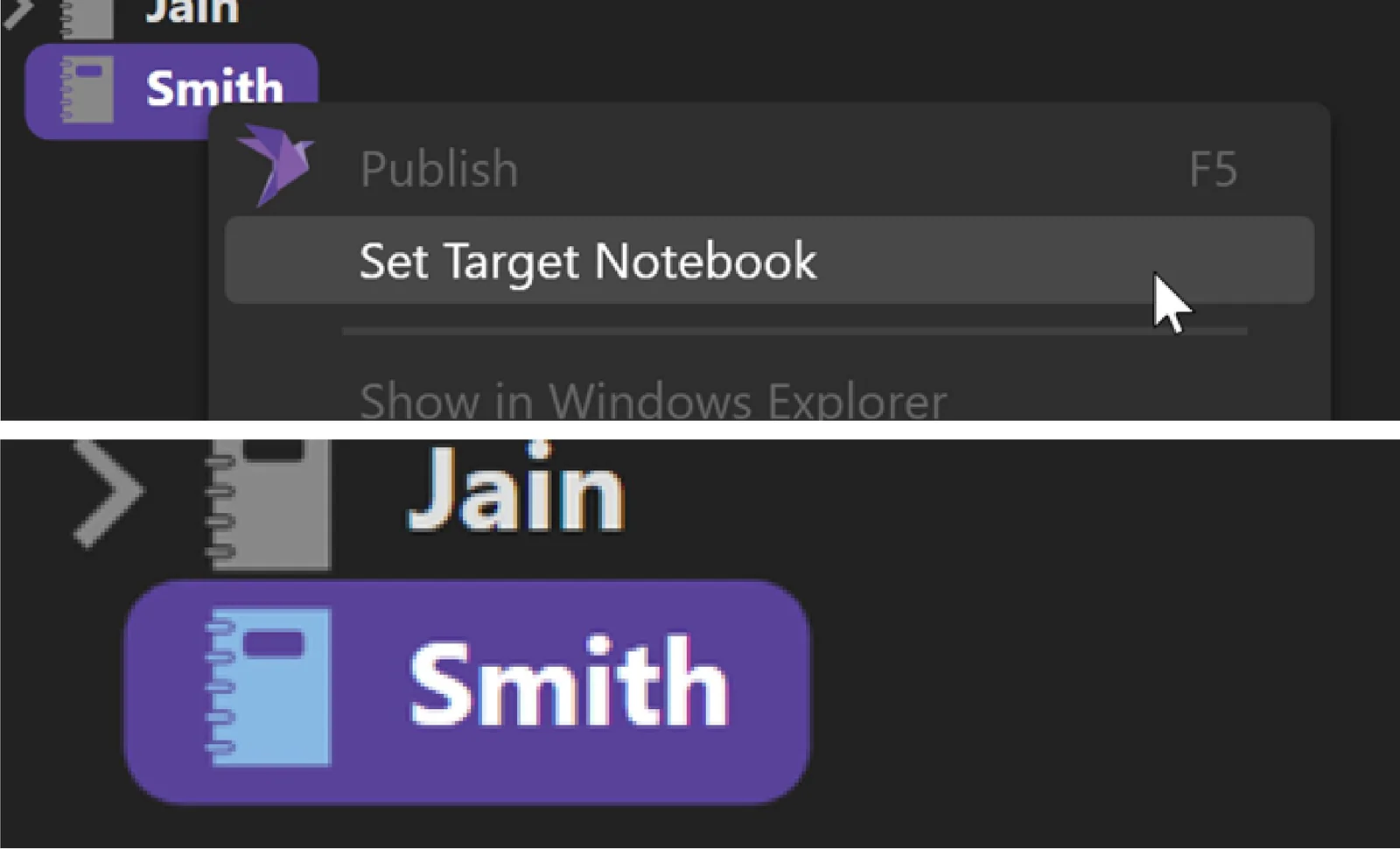
Right-click on a notebook and choose Set Target Notebook.
The target notebook will turn blue regardless of the current notebook color. When you clear Set Target Notebook, the notebook returns to its original color.
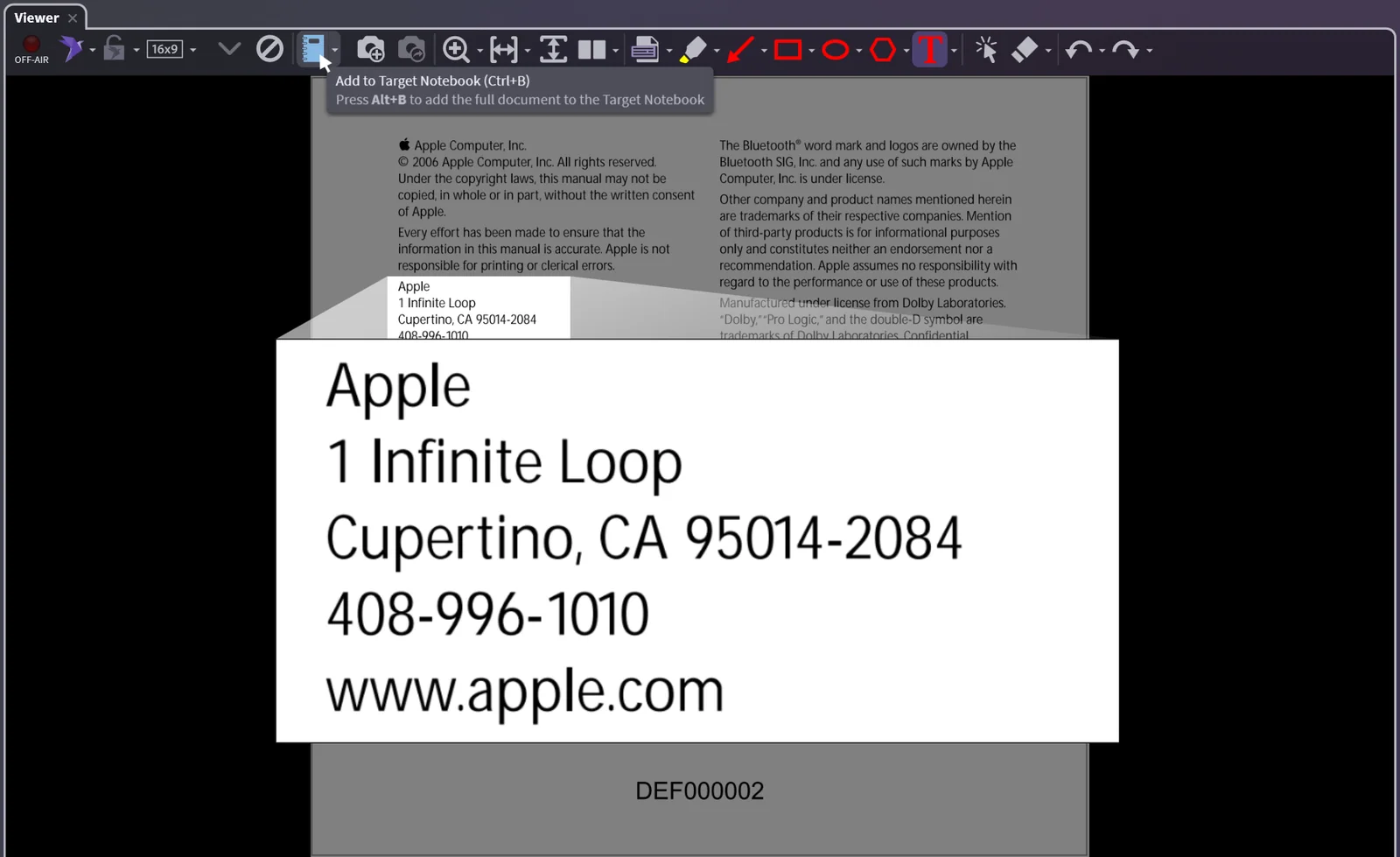
When you show a page or saved annotation in the Viewer or in Presentation and press Ctrl + B, a copy of that page or annotation will go to your target notebook.
Your media is added to your notebook.
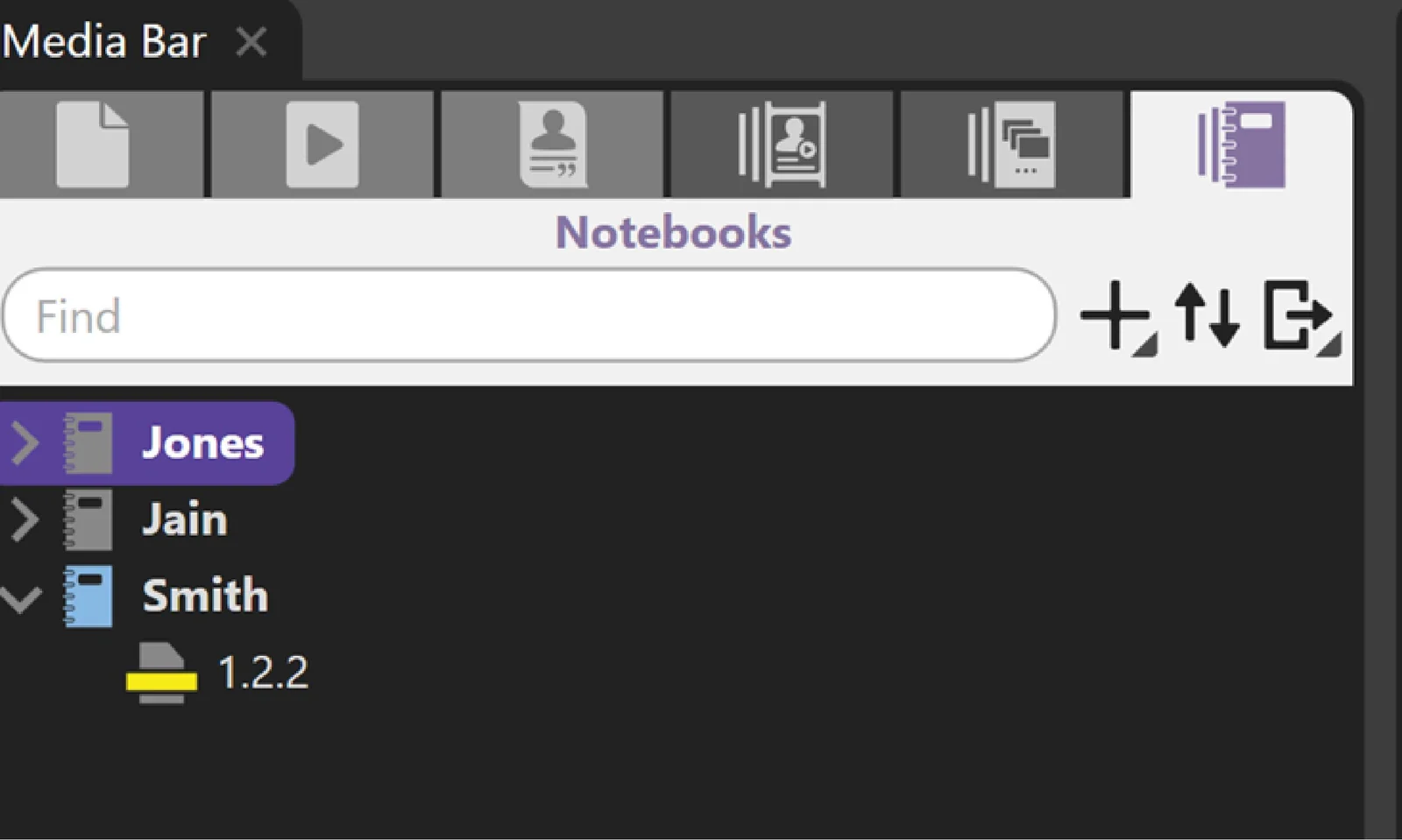
Note: If you change a notebook’s icon color and then set it as the Target Notebook, it will turn blue. Once it is no longer the Target Notebook, it will revert back to its last color.
Auto-Saving Published IDs
On the Viewer toolbar, click the arrow next to the blue notebook button to see this option:

You must click that option so a check mark appears beside it. Closing OnCue unchecks this box. It is not always on.
With it on, every ID you display in OnAir or Presentation mode (document, designation, audiovisual, etc.) is sent to your Target Notebook automatically.
Note: Only saved IDs are sent to the notebook. On-the-fly annotations will not be sent to the Target Notebook unless saved in OnAir or Presentation at the time they are made. The only exception is video clips sent to Presentation for impeachment purposes. These are saved to the Target Notebook (text-only impeachments are not).
target notebook, autosave, published documents, track what was shown
Still stuck? Email support@oncuetech.com.