



Designation Wizard
Updated March 3, 2026
With the Designation Wizard you can add new designation lists, edit existing lists, and import text files. The Wizard flags errors before you save, so imports are predictable.
Creating New Designations
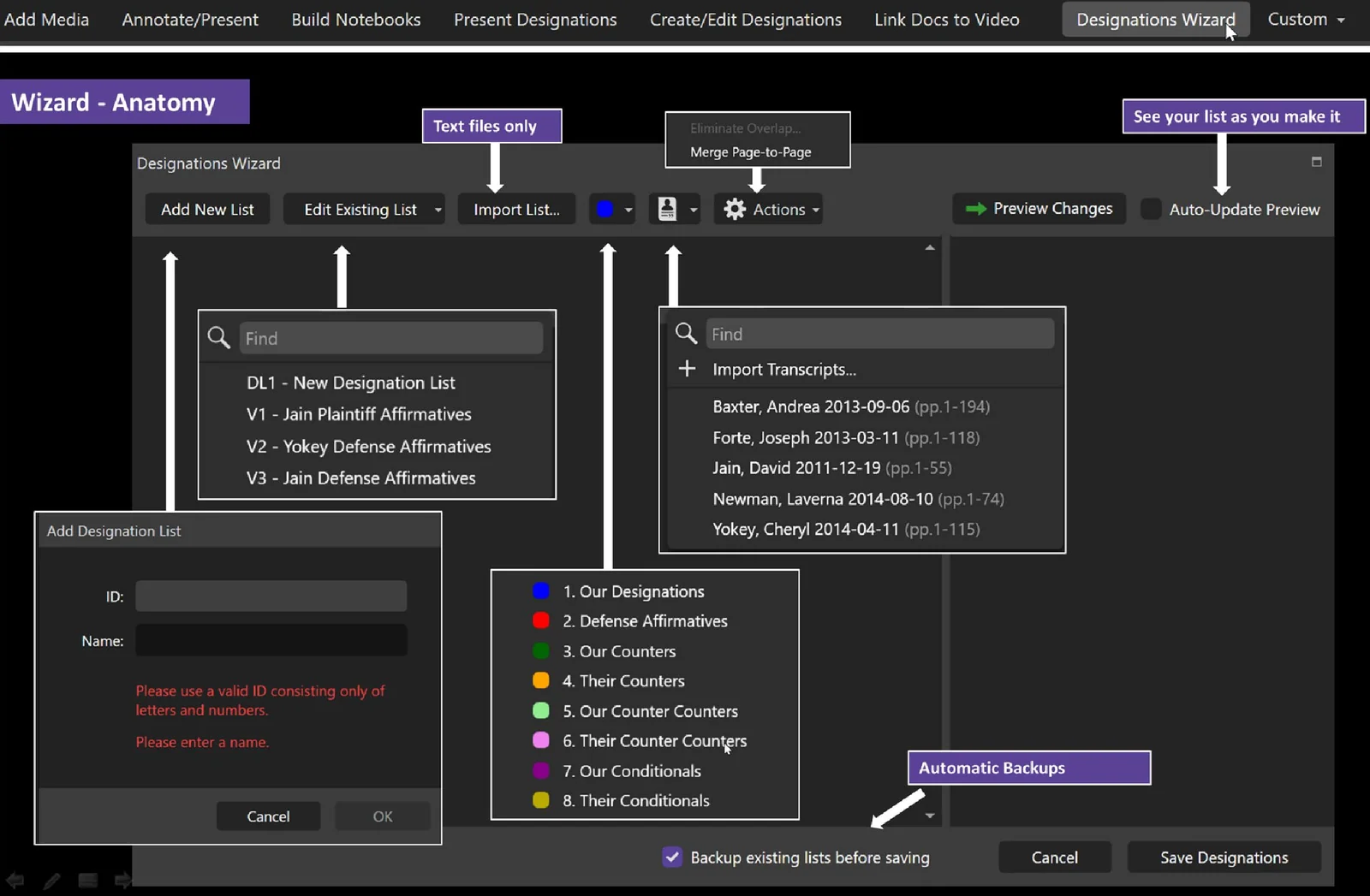
Select Designation Wizard on the Workflow Ribbon.
The Wizard opens. Select Add New List.
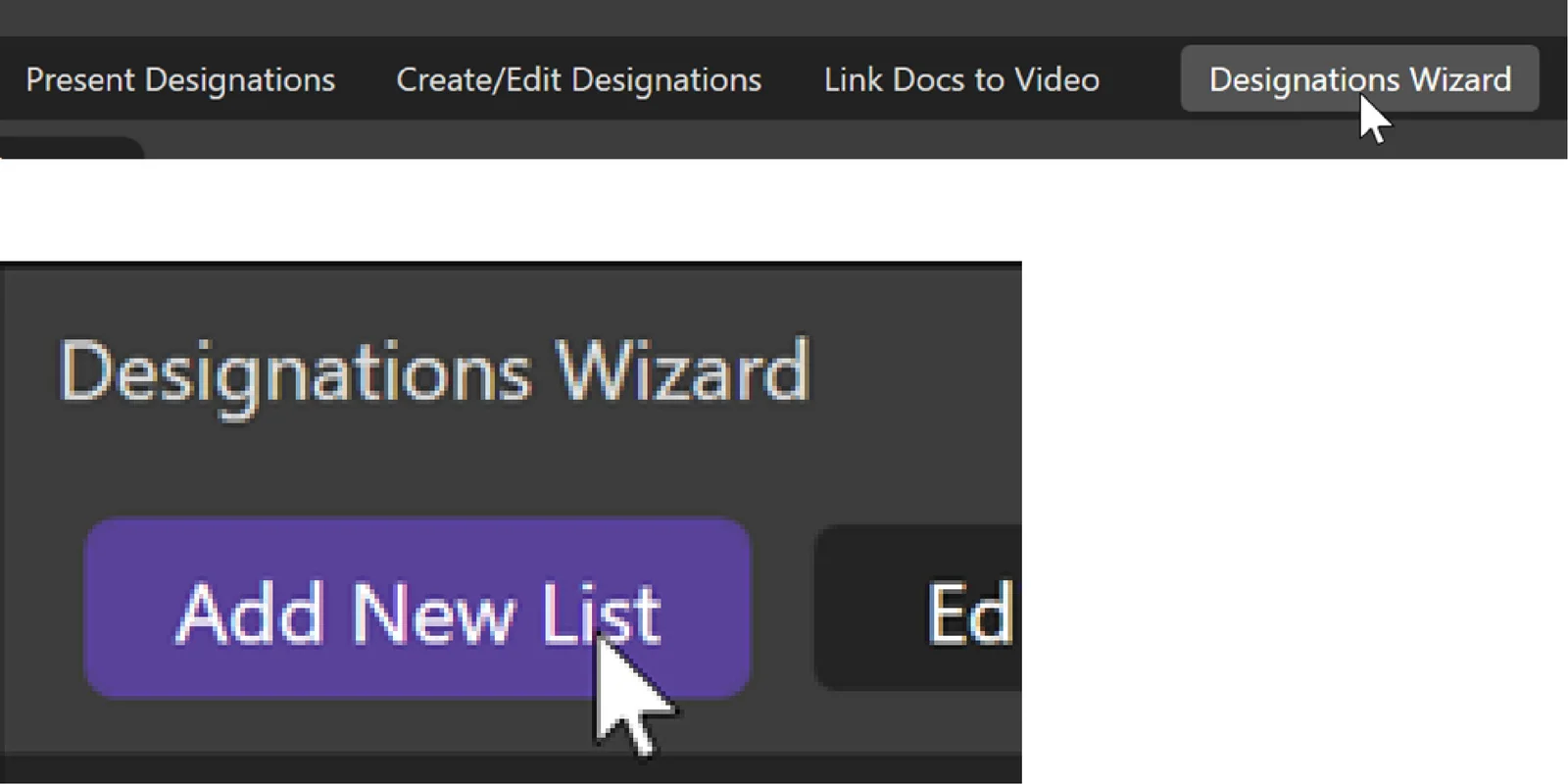
Enter an ID and a name, and click OK.
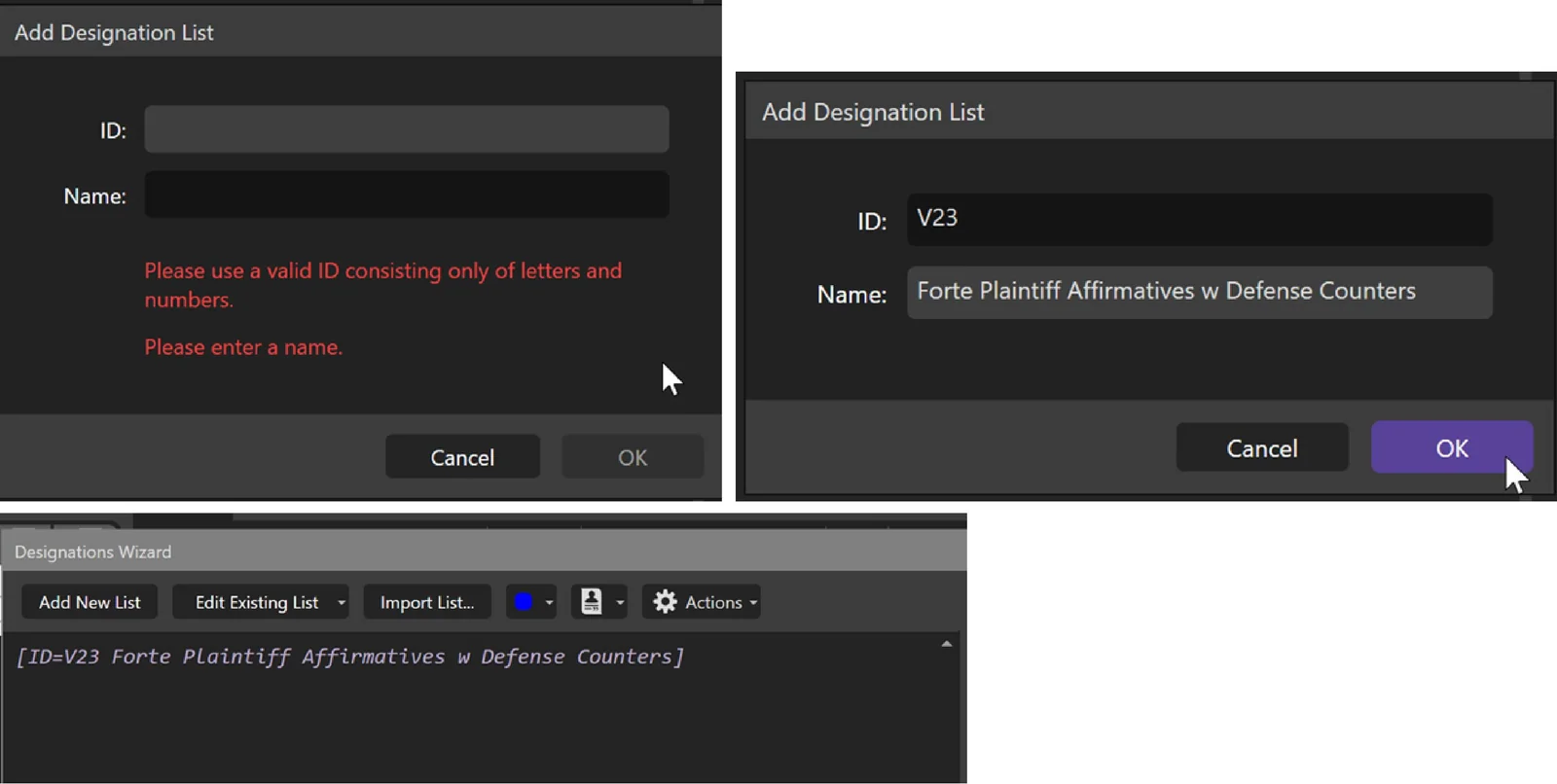
Choose the transcript associated with the designations you are adding.
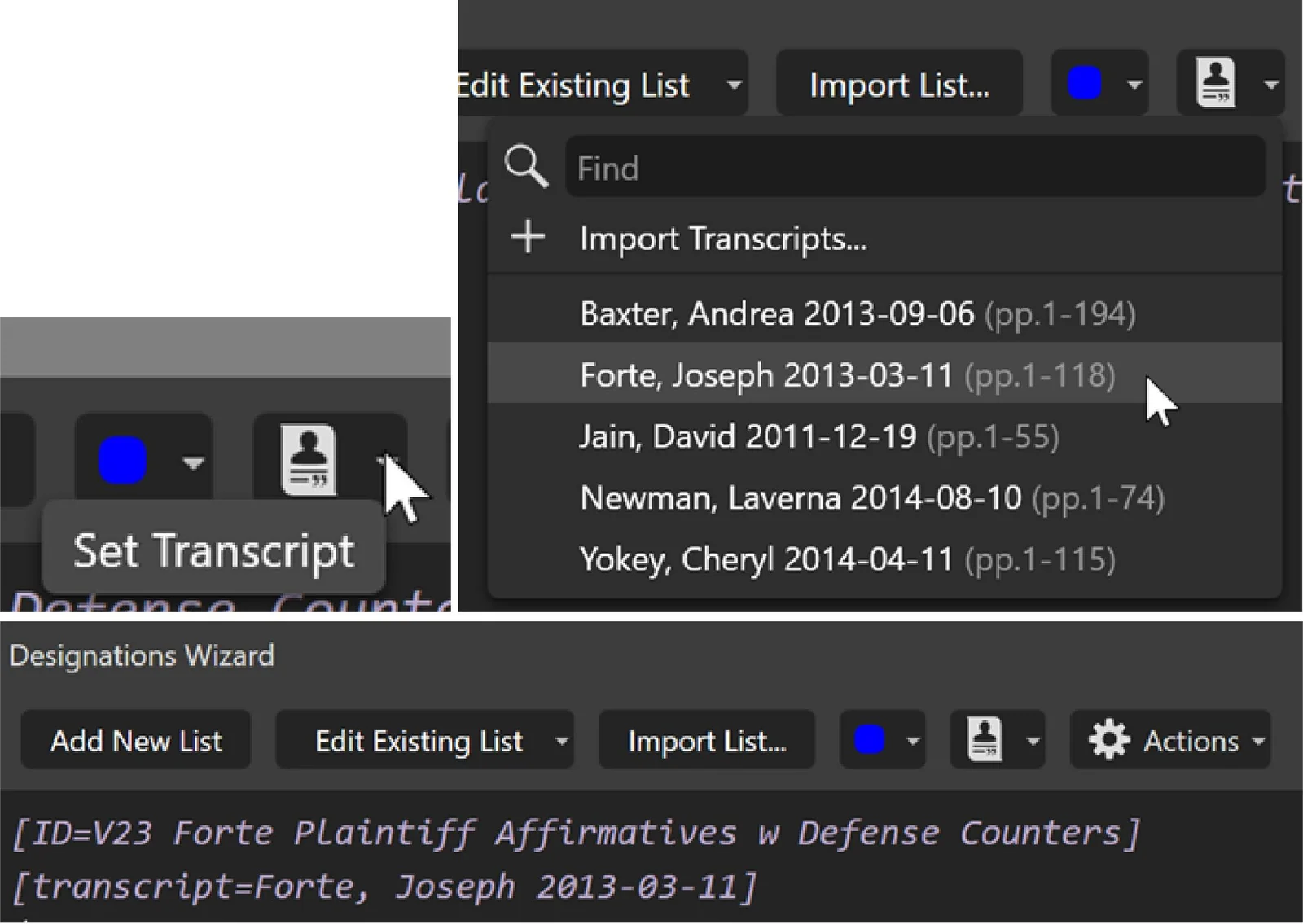
Choose your designation highlighter color.
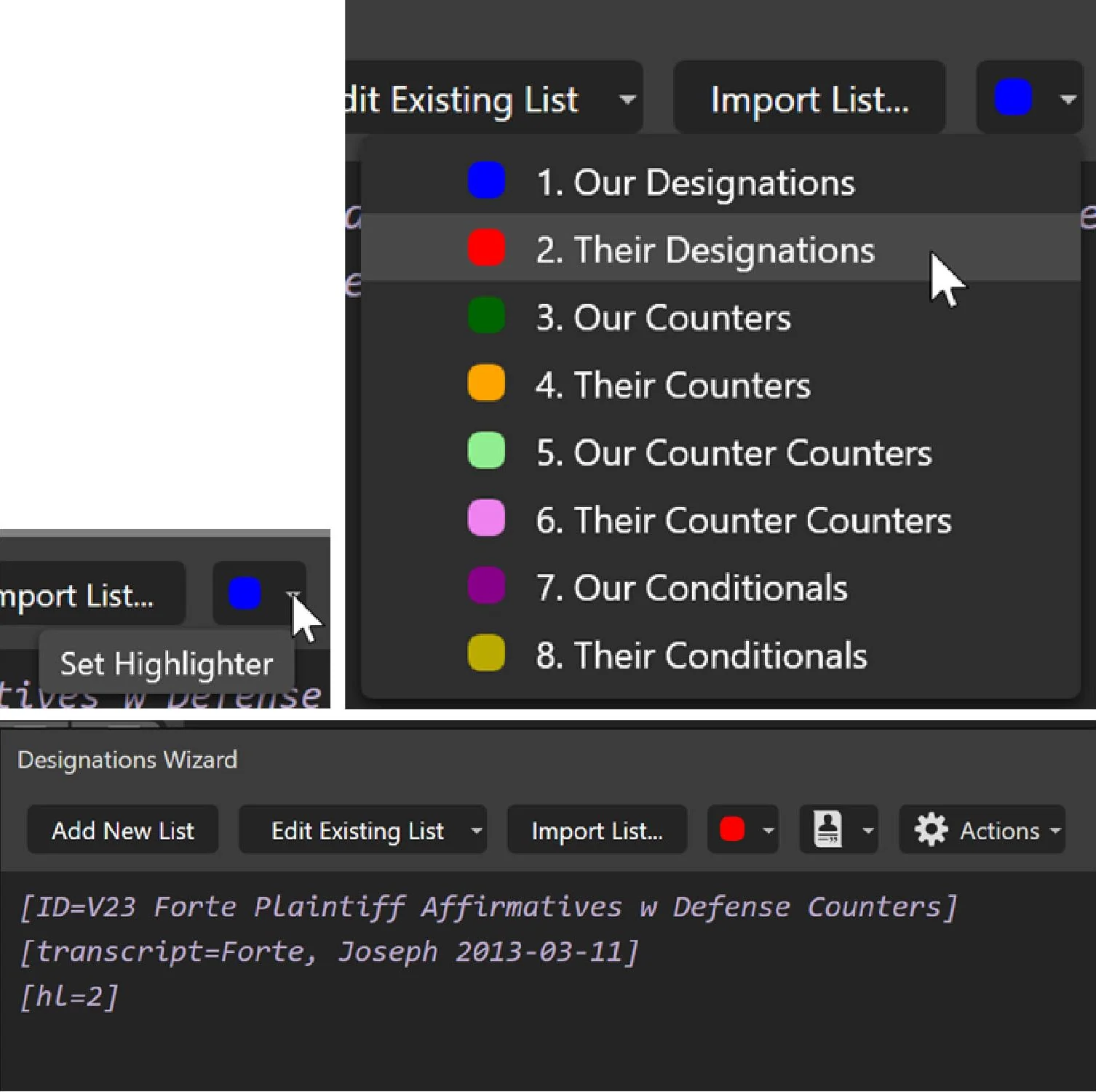
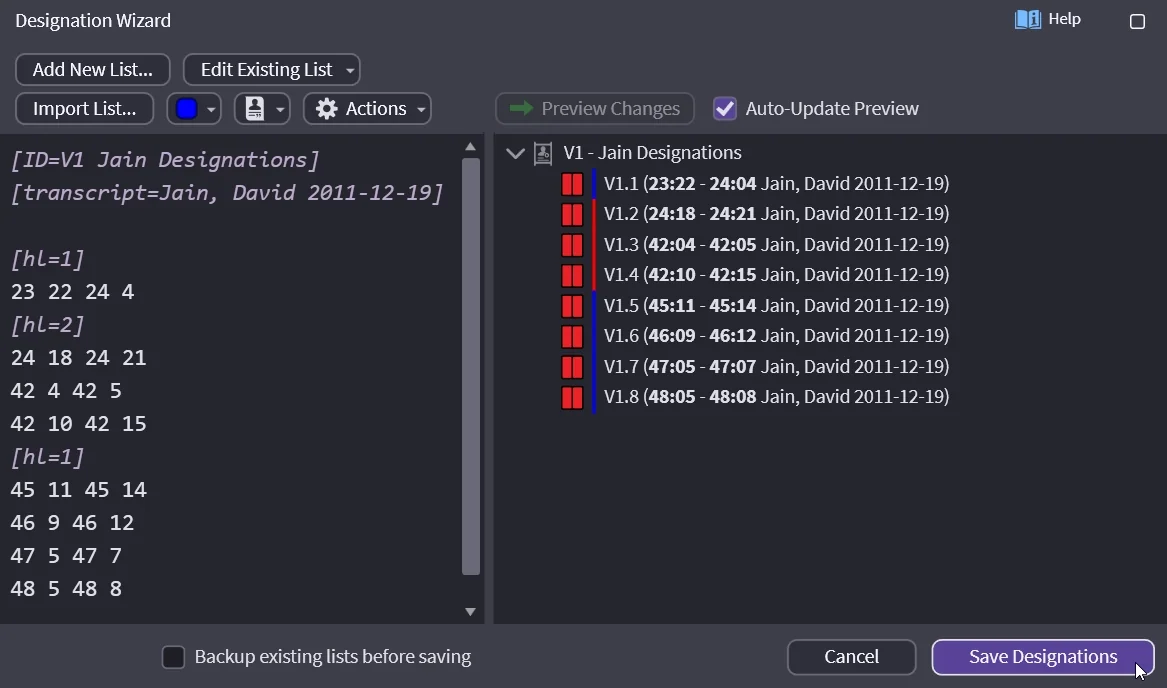
Paste your designations below the bracketed settings lines.
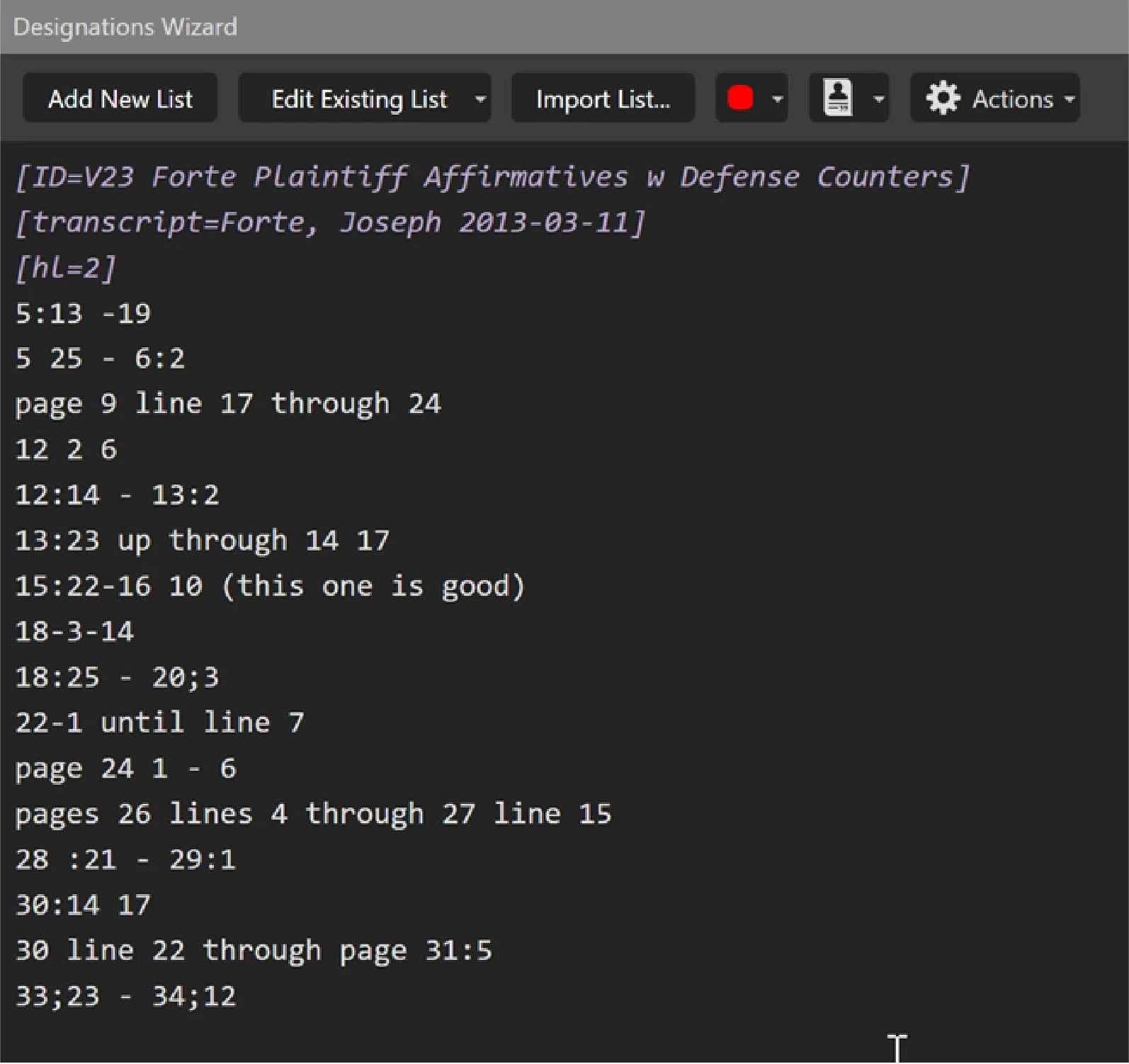
To preview the list, click Preview Changes, or select Auto-Update Preview to update it automatically.
If there are no errors, click Save Designations.
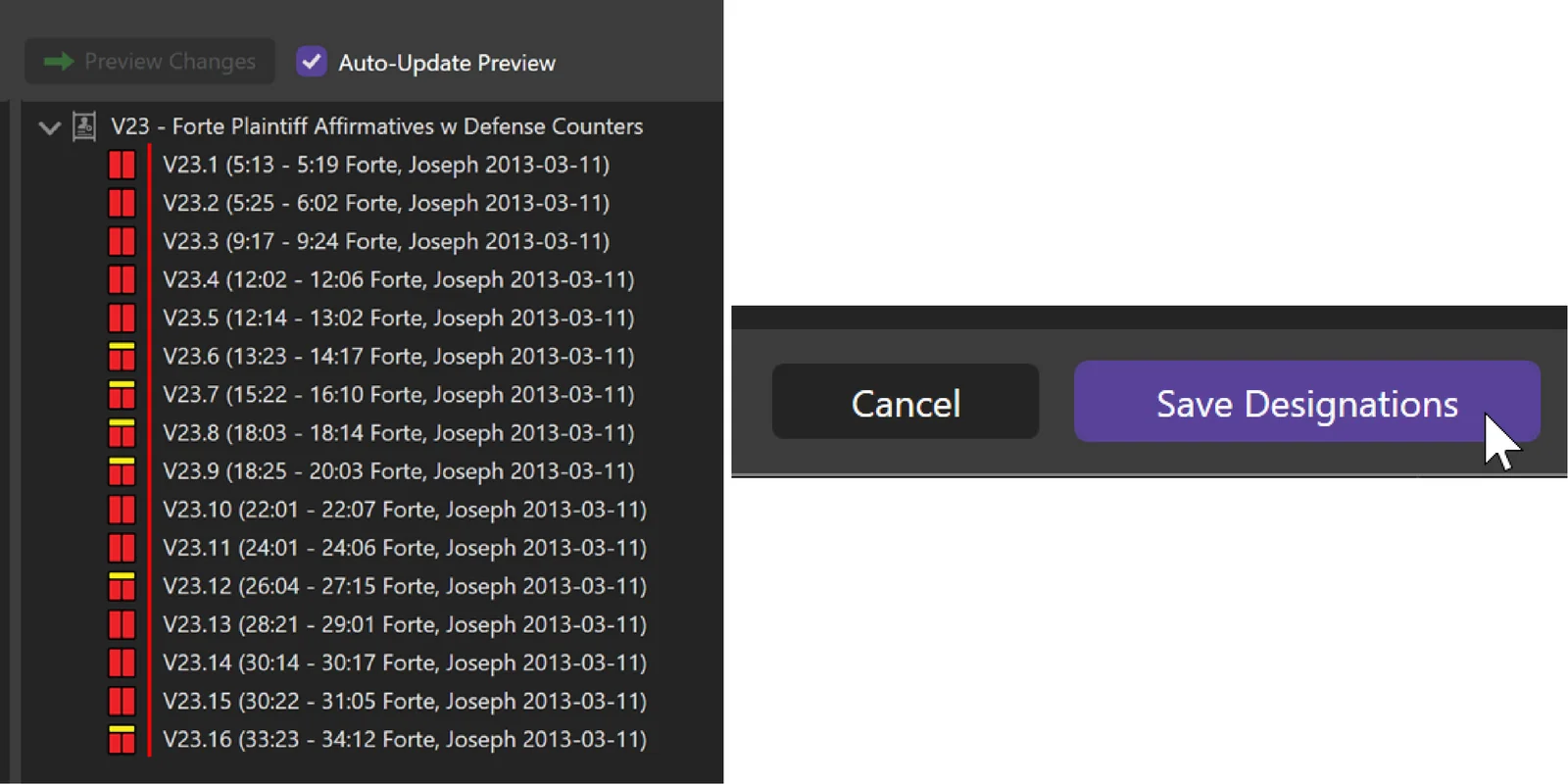
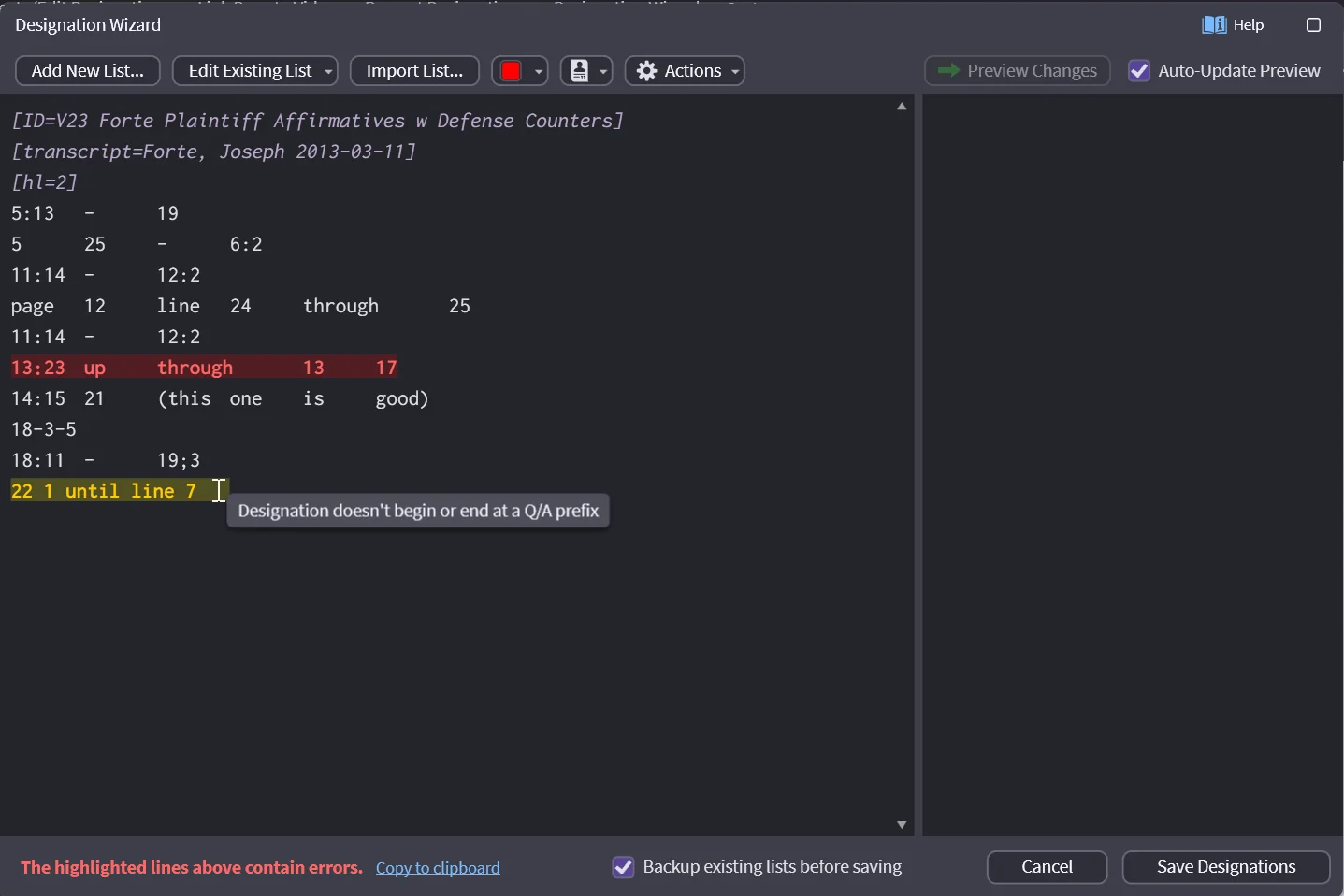
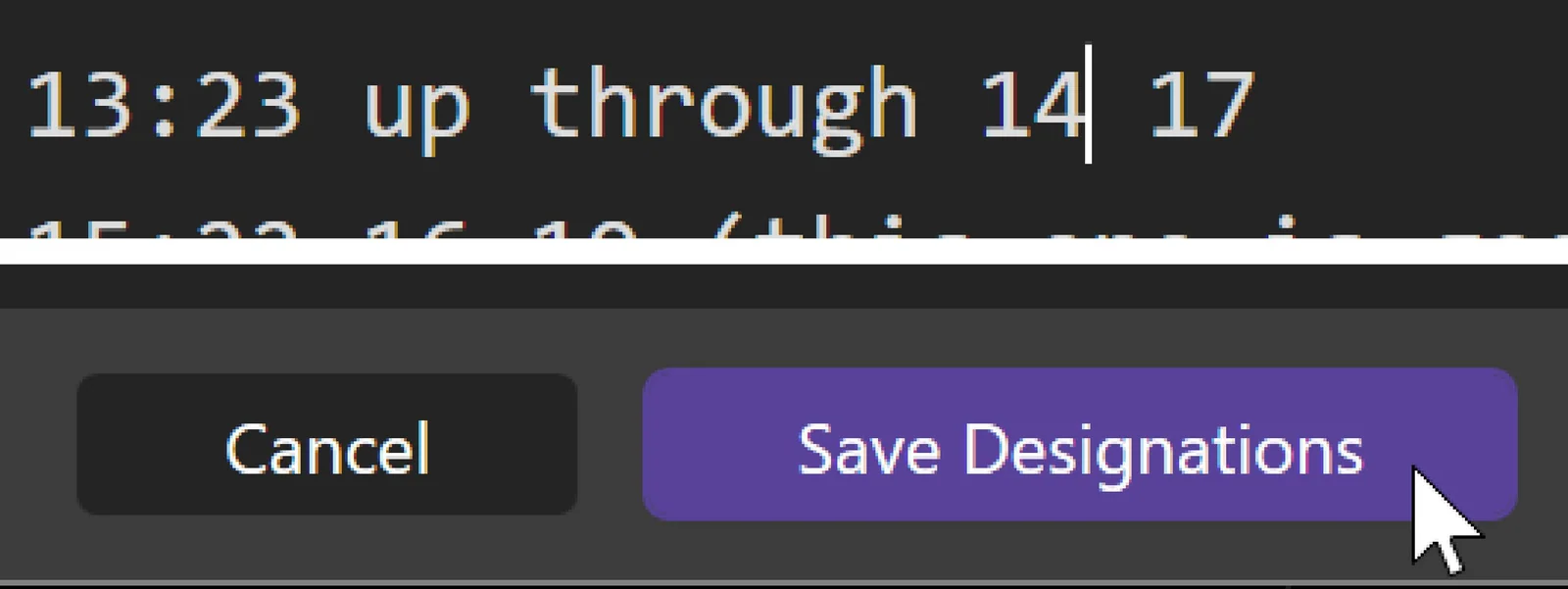
If there are errors, hover over each one to see what is wrong, and correct it directly in the Wizard pane.
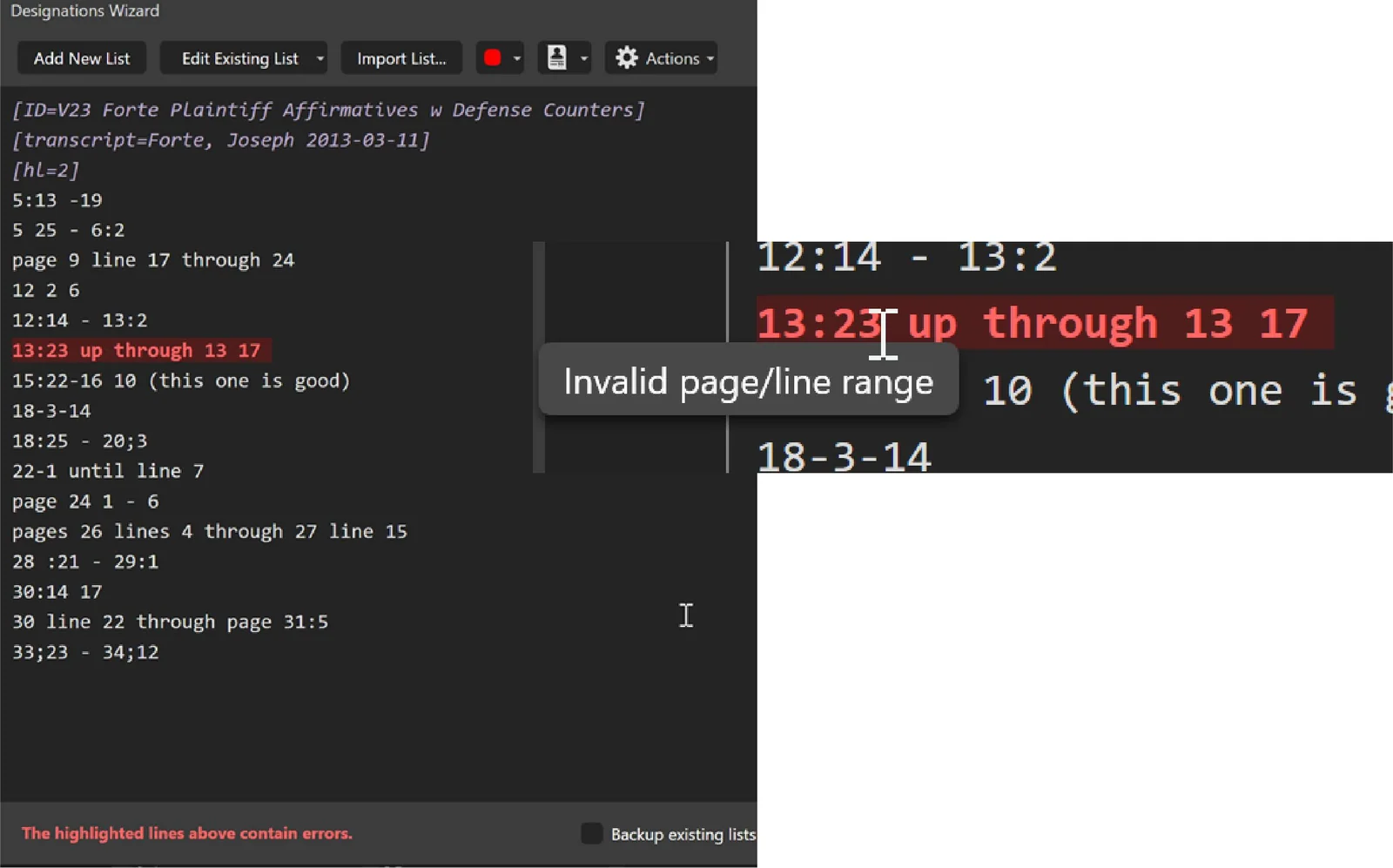
Warnings are highlighted in yellow. Hover over a warning to see an explanation. The most common warning is the Designation Wizard letting you know that your designation may not begin or end at a question prefix. Warnings are not formatting errors and do not prevent saving.
Edit Existing Designations
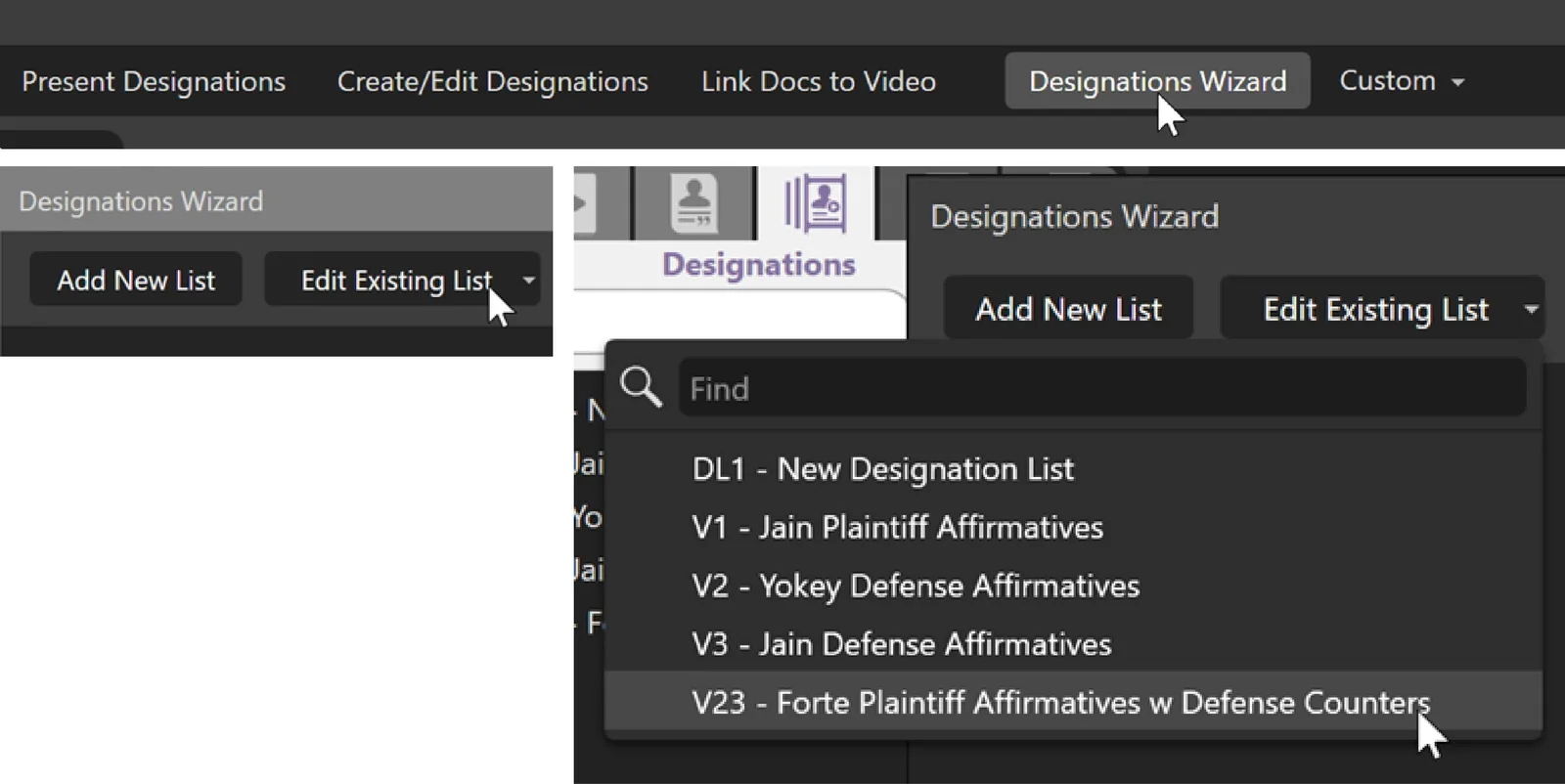
Select Designation Wizard on the Workflow Ribbon.
Then choose Edit Existing List and select the list you want from the dropdown menu.
Alternatively,
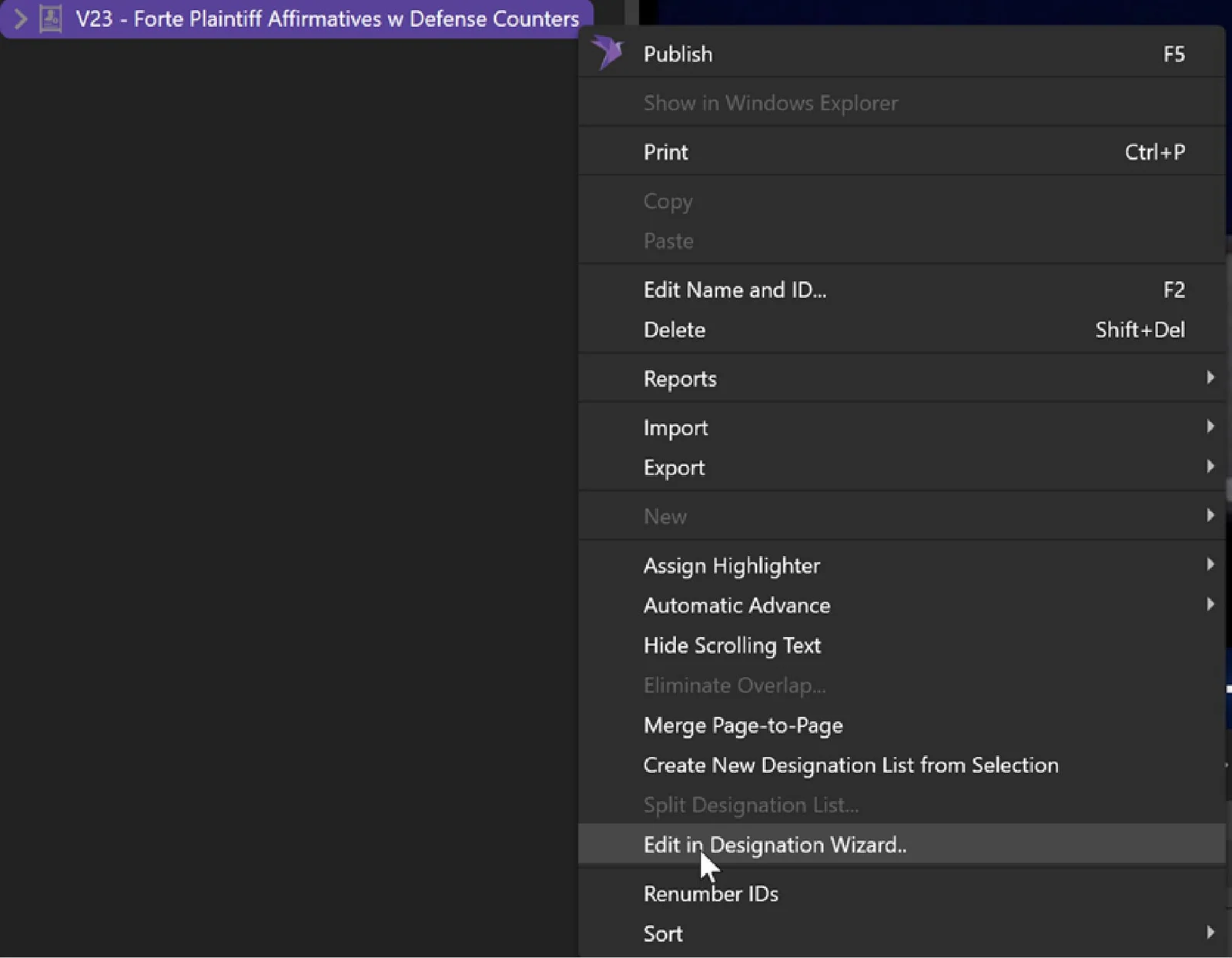
Right-click on your list and select Edit in Designation Wizard. Both will give you the Wizard with your list in it.
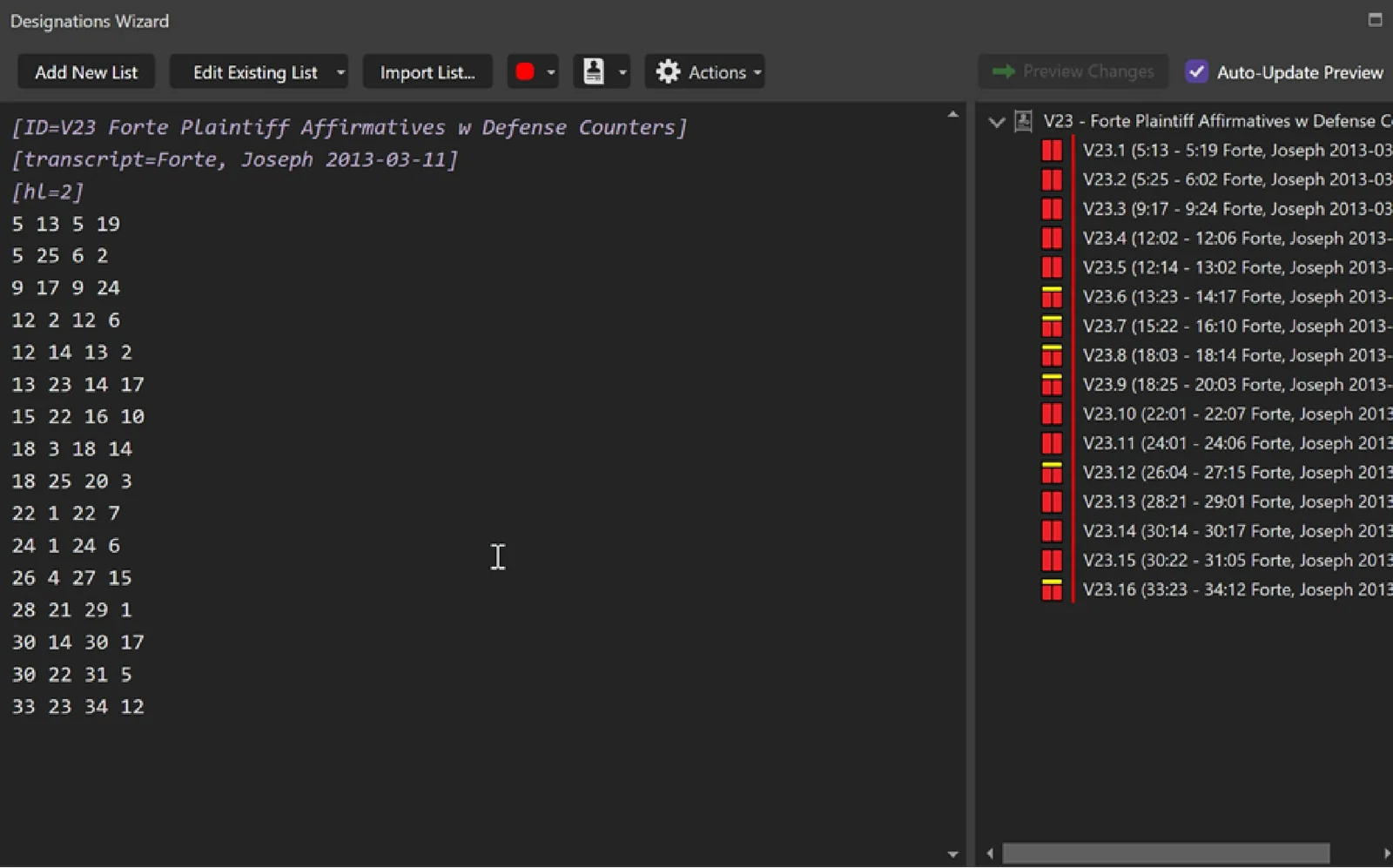
You can change colors or the transcript, add designations, or make any other change. You can even change the ID and Name on a list, but be careful: saving overwrites the list that has the ID you selected.
To add counter-designations to an existing list: First, click in the pane underneath the existing designations and then click on the highlighter color button to select a counter color.
The Wizard inserts a highlighter code such as [hl=3] and the color changes accordingly.
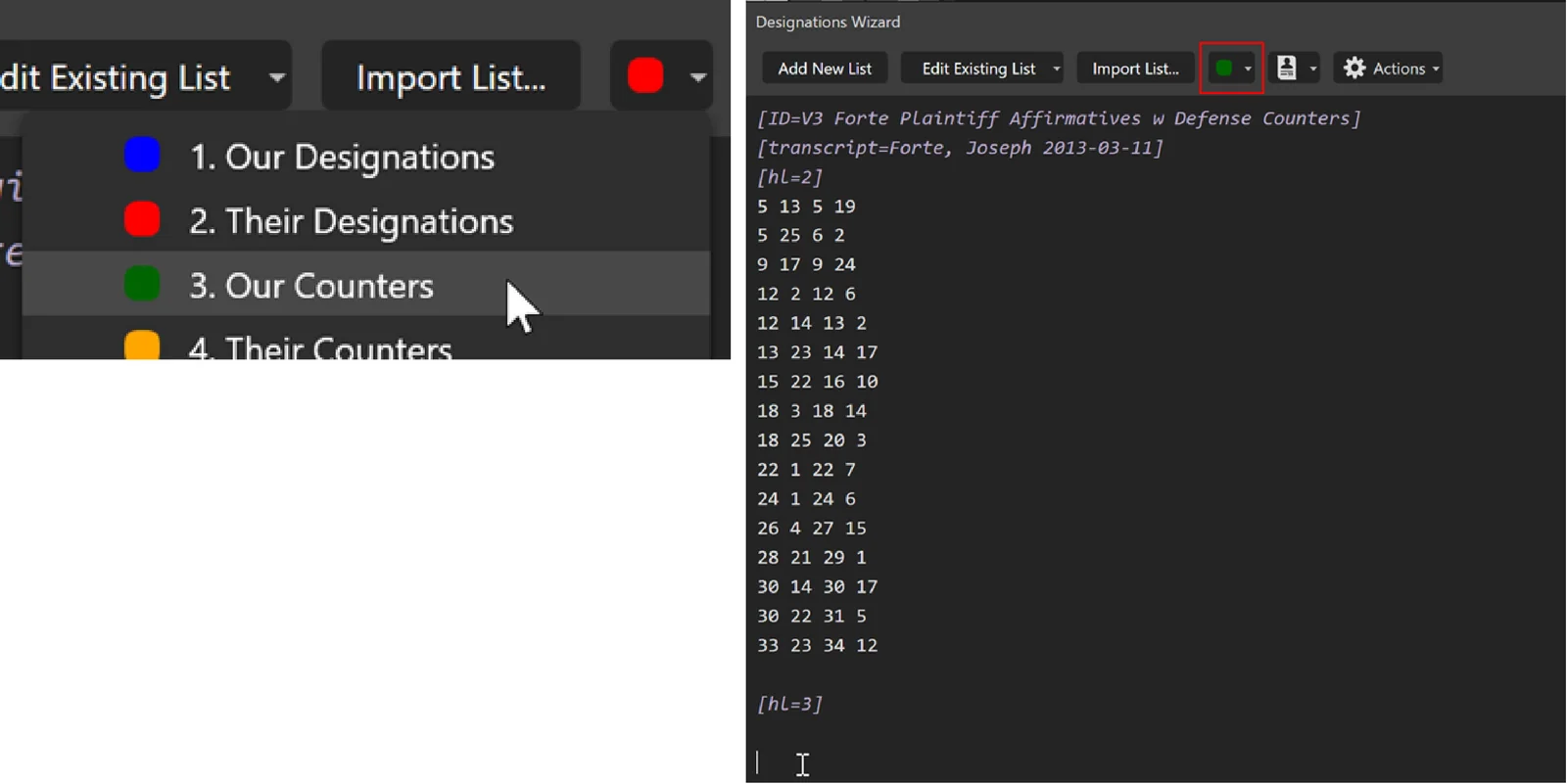
Paste the counters below [hl=3]. The preview shows them added to the bottom of the list.
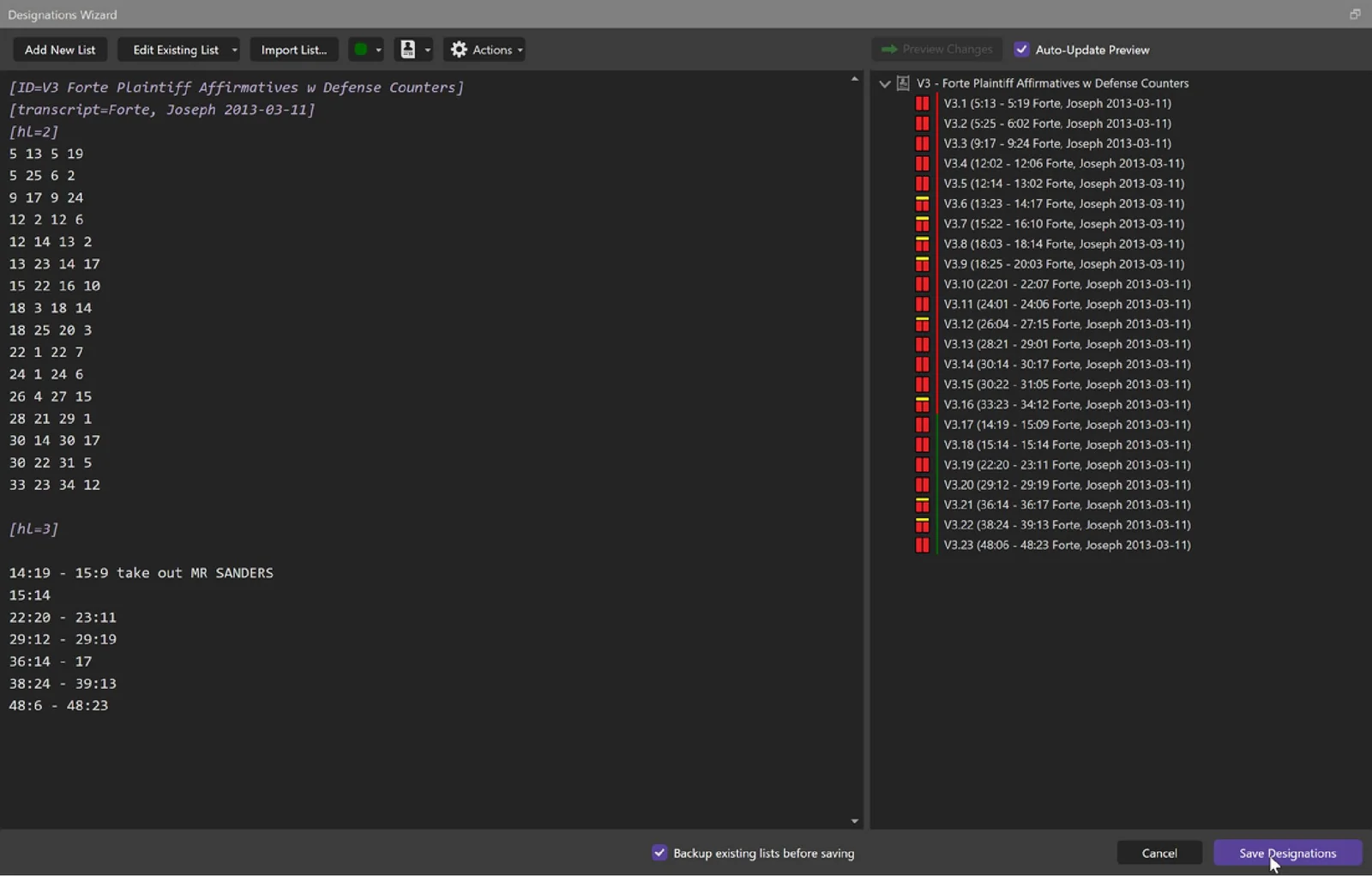
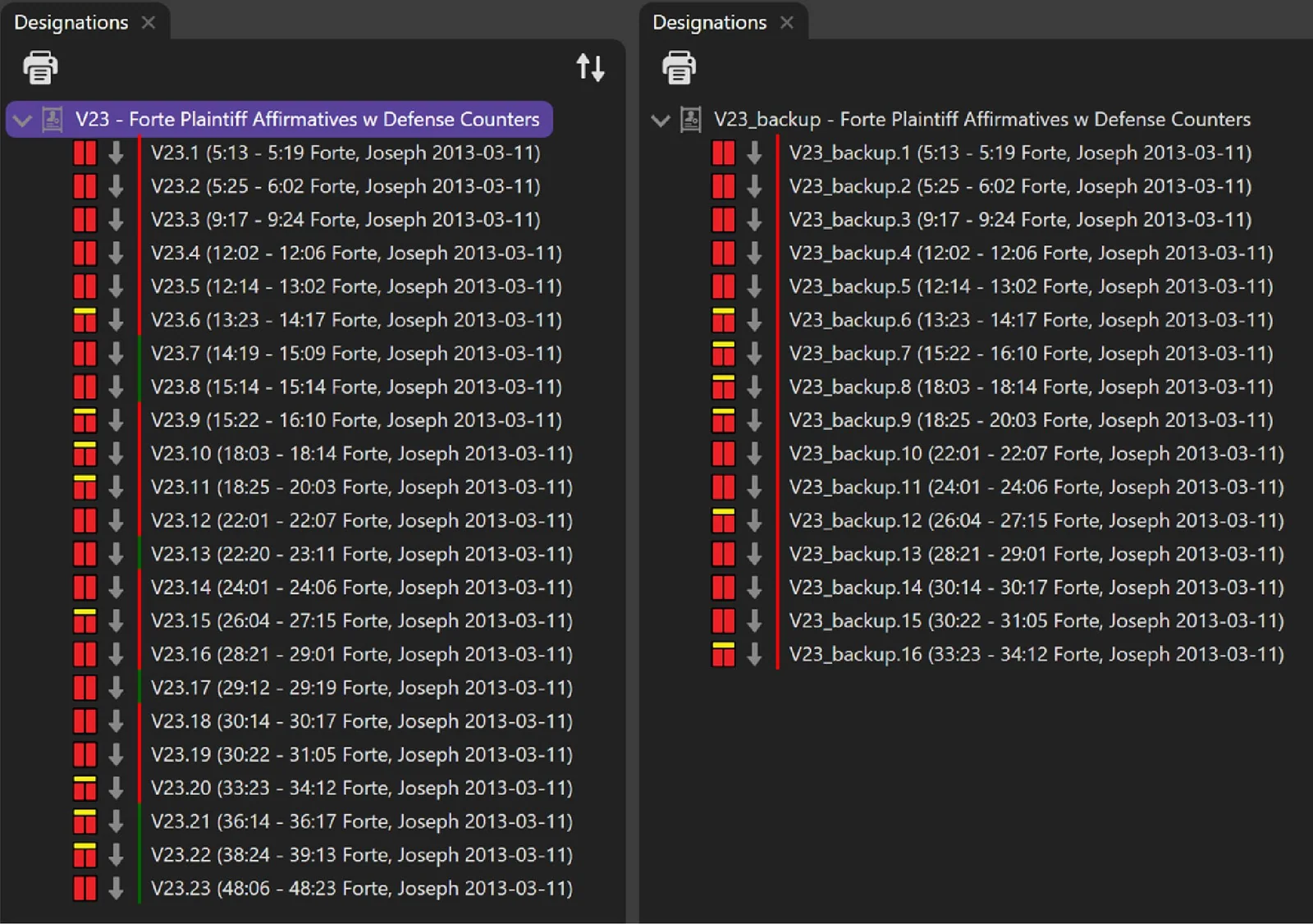
If you want to save a copy of the existing list without changes, check the Backup existing lists option.
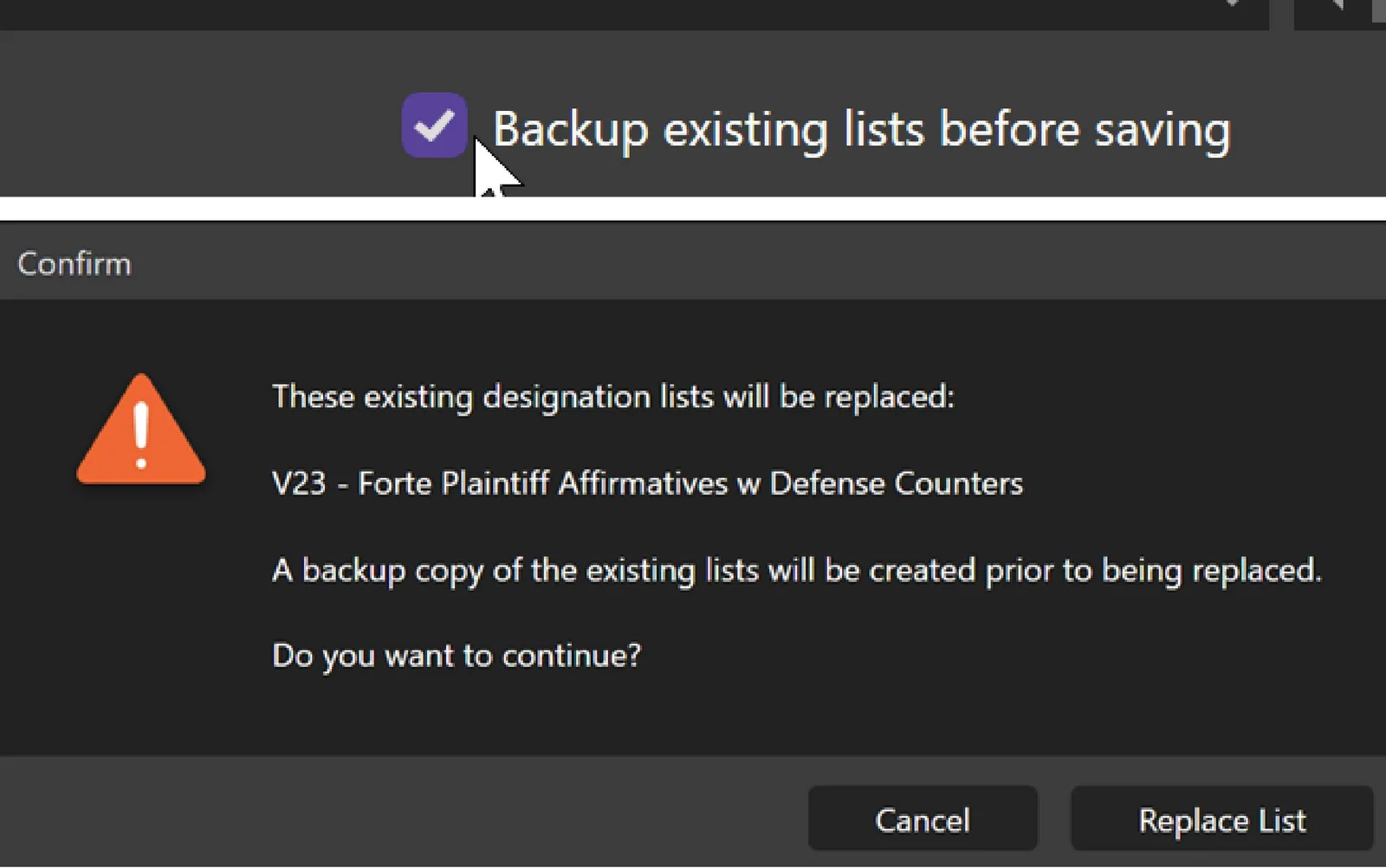
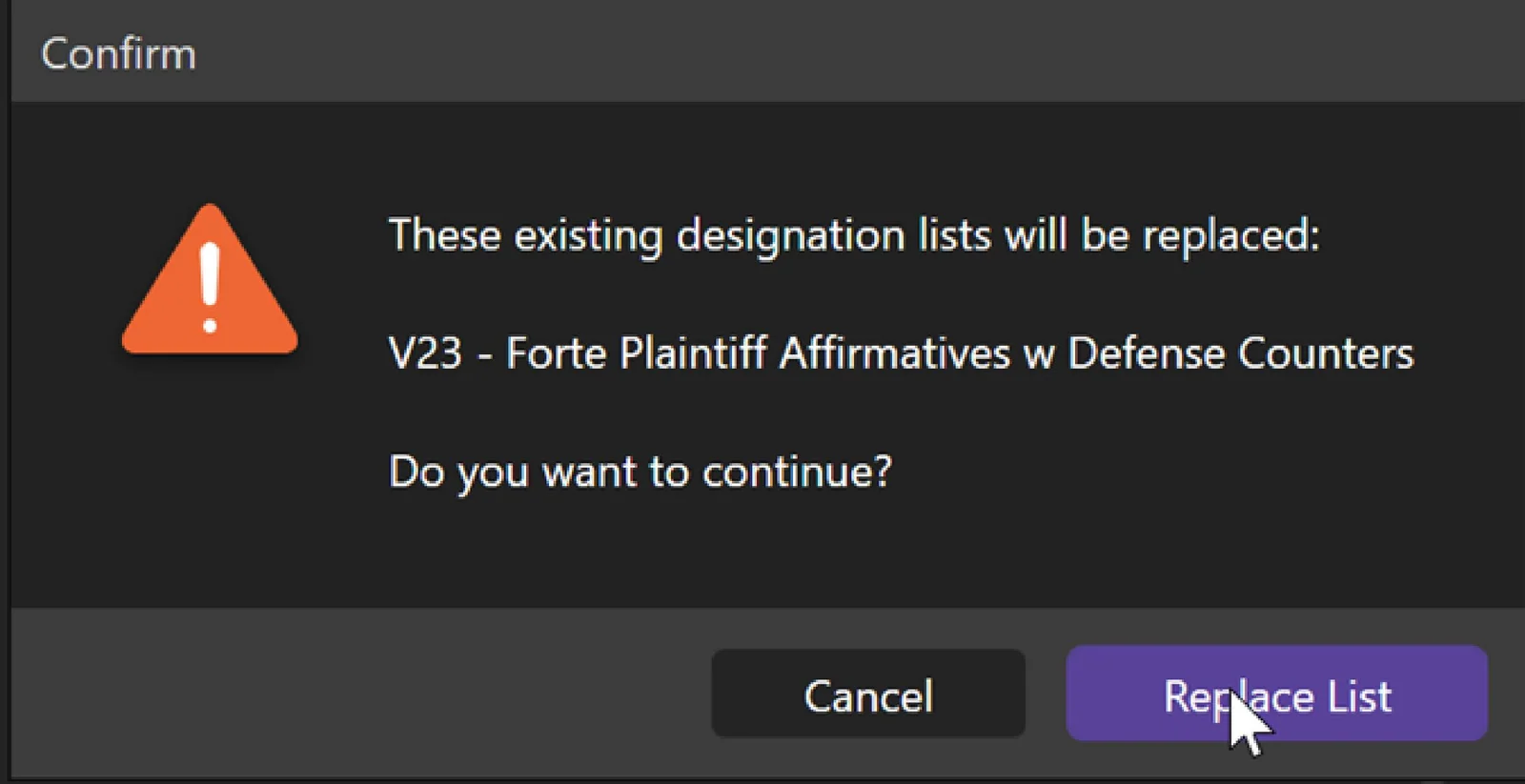
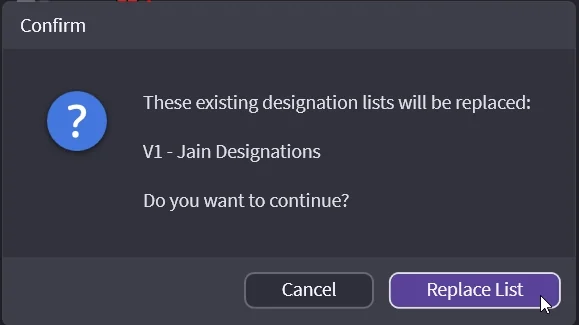
If you don’t want a backup, click Save Designations. OnCue warns you before replacing the list.
The image below shows the updated list (sorted and renumbered) beside the backup.
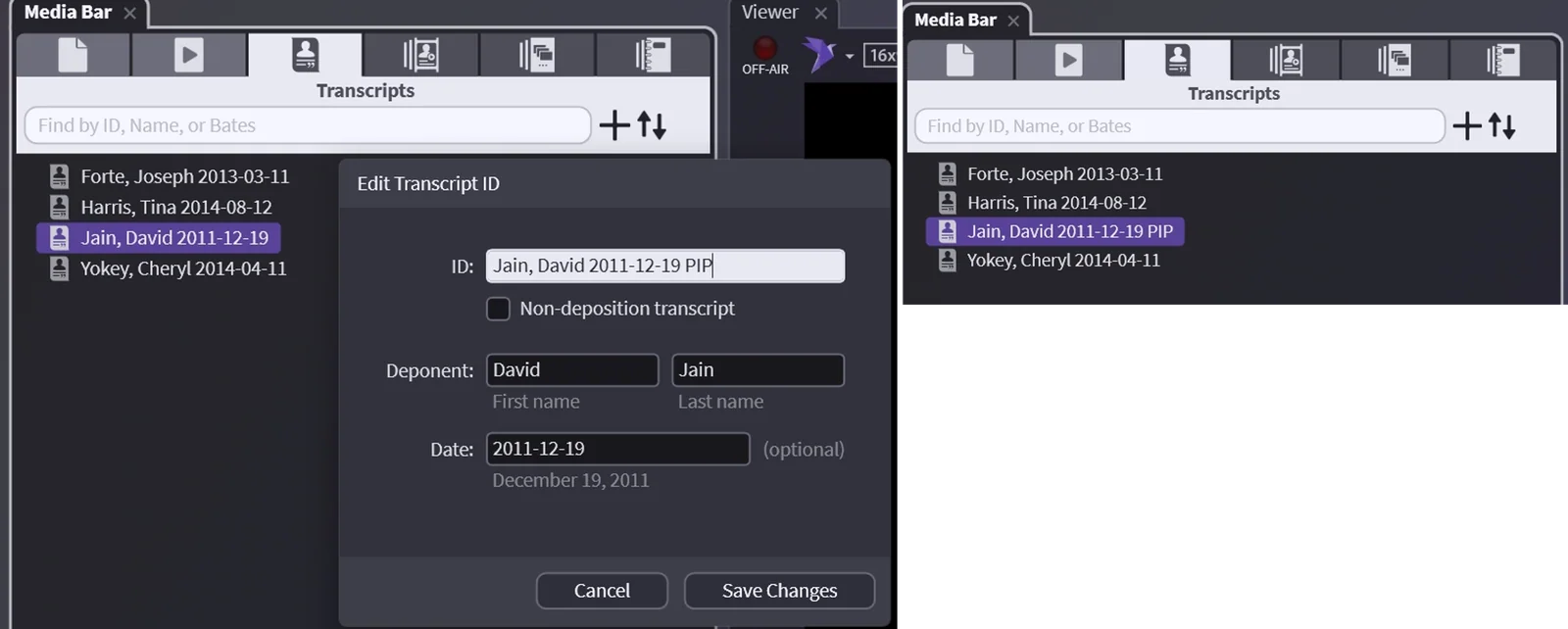
Change Transcript in Designation Wizard
Rename your old transcript in the Transcripts tab. In this example, the transcript (sync file) is Picture in Picture. Select the transcript and press F2 to rename it.
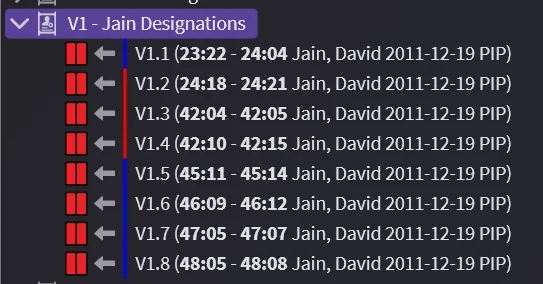
The list you want to change will now show the name change.
Open the existing list in the designation wizard following the instructions above.
Add the new transcript in the Wizard. If you have already added it, skip this step.
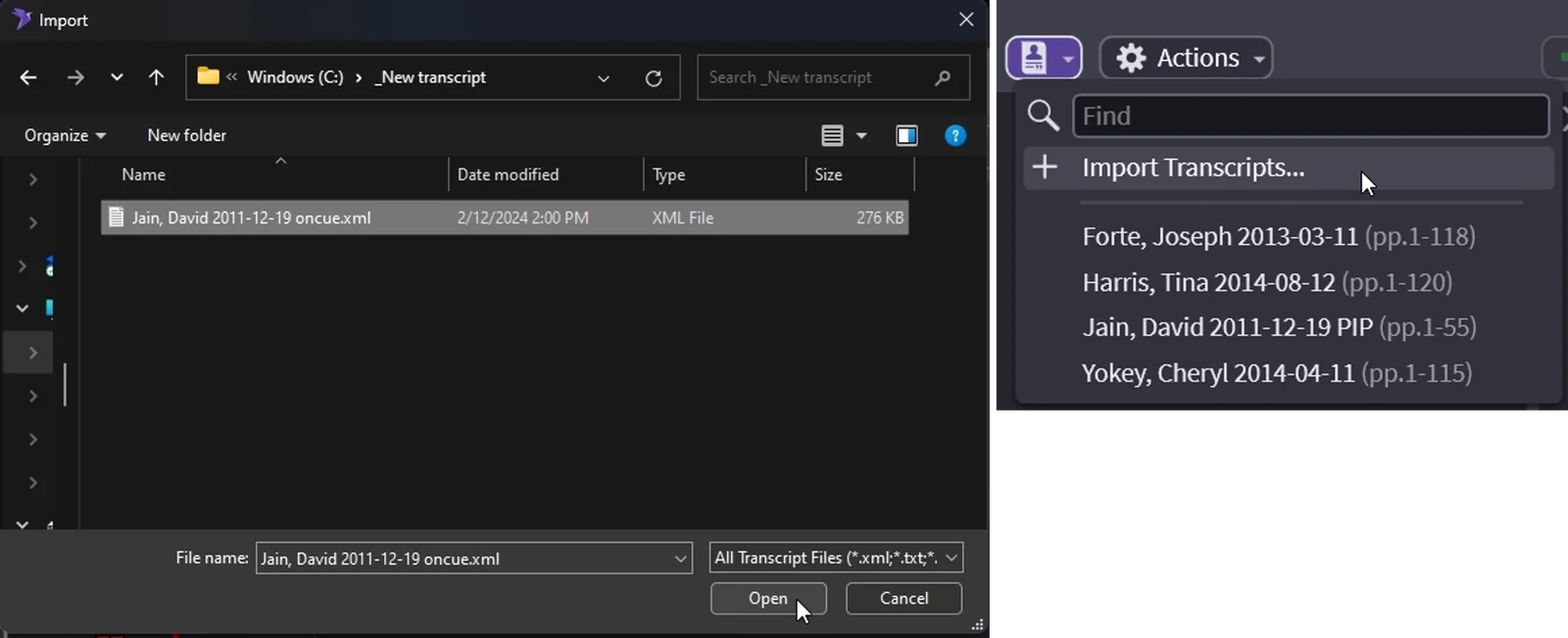
Click inside the Wizard above your designations, so you see the cursor. Then click on the transcript button to select the transcript you want to use.
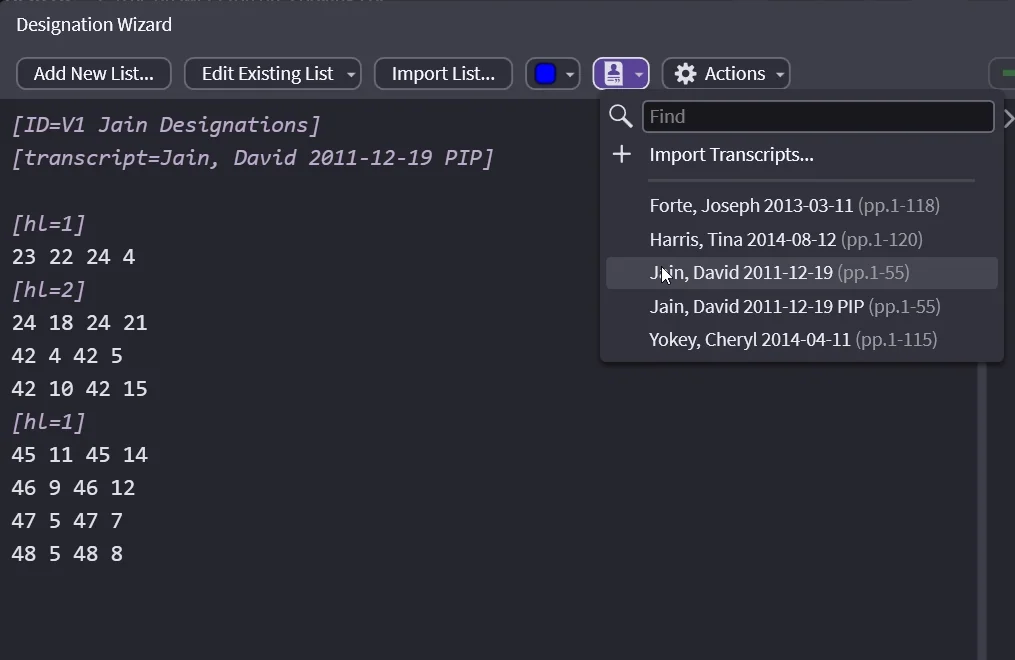
Both the old and new transcripts appear in the Wizard. Delete the old transcript’s entry.
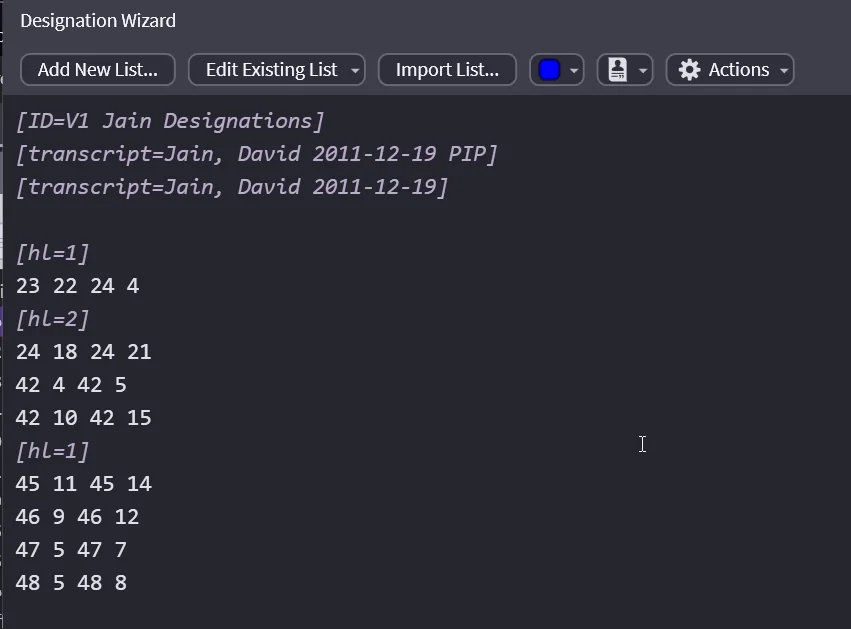
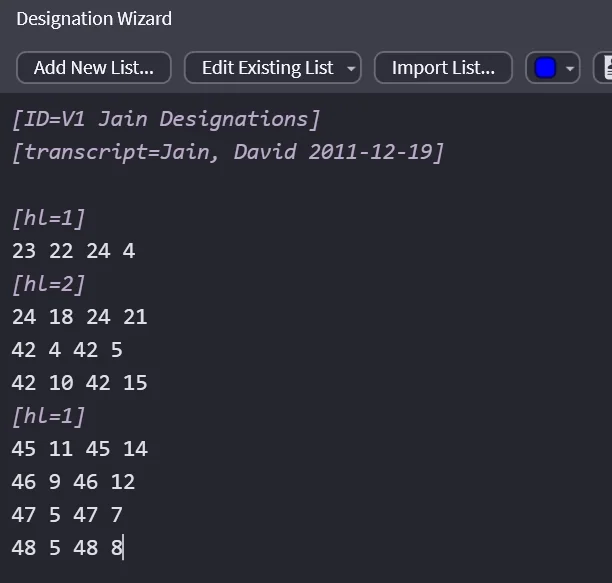
Click Save Designations, then Replace List.
Edit Tuned Designations in the Wizard
If you receive a revised list after tuning, you can update it without losing your tuning work.
- Open your existing list in the Designation Wizard.
- Highlight the designations in the Wizard.
- Paste your new designations over the old designations.
Important: If you delete designations, their tuning and text edits are deleted with them. You must paste over existing to keep tuning and text edits.
wizard, create designations, import designations, page and line ranges
Still stuck? Email support@oncuetech.com.