



presentation/oncue-hotkeysPresentationpresentation10hotkeys, keyboard shortcuts, shortcuts, key commands2026-04-07/articles/hotkeys
OnCue Hotkeys
Updated April 7, 2026
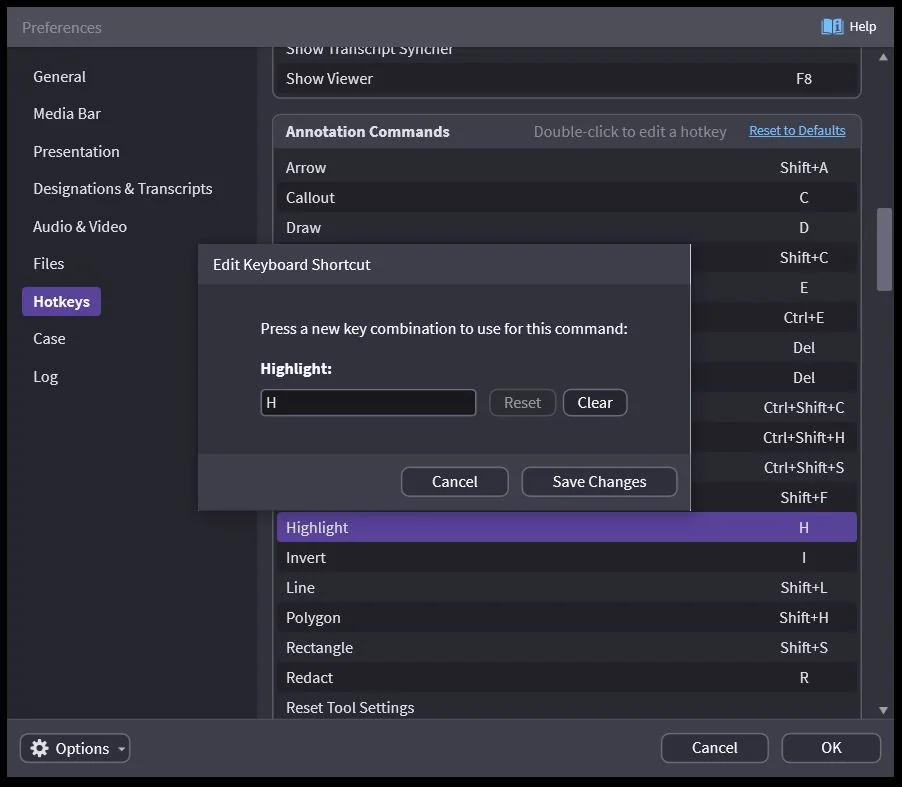
You can change any hotkey in Edit > Preferences > Hotkeys. Double-click on the command you would like to change and assign it a new hotkey. Under Options in the lower left corner, click Reset to Defaults to restore all hotkeys to their default values.
A printable Hotkey Reference Guide that includes your changes is on the Help menu.
Note: All hotkeys below are program defaults. Commands listed without a key have no default; you can assign one.
General Commands
- Add Bates Numbers
- Clear Recent Cases
- Clear Viewer: Esc
- Collapse Tab: Ctrl + F9
- Delete: Shift + Del (only deletes from the database)
- Deskew Pages
- Edit Highlighters
- Export Images
- Export Media
- Export Video
- Find in Media Bar: Ctrl + F
- Hide Designation Dashboard
- Mark as Admitted
- Mark Full Document as Admitted
- New Case: Ctrl + N
- Open Case: Ctrl + O
- Open Last Case: Ctrl + L
- Optimize Media
- Print: Ctrl + P
- Reload Case: F9
- Remove Bates Numbers
- Rename: F2
- Renumber IDs
- Reset Settings
- Show All Designations in New Tab: Alt + 1
- Show All Media Scripts in New Tab: Alt + 2
- Show All Notebooks in New Tab: Alt + 3
- Show All Timelines in New Tab
- Show Database Tools
- Show Designation Dashboard: F6
- Show Designation Editor: F7
- Show Designation Wizard
- Show Log: F12
- Show Preferences
- Show Properties: F4
- Show Selected Designation in New Tab: Shift + Alt + 1
- Show Selected Media Script in New Tab: Shift + Alt + 2
- Show Selected Notebook in New Tab: Shift + Alt + 3
- Show Selected Timeline in New Tab
- Show Transcript Sync Utility
- Show Viewer: F8
- Unmark as Admitted
Annotation Commands
- Arrow: Shift + A
- Callout: C
- Draw: D
- Ellipse: Shift + C
- Erase All: E
- Erase Last Annotation: Ctrl + E
- Erase Last Annotation (Alternate): Del
- Erase Selected: Del
- Filled Ellipse: Ctrl + Shift + C
- Filled Polygon: Ctrl + Shift + H
- Filled Rectangle: Ctrl + Shift + S
- Freehand: Shift + F
- Highlight: H
- Invert: I
- Line: Shift + L
- Polygon: Shift + H
- Rectangle: Shift + S
- Redact: R
- Reset Tool Settings
- Save Annotations: Ctrl + S
- Save Annotations (Alternate): M
- Set Color #0: Shift + )
- Set Color #1: Shift + !
- Set Color #2: Shift + @
- Set Color #3: Shift + #
- Set Color #4: Shift + $
- Set Color #5: Shift + %
- Set Color #6: Shift + ^
- Set Color #7: Shift + &
- Set Color #8: Shift + *
- Set Color #9: Shift + (
- Text: Shift + T
- Update Annotations: Ctrl + U
Designation Commands
- Add Selection: Ctrl + S
- Clear Linked Media: Ctrl + F (returns video to full screen and hides a document in Presentation)
- Hide/Show Scrolling Text: T (in Presentation and On-Air)
- Hide/Show Video: Shift + V
- Preview Tune Position: Ctrl + Space
- Save Tune Position: Enter
- Save Tune Point and Select Next: Ctrl + Enter
- Toggle Link Split-screen: Ctrl + Shift + F
Media Commands
- Add Document to Target Notebook: Alt + B
- Add to Target Notebook: Ctrl + B
- Crop Zoom: Shift + Z
- Full Height: F
- Full Width: W
- Full Width at Bottom of Page: Shift + W
- Nudge Clockwise: Shift + ]
- Nudge Counterclockwise: Shift + [
- Pan: S
- Preload Media: Alt + X (loads media into memory so X + ID displays it instantly; works On-Air, Off-Air, in the Viewer, and in Presentation)
- Remap Media Files
- Reset Zoom
- Rotate Clockwise: ]
- Rotate Counterclockwise: [
- Scroll Text Downward: ↓
- Scroll Text Upward: ↑
- Scroll to Bottom: PgDn
- Scroll to Top: PgUp
- Select: A
- Select Next Pane: Tab
- Select Next Pane (Alternate): =
- Select Previous Pane: Shift + Tab
- Show First: Home
- Show Last: End
- Show Media: X
- Show Next: →
- Show Next (Alternate): .
- Show Next ID: Shift + .
- Show Next in All Panes: Ctrl + →
- Show Next Saved Annotation: ↓
- Show Next Scene: Alt + →
- Show Previous: ←
- Show Previous (Alternate): ,
- Show Previous ID: Shift + Comma
- Show Previous in All Panes: Ctrl + ←
- Show Previous Saved Annotation: ↑
- Show Previous Scene: Alt + ←
- Split Horizontal: \
- Split Horizontal with Next Page: Ctrl + \
- Split Vertical: /
- Split Vertical with Next Page: Ctrl + /
- Swap Split Panes: Alt + /
- Swap Split Panes (Alternate): Alt + \
- Unsplit
- Zoom: Z
Playback Commands
- Cue Step Backward: Ctrl + PgUp
- Cue Step Forward: Ctrl + PgDn
- Fast Forward
- Fast Reverse
- Go to Beginning
- Go to End
- Jump to Time: Ctrl + J
- Pause: Space
- Pause (Alternate): V
- Play: Space
- Play (Alternate): V
- Save Clip: Ctrl + S
- Slow Forward
- Slow Reverse
- Step Backward a Few Frames: Ctrl + ←
- Step Backward a Few Seconds: Alt + ←
- Step Backward by One Frame: ←
- Step Backward by One Frame (Alternate): Shift + ←
- Step Forward a Few Frames: Ctrl + →
- Step Forward a Few Seconds: Alt + →
- Step Forward by One Frame: →
- Step Forward by One Frame (Alternate): Shift + →
- Update Clip: Ctrl + U
Presentation Commands
- Blank Active Pane: B
- Blank Presentation
- Blank Video: Shift + V
- Copy Presentation as Image: Ctrl + Alt + C
- Go Back in Presentation History: Ctrl + Shift + Comma
- Go Forward in Presentation History: Ctrl + Shift + .
- Publish: F5
- Publish as Text Only
- Publish On-Air: Shift + F5
- Reverse Publish: Alt + F5
- Save Presentation as Image
- Set Target Notebook
- Start Presenting: Ctrl + F5
- Stop Presenting: Esc
- Toggle On-Air: Alt + M
- Toggle Status: Shift + B
- Toggle Toolbar: Ctrl + T
- Unsplit and Publish: Ctrl + Shift + F5
hotkeys, keyboard shortcuts, shortcuts, key commands
Still stuck? Email support@oncuetech.com.