



Licensing and Multiple Computers
Updated October 20, 2026
How Licenses Work
Your license is not tied to a specific computer. Each license can be active on two computers at a time. You can deactivate one or both at any time to unlock on a new machine.
Installing on Another Computer
To put OnCue on a new computer when your license is already on two, deactivate it on one of them first (see Deactivating a License below), then activate it on the new computer.
If OnCue shows No more activations available during activation, click Manage License on the activation screen and follow the instructions under Deactivating a License.
Deactivating a License
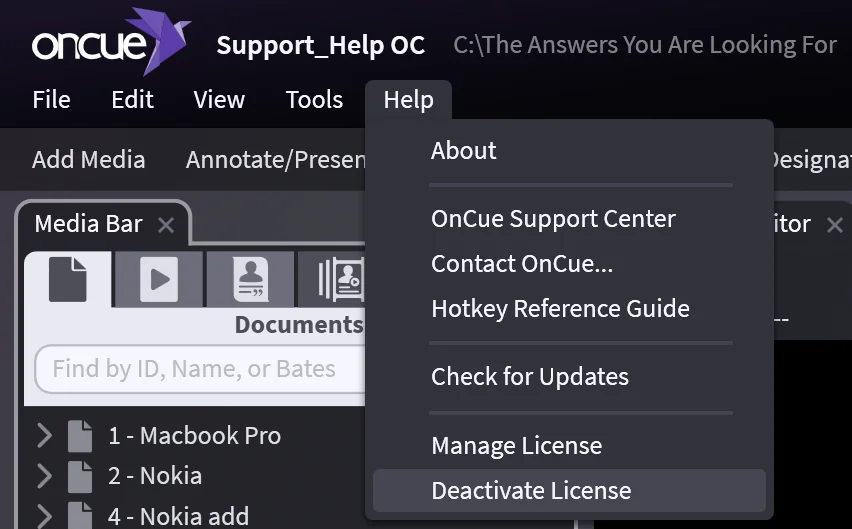
To deactivate the license on this computer, use the Help menu. This makes the license available to put on any other machine.
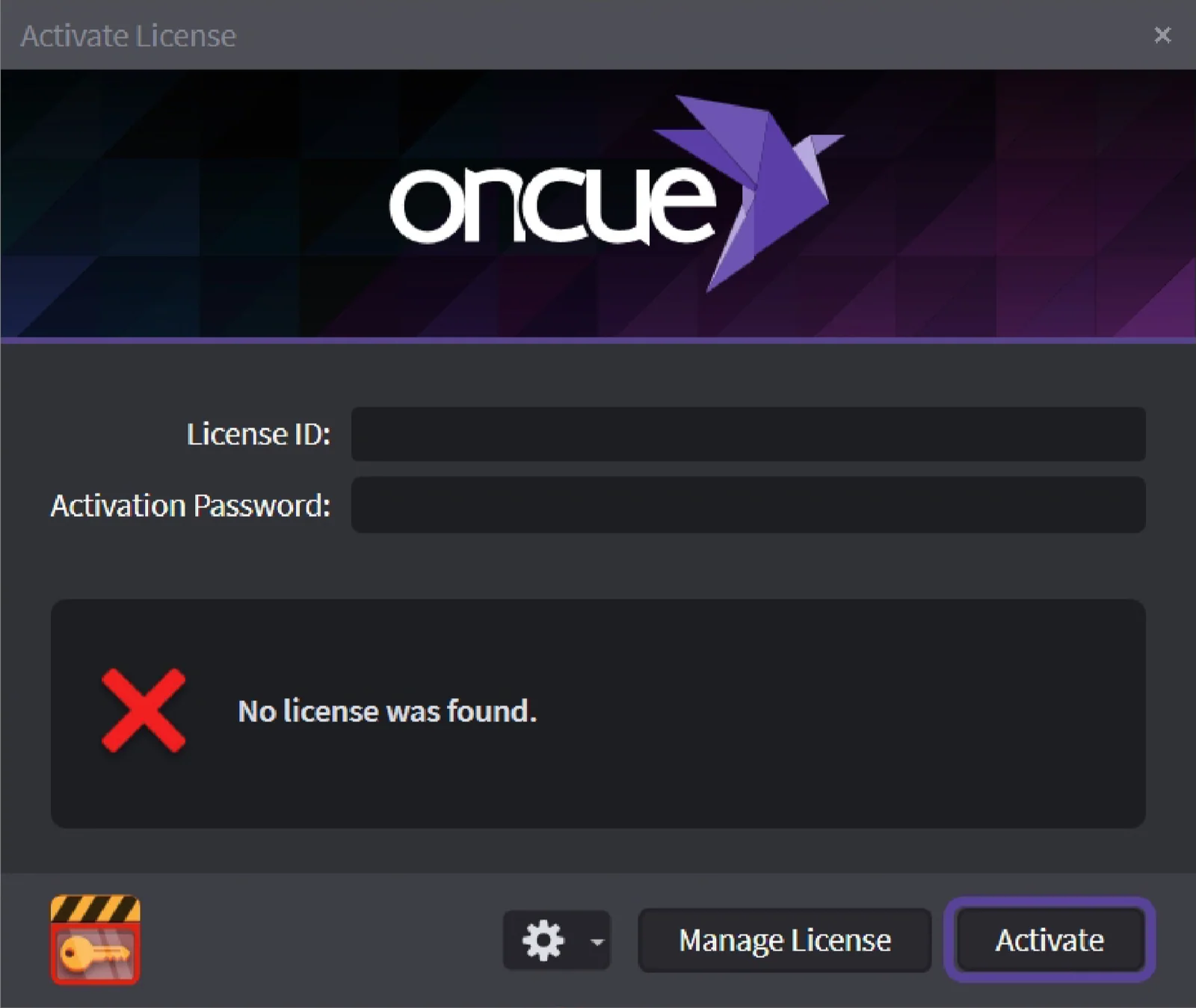
Lost access to both computers with activated licenses? Click Manage License at the bottom of the activation screen, then Manage Installations, and deactivate one of the installations.
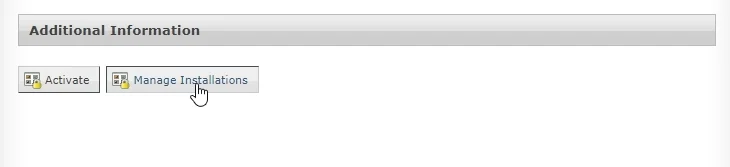
Click the X to deactivate that installation.

Note: Deactivating a license does not cancel it. See Canceling Your Subscription.
Managing Your License
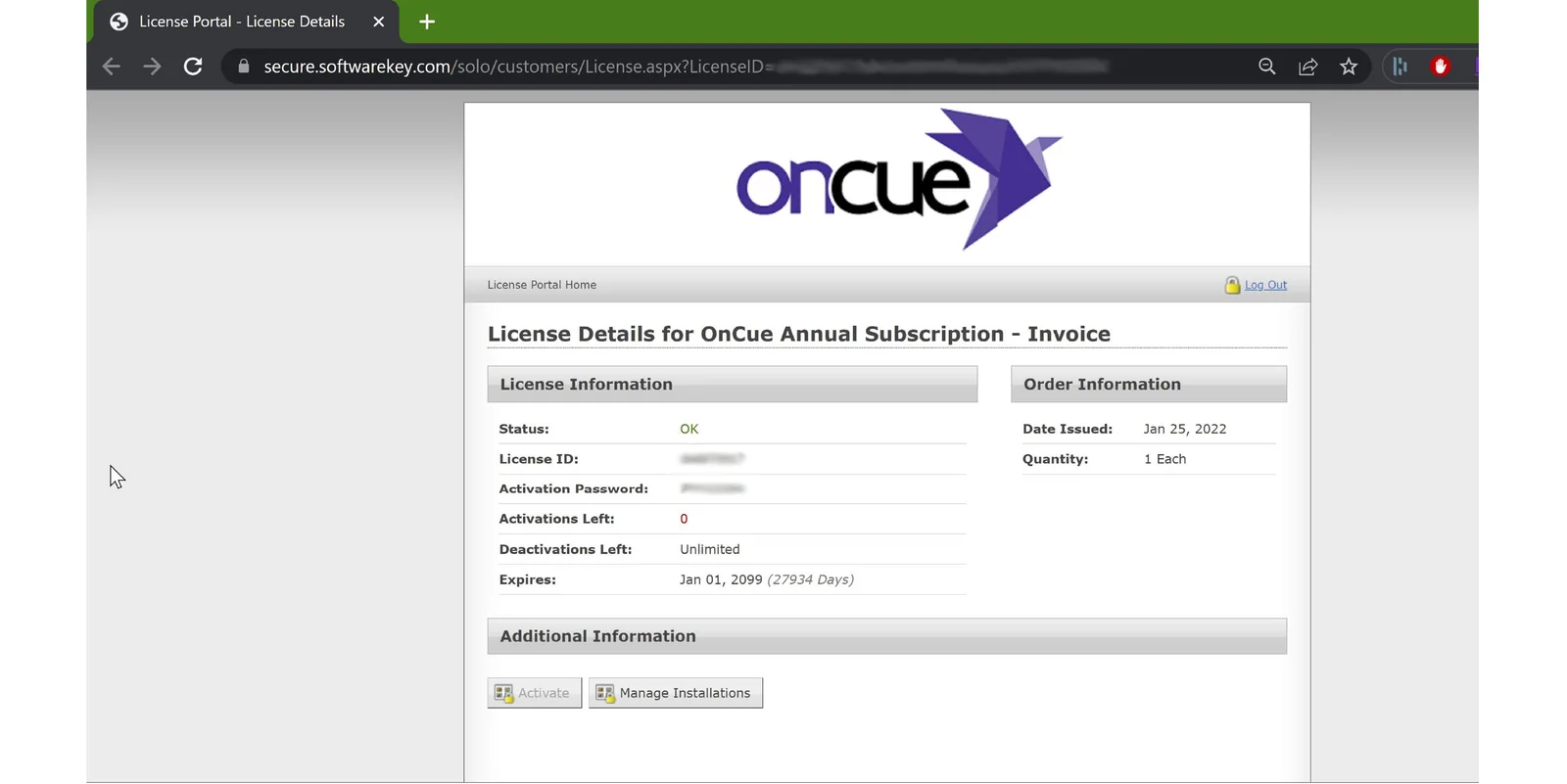
You can access your license portal at this link or in OnCue by going to Help > Manage Licenses… to view and manage your subscription.
To make things as easy as possible, the link in OnCue automatically signs you in.
Multiple License Management
You can manage other licenses in your firm.
You will need your Customer ID and Password. These are different from your License ID and Activation Password. Click Licenses & Activations to see all of your firm’s licenses.
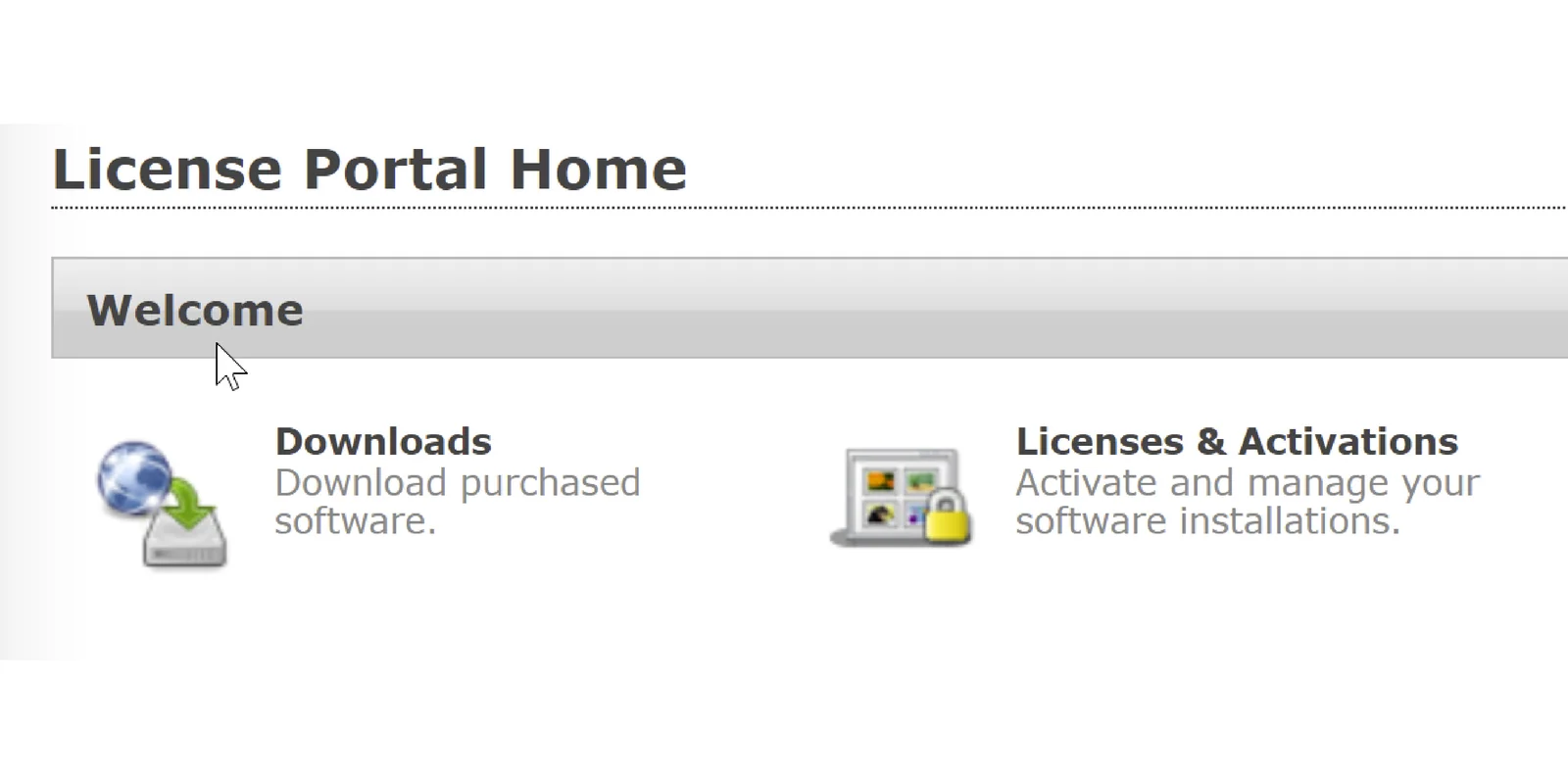
You can then click on any license to activate or deactivate it, or see how many activations remain.

To deactivate a single license, see Deactivating a License above.
Emergency Activation (Break Glass)
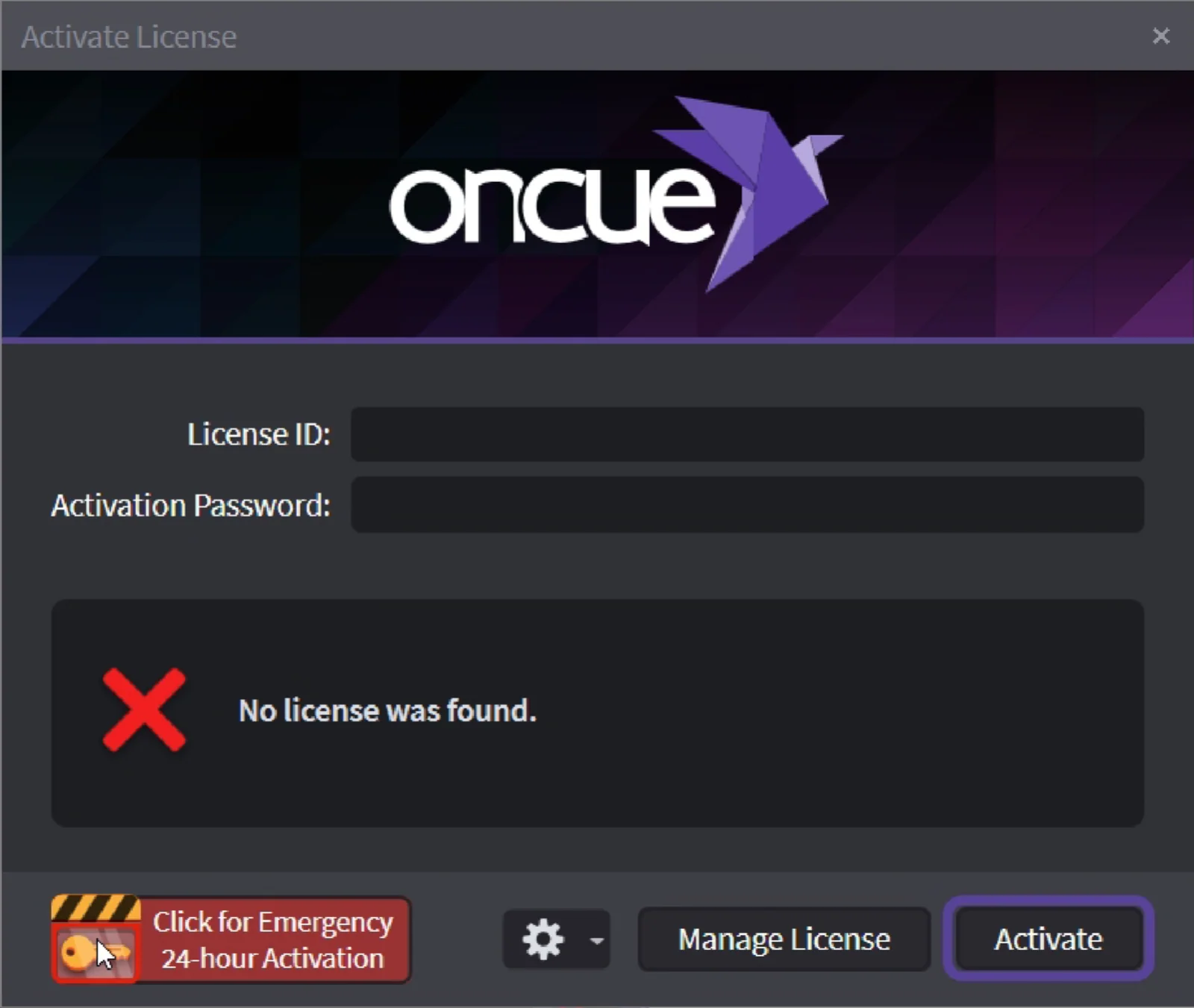
Having a license issue but there is no internet in the courtroom? Emergency Activation immediately gives you 24 hours of use regardless of internet status. Activate your license online before those 24 hours are up, and your Emergency Activation will reset for next time. Be aware that you may only use the Emergency Activation feature one time before a reset is required.
Note: You do not need to be online to use the program, but OnCue will try to verify your license. If you are offline and OnCue asks you to activate, use Emergency Activation (the license must have been activated before).
Canceling Your Subscription
Need some time off from paying for OnCue? While you cannot suspend or pause a subscription like you would with a streaming service, you can cancel and resubscribe when needed. You will not lose any data, because your case content stays on your computer.
If you cancel and later resubscribe, deactivate the old license and activate the new one the same way you move a license between computers (see Deactivating a License above).
To Cancel
- The bottom of your OnCue email receipt has a link for changing your billing information or canceling your subscription.
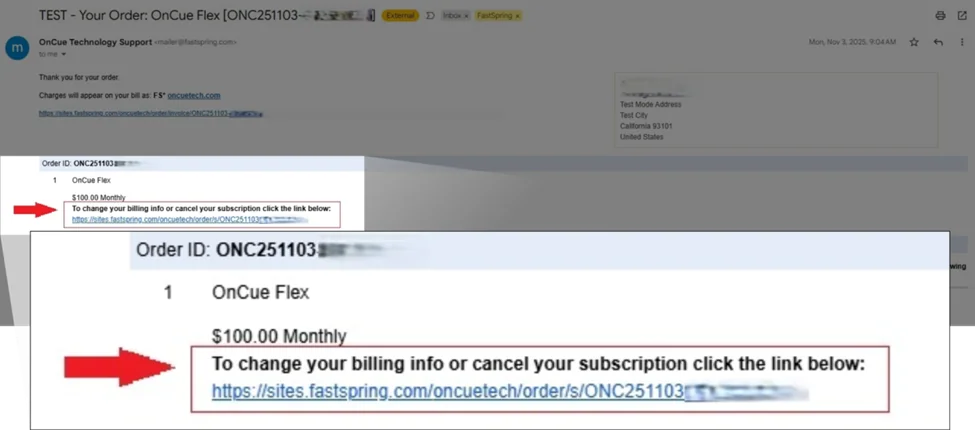
- If you can’t locate your email receipt, contact us at orders@oncuetech.com for assistance. Please be prepared to provide your License ID or the email address you used when purchasing so we can find your original order.
license, subscription, account, activations, install, second computer, laptop, change license, deactivate, move license, new computer, release activation, emergency activation, break glass, offline activation, no internet, cancel, cancel subscription, billing
Still stuck? Email support@oncuetech.com.