



Searching your Database
Updated January 3, 2025
OnCue narrows search results as you type and lets you filter them.
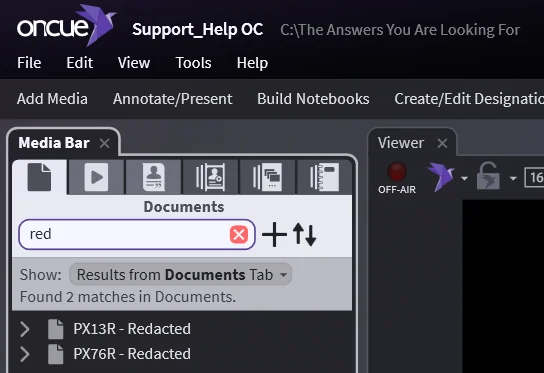
To show only exhibits named “Redacted,” type that word in the search field; results appear as you type.
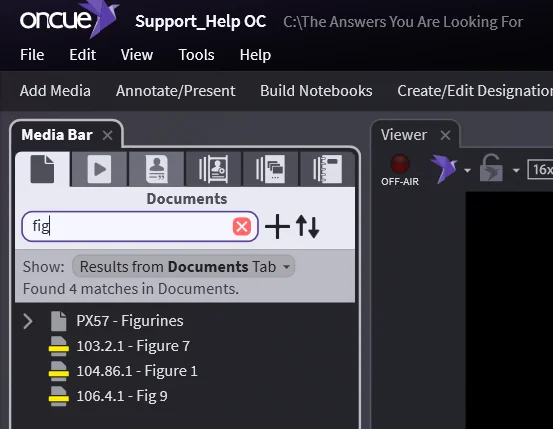
If you know you have given the name “Figure 7” to an annotation you’ve created but you can’t remember which exhibit it stemmed from, type “Fig”; the results narrow as you type.
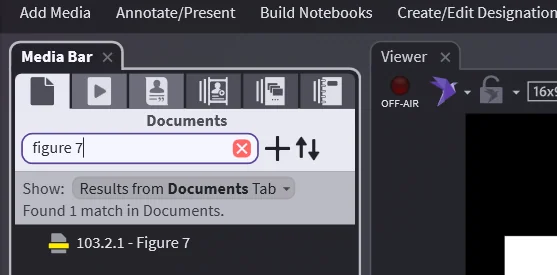
Or type the full name, “Figure 7.”
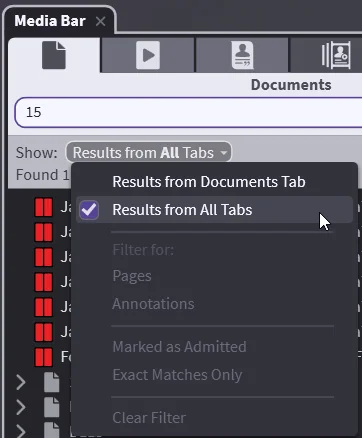
You can search the entire case by selecting Show Results from All Tabs in the dropdown. Results include any item that can be presented (except notebooks) whose ID, name, or Bates number matches the search.
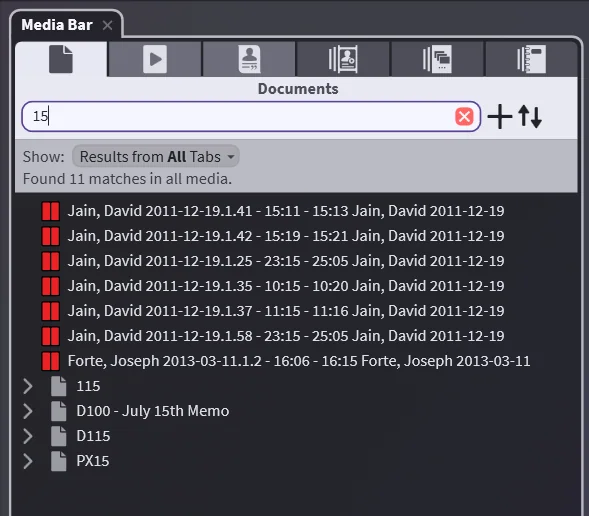
If the first result on the list is what you want, press Enter to close the search and select the top result.
Filtering
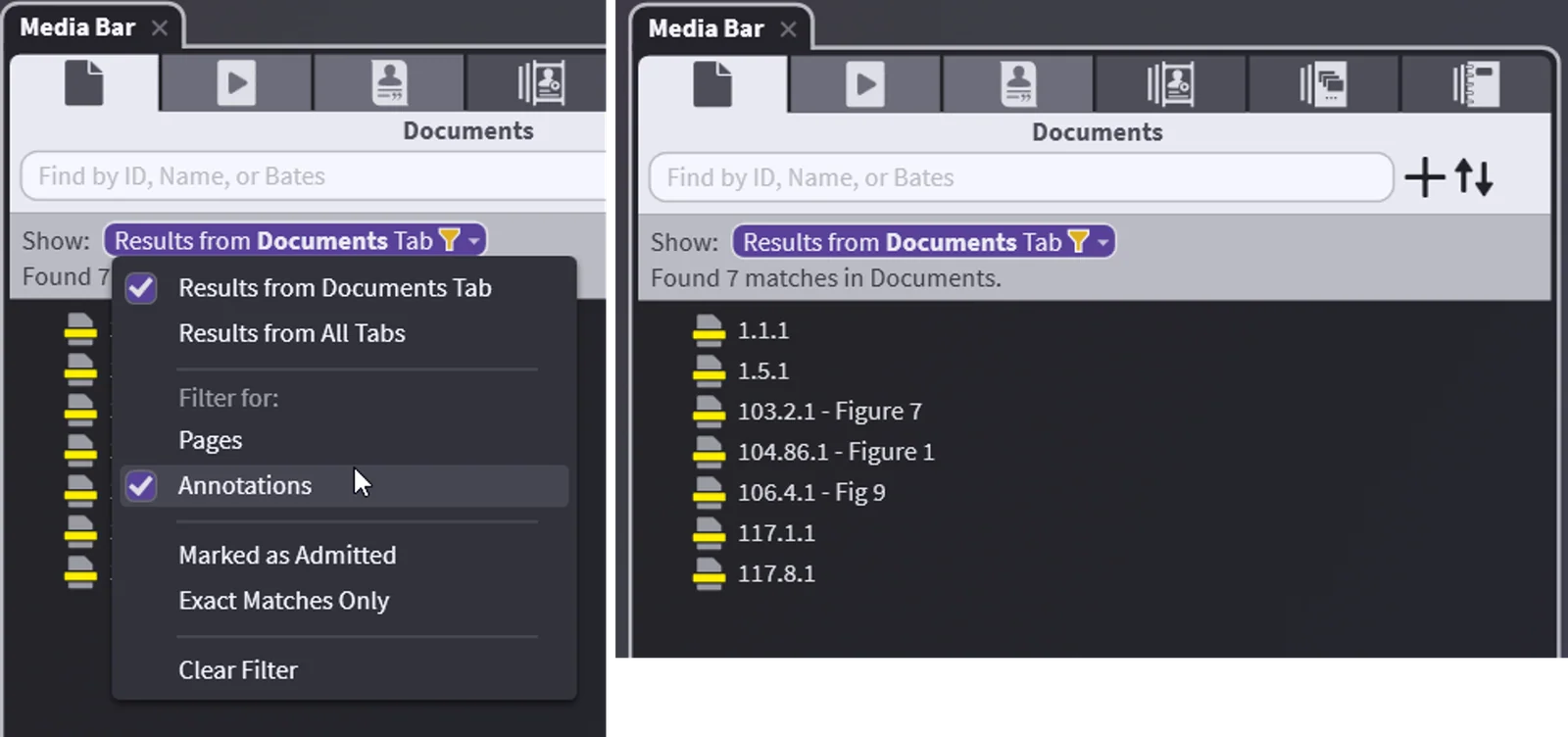
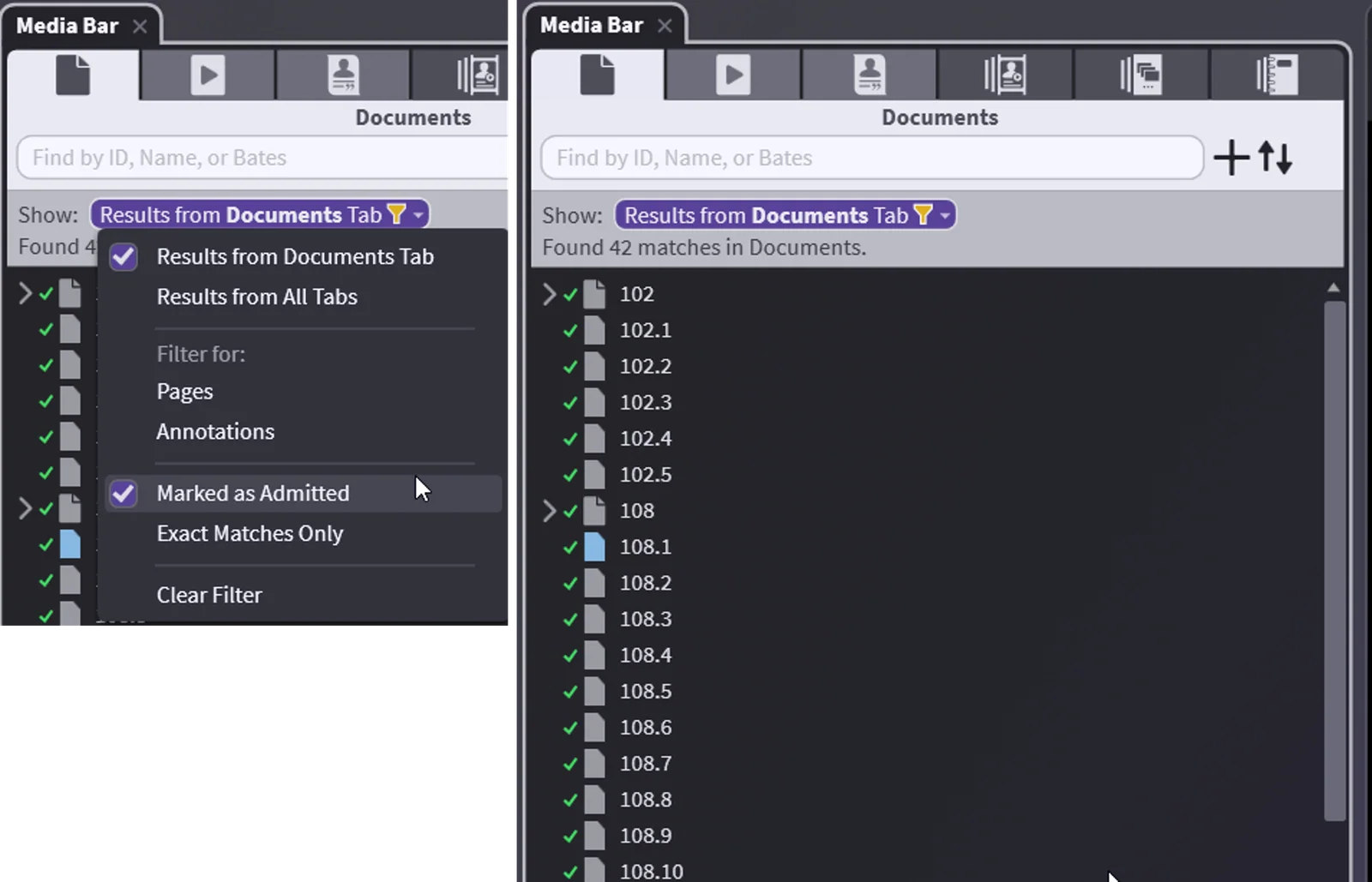
You can filter to show only annotations or only admitted exhibits, or require an exact match. Filters do not require you to type anything into the search field.
Annotations:
Admitted exhibits:
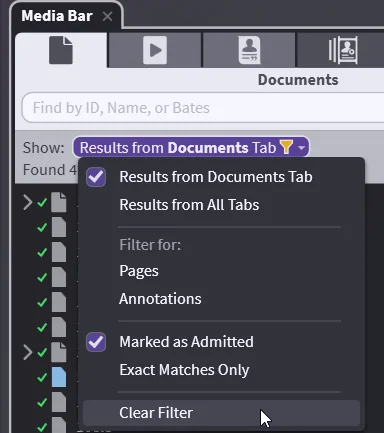
When you finish, don’t forget to clear the filter.
search, find, filter, reductive search, exact match, results from all tabs
Still stuck? Email support@oncuetech.com.