



Admitted Exhibits
Updated October 20, 2026
You can mark exhibits as admitted and see at a glance which exhibits are cleared to publish. You can even prevent something not admitted from being published.
Marking Exhibits
To mark an exhibit, right-click the document and select Mark as Admitted. To unmark it, right-click it again.

Publish Lock
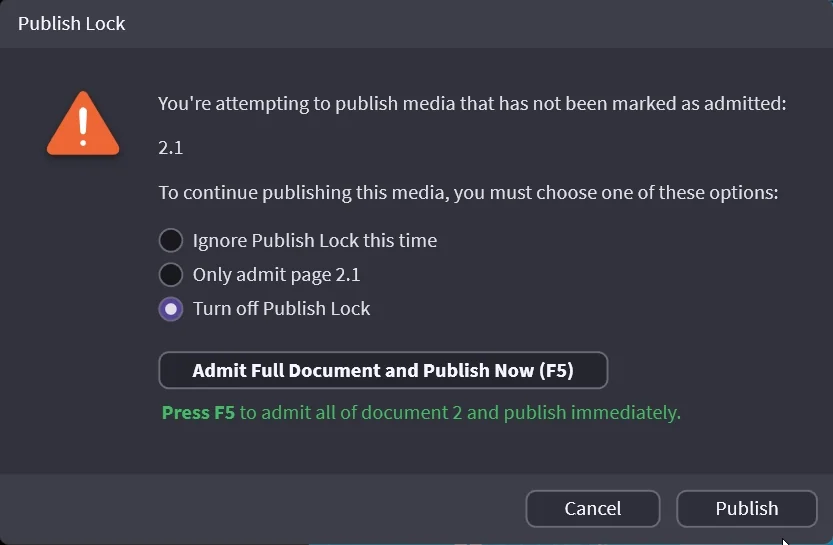
When Publish Lock is on, you cannot publish a document that has not been marked as admitted.
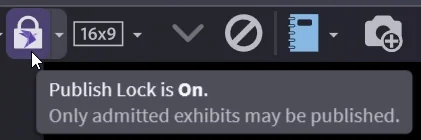
Here are your options:
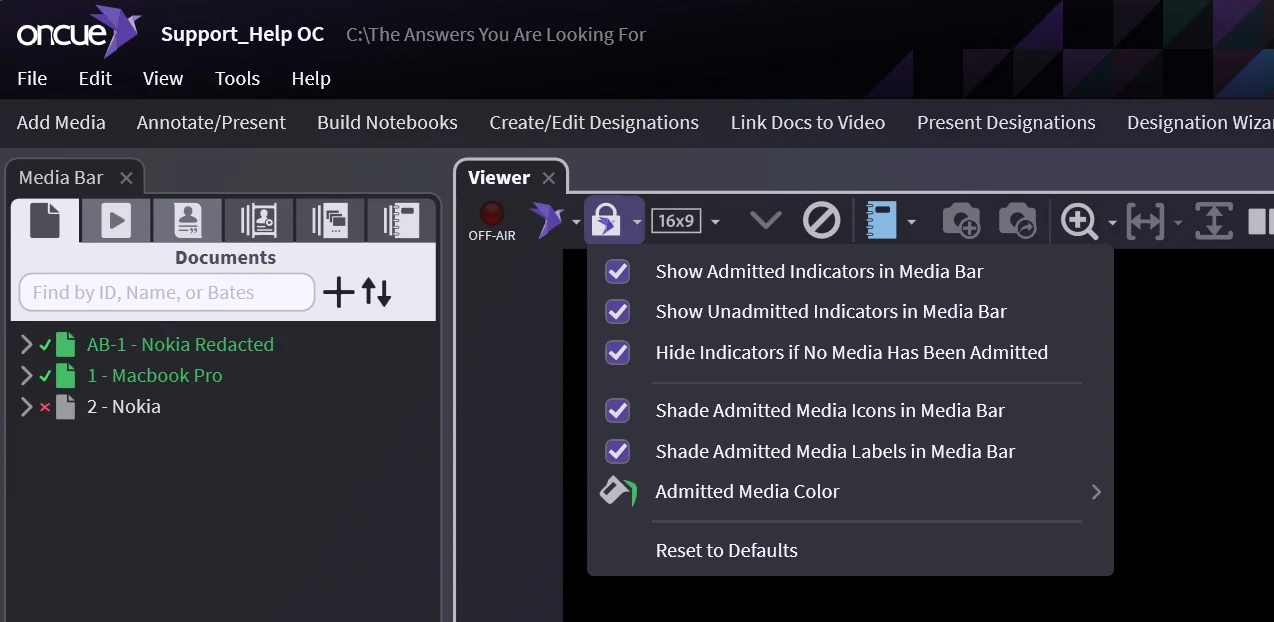
Show Admitted Indicators in the Media Bar
Adds a green check mark to admitted exhibits.

Shade Admitted Media Icons in Media Bar
This shades your icons.

Shade Admitted Media Labels in Media Bar
Shades the labels of admitted exhibits in the Media Bar.

Show Unadmitted Indicators in the Media Bar
This puts a red X on your exhibits that are not admitted. We recommend leaving this off and it is off by default.

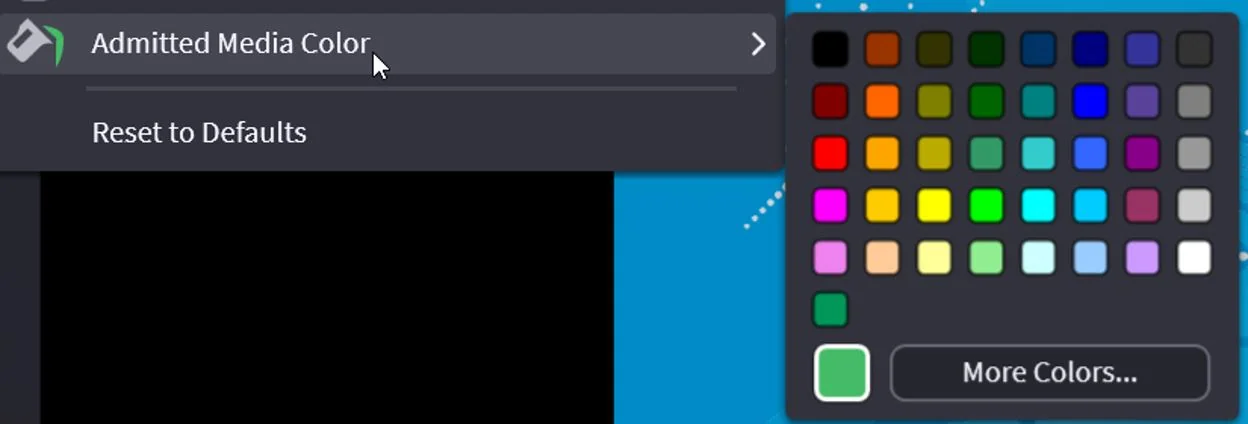
Admitted Media Colors
Sets the colors used for admitted media.
Hide Indicators if No Media Has been Admitted
Hides all admitted indicators until at least one exhibit has been admitted.

Tip: To show only admitted exhibits, click in the search bar and choose the filter from the dropdown.
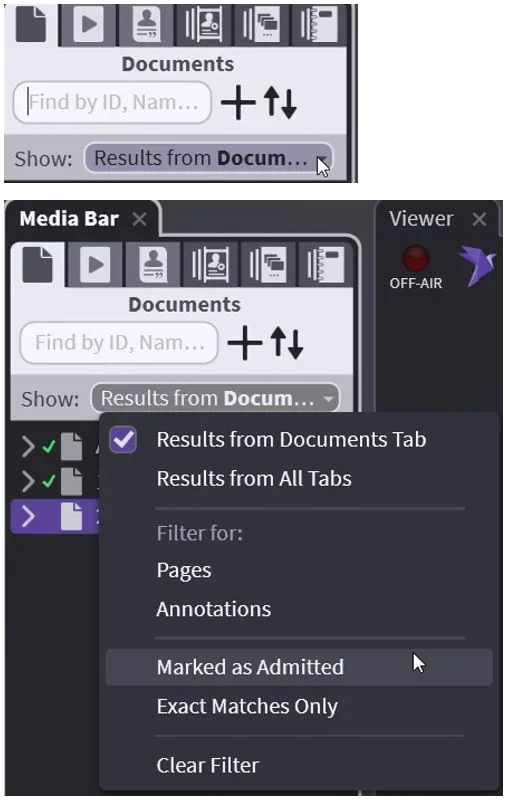
mark as admitted, unadmitted, publish lock, admitted indicators, exhibit status
Still stuck? Email support@oncuetech.com.