



Adding Non-Synchronized Transcripts
Updated February 19, 2026
This article answers
- I don't have video. How do I add the transcript to OnCue?
- What files do I need to create clips from my deposition?
- What type of transcript do I need to be able to sync the video I have?
Related article: Adding Synchronized Transcripts
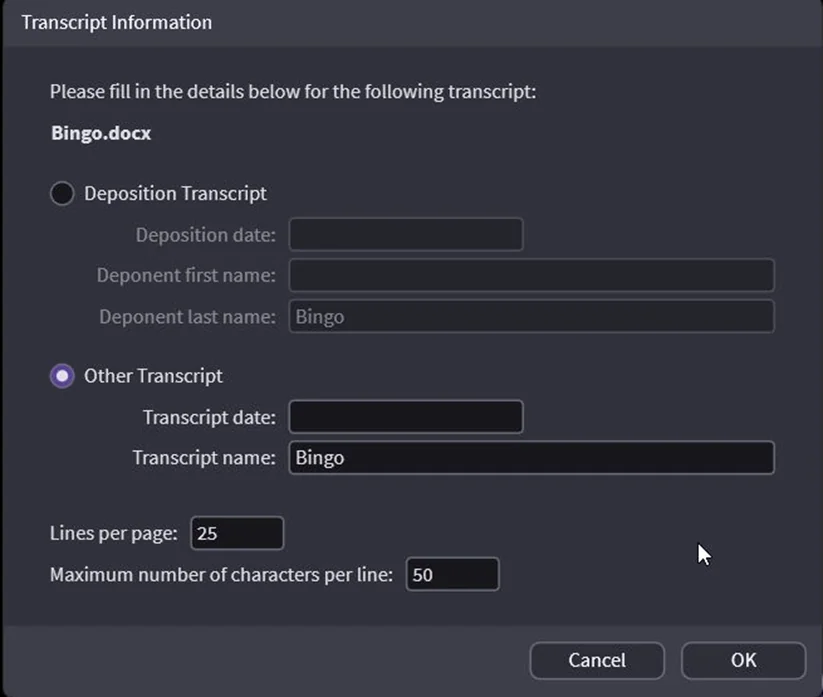
OnCue can import a plain-text (.txt) or Microsoft Word (.docx) file. These files do not need to have page and line numbers to be able to create designations. OnCue prompts you for the lines per page, the naming convention, and the date. Creating designation run reports with non-synced transcripts is the perfect way to make a script for reading testimony into the court record.
This is also the way to add transcripts for surveillance videos, meetings, and lectures. To sync a video manually or with ProSync, add the .txt or .docx transcript of the video here.
Word files must not include page and line numbers and should have as little formatting as possible. ASCII text files can have page and line numbers.
Note: We recommend .txt files over .docx whenever possible because Word formatting varies.
Sample text:
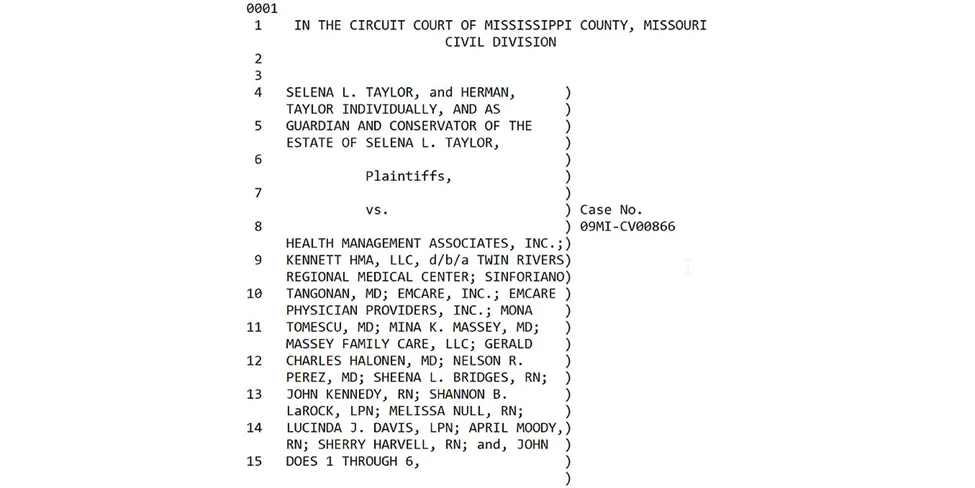
Sample Word file:

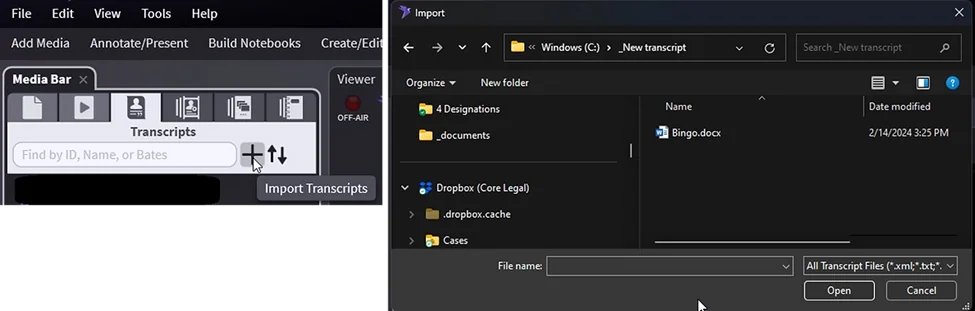
- To import a non-synchronized file, click on the + sign on the Transcripts tab of the Media Bar, which will allow you to browse to and select your file(s).
- OnCue asks for the lines per page, date, transcript type, and name.
- Make any changes and click Save Changes. The transcript now appears on the Transcripts tab of the Media Bar.
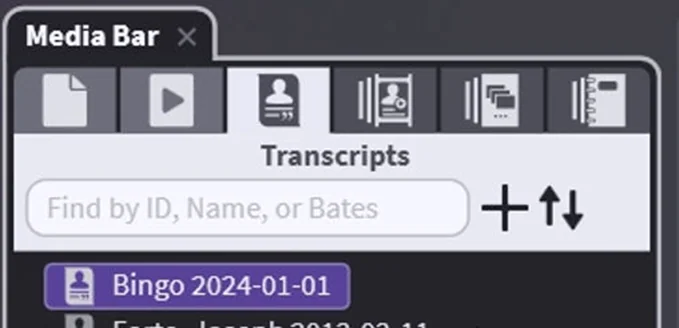
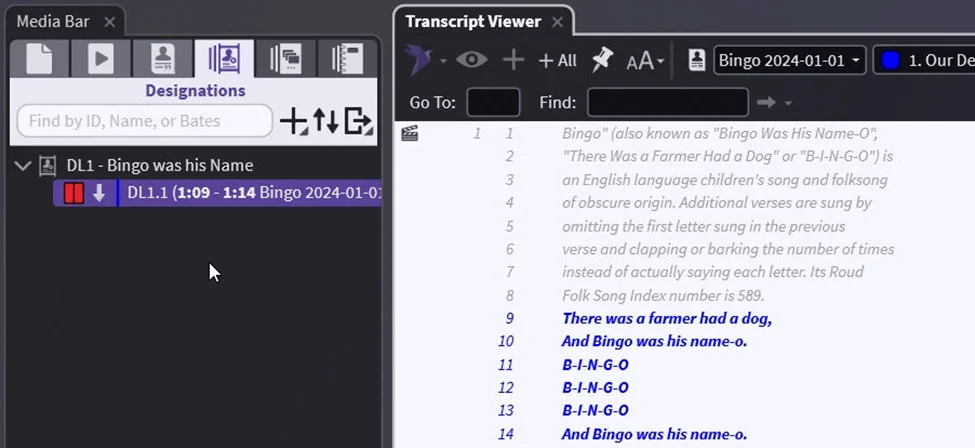
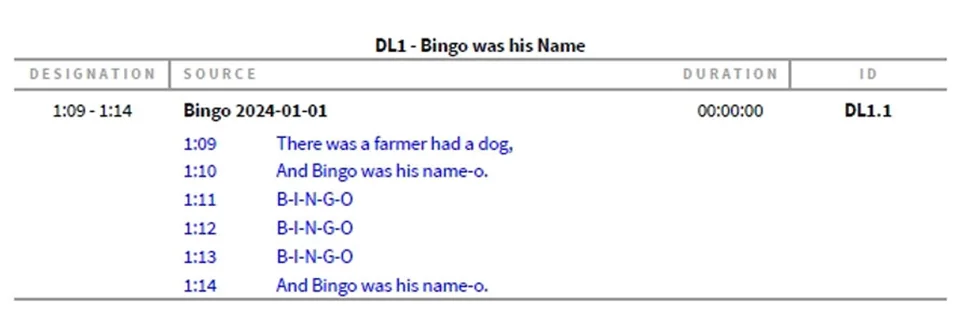
- You can now begin making designations. The transcript text appears gray and italic in the Transcript Viewer because there is no sync file. Any reports created will not be italicized.
Sample report:
Common Issues When Importing Transcripts
Problems in the transcript file can make an import fail, produce incorrect timing, or cause ProSync to fail. The most common issues are below.
Invalid or Unusual Characters
Some transcript files contain high-ASCII or nonstandard characters that can interfere with the import process. OnCue may omit these characters or replace them with ⍰. Some problematic items include smart quotes, stylized punctuation, special symbols copied from word processors and non-printable or control characters.
How to resolve: Prior to adding, open the file in a text editor such as Notepad and look for unusual characters such as ¶, §, or em dashes. It could even show up like this ⍰
Cover Pages or Non-Transcript Content
Some transcripts include a cover page or administrative text before the actual transcript content begins. For example, the cover page may be numbered 0 or have no page number. OnCue numbers it as page 1, so every page is then off by one from the official transcript.
How to resolve: If possible, remove cover pages and other non-transcript text before adding the file.
Timecodes in Text Transcripts
You may receive a text file with timecodes before the line numbers. OnCue cannot import these files.

How to resolve: Before importing, remove timecodes that appear before the line numbers in your text file.
Page Breaks and Formatting Artifacts
Excessive or unexpected page breaks and line breaks can disrupt how the transcript is parsed during import. Hard page breaks and double “returns” can cause OnCue to believe there are extra lines or pages where there are not.
How to resolve: Before adding the file, remove extra page breaks and blank lines where possible.
add transcript, text transcript, TXT, PTX, no video, non-synced
Still stuck? Email support@oncuetech.com.