



Copying & Exporting Document Images
Updated July 27, 2025
This article answers
- Can I copy or export my annotations (treatments) exactly as they appear in Presentation?
- How can I get images from OnCue into PowerPoint?
You can save images of your documents and annotations (treatments) from the Viewer, or by exporting from the Media Bar or a Notebook, to use in graphics programs or to build a PowerPoint presentation.
Copying in Viewer
Right-click on any document or annotation in the Viewer and select Copy as Image.
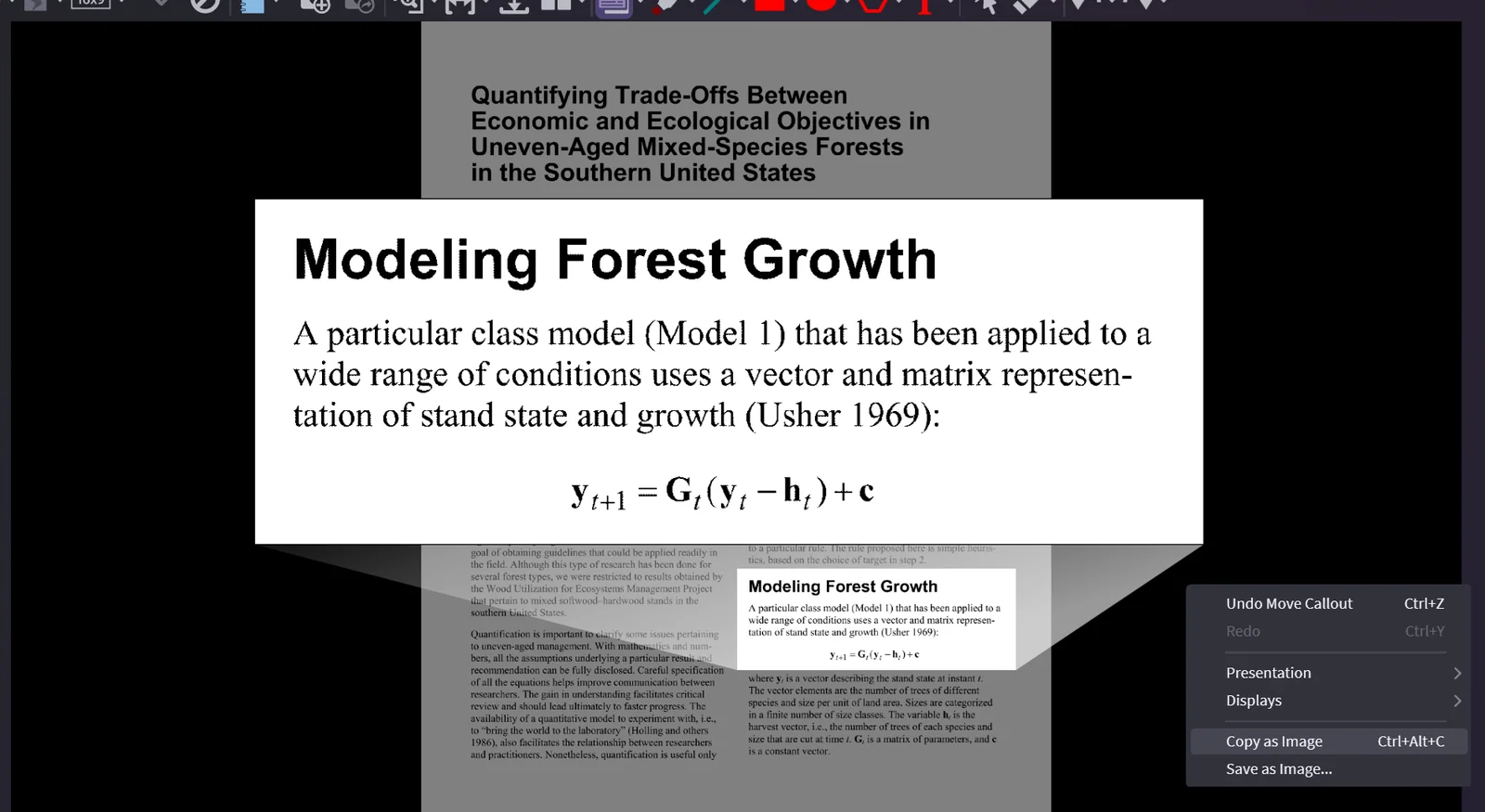
Paste into your program of choice. You don’t have to save it first.
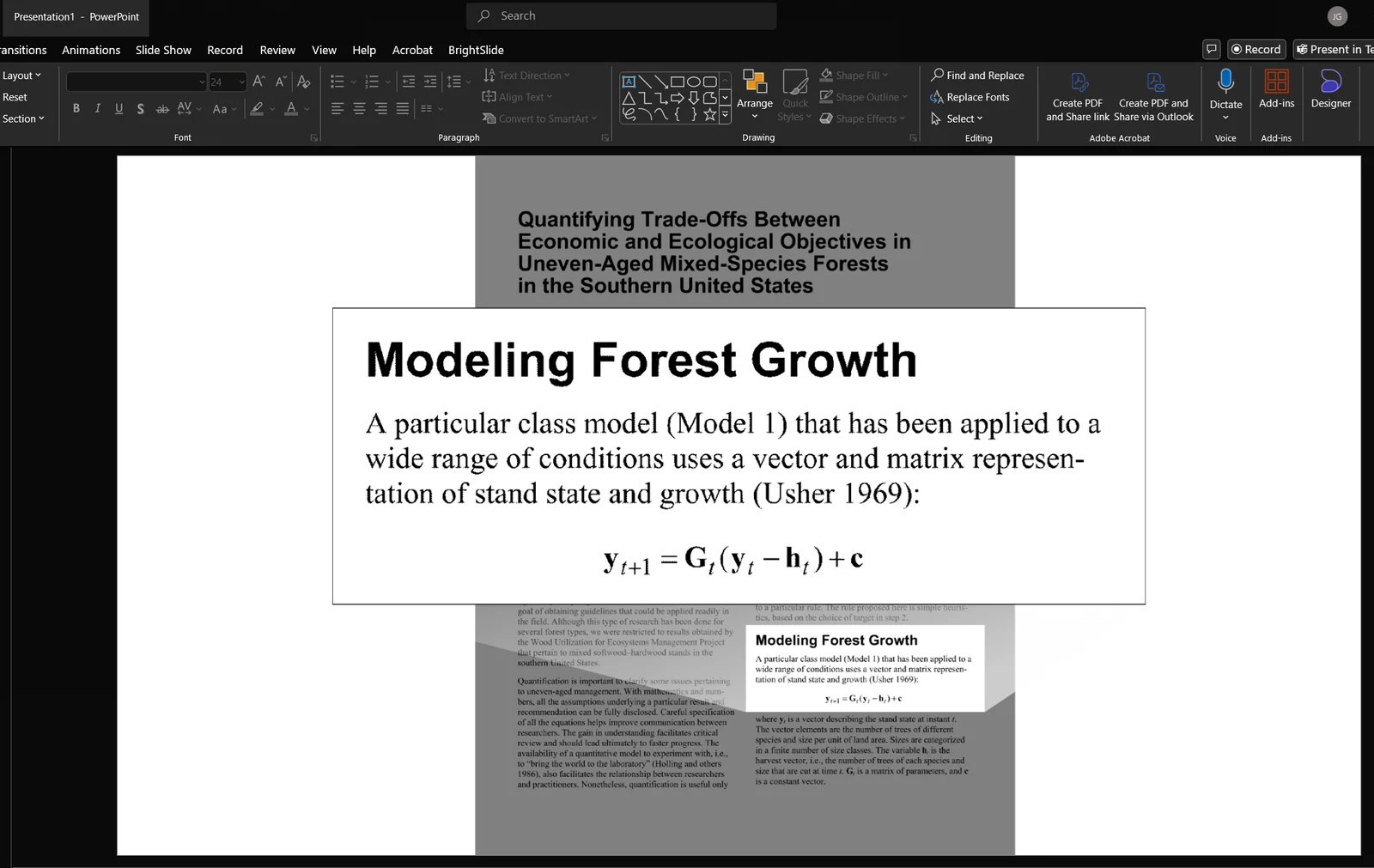
OnCue copies only the image, not the background.
Exporting Document Images
You can export document images one at a time or export an entire notebook.
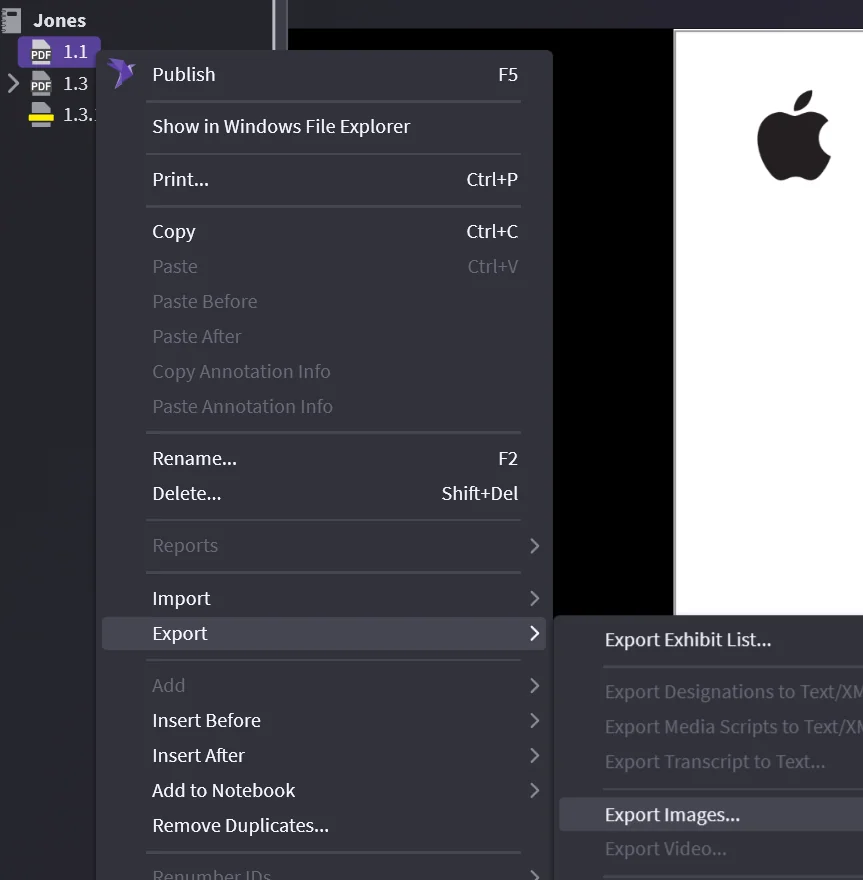
Right-click a document page, annotation (treatment), or notebook and select Export > Export Images…
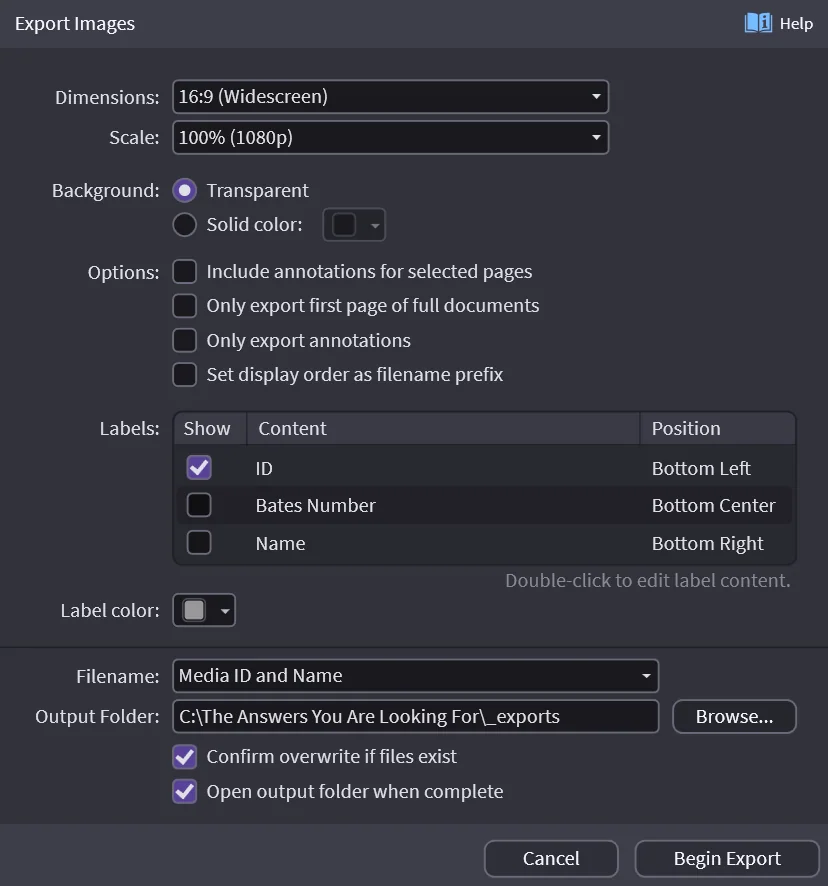
The export options are:
-
You can choose either transparent or a solid color background.
-
You can choose to only export annotations or annotations for a certain page. When exporting several images, you can prefix each file name with a number that shows its notebook order.
After export, a notebook with display order looks like this:

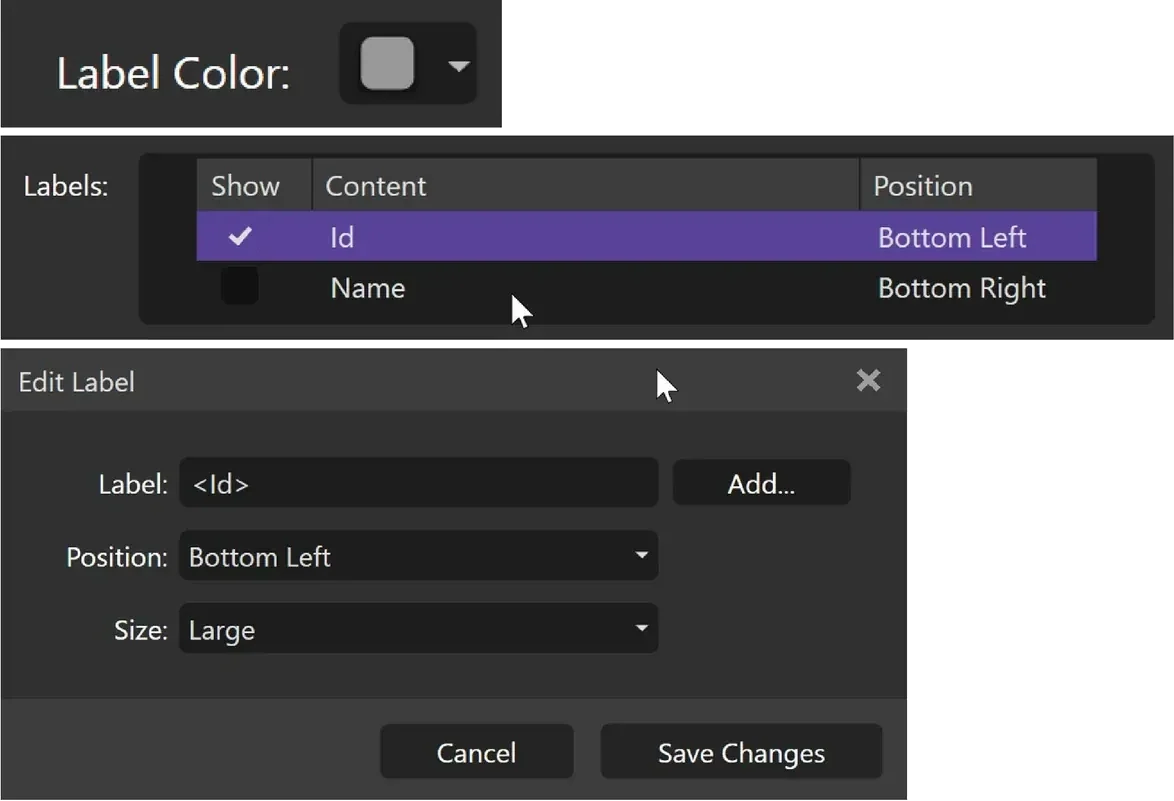
You can show labels on the exports and change the color of the text.
Note: Double-click ID or Name in the label window to see more options.
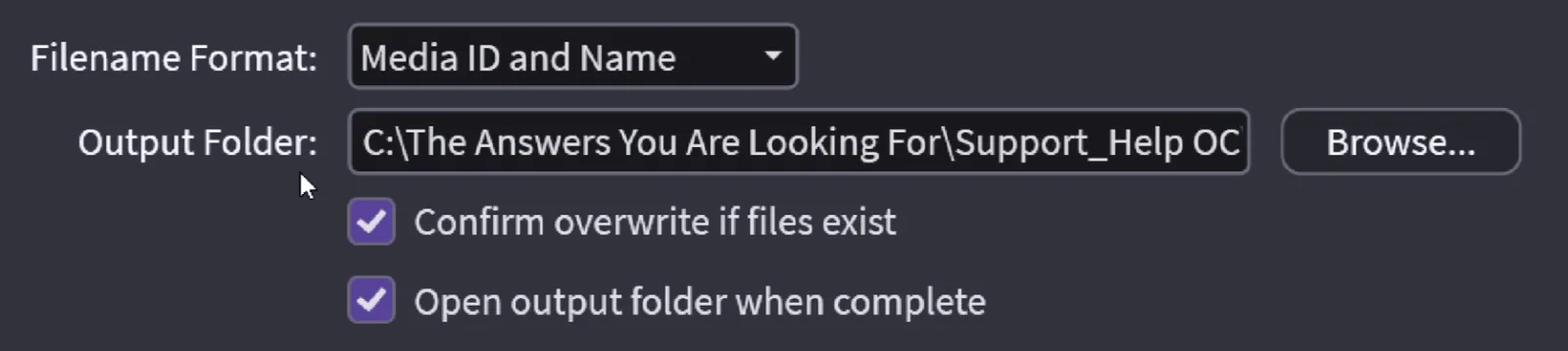
Choose your location and hit OK.
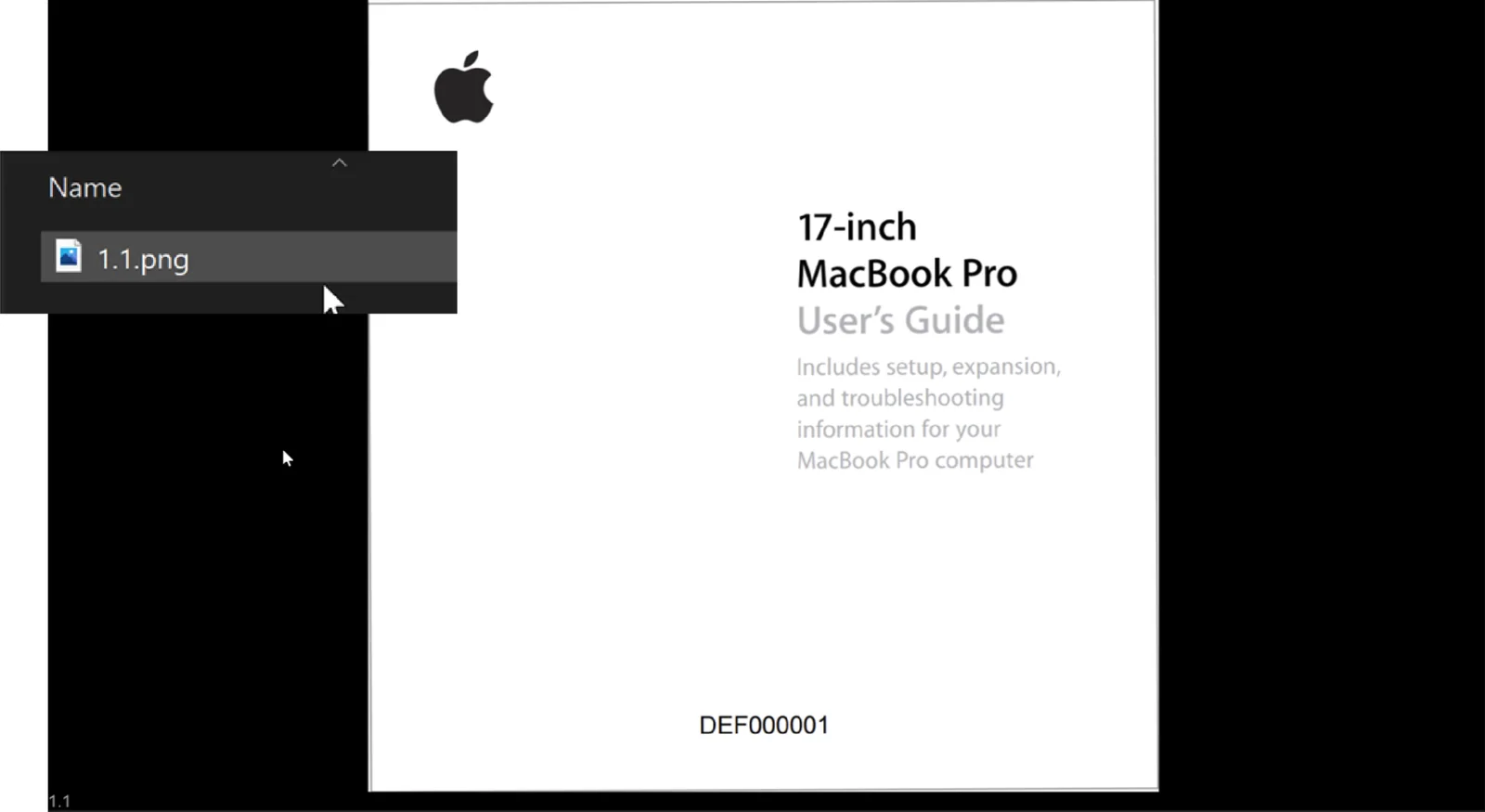
Example of a single exported image:
copy as image, export images, PowerPoint, transparent background, export notebook, treatments
Still stuck? Email support@oncuetech.com.