



Bates Numbers – Filling and Importing (and match the link text everywhere)
Updated October 19, 2026
There are two ways to add Bates numbers to an existing database: fill them with the Fill Bates Numbers command, or import them from a text file.
Fill Bates Numbers
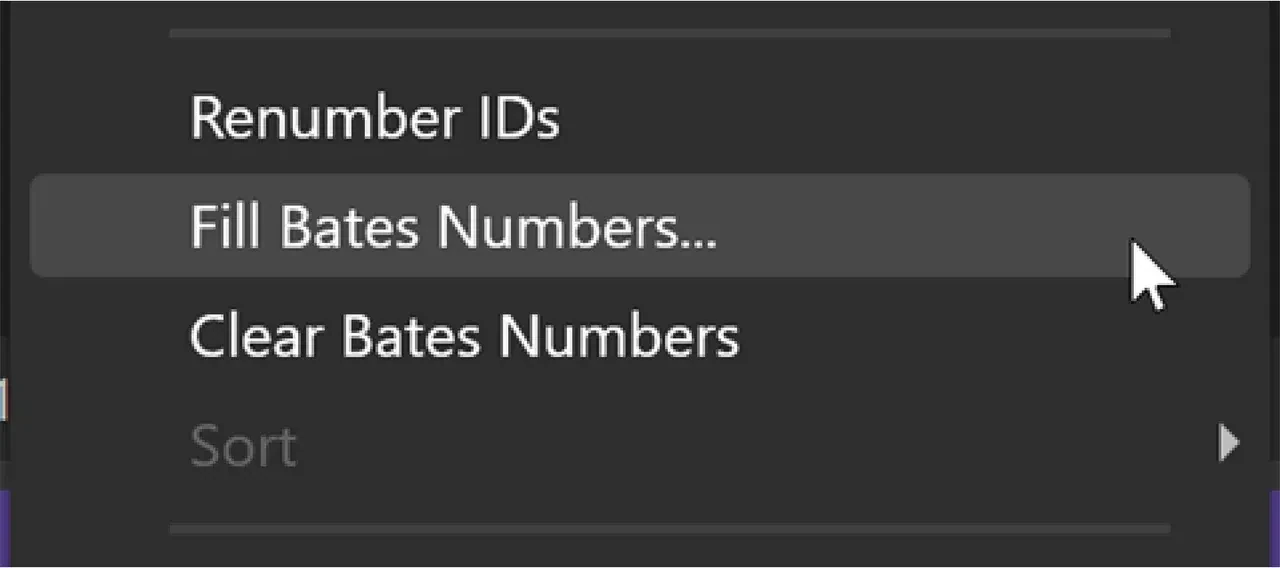
Right-click the first document and select Fill Bates.
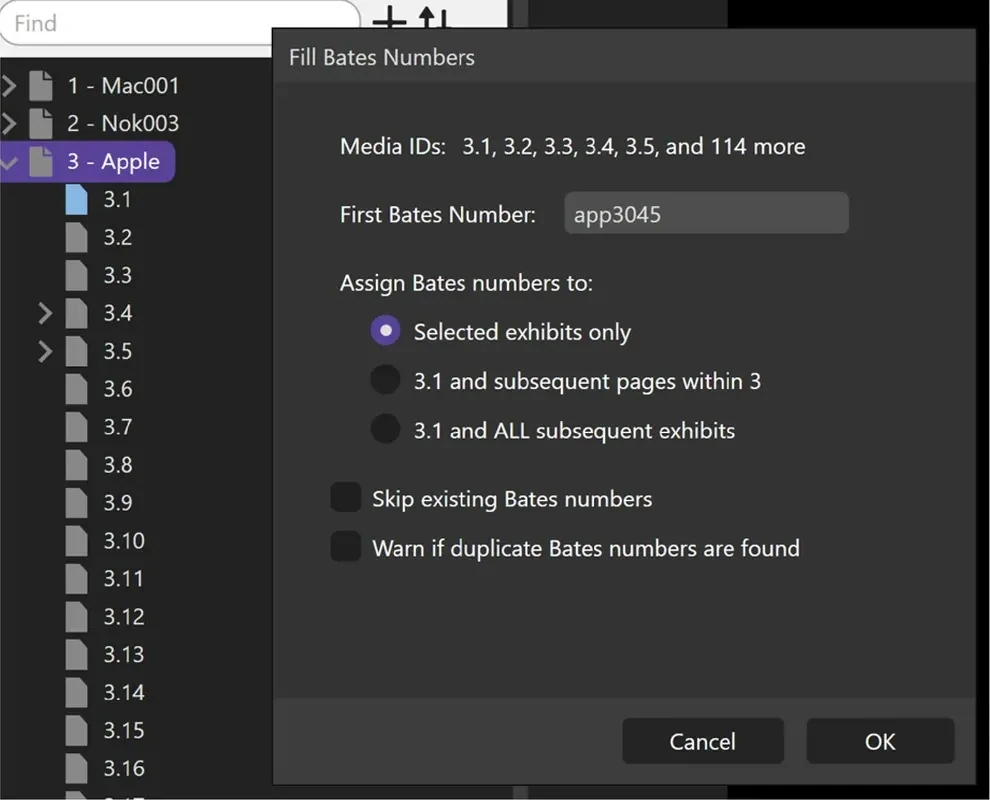
Enter the starting Bates number, then choose from the options.
Importing Bates Numbers
-
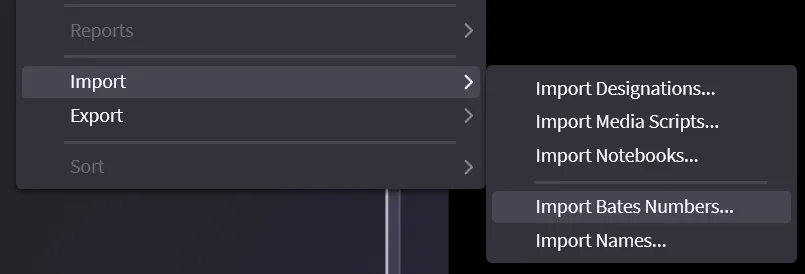
Select File > Import > Import Bates Numbers.
OR
-
Right-click in Documents tab menu, select Import, and then Import Bates Numbers.
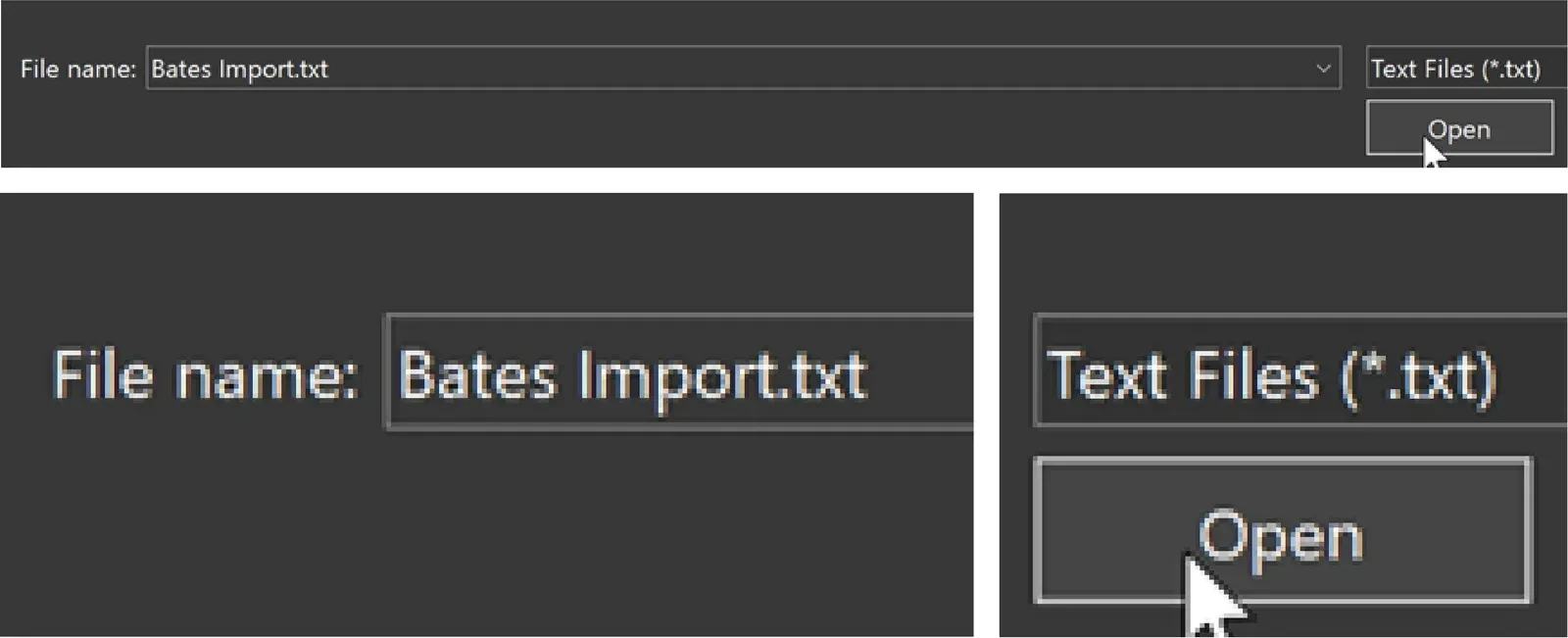
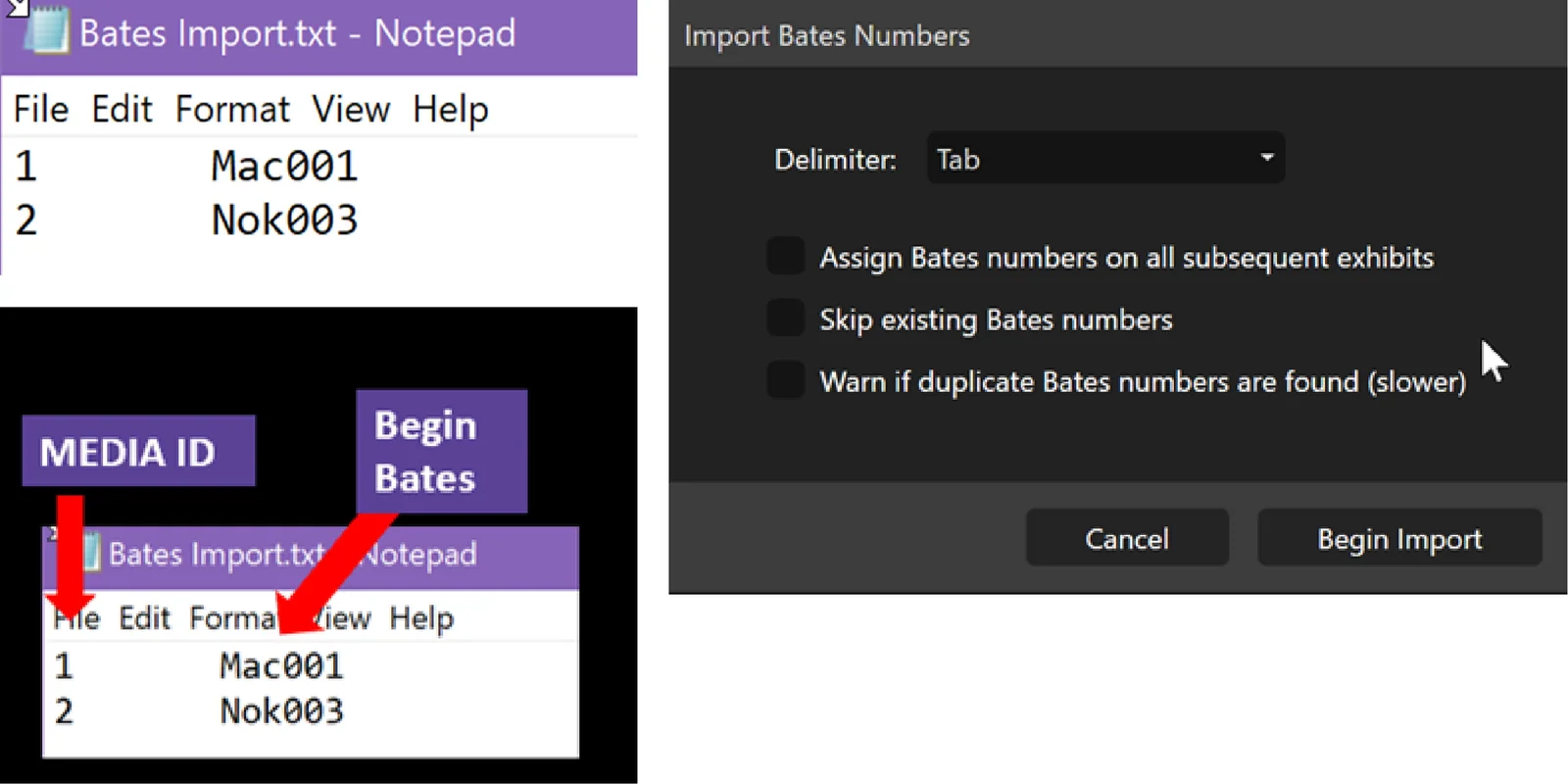
Bates numbers can be imported only from a text file, using the delimiter of your choice. This example uses a tab-delimited text file. The Media ID must always be the first column, followed by the Bates number. How you prepare the file depends on whether the Bates numbers are consecutive.
1. Bates Numbers Consecutive Within a Document
Use this format when each document has its own beginning Bates number and its numbers are consecutive within that document.
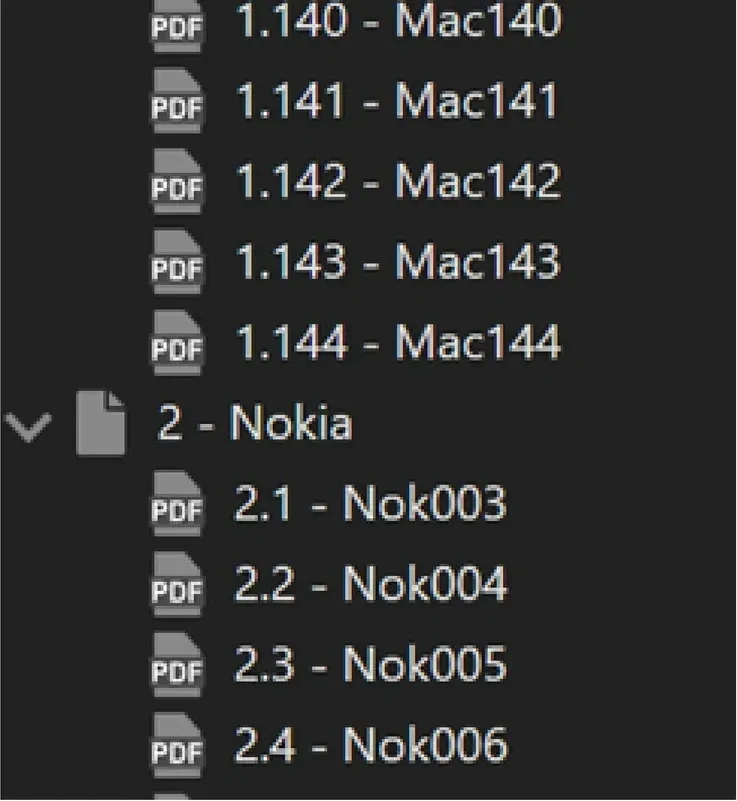
With no options selected, the import produces the following result:
Import Options
Assign Bates Numbers on all subsequent exhibits
Continues to put Bates numbers on documents where you left off. For example, if the import file covers Media IDs 1 and 2 and the database also contains 3 and 4, OnCue continues numbering 3 and 4 from the last Bates number in the file.
Skip Existing Bates numbers
If you already have Bates in your database and are just trying to fix a few, checking this will skip those. If you don’t check it, you risk overwriting what you have.
Warn if duplicate Bates are found (slower)
Checks only against Bates numbers already in the database; it does not detect duplicates within the same import file.
2. Non-Consecutive Bates Numbers
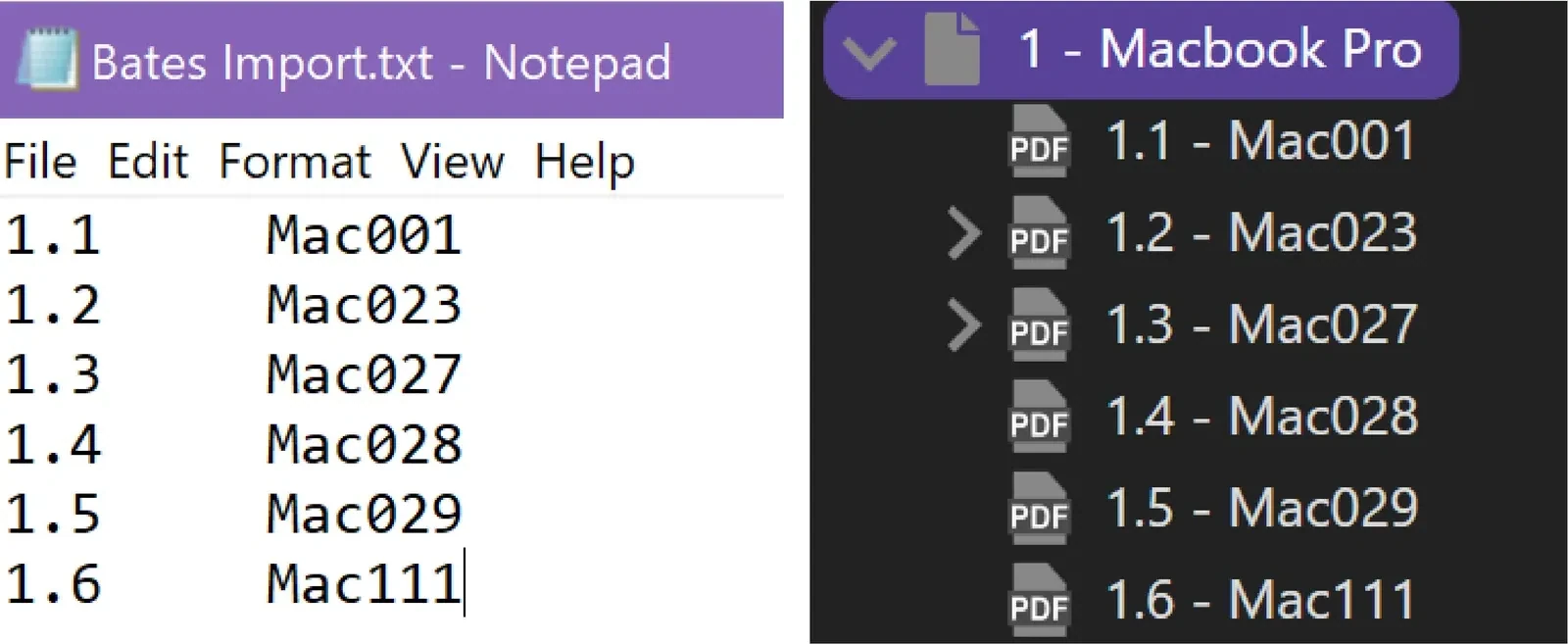
Use this format when Bates numbers are not consecutive. List each page’s Media ID (including the page number) first, then its Bates number.
Clearing Bates Numbers
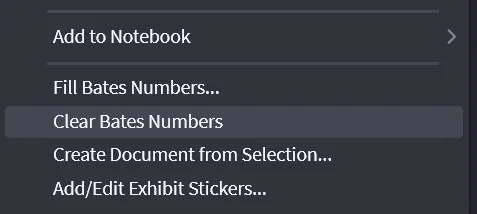
To clear Bates numbers, right-click a page or document and select Clear Bates Numbers. This cannot be undone.
Bates, fill Bates, import Bates, Media ID, tab-delimited text file
Still stuck? Email support@oncuetech.com.