



Workflow Ribbon and Creating Custom Layouts
Updated October 16, 2026
We understand that people work differently. Not everyone needs every pane open at once. OnCue’s Workflow Ribbon switches between layouts suited to different production tasks.
The Media Bar is independent of the working panes and does not move or change when they do. With each click of the buttons on the Ribbon, panes open and move around according to the task at hand.
Workflow Ribbon
Each Workflow Ribbon button opens these panes:
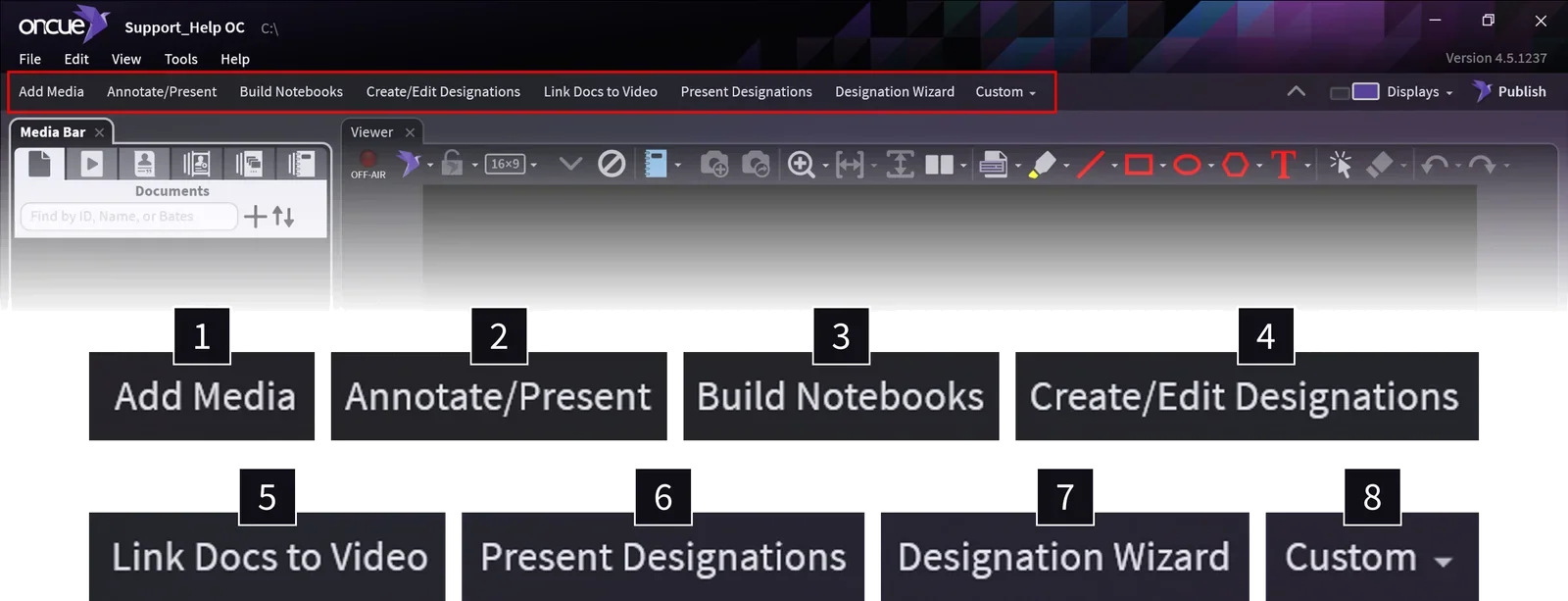
| Button | What opens |
|---|---|
| (1) Add Media | Modified Windows Explorer |
| (2) Annotate/Present | Viewer |
| (3) Build Notebooks | Notebooks, Viewer |
| (4) Create/Edit Designations | Designation Editor, Transcript Viewer |
| (5) Link Docs to Video | Designations, Notebooks, Viewer, Transcript Viewer, Designation Editor |
| (6) Present Designations | Designations, Designation Dashboard, Transcript Viewer |
| (7) Designation Wizard | Designation Wizard |
| (8) Custom | Custom menu with your saved workspaces |
Opening and Closing Panes
To close a pane, click the X next to its label. You can also open or close panes from the View menu. You can even lock them, so you don’t accidentally move or close panes.
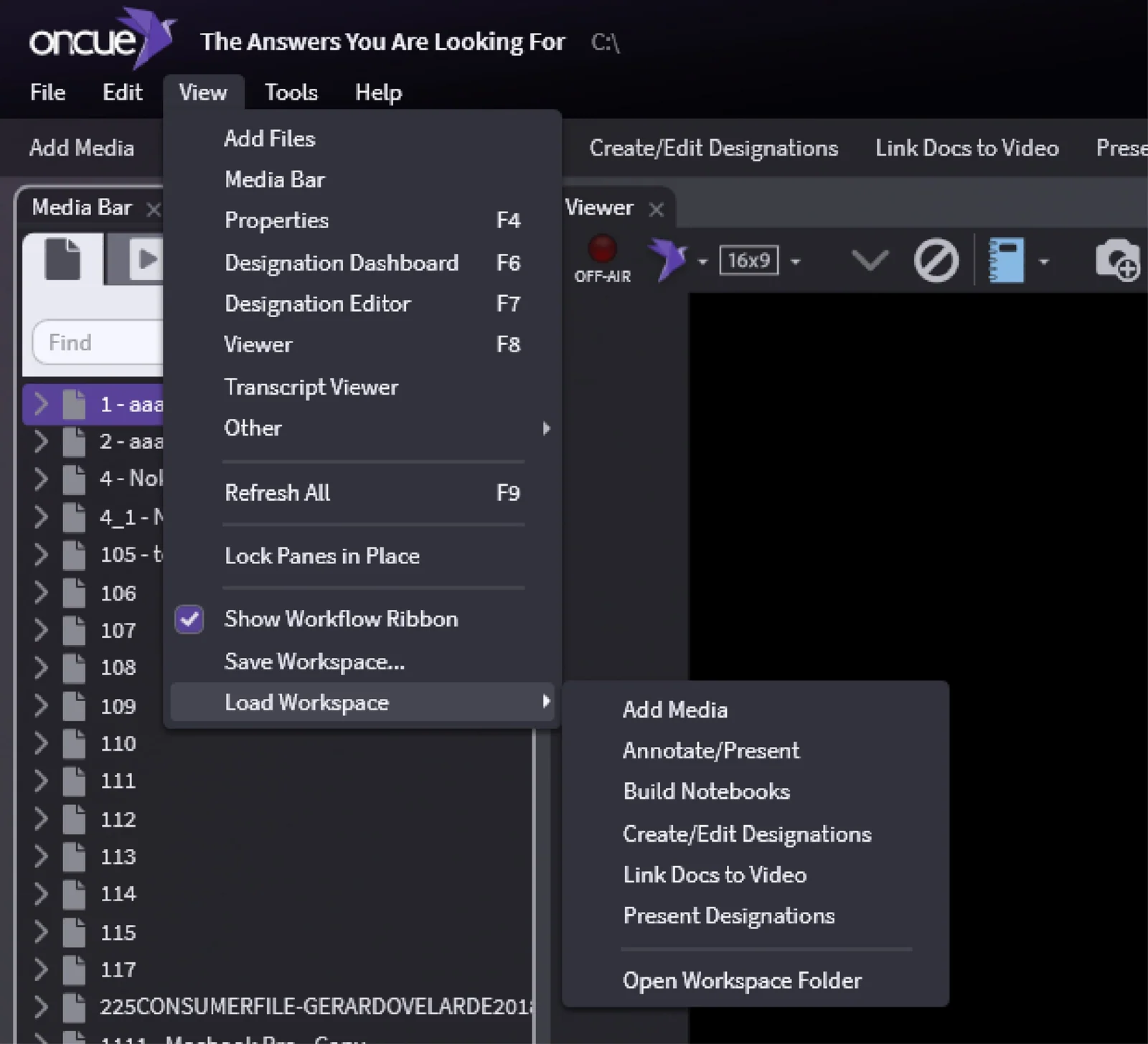
You can drag panes almost anywhere in the production screen. Click and hold the pane’s title bar, then drag it to the new position. You can save the layout and reuse it in any case.
Custom Workspaces
Once you have your production screen the way you want it, go to Custom > Save Workspace… and then name the workspace.
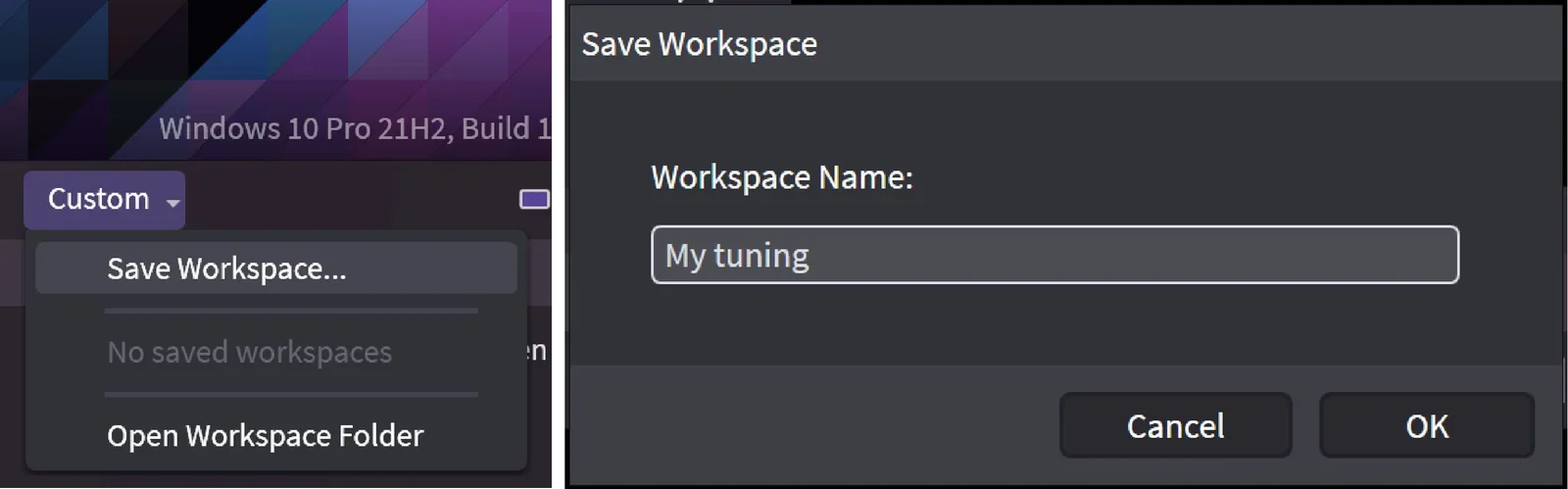
Selecting OK places your Workspace in the Custom Menu.
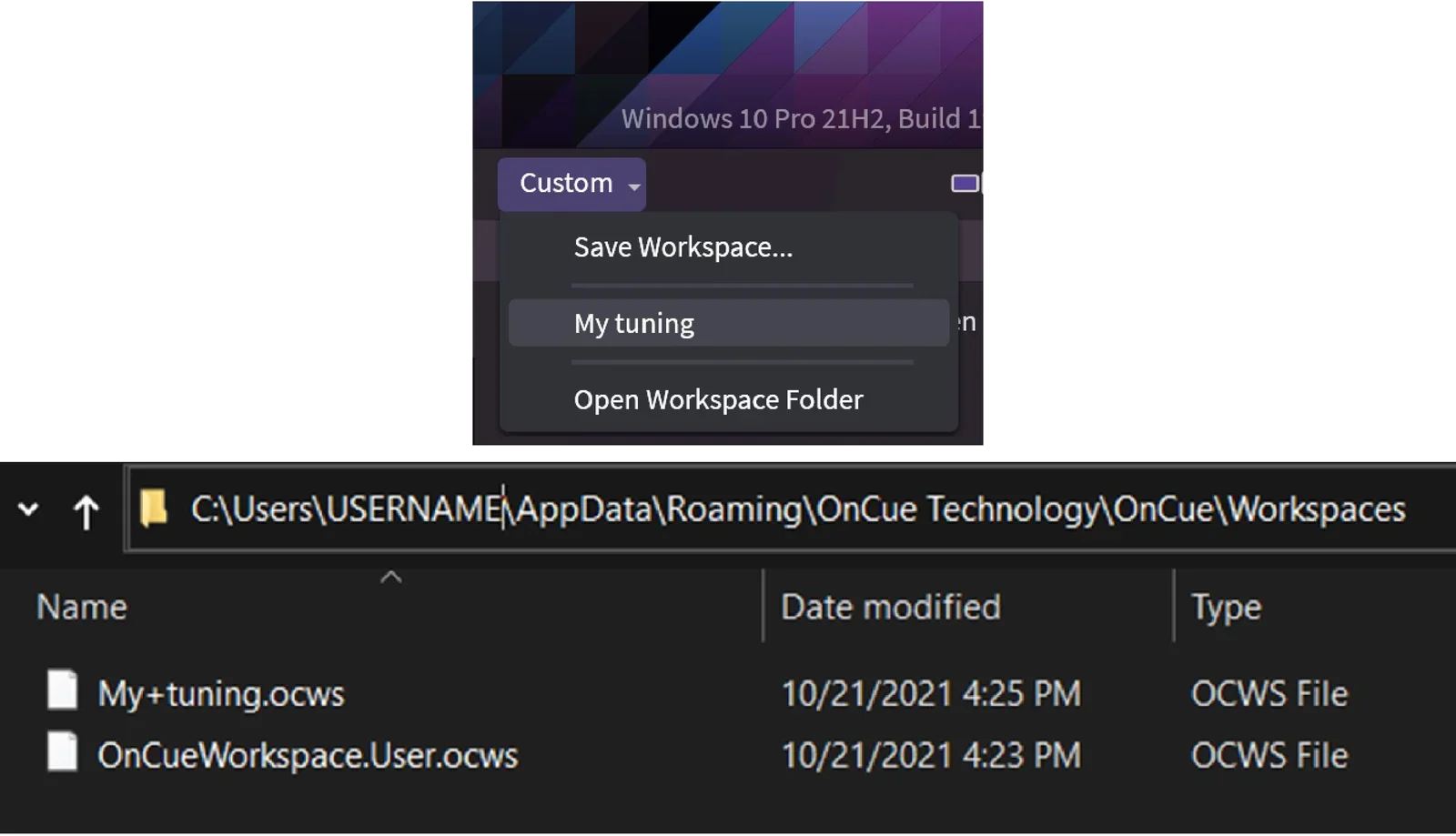
To delete a workspace or share a copy, choose Custom > Open Workspace Folder. The folder containing the workspace files opens in File Explorer.
To remove a workspace, delete its file. It disappears the next time you open OnCue.
To share a workspace, send a copy of its file. If they drop it into the workspace folder on their machine, it will appear when they open OnCue.
workflow ribbon, layouts, custom layout, panes
Still stuck? Email support@oncuetech.com.