



Adding Synchronized Transcripts
Updated March 3, 2026
This article answers
- How do I add my deposition or text transcript files to OnCue?
- What files do I need to create clips from my deposition?
- OnCue can't see my videos. Where do I put them?
Related article: Adding Non-Synchronized Transcripts
Transcript File Formats
The transcript files OnCue currently accepts are MDB (Sanction), CMS (Timecoder), and OnCue XML for synchronized transcripts, and TXT or DOCX for non-synchronized transcripts. We recommend MDB files over CMS whenever possible because the CMS format is inconsistent.
No sync file? You can still create reports; see Adding Non-Synchronized Transcripts.
DO NOT add/import/register the underlying deposition video or the audiovisuals you will be syncing (MPG, MP4, AVI, WMV, MP3) into your OnCue database, only the transcript file (the MDB or XML or CMS or TXT or DOCX).
Important: The underlying deposition or video files should be copied to the _synchedvideos folder in your OnCue case. Put the video files in the root of that folder, not in subfolders. OnCue looks for the video in this folder.
Synchronized Transcripts (Depositions & Video)
To import sync files, click + on the Transcripts tab of the Media Bar, then browse to and select your sync files.
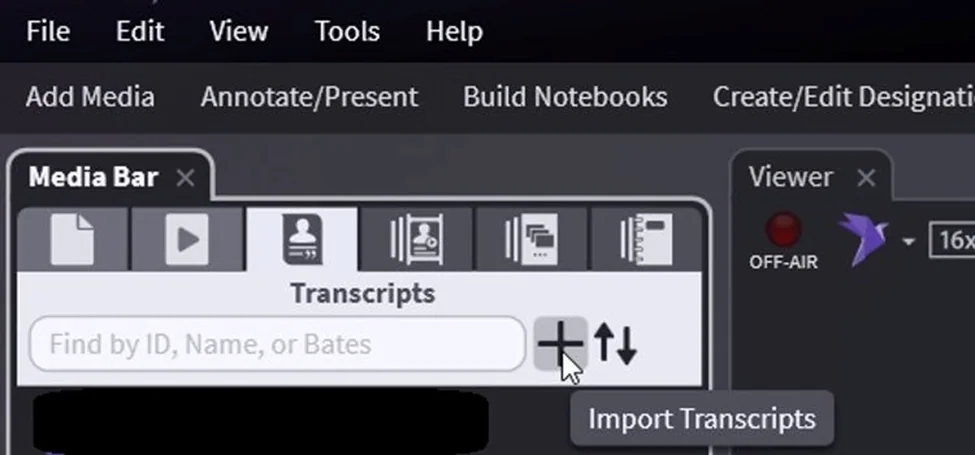
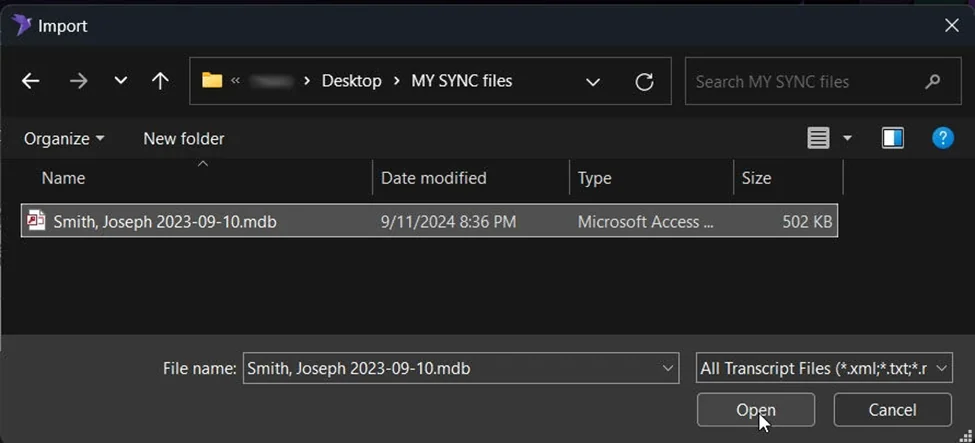
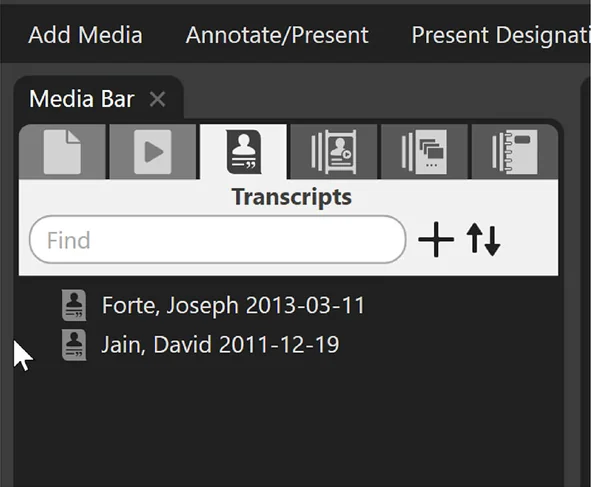
The transcript now appears on the Transcripts tab of the Media Bar. The transcript is named automatically based on the fields in the MDB or XML file for first name, last name and deposition date. If this data is incorrect, select it and press F2 to correct the ID and name.
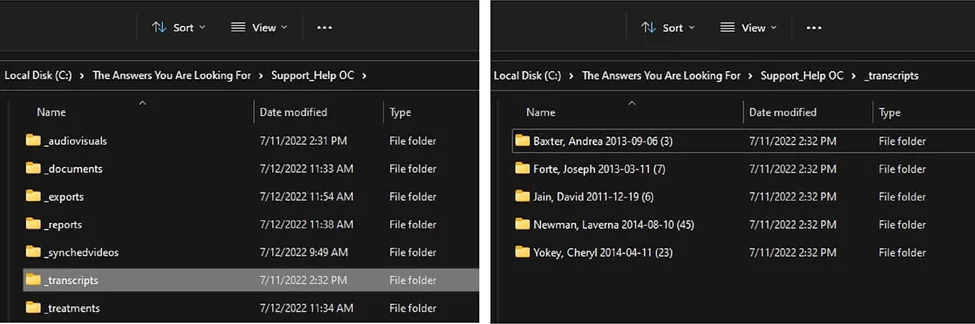
Added transcripts are stored in the _transcripts folder of your case folder.
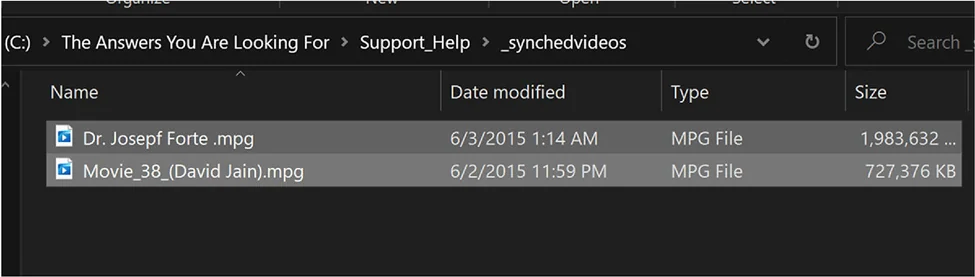
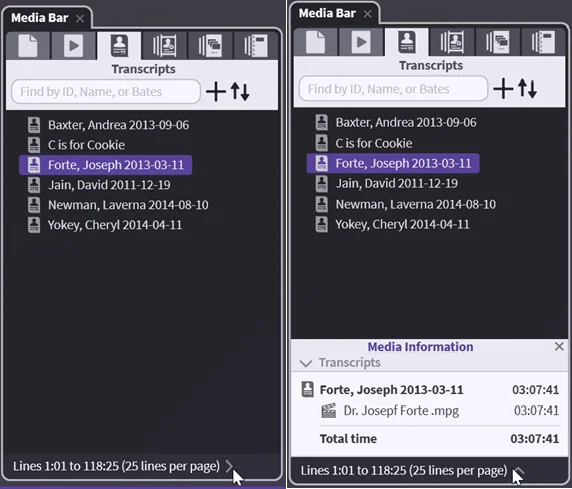
Make sure your video file names match the names in the sync file. To see them, select the transcript and click the arrow at the bottom of the Transcripts tab.
Troubleshooting Video Playback
- Have sound but no picture on a deposition? Right-click the transcript and select Optimize Video….
- OnCue can’t see the file? Make sure the file names, including the extension, match the names in the sync file.
- Make sure you copied the files to your OnCue case folder’s “_synchedvideos” subfolder in Windows File Explorer (they are not added inside of OnCue like documents, audiovisuals, or transcript files).
- One way to verify that a video issue is related to OnCue, and not the video file itself, is to try playing the video in a media player on your machine (VLC or Windows Media Player, for example).
add transcript, import deposition, PTX, CMS, _synchedvideos, video sync file
Still stuck? Email support@oncuetech.com.