



Importing TextMap Annotations Exports
Updated July 23, 2025
You can import designation lists into OnCue from a TextMap Annotations Export (.csv). It is a quick way to load many designations if you already have them in a TextMap database. Before you start, make sure the synchronized transcripts are loaded in your OnCue case.
Steps
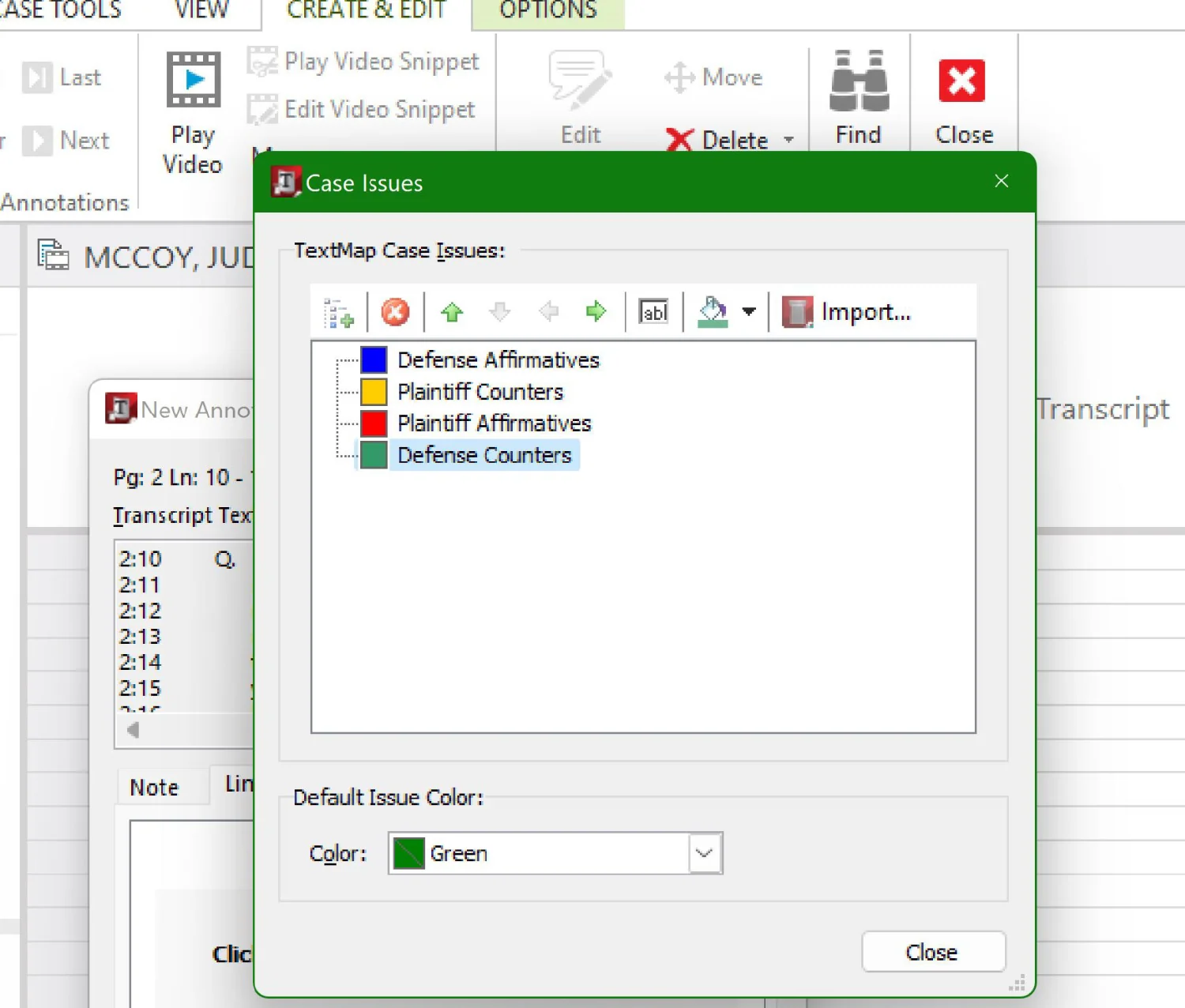
1. Match TextMap Issues to OnCue Highlighters
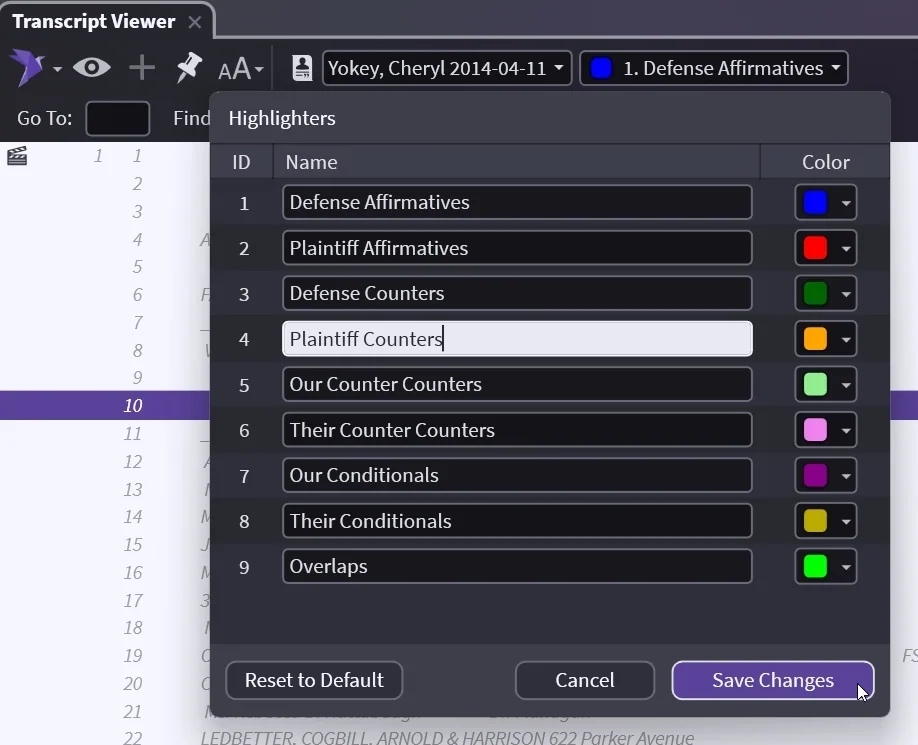
OnCue highlighter names must match your TextMap issue names exactly. Set up your TextMap issues first, then rename your OnCue highlighters to match.
See Designation Highlighters to set up highlighter names.
2. Export Your TextMap Annotations
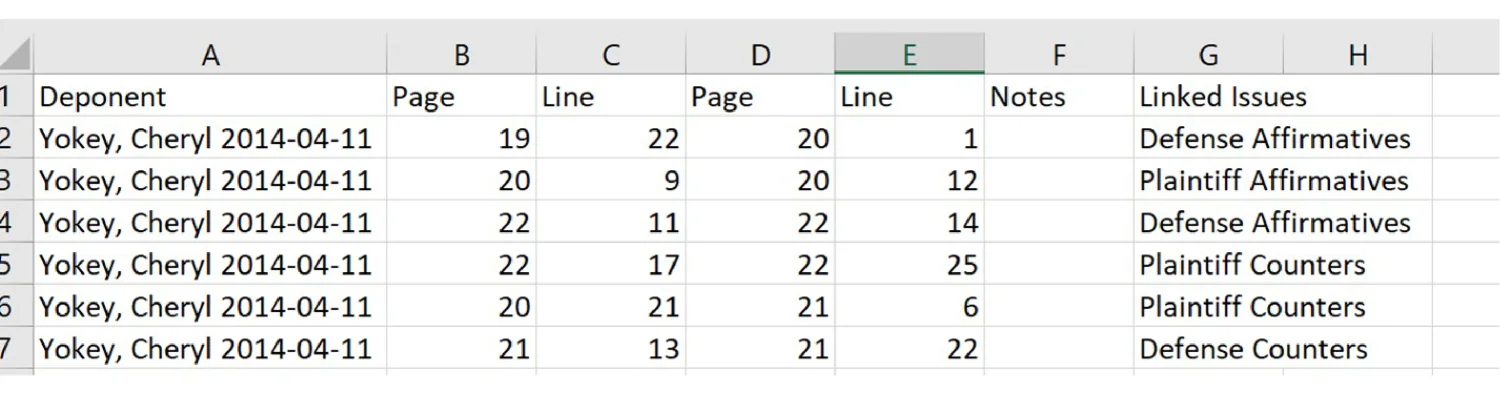
Export your annotations. It is important to include Notes and Issues. OnCue doesn’t currently read notes, but including them keeps the columns aligned for import.
Your Annotation CSV should look like this:
3. Match the Transcript Column to the Media ID
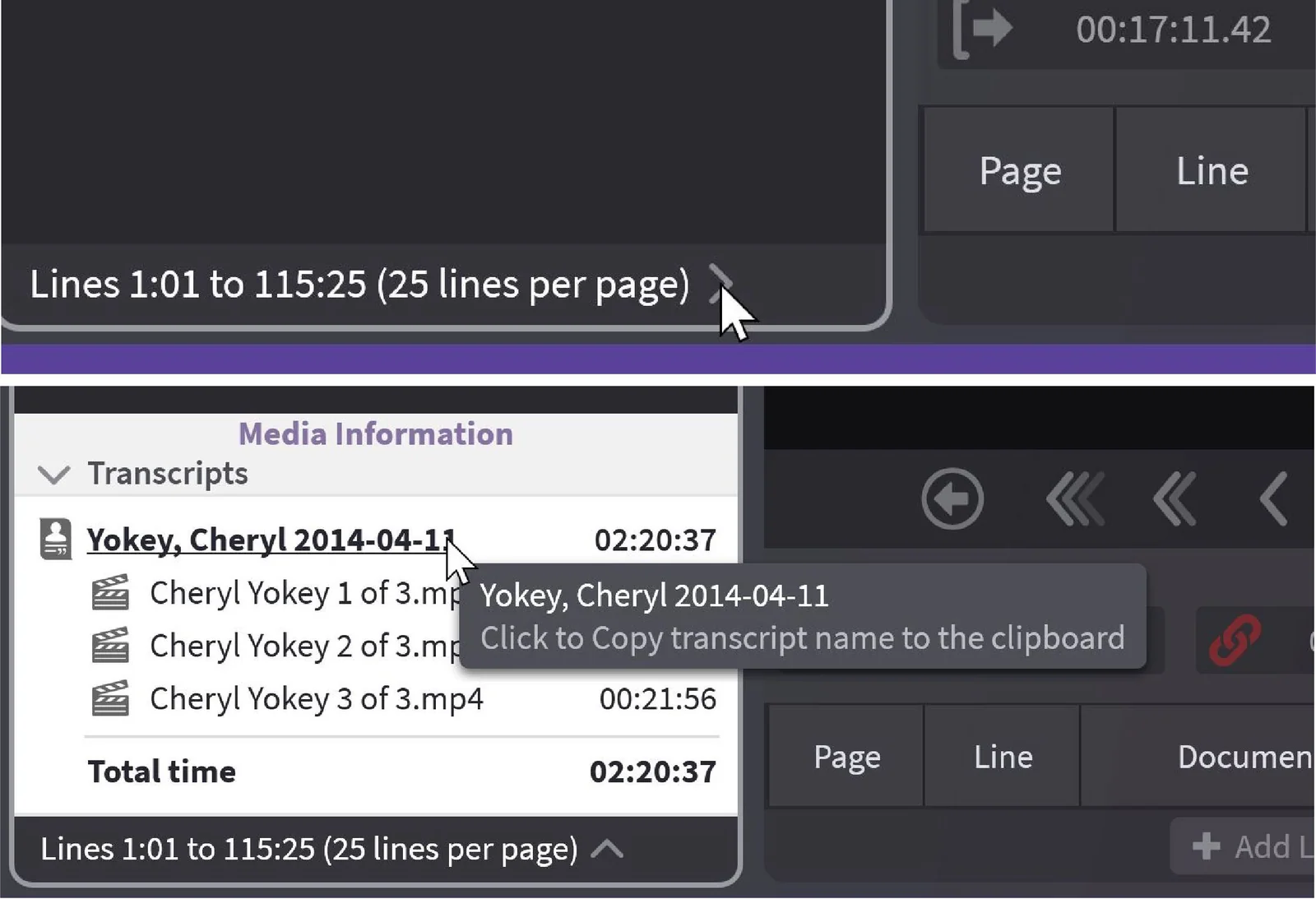
Next, the Transcript column in your CSV must match the Media ID for the transcript in OnCue.
To copy the Media ID, select the transcript on the Transcripts tab and expand the arrow at the bottom of the screen.
4. Name the File
The CSV file name becomes the list’s ID and name in OnCue. A file name of V5 Yokey Case Designations gets the ID of V5 and the name Yokey Case Designations.

5. Import the File
When everything is ready, import your designations.
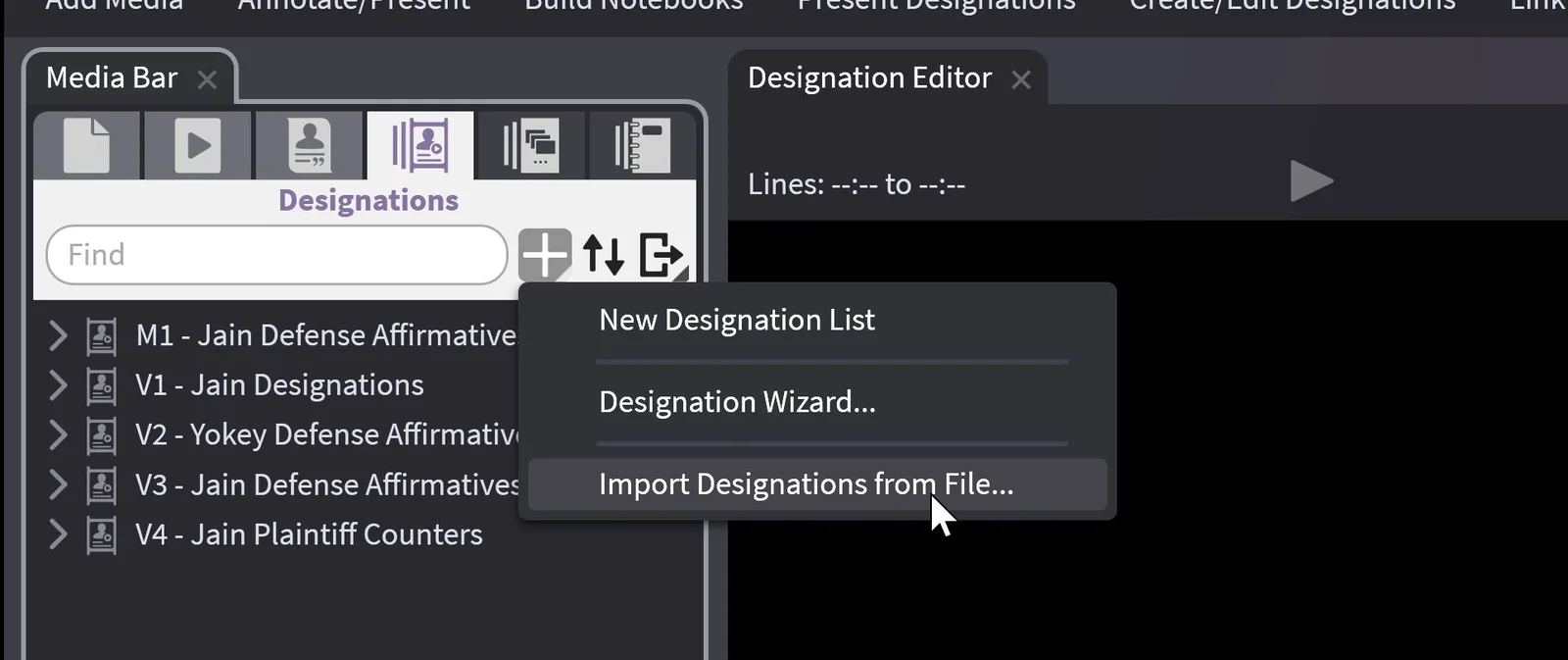
On the Designations tab, point to + and select Import Designations from File….
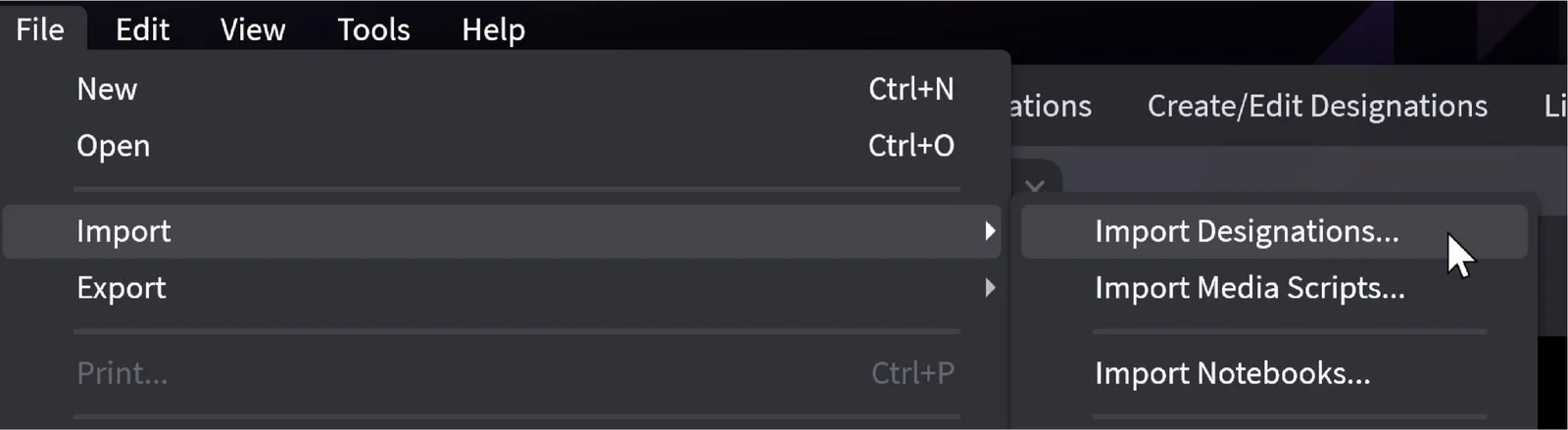
Or choose File > Import, or right-click in any tab and select Import > Import Designations….
TextMap, annotations export, import TextMap
Still stuck? Email support@oncuetech.com.