



On-the-fly Documents - No Linking
Updated July 23, 2025
You don’t have to link your documents to your designation list. You can display and annotate pages while a designation plays. You can do this by playing a designation list as usual and launching a document to the presentation screen using any method (F5, Publish, or typing X, the ID, and Enter in Presentation Mode).
Annotate as usual; you can also save the annotation.
Press Ctrl+F to remove the document; the video keeps playing.
Several settings in Edit > Preferences control how on-the-fly documents appear.
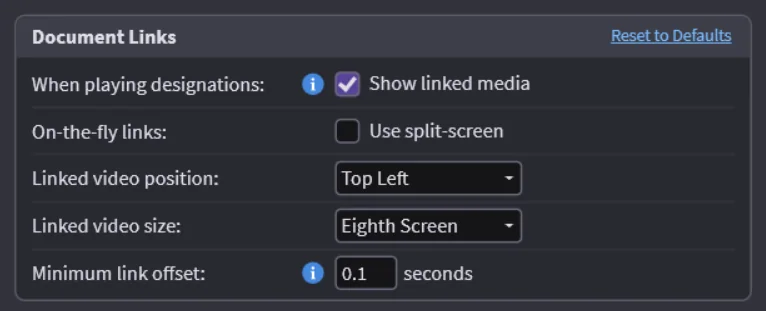
Use split screen for on-the-fly links: keeps the video from covering the document.
Linked video position: sets where the video moves when a document is shown.
Linked video size: sets the size of the video while a document is shown.
Note: Scrolling text will remain at the bottom of the screen. To hide it for a list, right-click the list and select Hide Scrolling Text. Press T to hide or show it during playback.
on-the-fly, show document without linking, publish document during clip
Still stuck? Email support@oncuetech.com.