



Presentation Settings Explained
Updated January 13, 2025
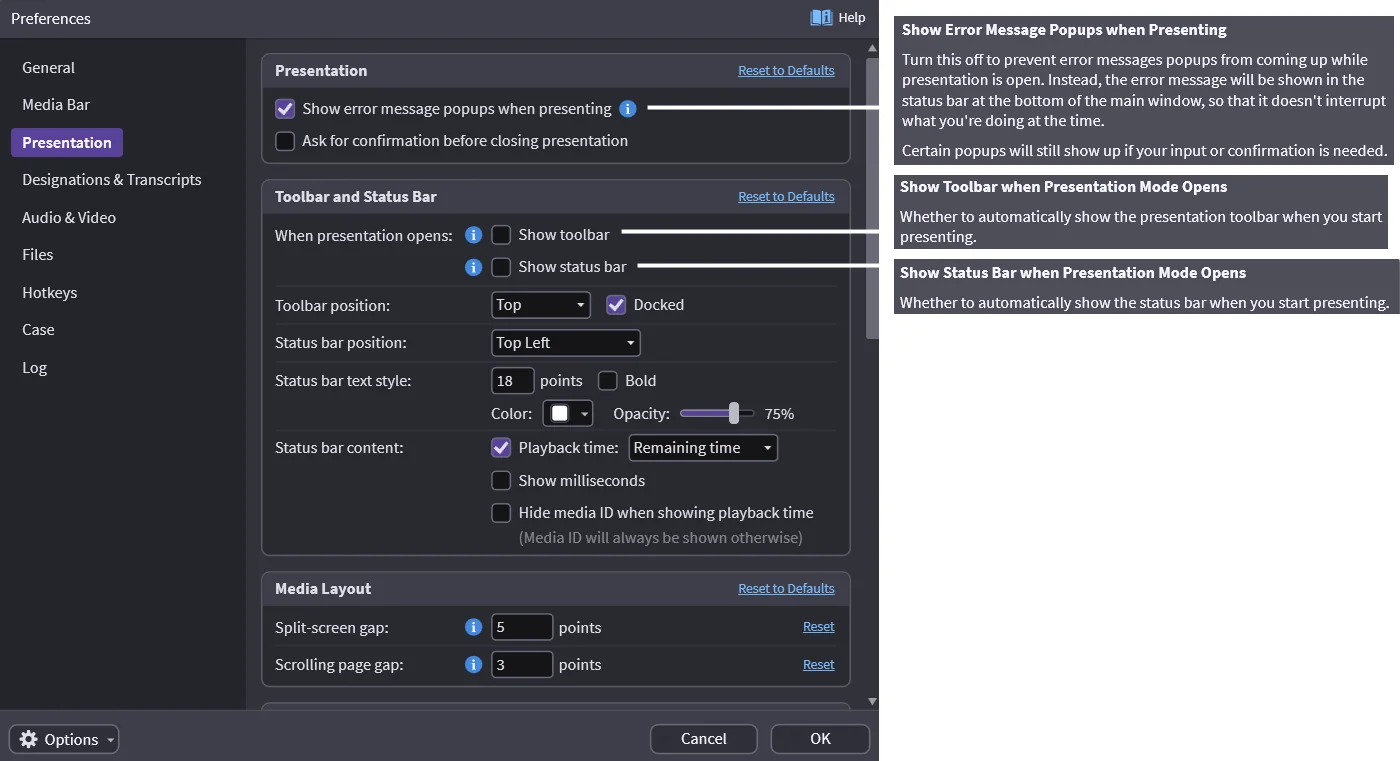
Shows the presentation toolbar when you start presenting.
Show status bar when presentation mode opens: Whether to automatically show the status bar when you start presenting.
Show designation list remaining time in status bar: Shows the time remaining in the designation list in the status bar.
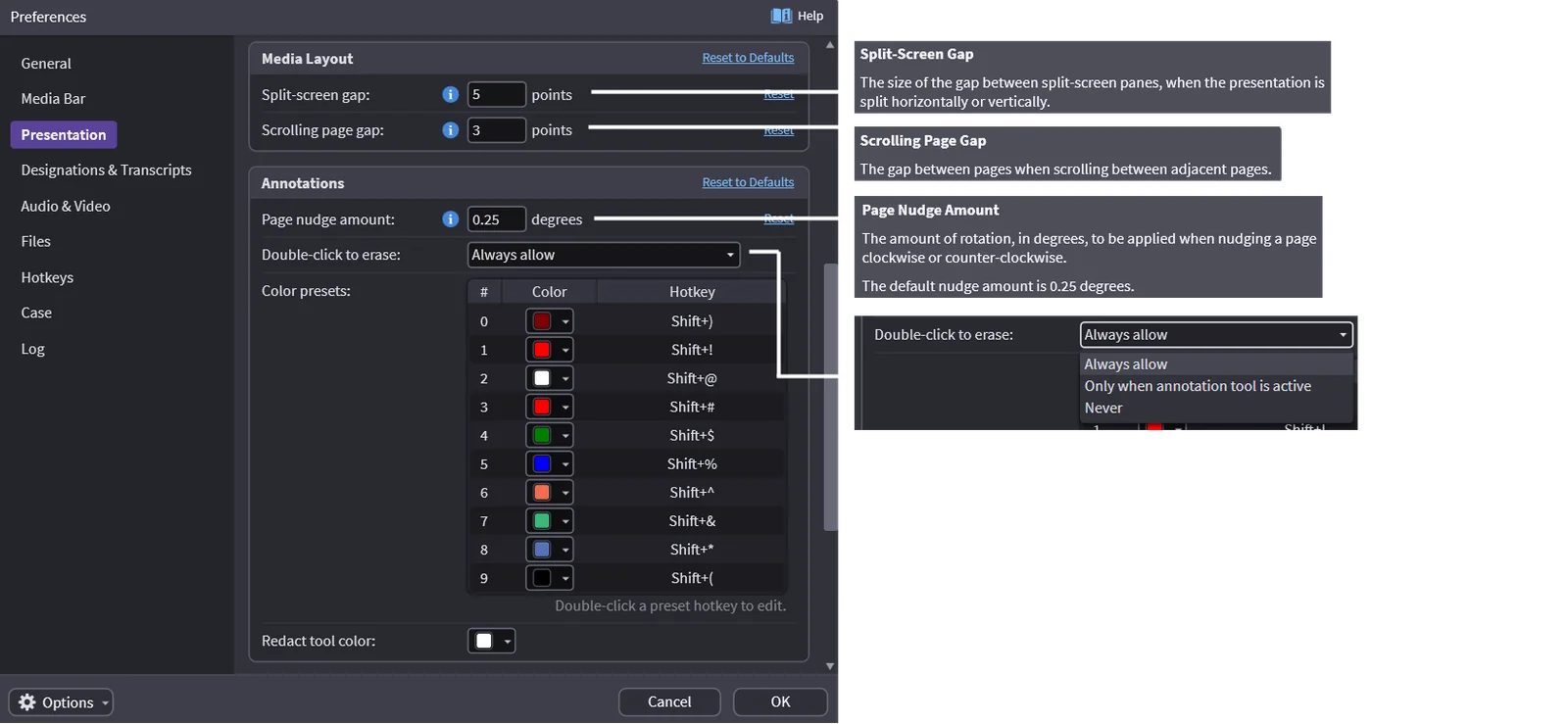
Split-screen gap size: The size of the gap between split-screen panes.
Scrolling page gap size: The gap between pages when scrolling between adjacent pages.
Page nudge amount: The amount of rotation, in degrees, to be applied when nudging a page clockwise or counter-clockwise.
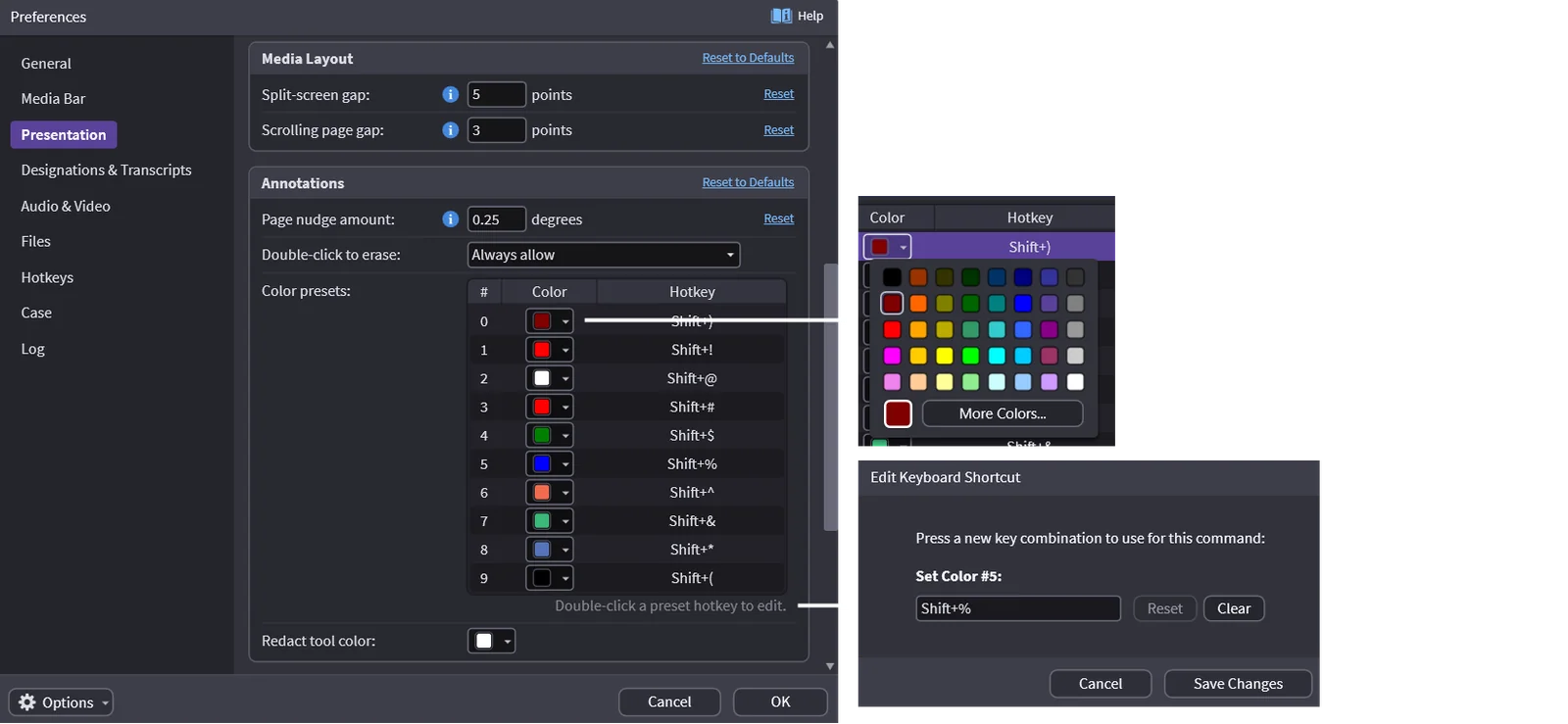
Double-click to erase annotations: This controls the double click behavior while creating annotations.
Presentation quality: This sets the quality, or crispness, of presentation content. The quality affects all docs, images, video, and text shown in the Viewer and presentation displays. Higher quality looks best but may cause interaction to be sluggish. Lowering the quality will improve responsiveness.
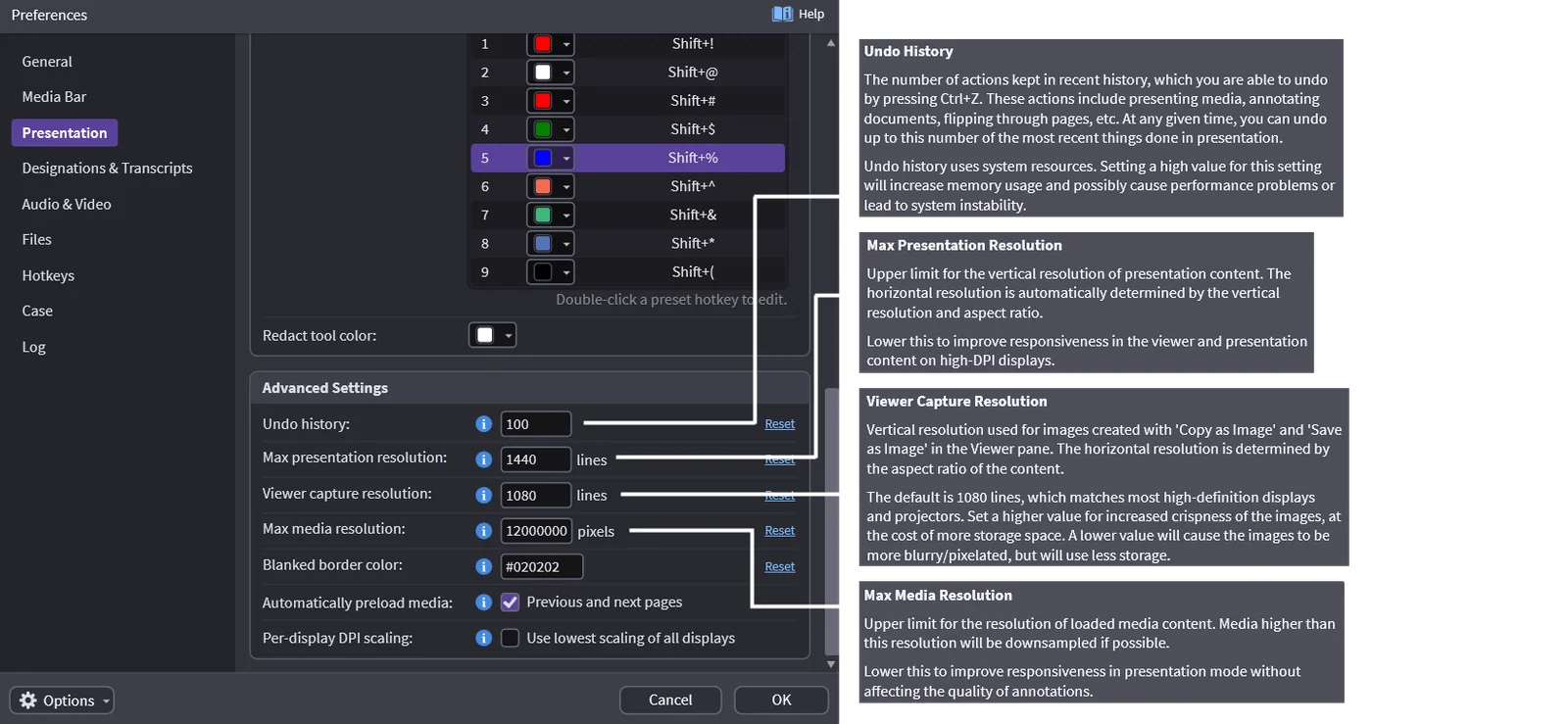
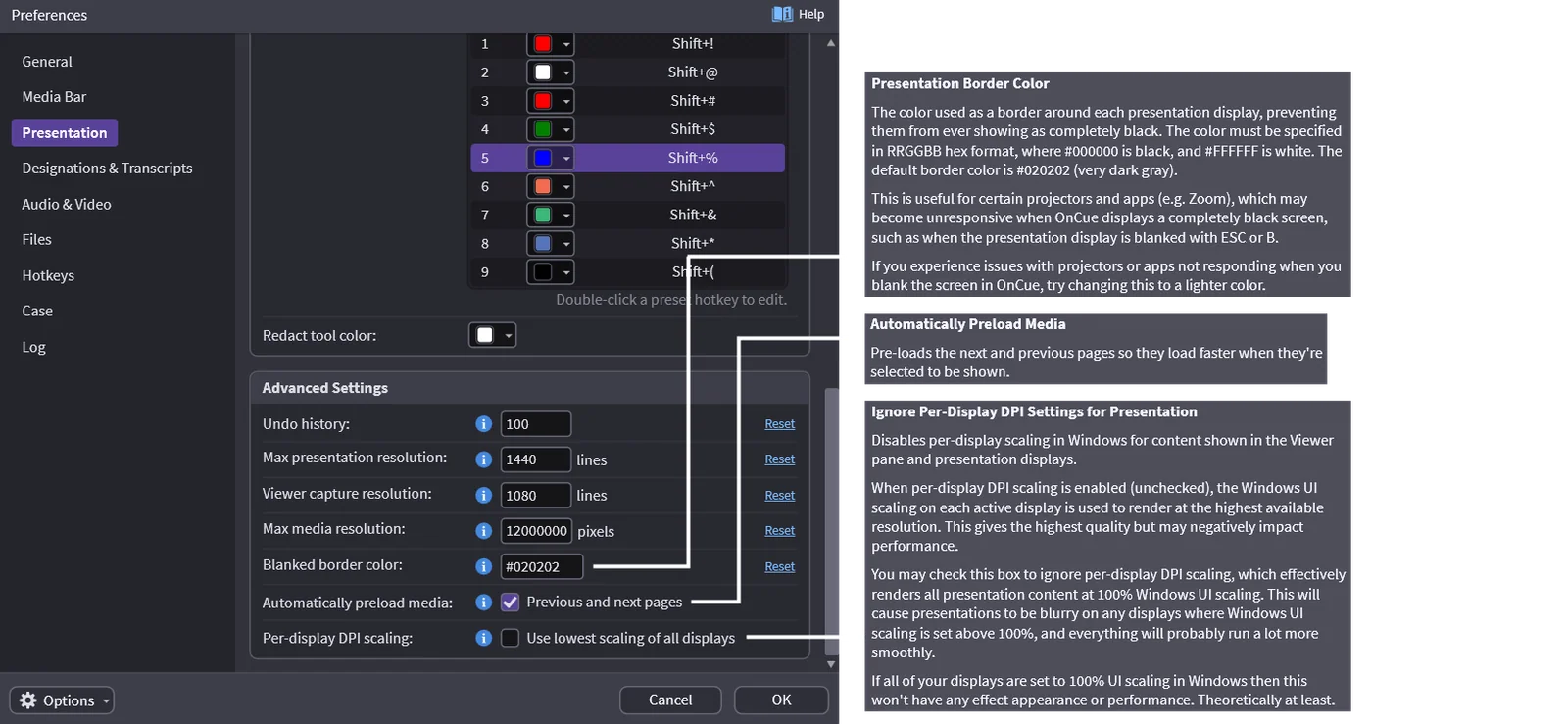
Max presentation resolution: Upper limit for the vertical resolution of presentation content. The horizontal resolution is automatically determined by the vertical resolution and aspect ratio.
Max media resolution: Upper limit for the resolution of loaded media content. Media higher than this resolution will be downsampled if possible.
Preloads the next and previous pages so they load faster when they’re selected to be shown.
Ignore per-display DPI settings for presentation: Disables per-display scaling in Windows for content shown in the Viewer pane and presentation displays.
presentation settings, split-screen gap, status bar, page nudge, double-click to erase
Still stuck? Email support@oncuetech.com.