



Choose Your Displays
Updated January 13, 2025
In OnCue, you can choose the monitor on which Presentation appears. Click each display you want to use; selected displays turn purple, and Presentation appears on them. You can also name displays. Note that a name cannot be reset to the default; it can only be changed.
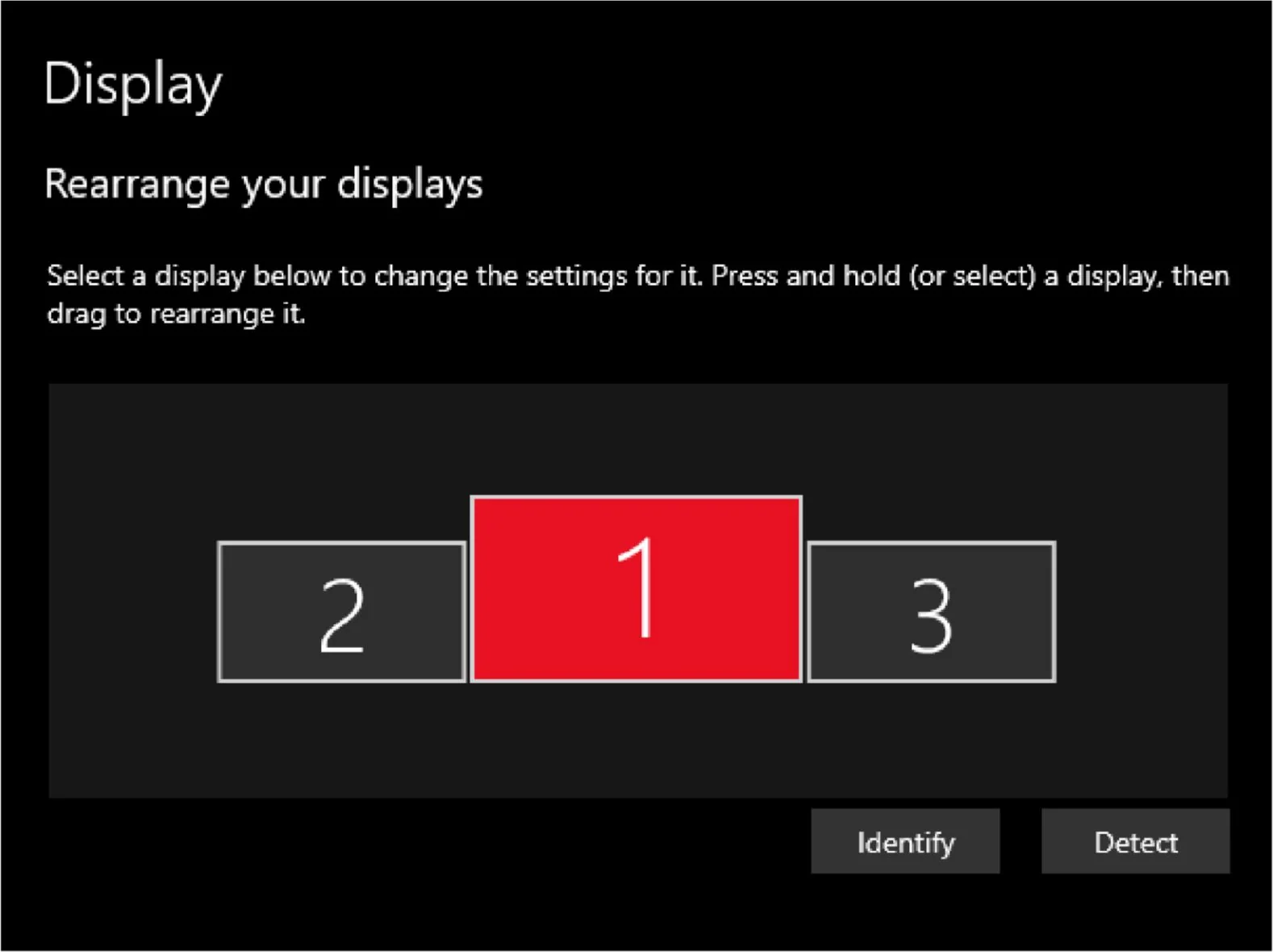
Tip: Make sure your computer is set to extend its displays: press Windows + P and choose Extend, or go to Settings > Display, select a non-primary display, and choose Extend desktop to this display under Multiple displays.
-
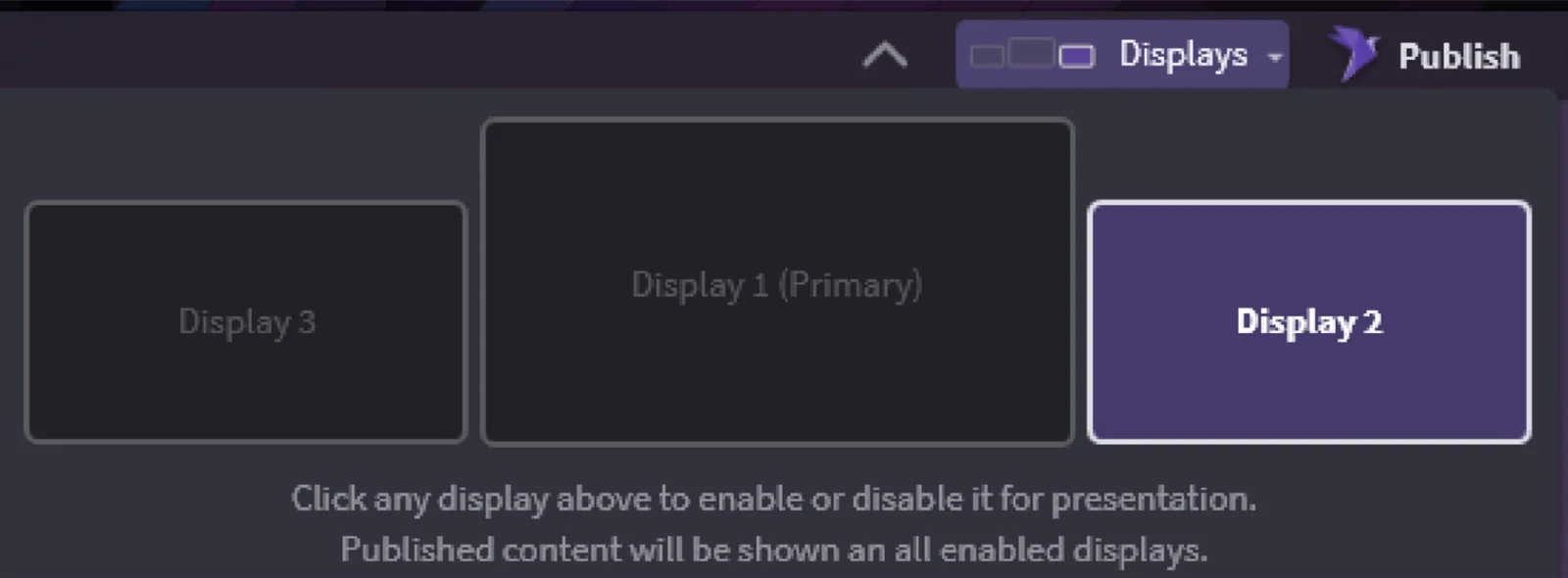
Standard (Presentation on the secondary display):
-
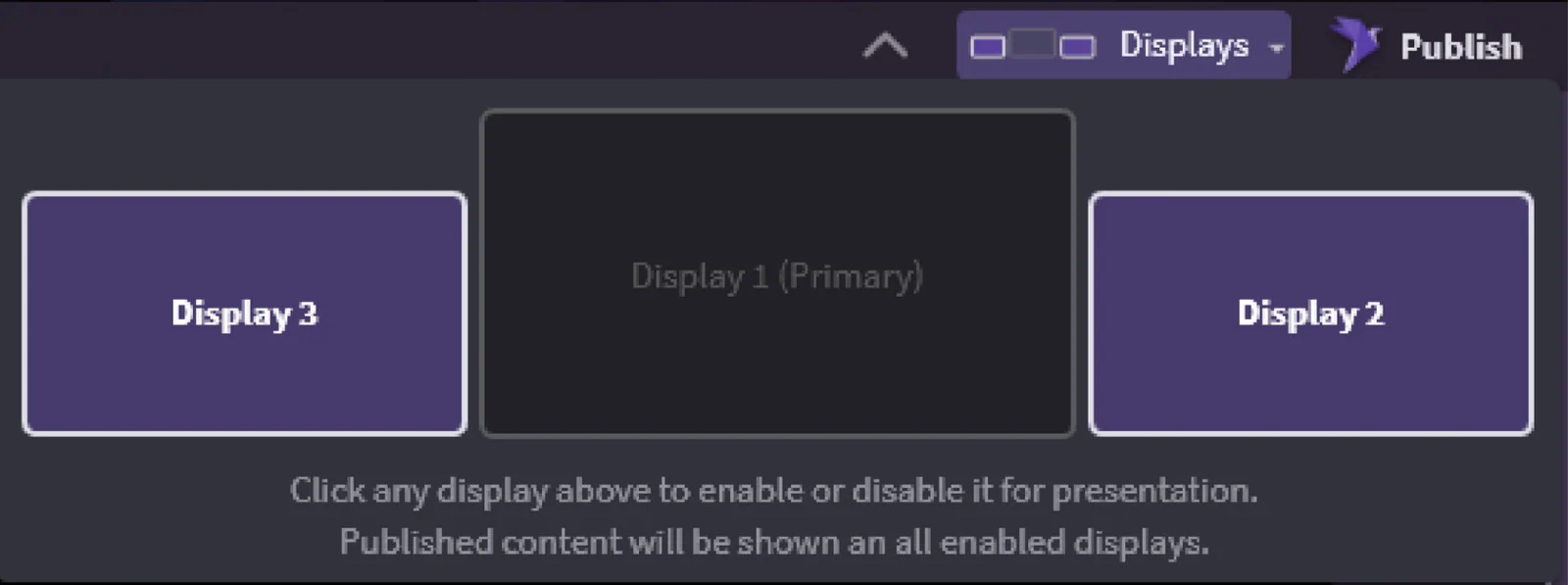
Displays 2 and 3:
-
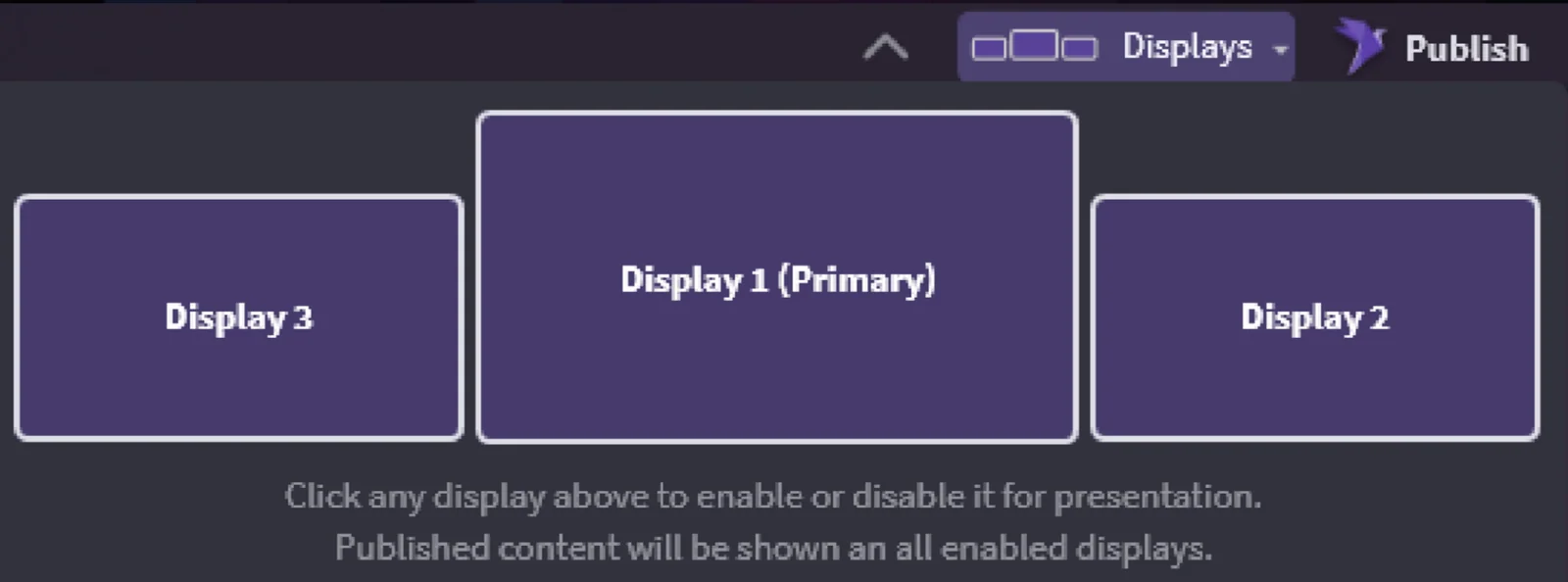
All displays (no Production window):
Right-click the Viewer in Production and deselect the display you do not want Presentation to appear on.
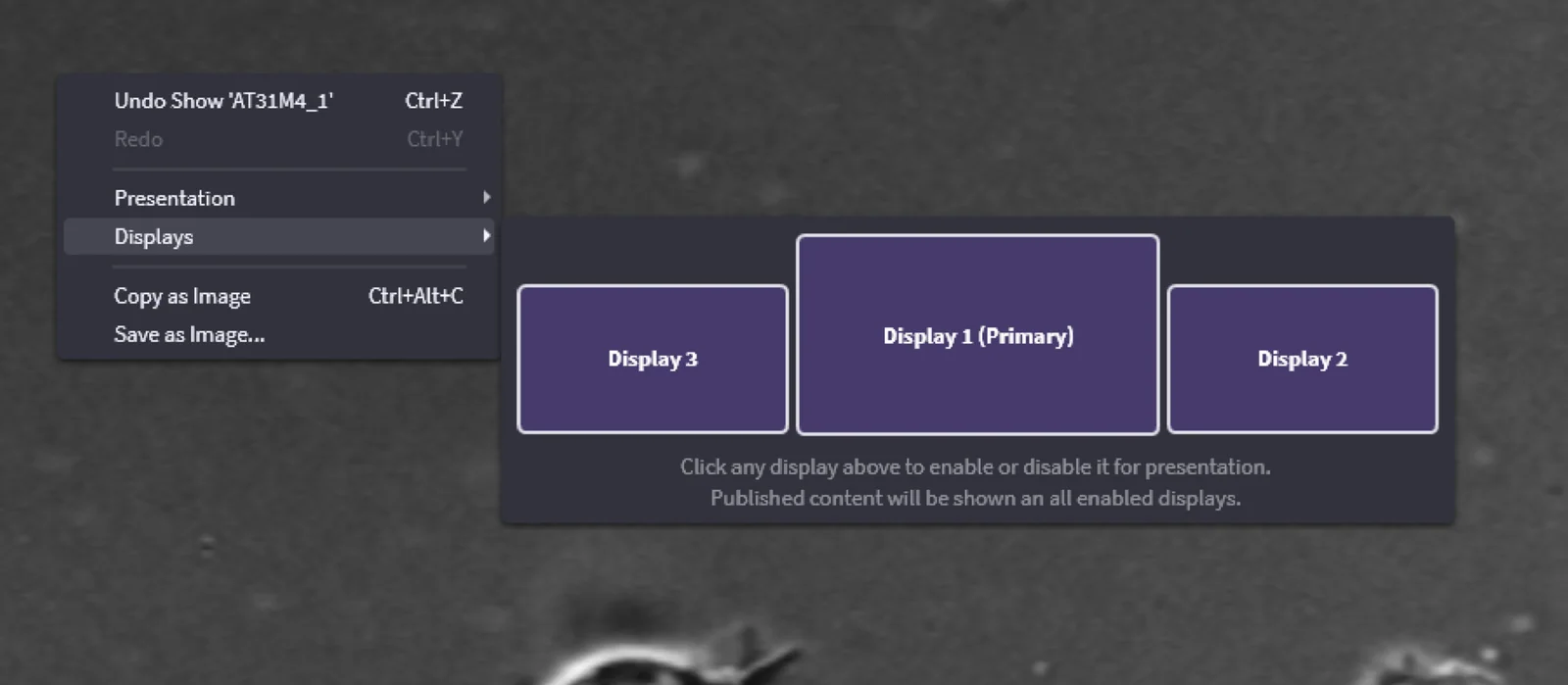
To rename a display, hover over it and click Rename.
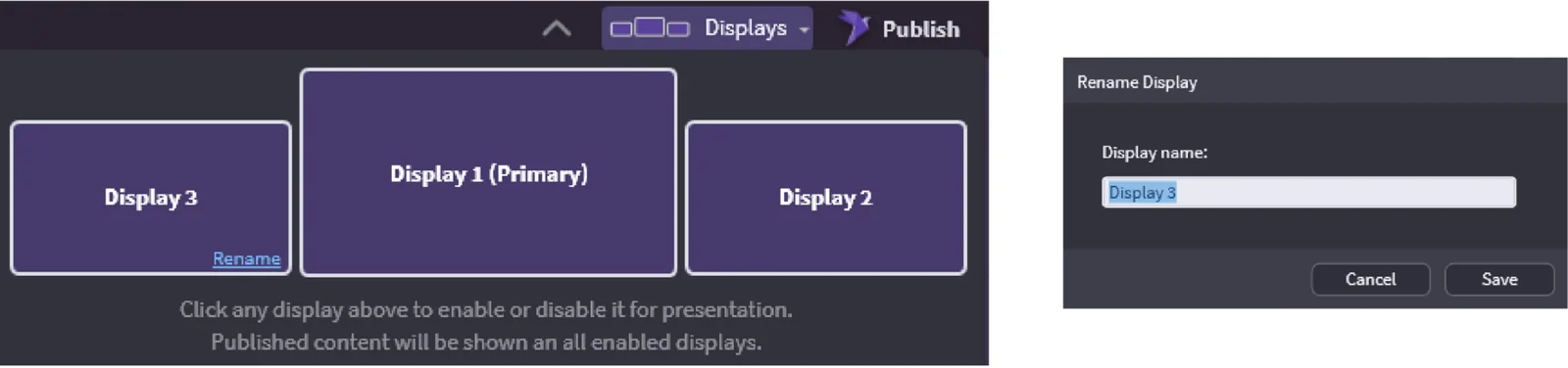
Note: Windows display numbers may not match OnCue display numbers, but OnCue detects your configuration and your primary display.
displays, monitors, projector, second screen, display settings
Still stuck? Email support@oncuetech.com.