



Exporting Designation Lists
Updated October 27, 2026
This article answers
- Can I export my designations to text or video, with scrolling text?
- Can I send a designation list to another OnCue user?
Designation Lists are the page/line clips of the deposition testimony for the purpose of playback in court. You will need a synchronized transcript file (.mdb or an OnCue xml) and the raw deposition video to use this feature (see Adding Synchronized Transcripts).
You can export designation lists to video, text, or XML files.
An OnCue XML export is the best way to share fine-tuned, linked designation lists with another OnCue case.
Note: Selecting and exporting multiple lists creates a video file for each list. It does not create a single video. To export one video, select the lists, right-click, choose Create New Designation List from Selection, and export the new list.
Warning: Exports ignore left-pointing auto-advance arrows. To export groups of clips as separate files, split the list first; see Split Designation Lists.
Export to Video File
To export your designation lists to a video file, right-click the designation list and point to Export.
Note: When exporting video with linked documents, leave more than 0.1 seconds before and after each link to avoid export errors.
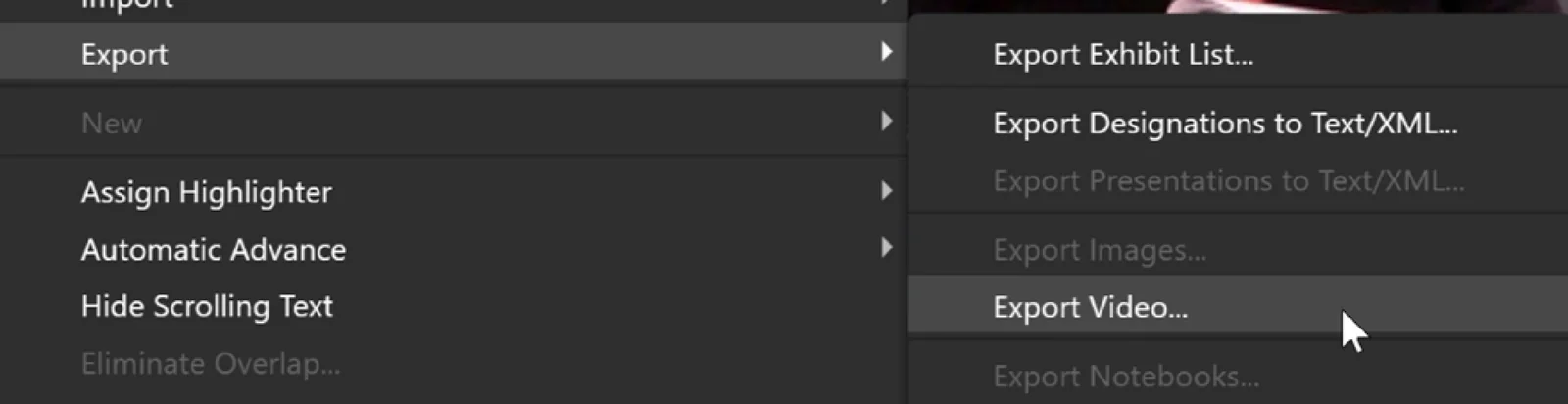
Video options – MPEG-4 (H.264/AVC) is recommended: it plays almost anywhere, has high quality, and produces small files for PowerPoint or email.
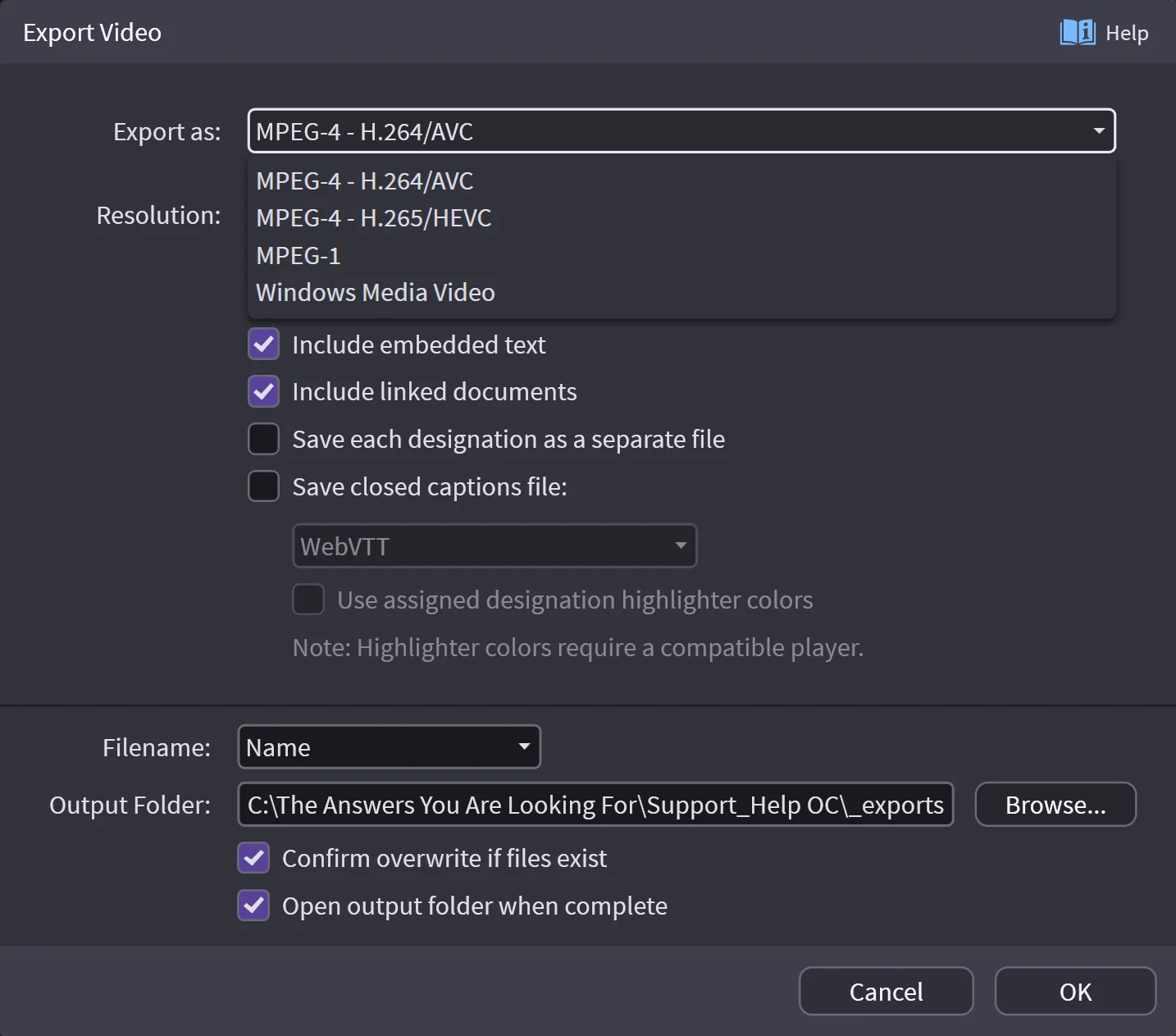
Include scrolling text and linked documents – includes the scrolling text and linked documents shown during playback in Presentation Mode.
Save each clip as a separate file – creates one video file per clip instead of one for the list.
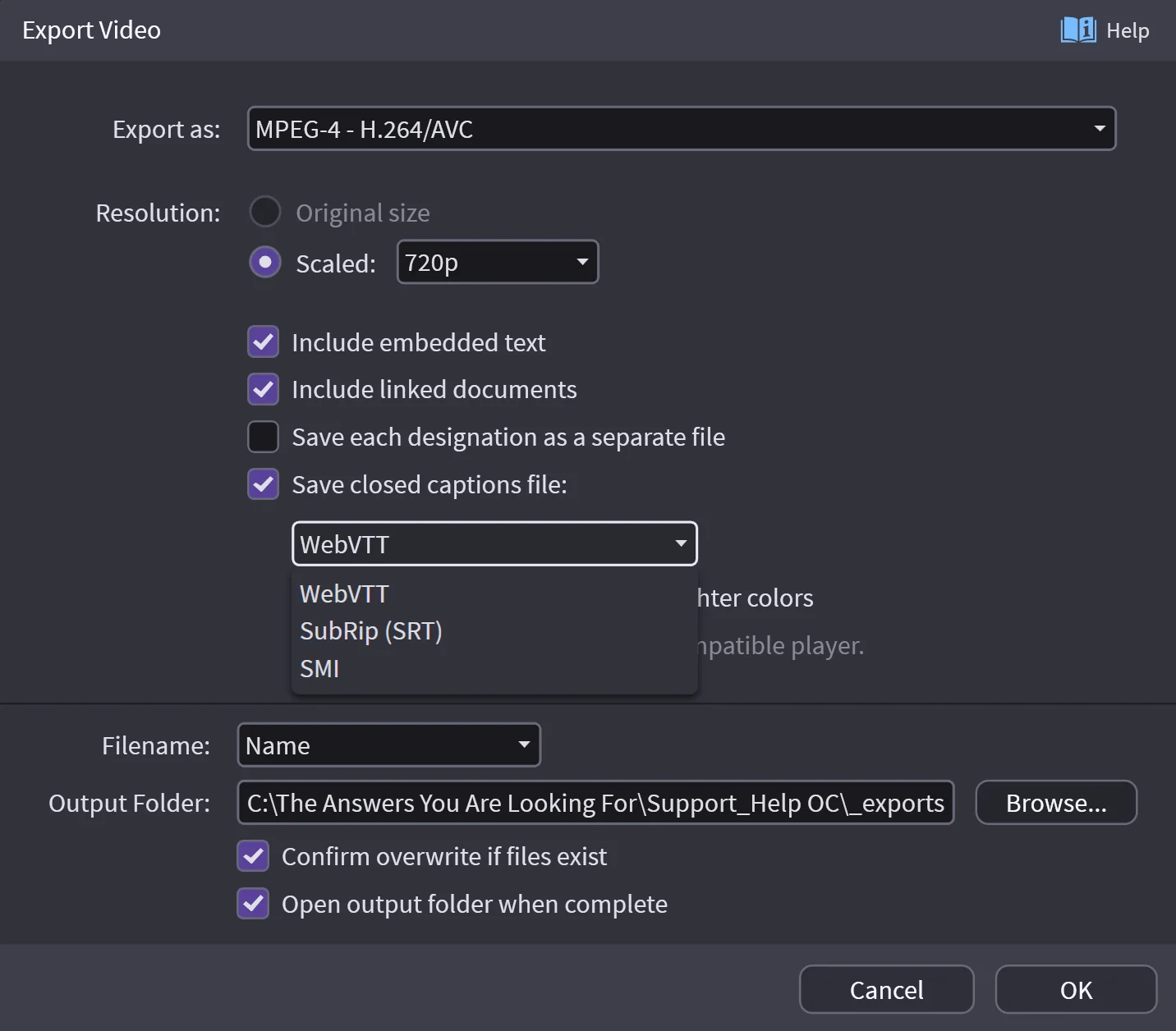
Save closed captions file – saves a captions file in one of several formats.
You can also export with highlighter colors, but the video player must support them.

Export to XML File
To export your designation lists to an XML file, right-click the selected list or lists and choose Export > Export Designations to Text/XML….
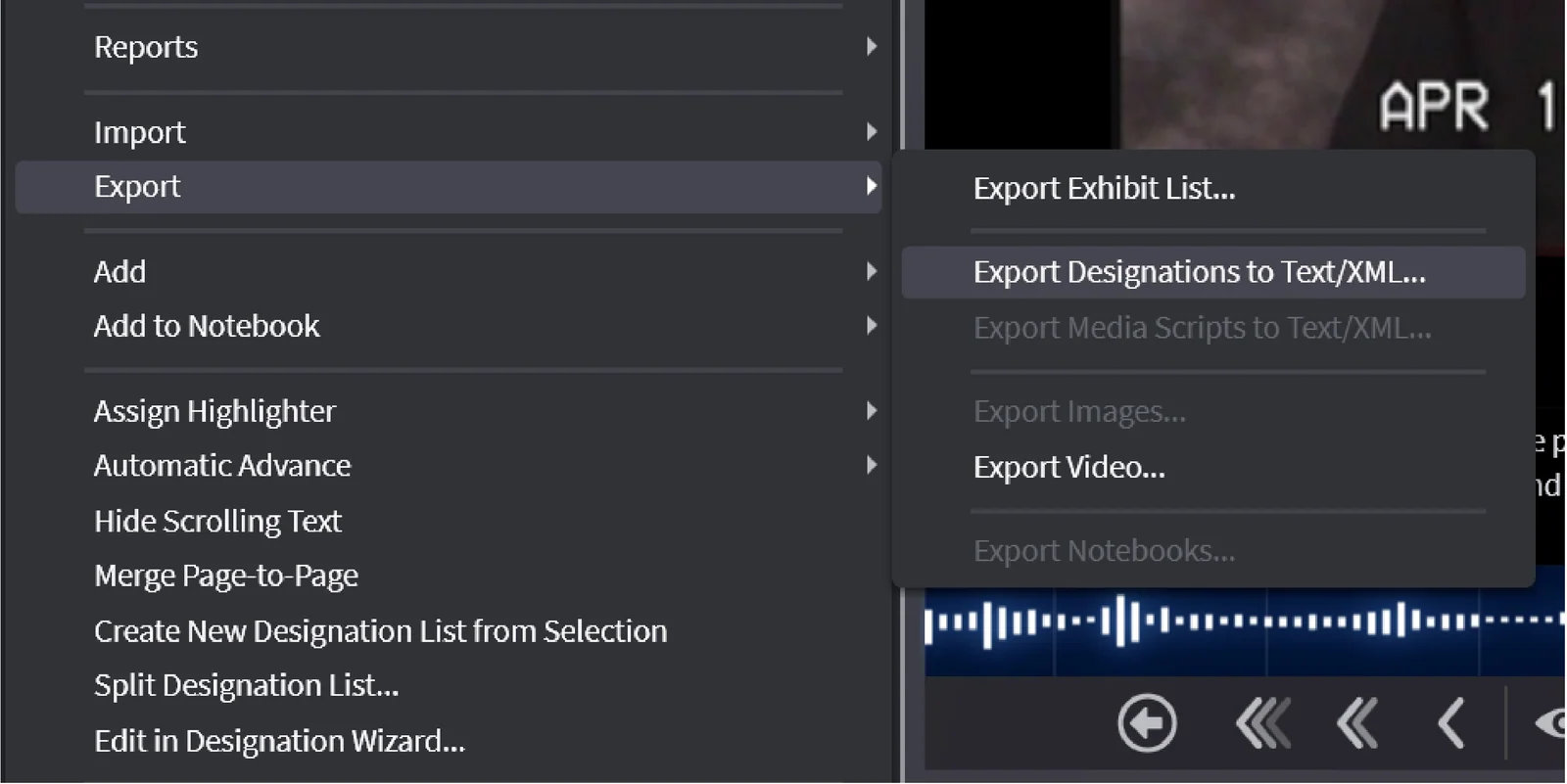
Here are your options for exporting to an XML file:
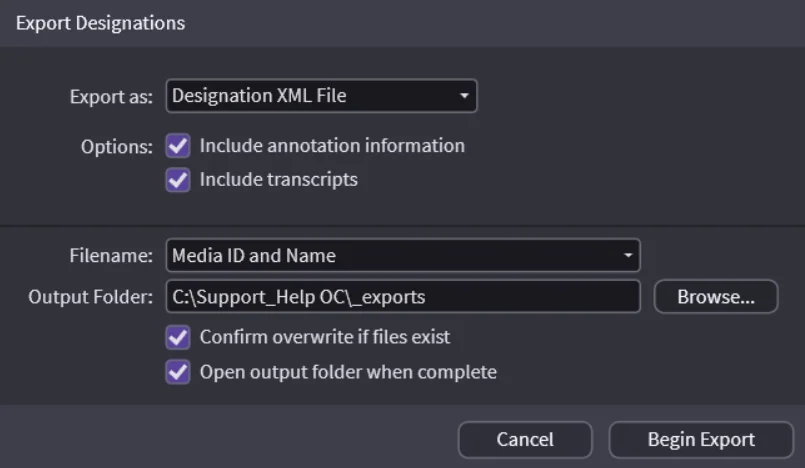
Include annotation information – includes all annotation information (tuning, text edits, and links) in the XML file.
Include transcripts – adds the transcripts to the XML file.
See Importing Designation Lists for more information.
Export to Text File
To export your designation lists to a text file, right-click the selected list or lists and choose Export > Export Designations to Text/XML….
Here are your options for exporting to a text file:
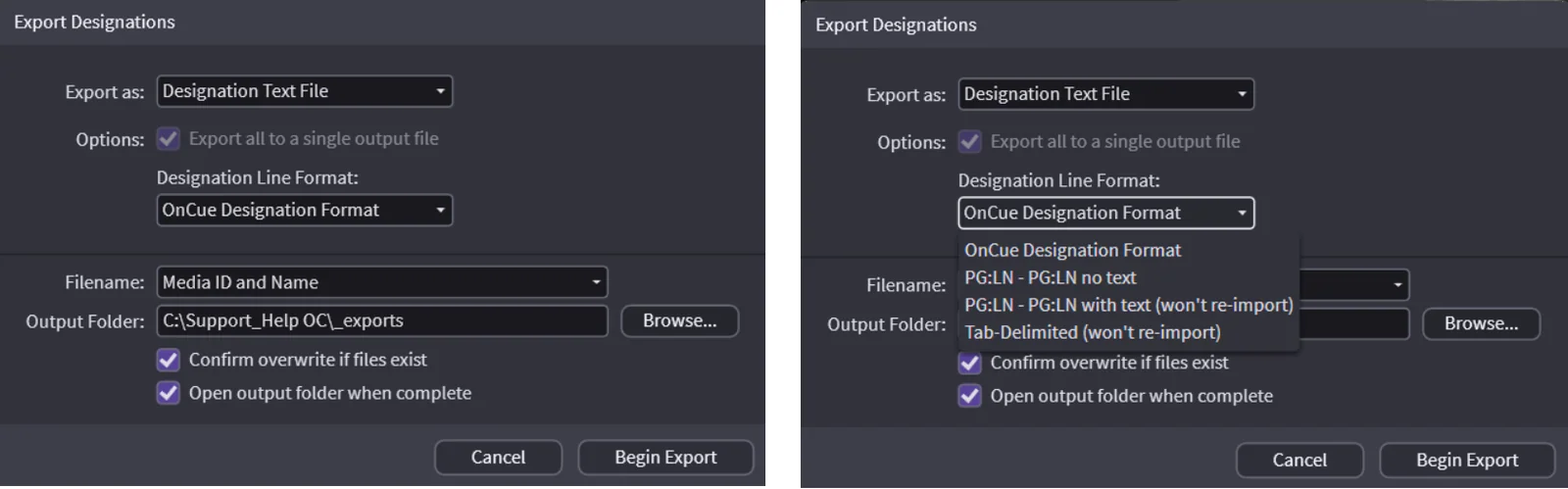
The designation line formats are:
- OnCue Designation Format
- PG:LN - PG:LN no text
- PG:LN - PG:LN with text
- Tab-Delimited (won’t reimport)
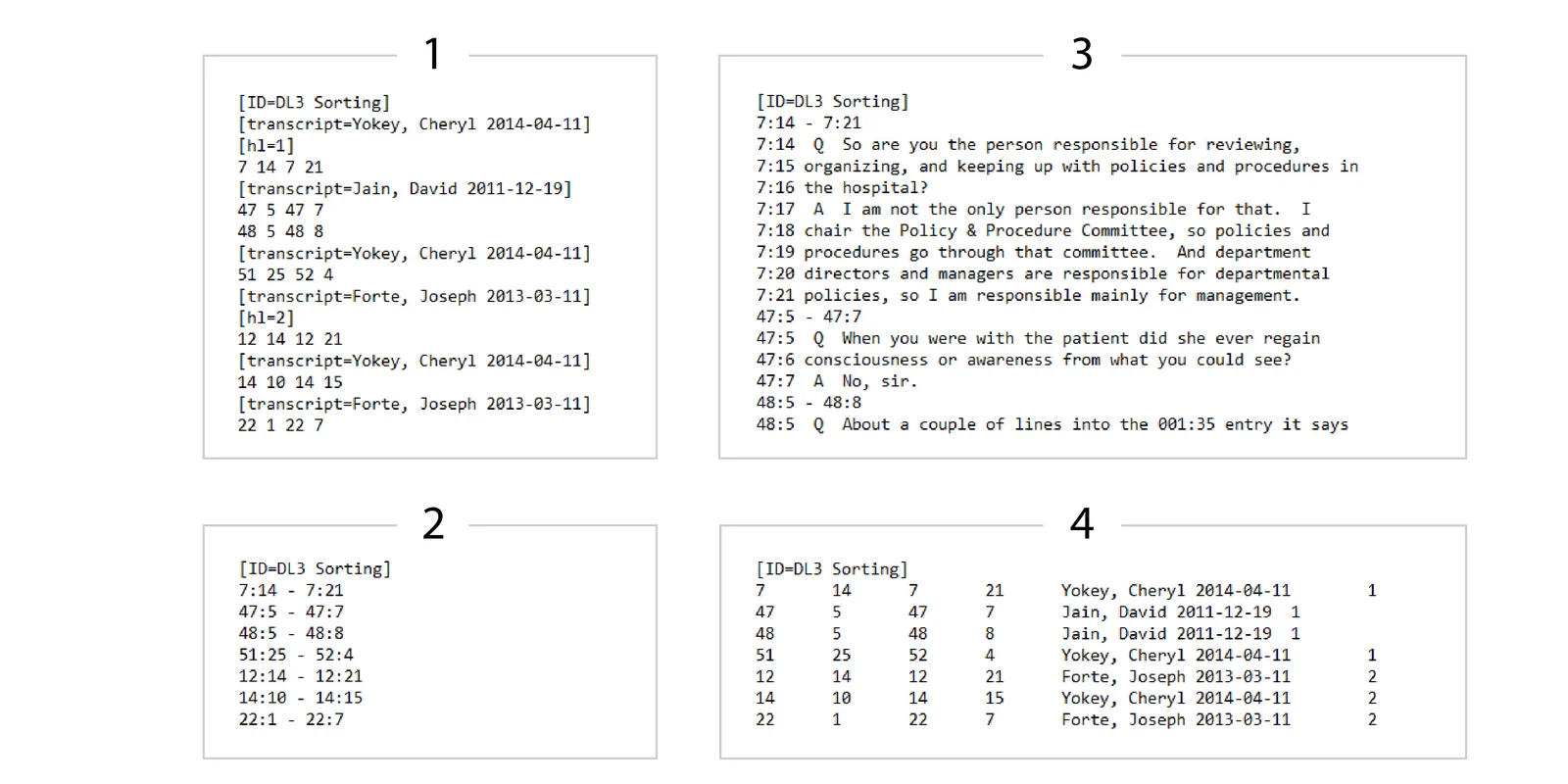
Note: Text files do not include annotation information. To keep it, export to XML.
export designations, export list, excel, report
Still stuck? Email support@oncuetech.com.