



Displaying Exhibits - On-Air
Updated January 13, 2025
On-Air is OnCue’s version of a mirror mode that automatically shows on the Presentation screen whatever you select in the Viewer.
Your audience should see only the Presentation screen, never what is behind the curtain. OnCue has a few ways you can do this. Use the extended desktop, or, if you do not have room for a second monitor, use On-Air.
Press the Annotate/Present button in your Workflow Ribbon. This will bring up the Viewer.
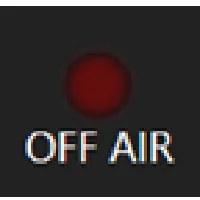 In the lower-left corner of the Viewer, you will see an OFF AIR button.
 Select a document and then press that button to go “ON AIR”
The default hotkey to toggle On-Air on/off is ALT + M.
When On-Air is on, whatever is showing in your Viewer is immediately published and everything you do in the Viewer is duplicated in Presentation, with the exception of your mouse cursor. No functionality is lost On-Air; you can still use X + ID and other commands.
Also, in the top right corner of your Production screen an indicator shows which screen has focus for hotkeys.
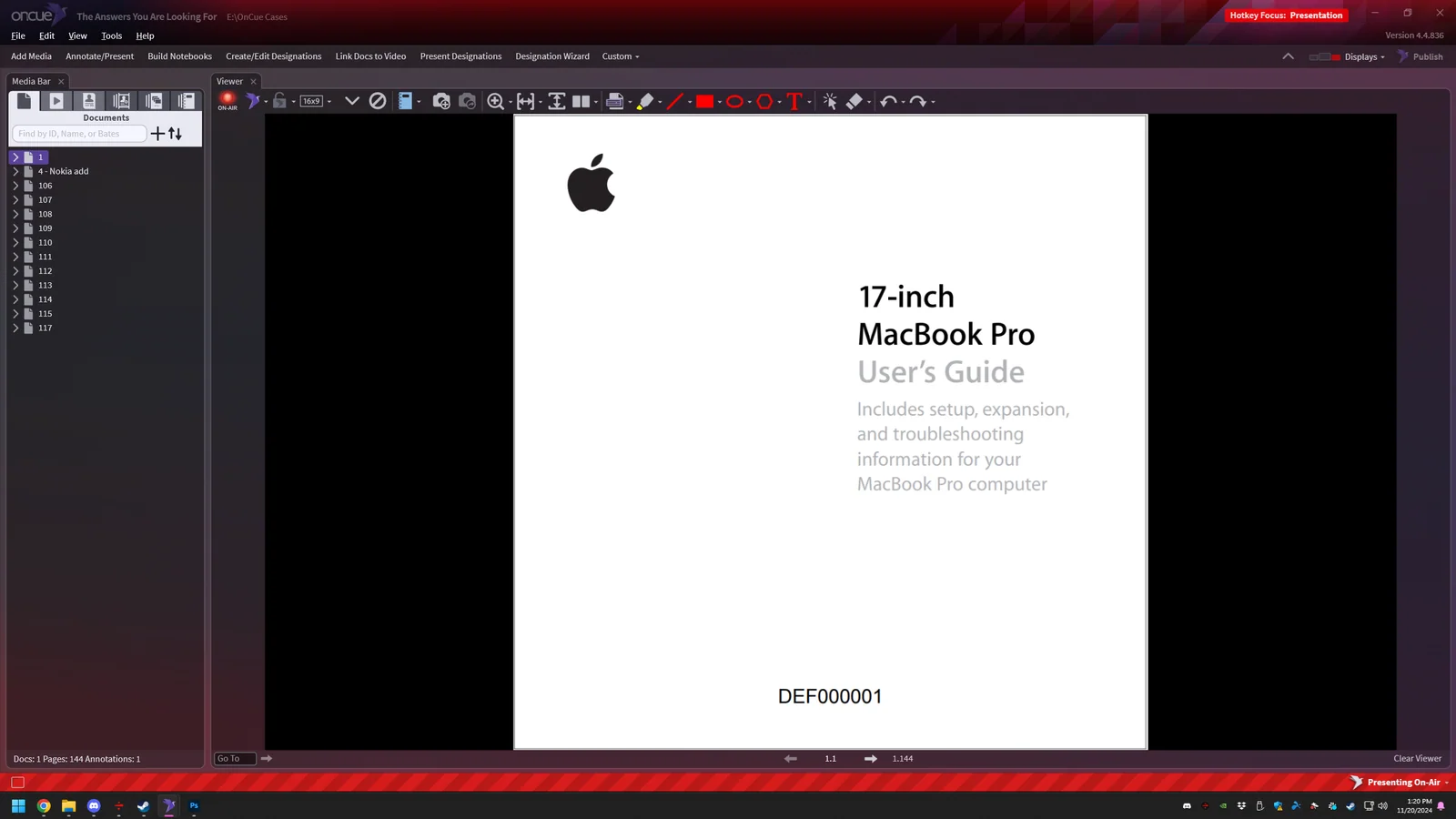
Want to leave the document up in Presentation but not continue to use On-Air? Toggle On-Air off; the document stays on the Presentation screen.
Tip: If you have a document in Presentation and have navigated away from it in Production, press Alt + F5 (Reverse Publish) to bring the document on the Presentation screen back into the Viewer.
On-Air, Off-Air, mirror mode, live display
Still stuck? Email support@oncuetech.com.