



Creating, Opening, & Moving Your Case
Updated January 2, 2025
OnCue allows you to organize all your trial exhibits, synchronized transcripts, demonstratives, and videos in a single structure called a case. Creating a Case is the first step in preparing for trial presentation.
Creating a Case
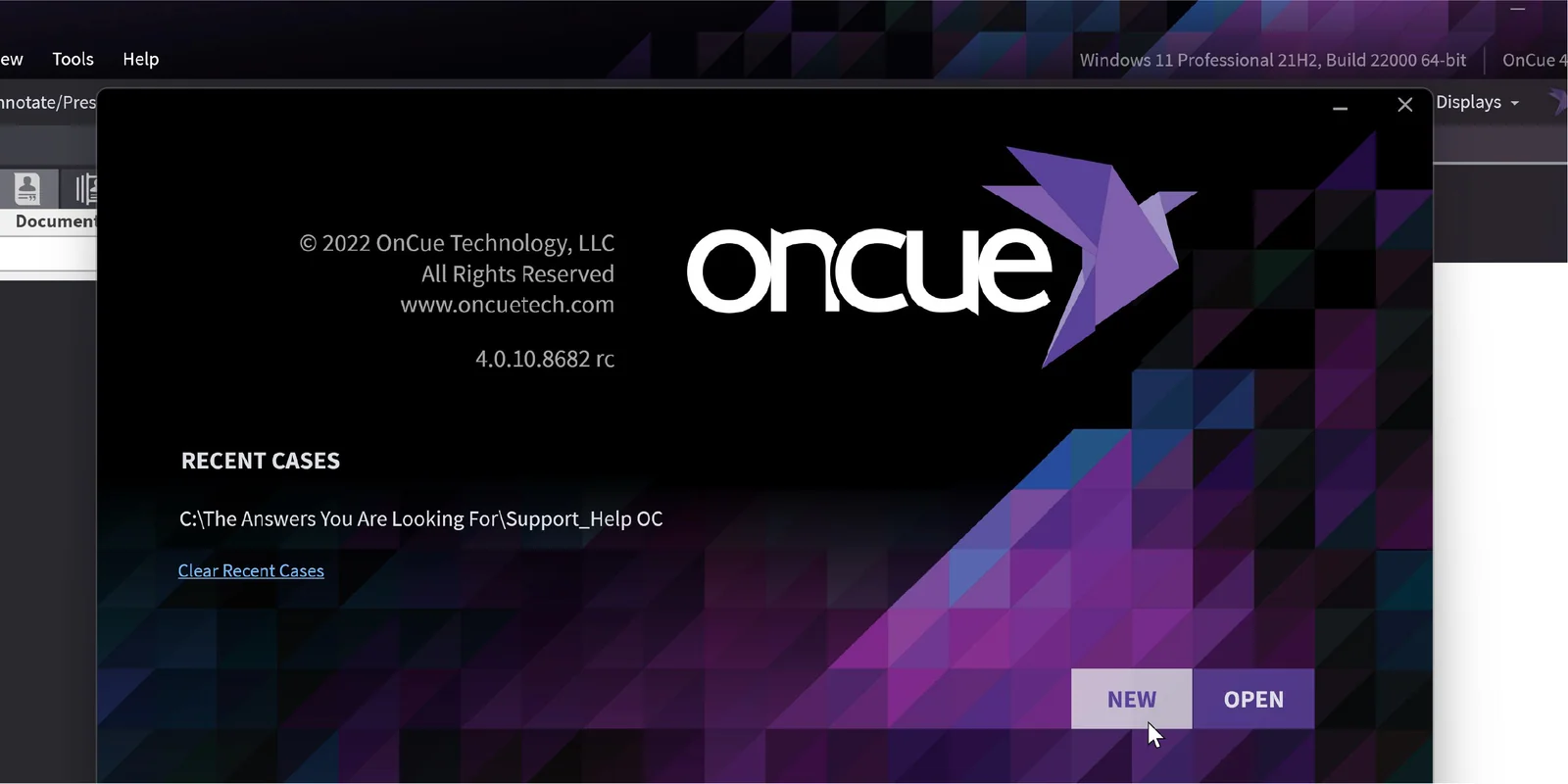
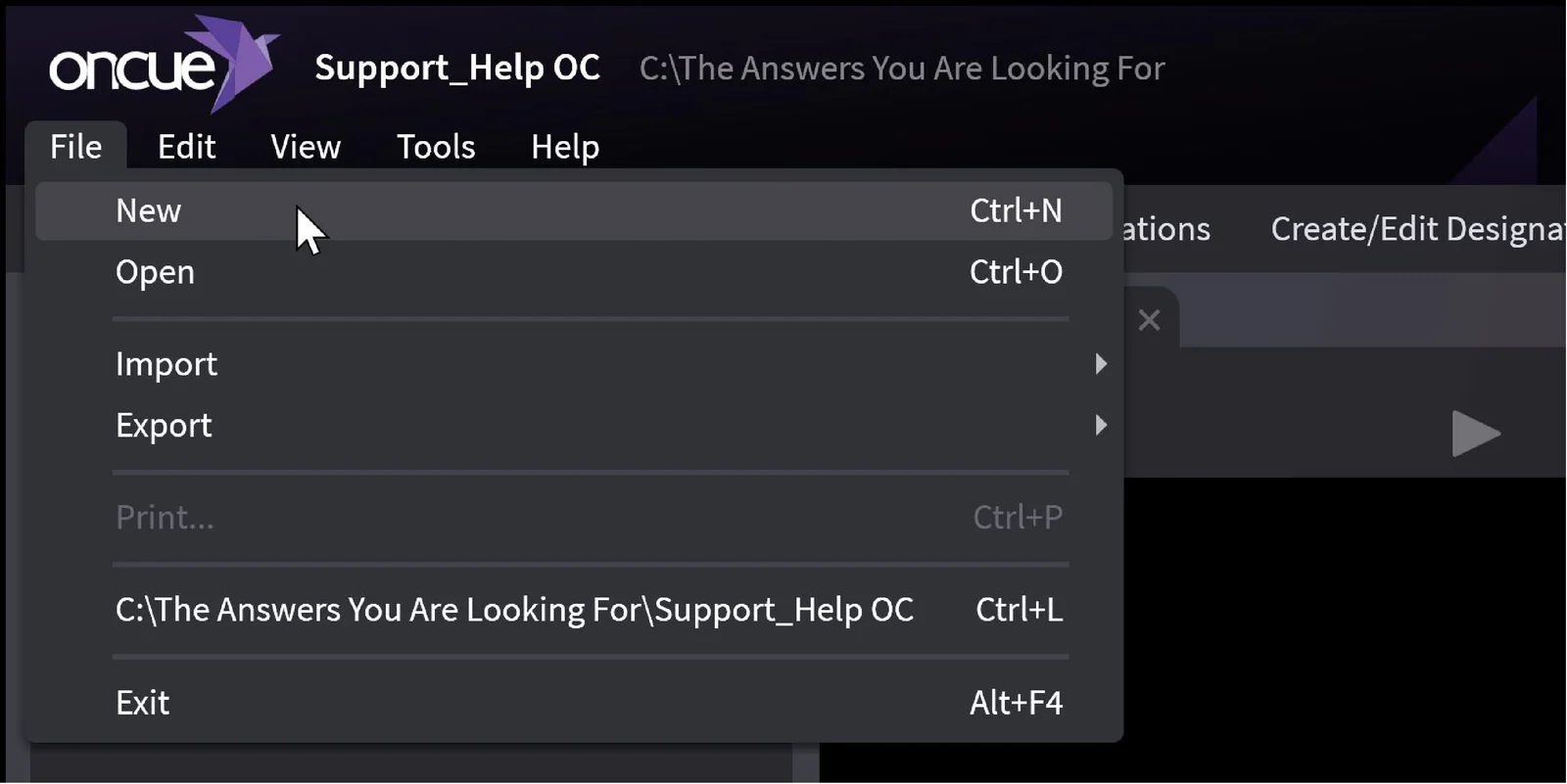
There are two ways to create a Case in OnCue – either by selecting New when OnCue first launches, or by opening the File menu and selecting New.
From the launch screen:
From within OnCue:
Either option launches a window that allows you to determine where the main case folder will be located and what to name it.
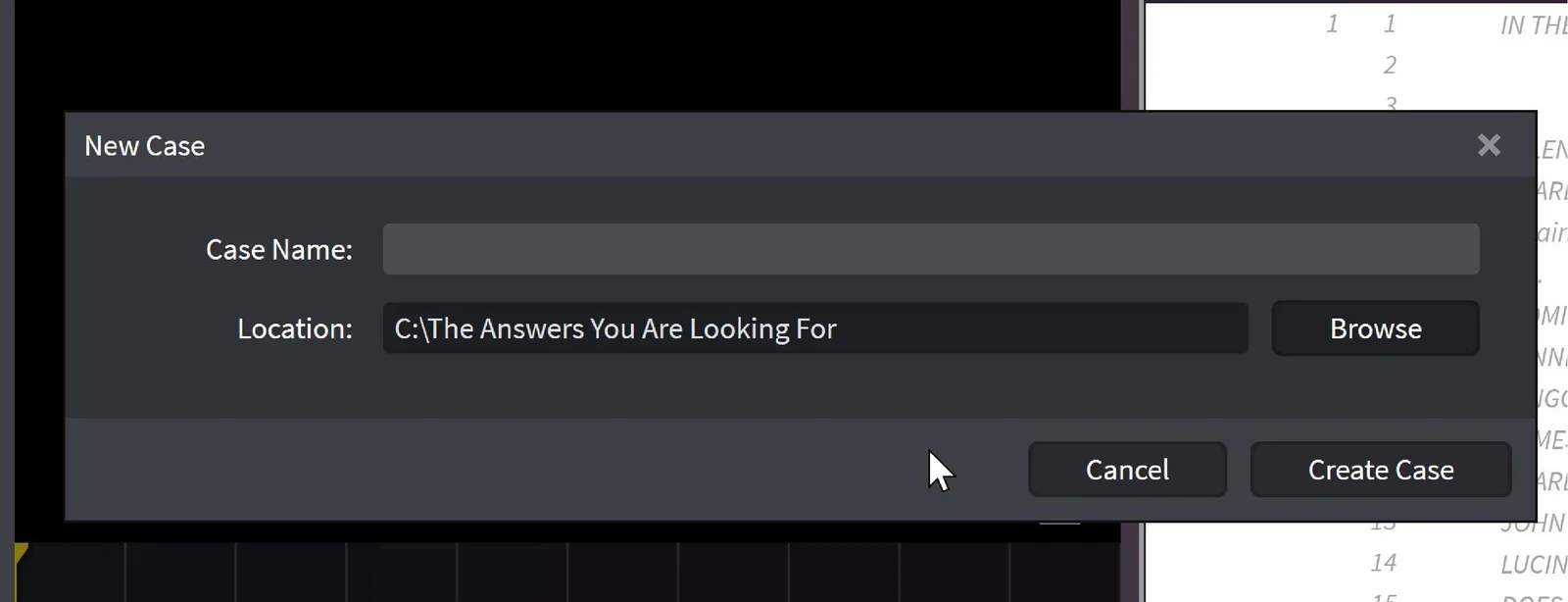
The main case folder is where all the case data is stored. This includes documents, synchronized transcripts, and video files.
Because these files can be large, choose the folder location carefully. By default, OnCue creates new case folders on the desktop. If you choose a different folder, OnCue uses that folder for new cases going forward. If your drive has limited space you may want to browse to a different drive (e.g., an external USB or network drive).
Opening a Case
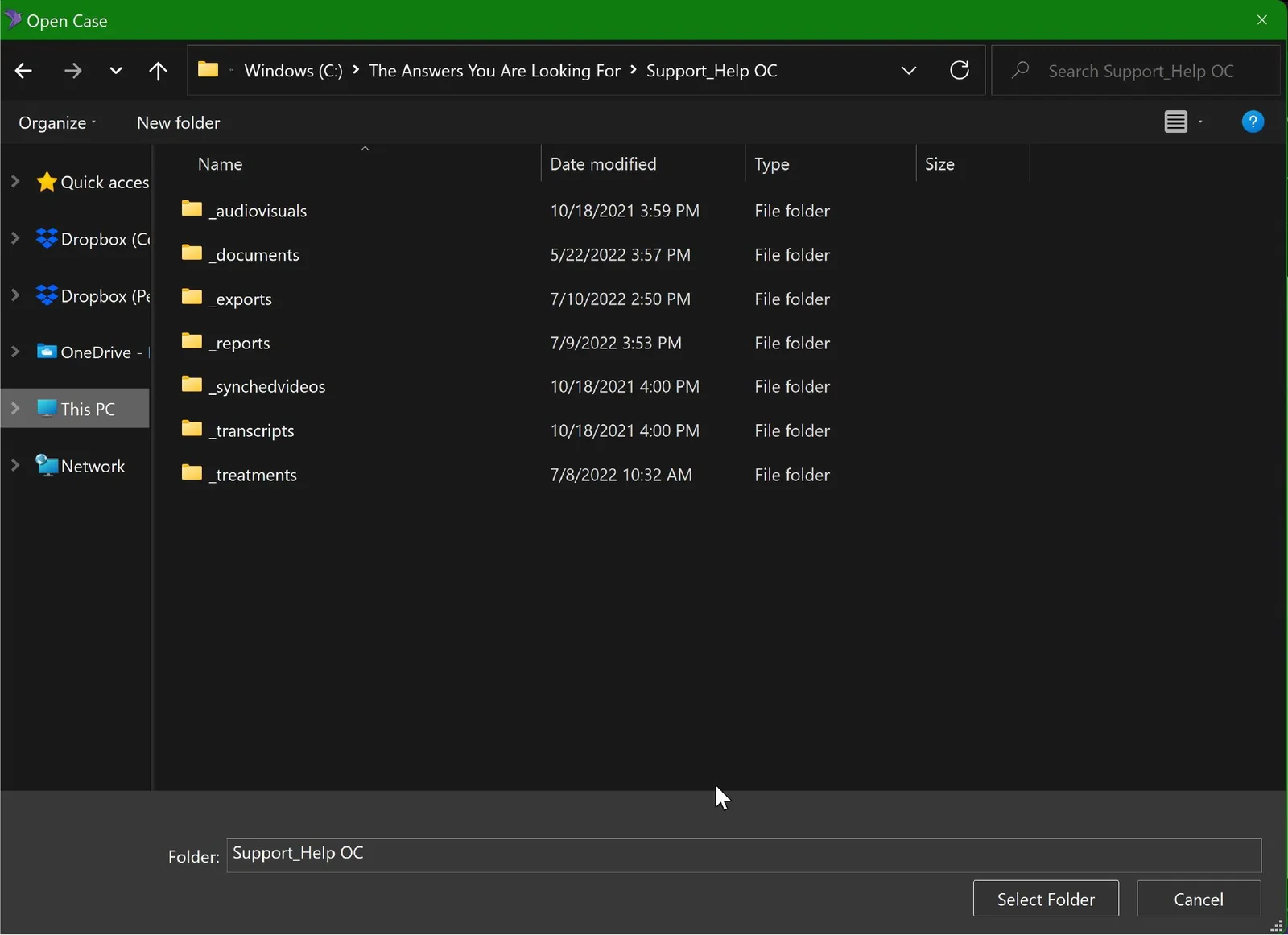
Once the case has been created, open it from the launch screen or with File > Open, which opens a file browser.
Select the root case folder, not a file, then click OK.
Transferring and Backing Up a Case
To transfer a case or to copy it to another location, you need to find the root folder of the case that OnCue created. If you don’t remember where the case folder is, its path appears in the top-left corner of OnCue. > Tip: Hold Ctrl and click the case folder path at the top of OnCue to open it in File Explorer. Go up one folder to reach the entire case folder.
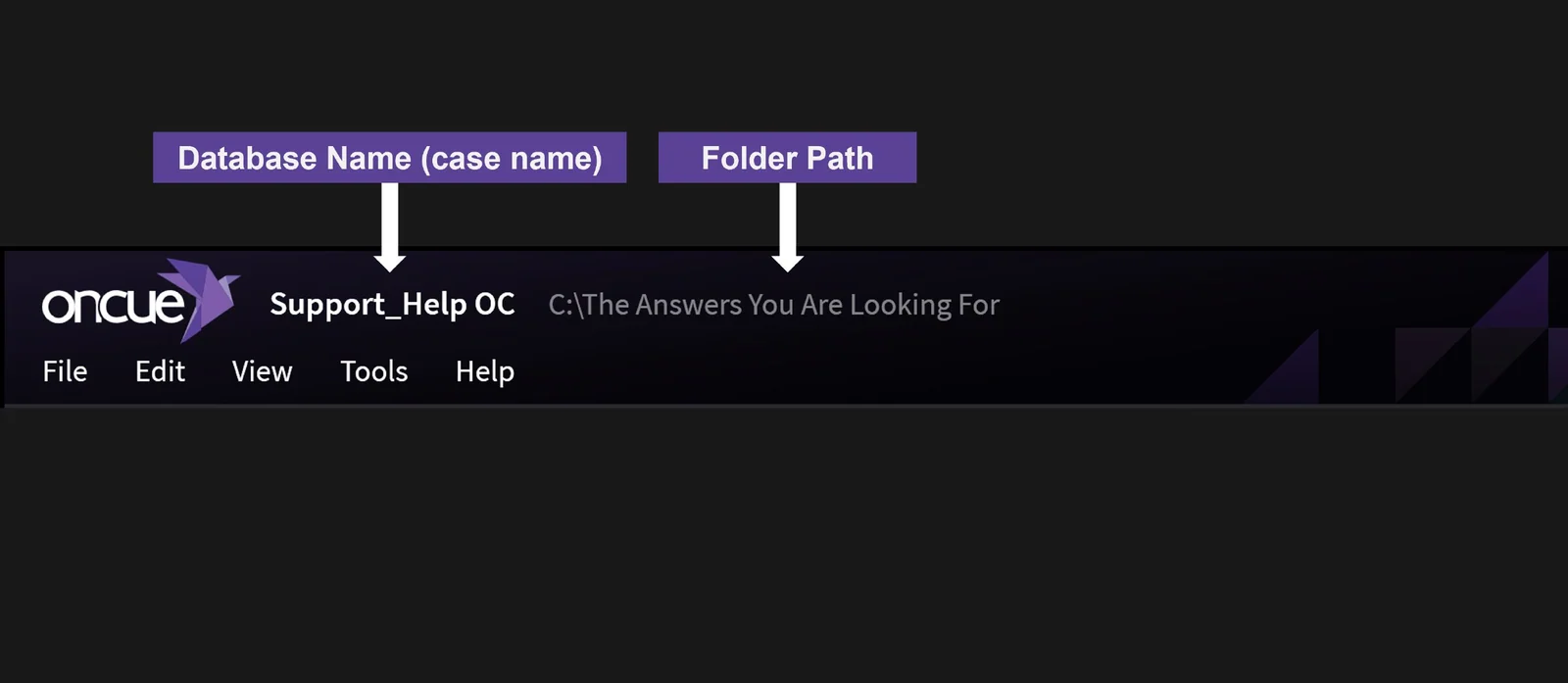
By default, cases are saved on the desktop (or the last folder you chose). Once you find the case folder, right-click and copy it. Then paste the folder into your preferred backup location. If you are moving the case for backup purposes, compare it regularly with your working copy and update it with any changes.
We recommend Beyond Compare, which compares two case folders and copies only the differences. This makes the process much faster if your case has large video files that do not need to be copied over repeatedly.
new case, open case, move case, case folder, database
Still stuck? Email support@oncuetech.com.