



documents/sharing-settings-and-presetsDocumentsdocuments23How do I transfer my settings from one computer to another?What does each item transfer?export settings, import settings, preferences, transfer settings, new computer, highlighters, case folder paths2025-01-02/articles/sharing-settings-and-presets
Sharing Settings and Presets
Updated January 2, 2025
This article answers
- What does each item transfer?
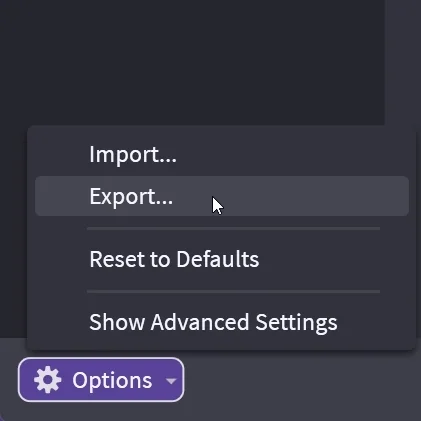
You can transfer settings to another computer by exporting them to a file. The file can include tool settings, transcript highlighters, and case folder paths.
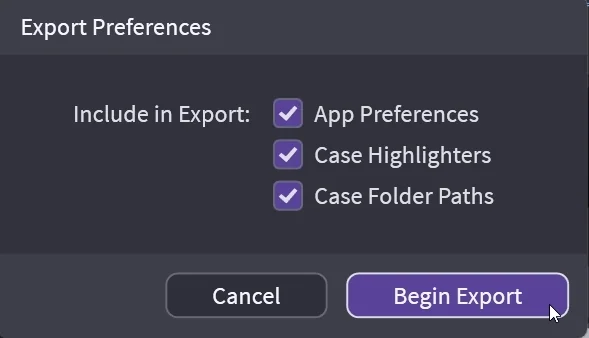
- App Preferences – Most preferences, including tool colors, scrolling text, and callout settings. Select this to copy your preferences to a second computer.
- Case Highlighters – Transcript highlighter names and colors
- Case Folder Paths – The folder locations mapped for the case’s video and documents
Transferring Settings
Go to Edit > Preferences, and at the bottom of the dialog box, click Options.
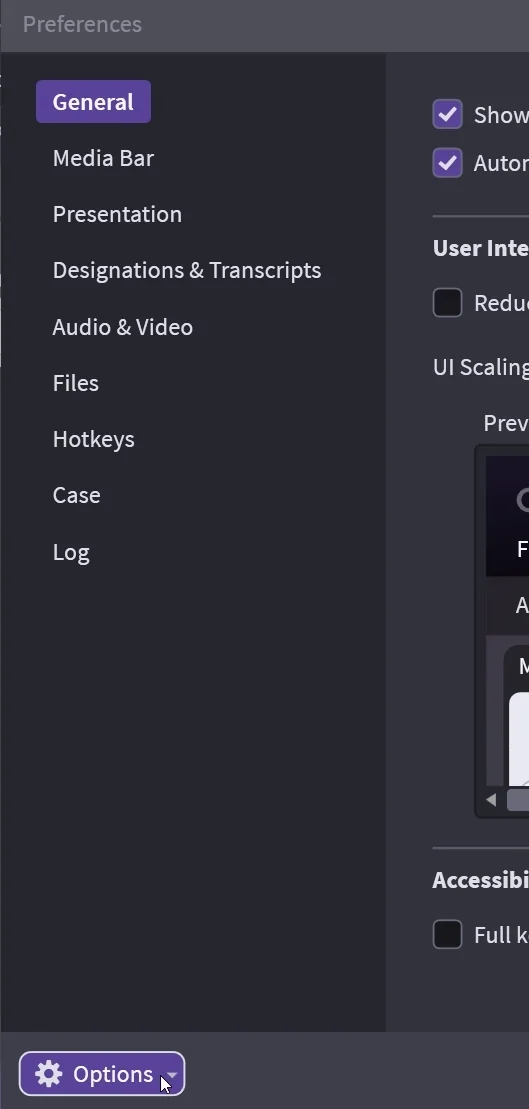
After you click Options, select Begin Export.
Select what you want to share or transfer and then click Begin Export.
export settings, import settings, preferences, transfer settings, new computer, highlighters, case folder paths
Still stuck? Email support@oncuetech.com.