



Designation Objection Reports
Updated September 11, 2025
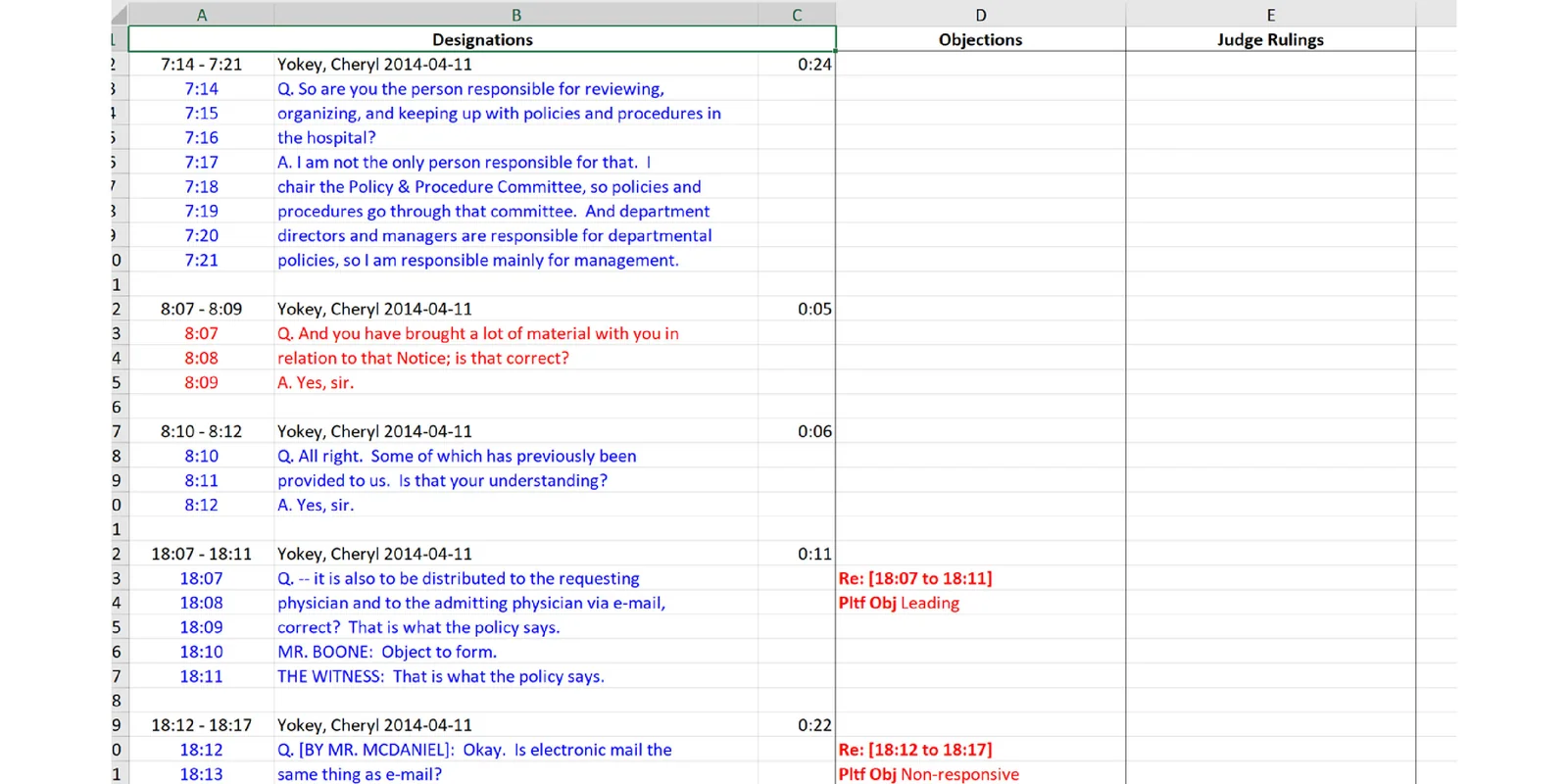
You can create objection reports in Excel format using your existing designations and a text file. The report can be formatted with multiple columns and customized headers.
The text file must be tab-delimited, with no header row. You create and keep the files outside of OnCue. OnCue does not save or store these objections.
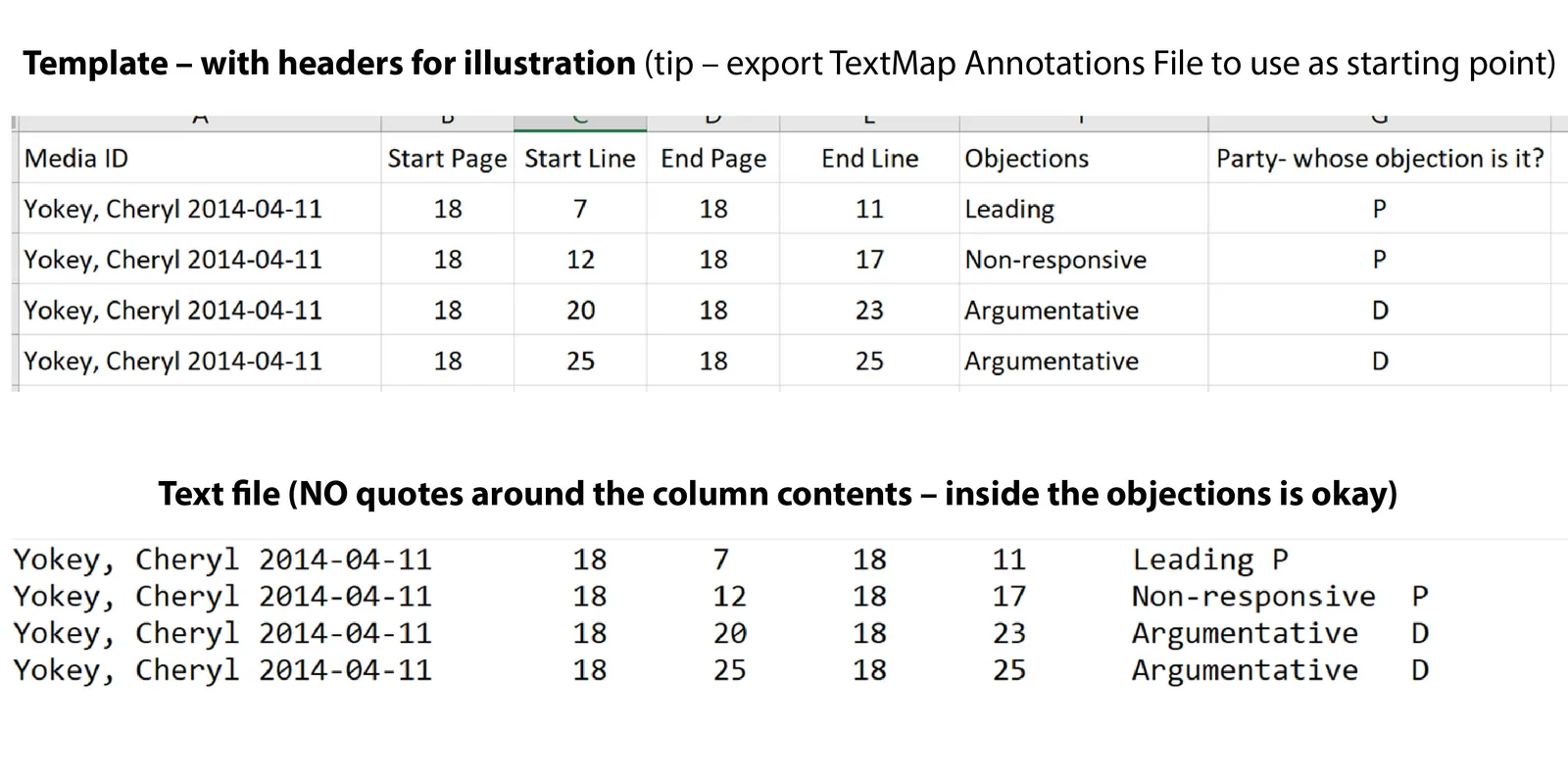
- Transcript Media ID (the transcript you created the designations with), Start Page, Start Line, End Page, End Line, Objections, and the initial of the objecting party
Troubleshooting
- No headers
- No extra spaces in any column except the objection text (column 6).
- No special characters (such as em dashes) in the objection column.
- Fill all four page/line columns, even for a single line.
- An objection appears in the report only if it matches a designation.
Creating an Objection Report
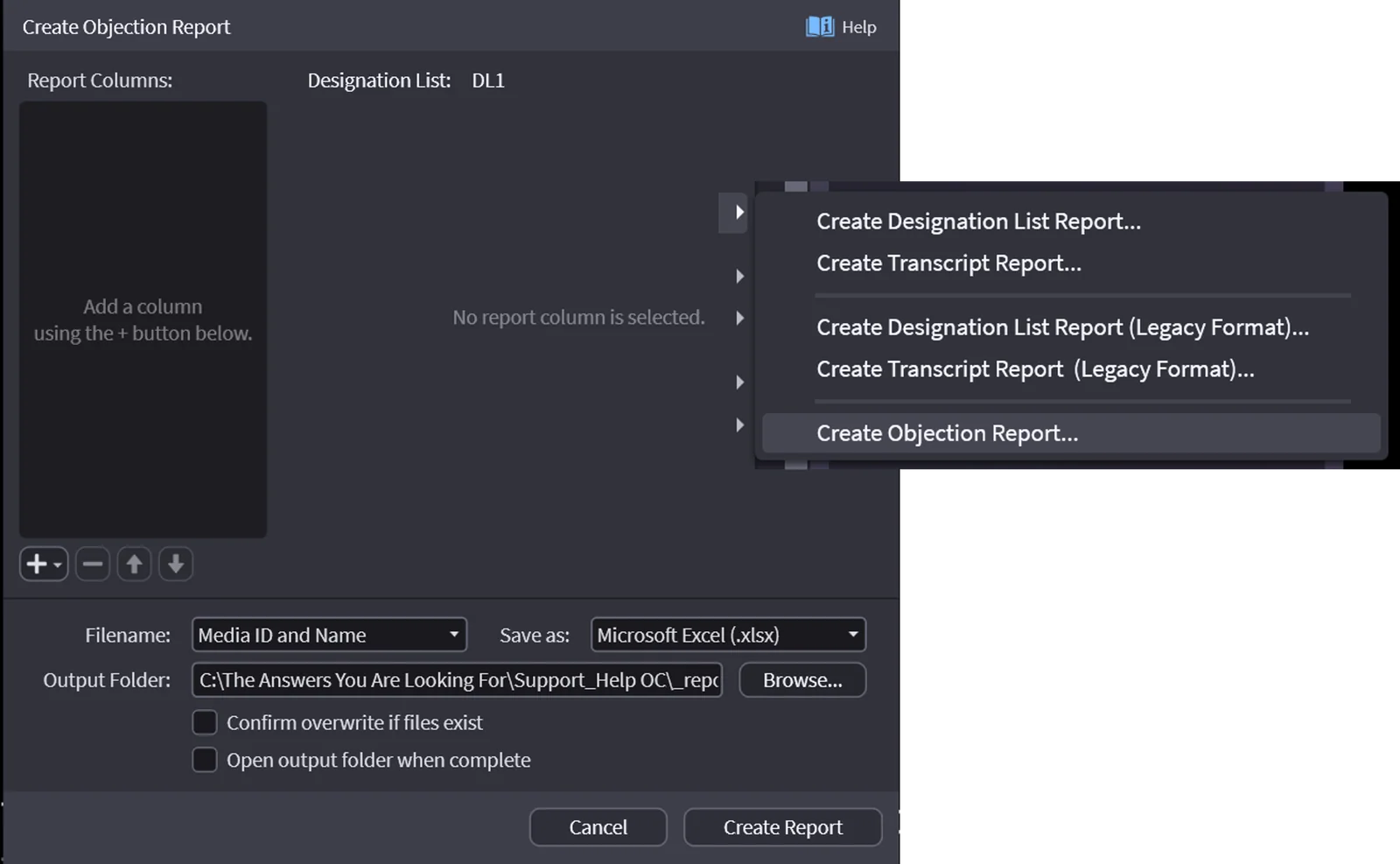
Right-click on your designation list, select Reports > Create Objection Report.
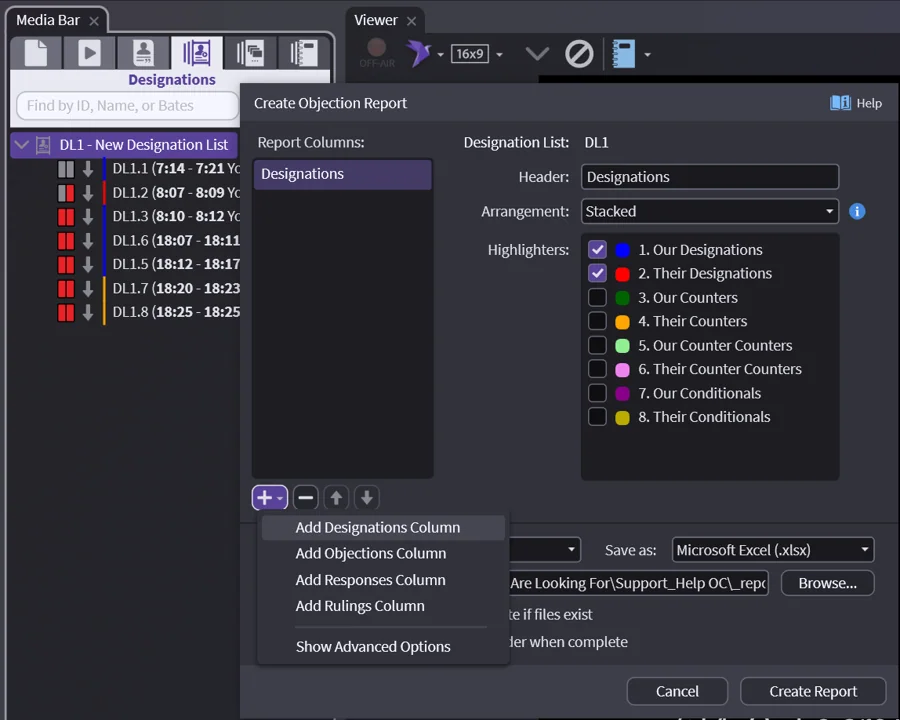
Under Options, select the columns, starting with Designations.
Add an Objections column and browse to the objection text file you created. You can change the objection text color.
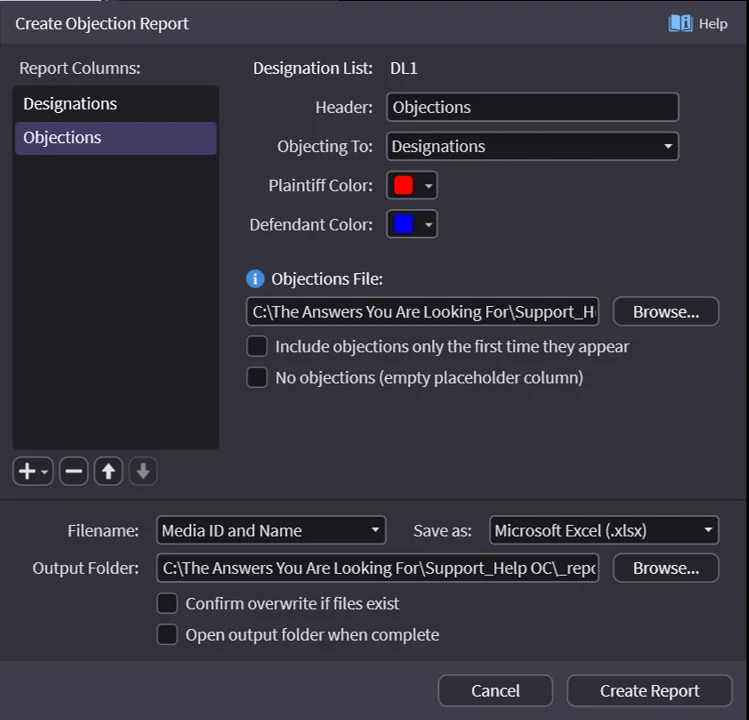
Now you can add other columns or remove them. If a column has no data, select (empty placeholder column).
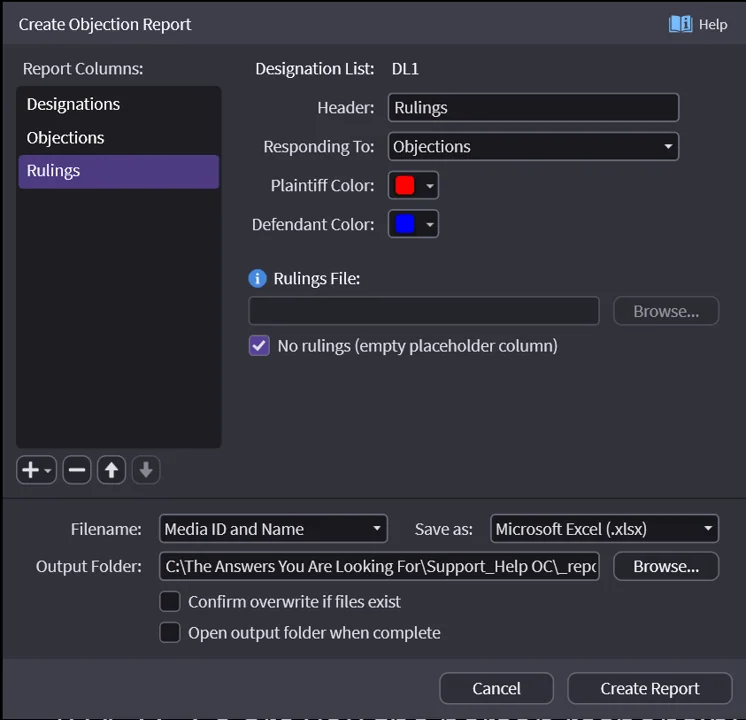
Create your report.
Arrangement Options
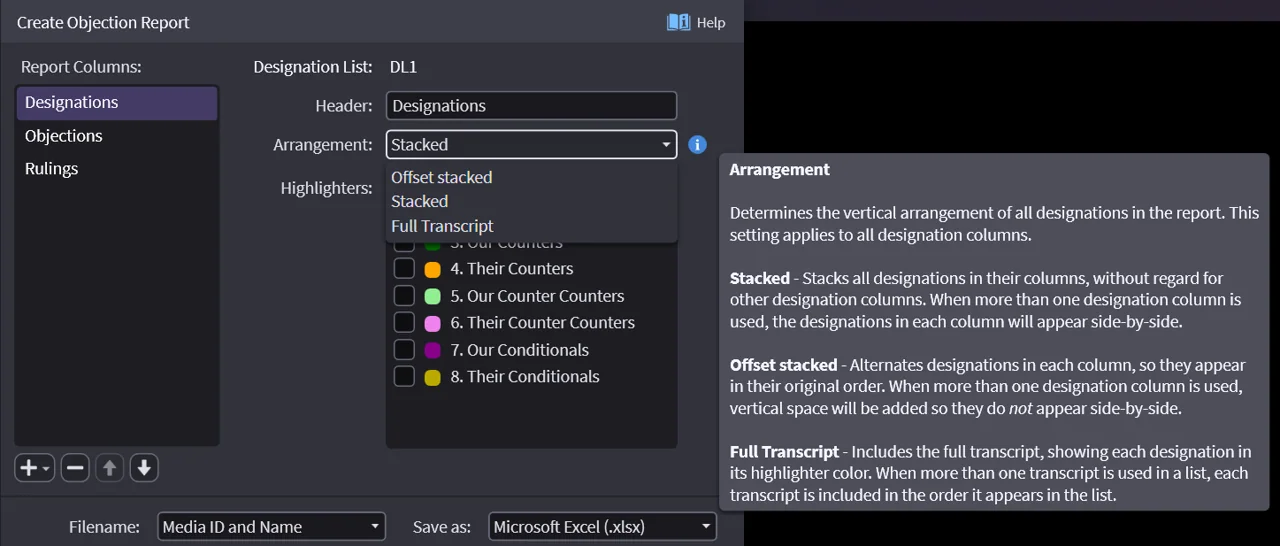
- Stacked – a single column of designated text only
- Offset stacked – Each party’s designated text in its own column
- Full transcript – the entire transcript in one column, with designations in bold in their list colors. This option does not work correctly with overlapping or duplicate designations.
Tips
- You can change the name of your headers
- Responses and rulings must use the objection’s page and line, not the designation’s.
- The text file must be tab-delimited, with no extra spaces or tabs between columns.
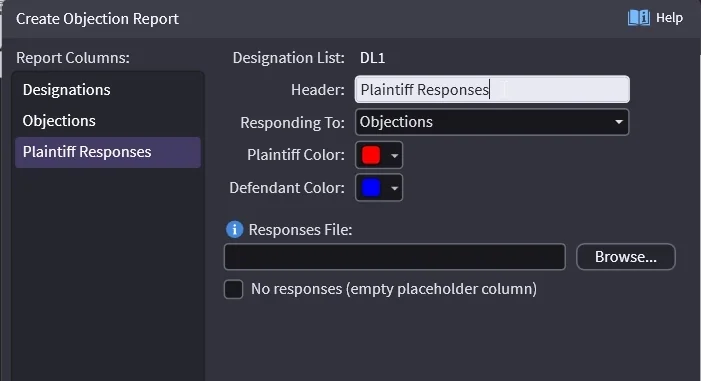
Warning: OnCue does not check spelling, capitalization, or punctuation. Everything in the text file appears on the report exactly as entered.
objections report, objection, rulings
Still stuck? Email support@oncuetech.com.