



designations/understanding-your-right-click-menu-designationsDesignationsdesignations24right-click menu, context menu, designation options2025-07-27/articles/rcm-designations
Understanding Your Right-Click Menu – Designations
Updated July 27, 2025
Many of OnCue’s features are available from the right-click menus for files and work product. If you’re unsure what you can do with an item, right-click it.
Right-click menu articles:
- Documents (including the Viewer pane with a document showing)
- Audiovisuals (including the Viewer pane with an audiovisual file showing)
- Transcripts (including the Transcript Viewer pane)
- Designations
- Media Scripts
- Notebooks
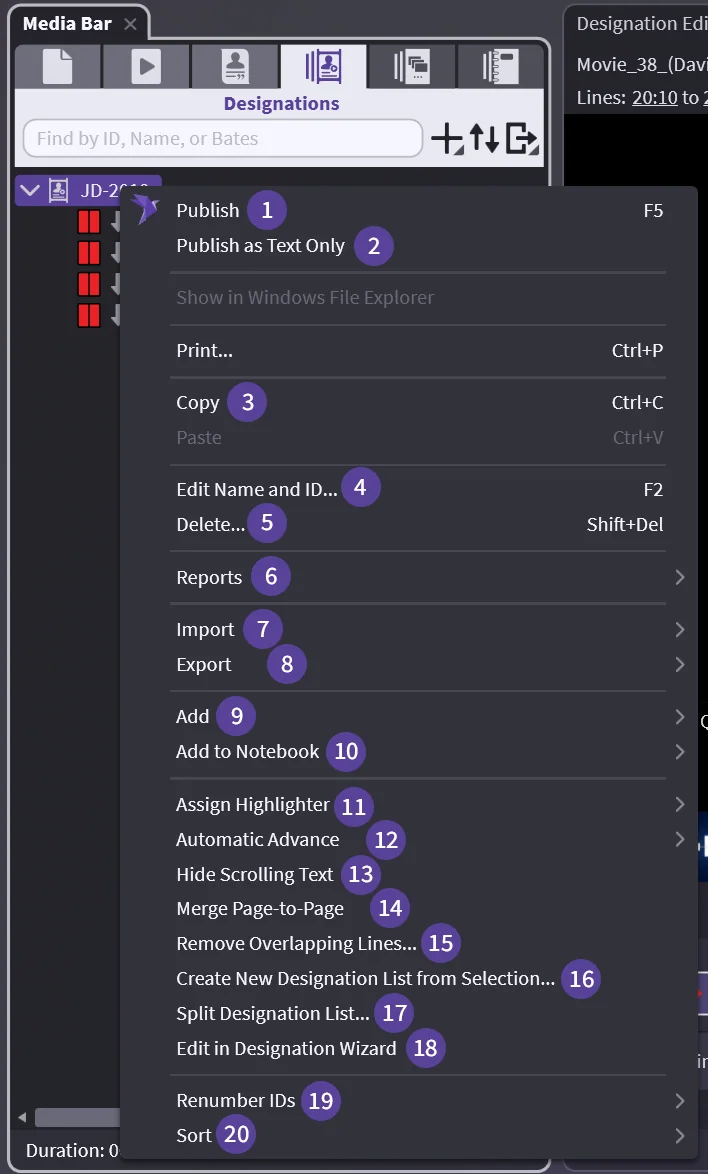
Designation List Level
- Publish – Plays the list in Presentation Mode until the next stop (auto-advance arrow pointing left)
- Publish as Text Only – Start playing the scrolling text only (no video) in Presentation – will continue to intended stop
- Copy – Copy your entire list – into Notebook, Media Script, even another list
- Edit Name and ID… – Changes the list’s ID and name
- Delete – Careful - no undo
- Reports – Creates a Designation List, Transcript, or Objection report; see Deposition Designation Reports
- Import – Opens all import options (not only designations)
- Export – See Exporting Designation Lists
- Add – Adds designations to an existing list or a new list
- Add to Notebook – See Bates Numbering – Filling & Importing for options
- Assign Highlighter – As described - change highlighter for full list
- Automatic Advance – Change the way your designation list plays – plays straight through or stops after each clip
- Hide – As described - Presentation mode
- Merge Page-to-Page – If a designation ends at the last line of a page and the next designation starts on the first line of the following page, this will merge them together (for example, 23:1-25 and 24:1-17 becomes 23:1-24:17)
- Remove Overlapping Lines… – Remove overlapping portions of designations. See Overlapping or Duplicate Designation Removal
- Create New Designation List from Selection… – Create new list from existing list
- Split Designation List… – Breaks up your list – See Split Designation Lists
- Edit in Designation Wizard – Opens your list in the Wizard
- Renumber IDs – Renumbers the designations consecutively after you move, sort, or delete them
- Sort – Many options – See Sorting Designation Lists
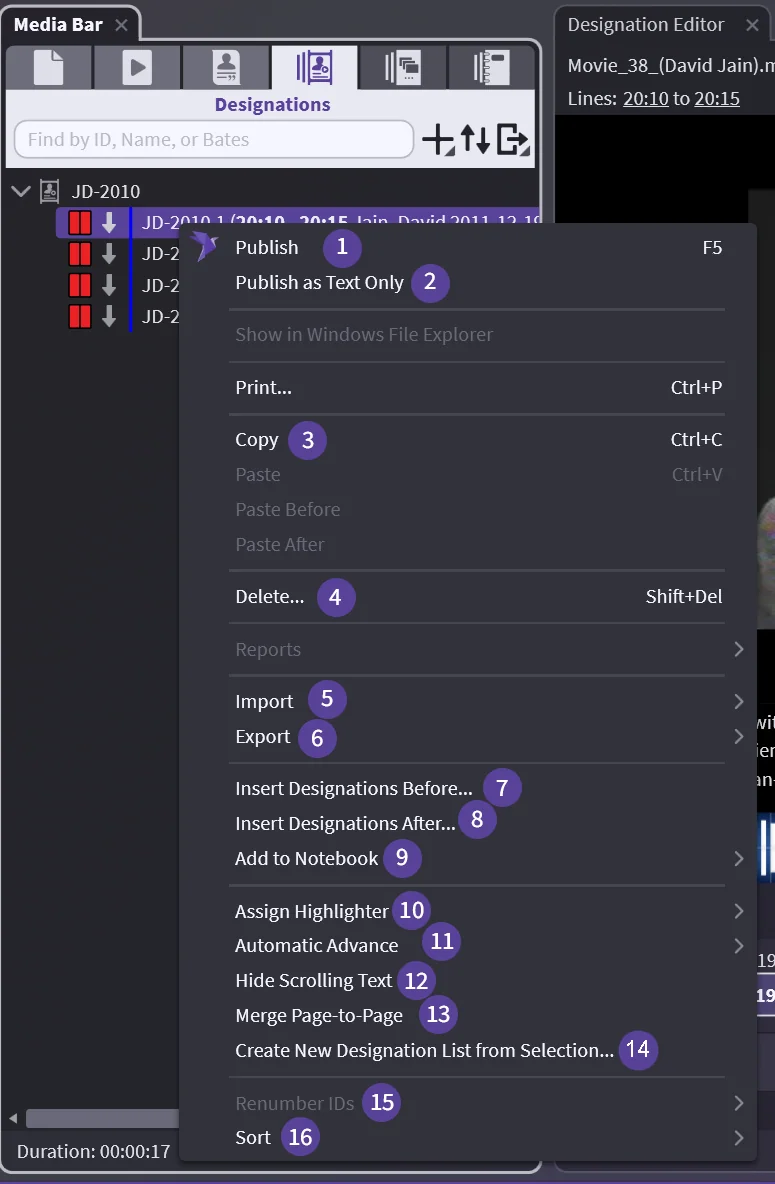
Designation Clip Level
- Publish – Plays from the selected designation in Presentation Mode until the next stop
- Publish as Text Only – Start playing the scrolling text only (no video) in Presentation – will continue to intended stop
- Copy – Copy selected designation – into Notebook, Media Script, even another list
- Delete – Careful - no undo
- Import – All options for imports available – not tied to designations
- Export – See Exporting Designation Lists
- Insert Designations Before… – Insert before existing designation by typing
- Insert Designations After… – Insert after existing designation by typing
- Add to Notebook – Copies the selected designations to an existing or new notebook
- Assign Highlighter – As described – change selected designations
- Automatic Advance – Sets whether playback continues or stops after this designation (arrow pointing left = stop)
- Hide Scrolling Text – As described - Presentation Mode
- Merge Page-to-Page – If a designation ends at the last line of a page and the next designation starts on the first line of the following page, this will merge them together (for example, 23:1-25 and 24:1-17 becomes 23:1-24:17)
- Create New Designation List from Selection… – Create new list from existing list
- Renumber IDs – Move designations, sort or delete – Keep your IDs consecutive using this
- Sort – Many options – See Sorting Designation Lists
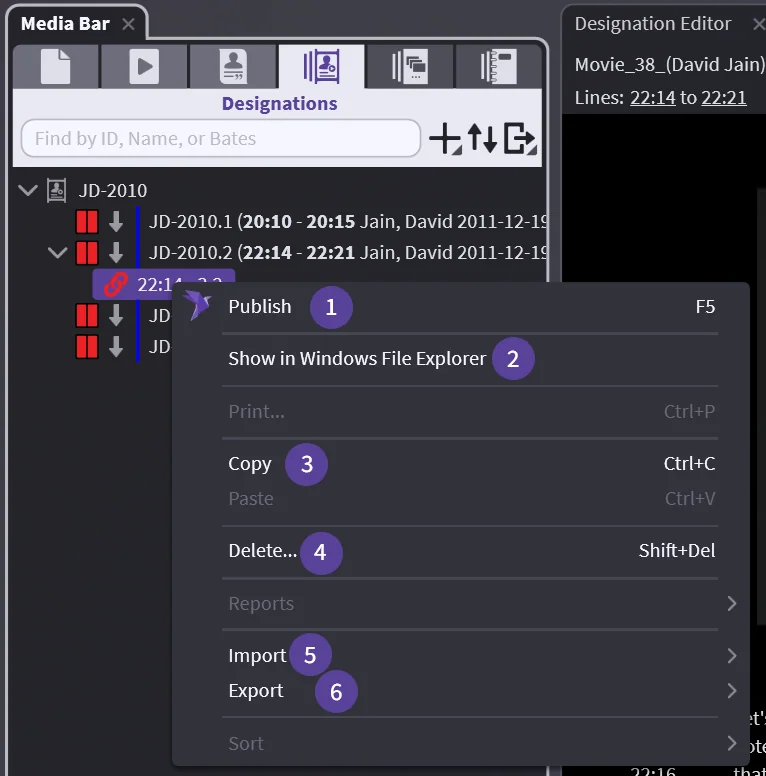
Designation Link Level
- Publish – Plays from the selected designation in Presentation Mode – will continue to intended stop
- Show in Windows File Explorer – Opens the linked file’s folder
- Copy – Copy selected link to paste into another designation
- Delete – Careful - no undo
- Import – All options for imports available – not tied to designations
- Export – See Exporting Designation Lists
right-click menu, context menu, designation options
Still stuck? Email support@oncuetech.com.