



Copying Saved Annotations to Another Document
Updated July 27, 2025
If you receive a redacted version of a document you have already annotated, you can copy the annotations to the new version instead of recreating them.
You can copy annotations from one page to another or even one document to another.
How to Copy Saved Annotations
In this example, there are two nearly identical documents: one redacted and one not. One document was added to a notebook so both can be viewed side by side.
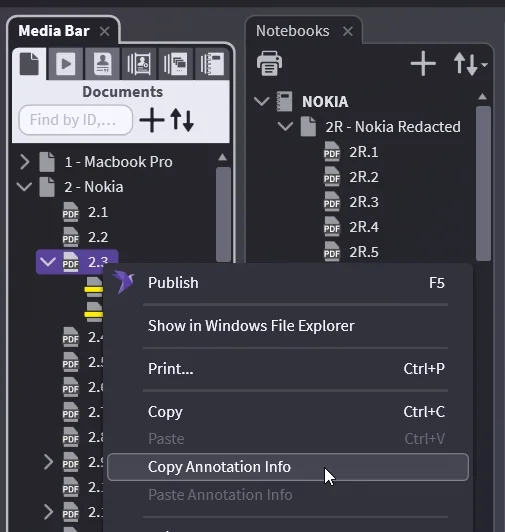
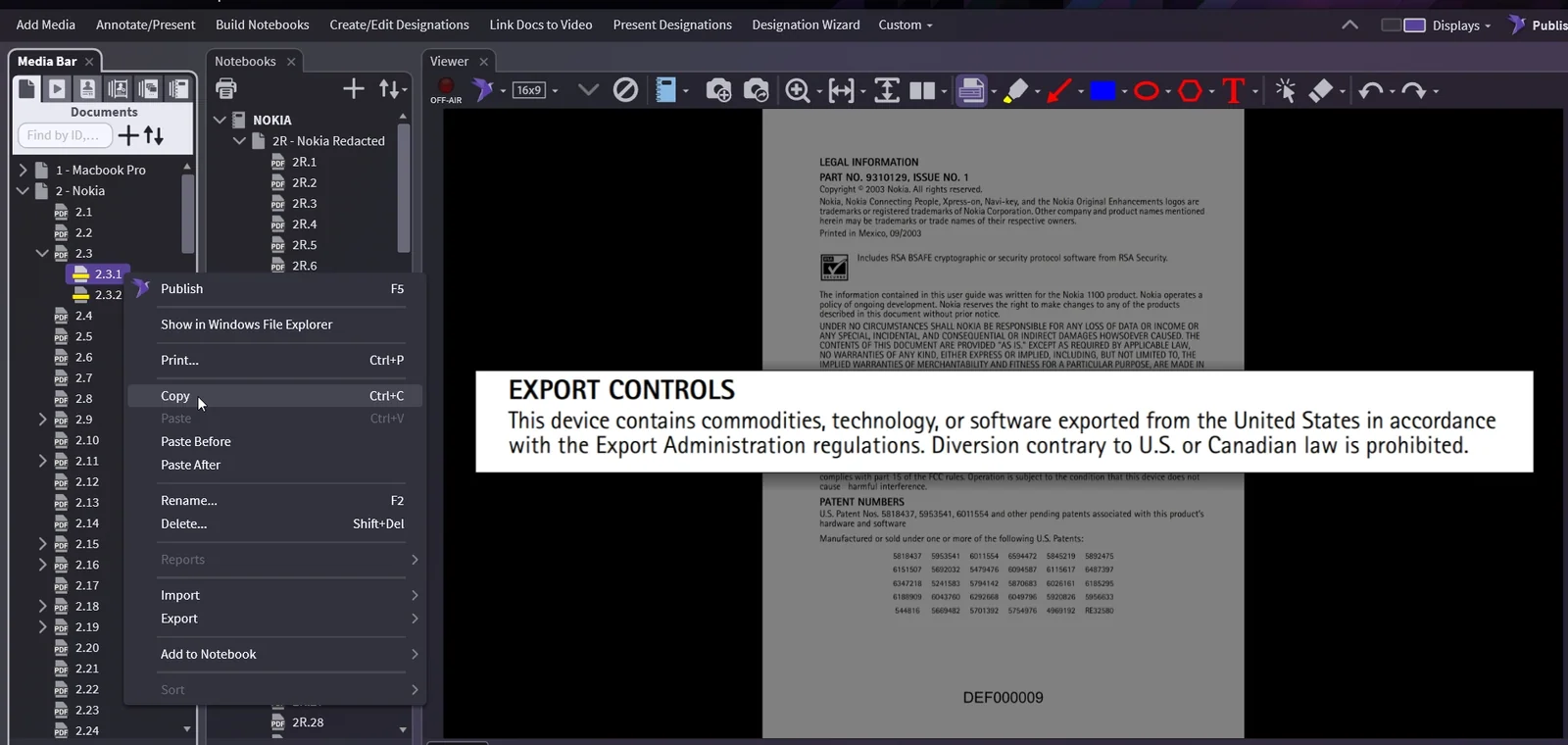
In the Media Bar, select the page (to copy all its annotations) or a single annotation, right-click, and select Copy Annotation Info.
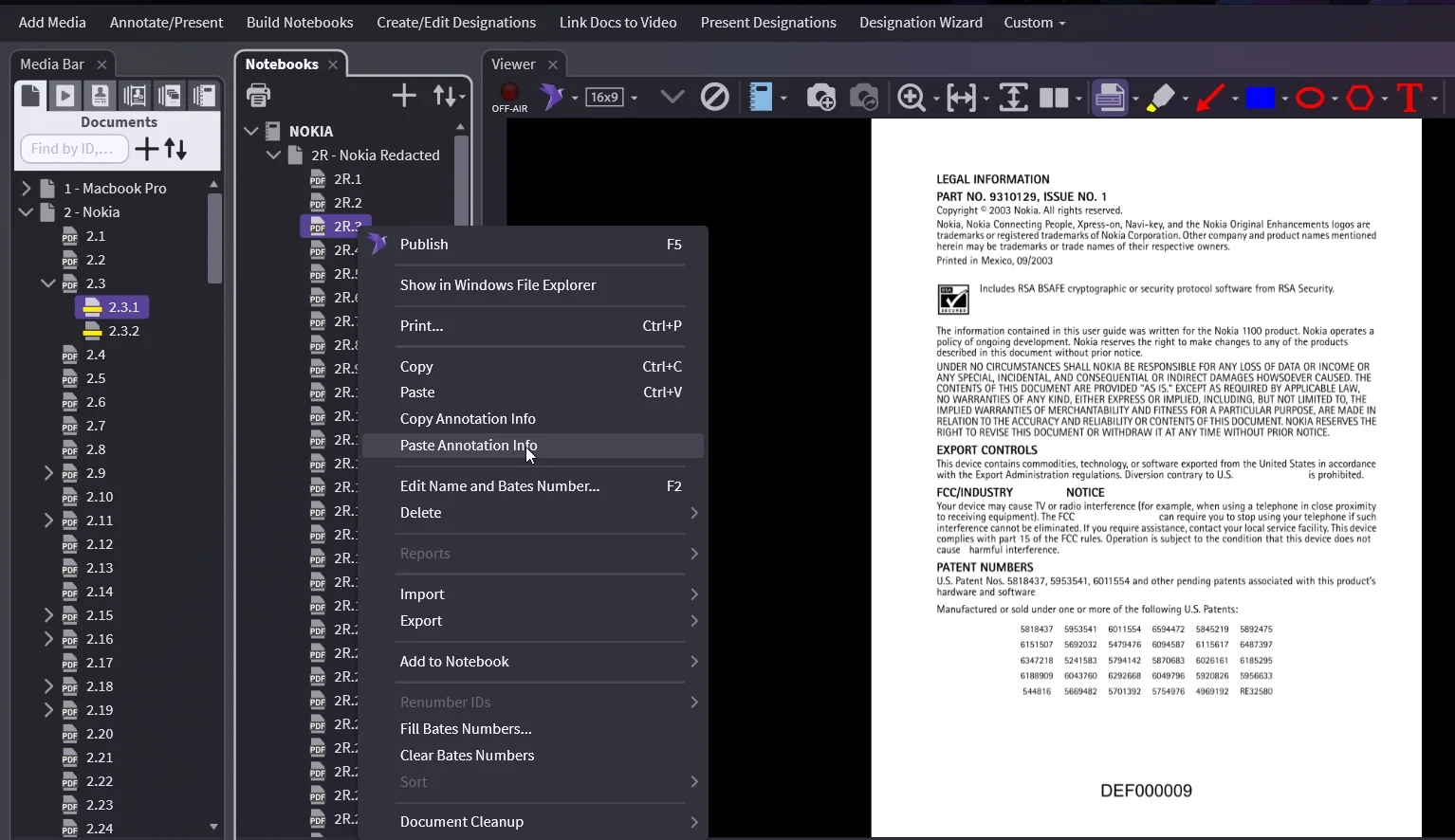
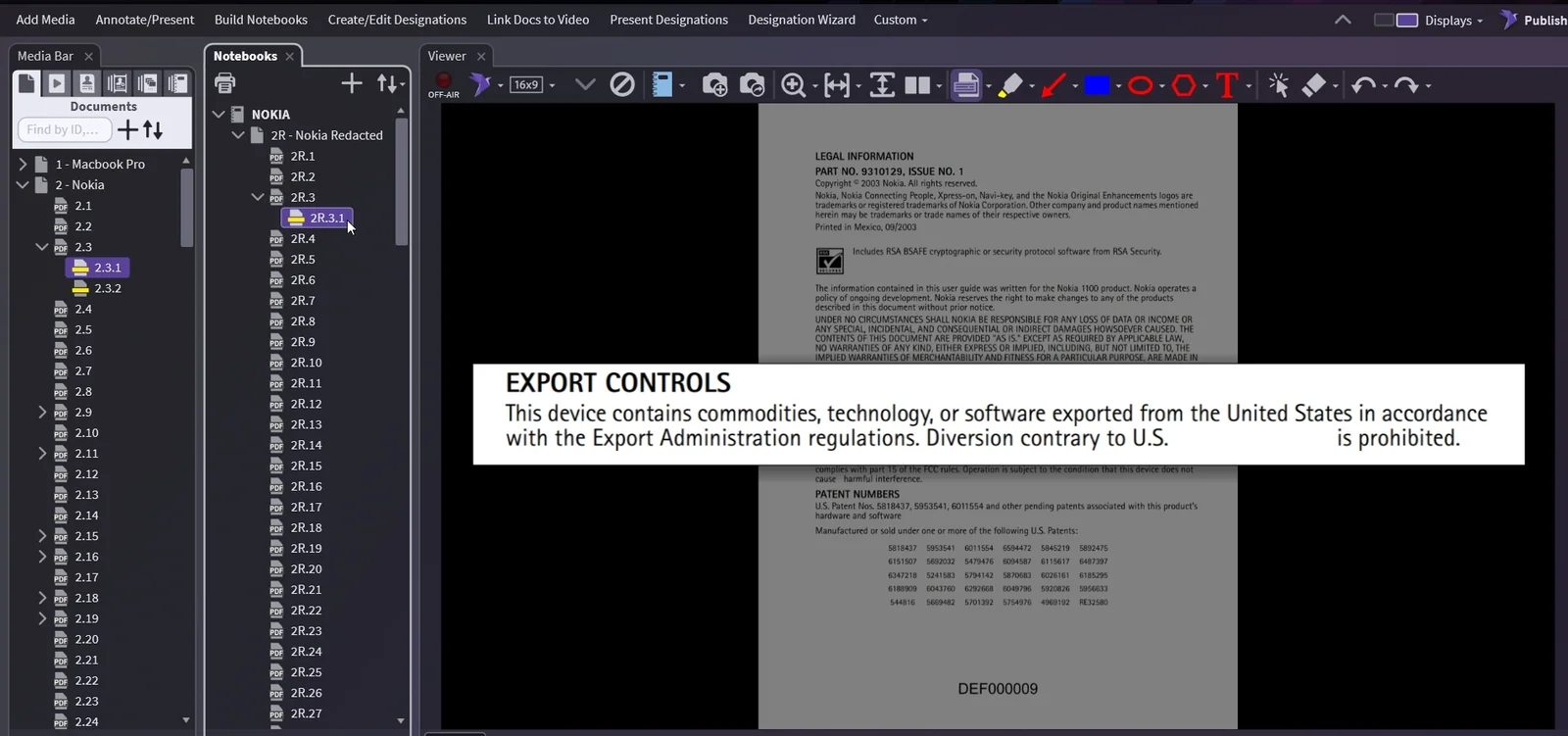
Select the target page you want the annotations on, right-click, and choose Paste Annotation Info.
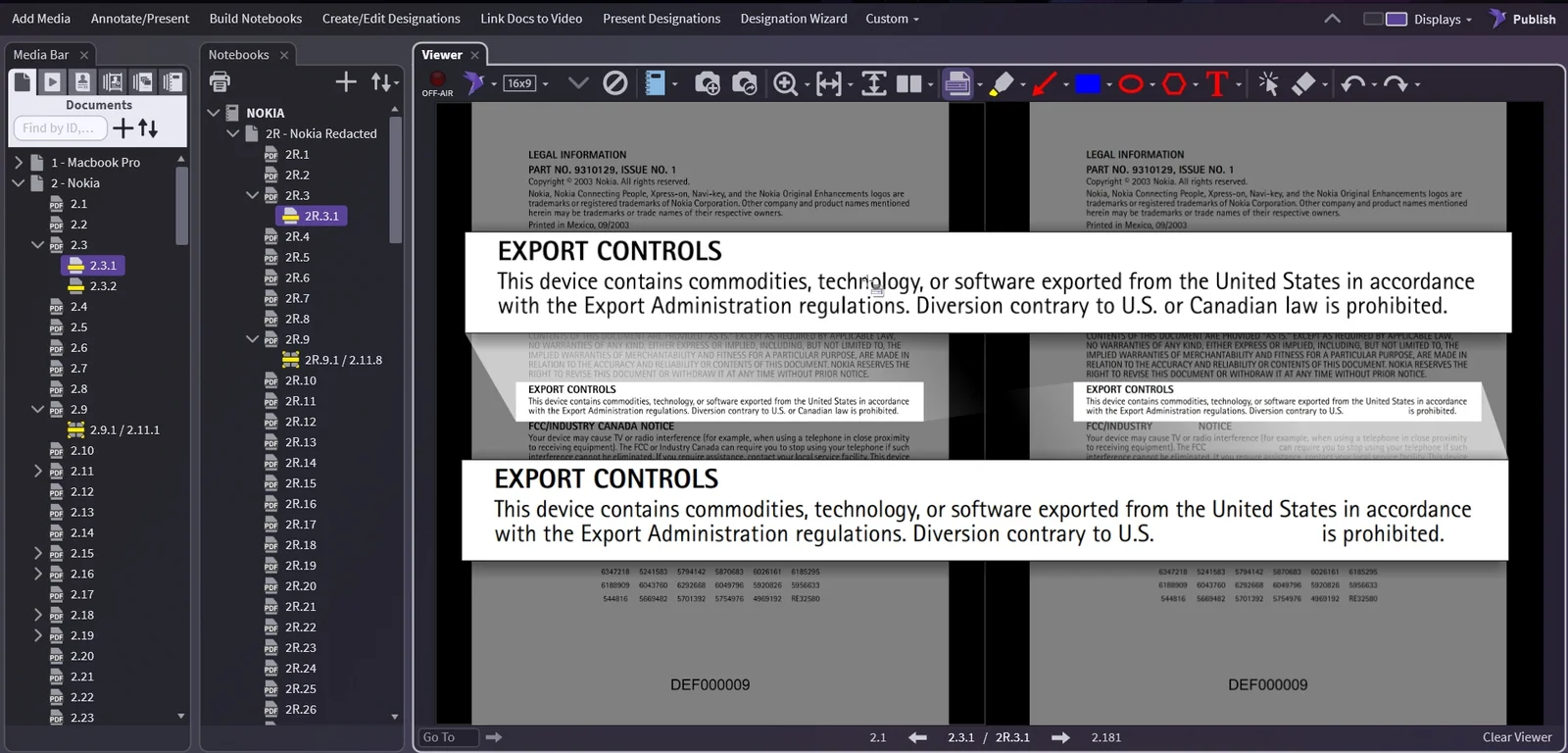
copy annotation info, paste annotation info, redacted version, reuse annotations, treatments
Still stuck? Email support@oncuetech.com.