



Sync and Edit Transcripts
Updated January 7, 2026
This article answers
- My video is out of sync. Can I fix that in OnCue?
I received a Word document of a phone call. Can I sync it to the MP3 in OnCue?
The instructions below are for manually editing your sync file and sync information. For more information on automatically syncing, see our ProSync article.
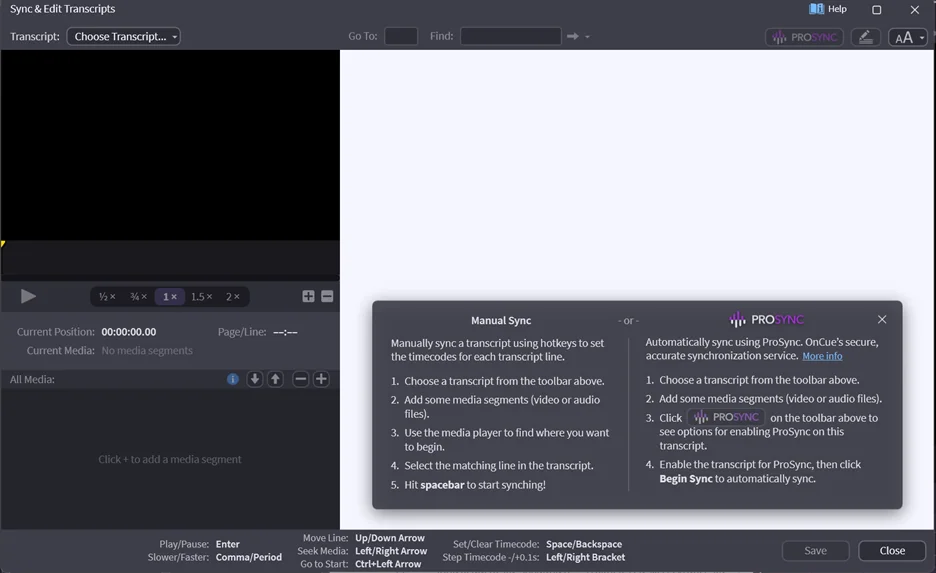
In OnCue you can repair a sync file or manually sync a short transcript to video; both use the same tool.
Use manual sync only for repairs and very short transcripts.
Manually Editing a Sync File
-
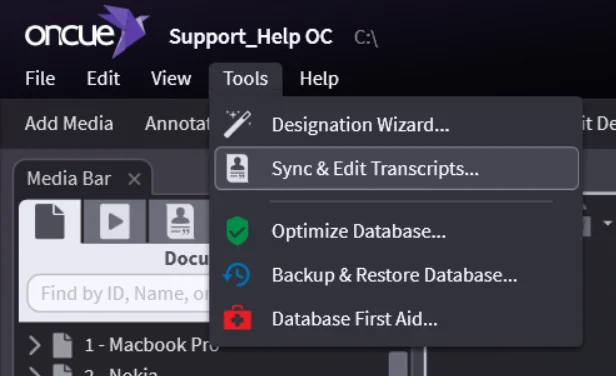
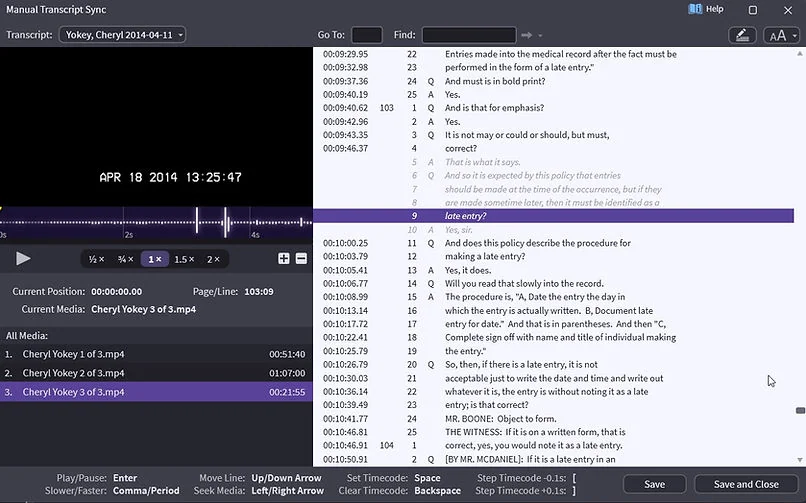
Select Tools > Sync & Edit Transcripts.
-
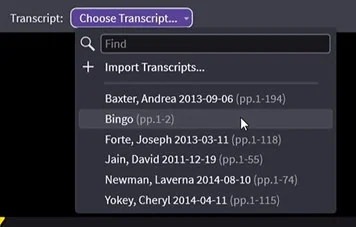
Choose your transcript from the dropdown or choose Import Transcripts… and navigate to your transcript. Make sure the audio/video you want to use is in the _synchedvideos folder.
*OnCue will copy audio/video files for you if your transcripts are named the same or similar.
-
OnCue automatically selects associated video in the _synchedvideos folder if its name matches or is similar to the transcript’s.
-
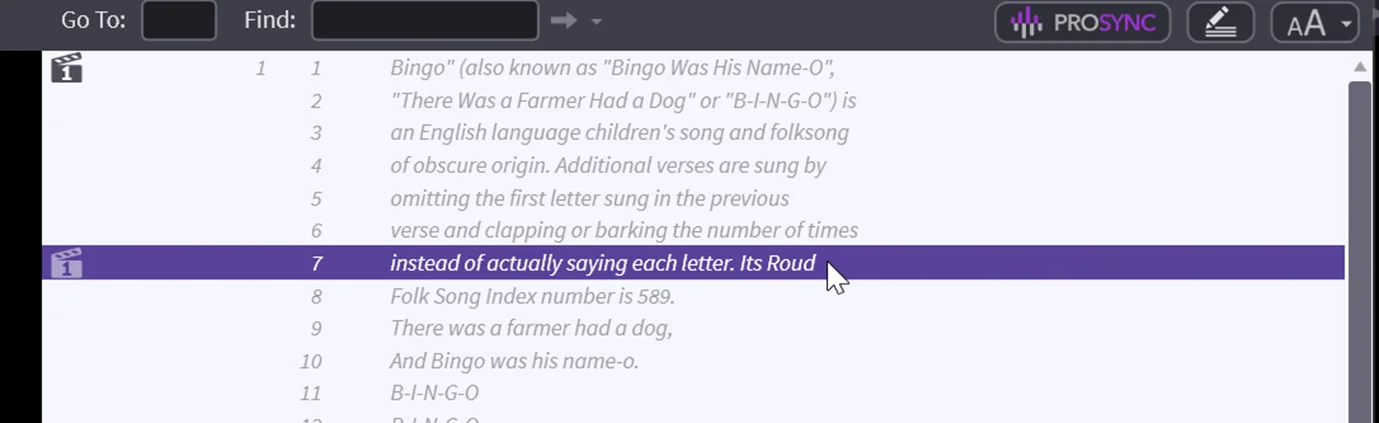
Click on the transcript in the pane a line or two before the point where you want to start setting timecodes.
-
Using your shortcut keys, start syncing.

- Enter starts and stops the video playback
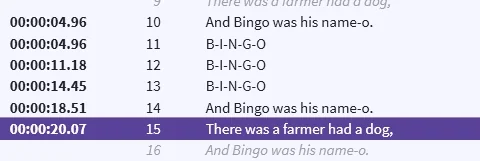
- Space sets the timecode
-
Each press of the spacebar sets the timecode for the beginning of the next line.
-
Click Save to save your progress, or Save and Close when you are done or want to finish later.
Resyncing Sections of a Previously Synced Video
-
Follow steps 2 and 3 above to select your transcript and make sure your video is in the right place.
-
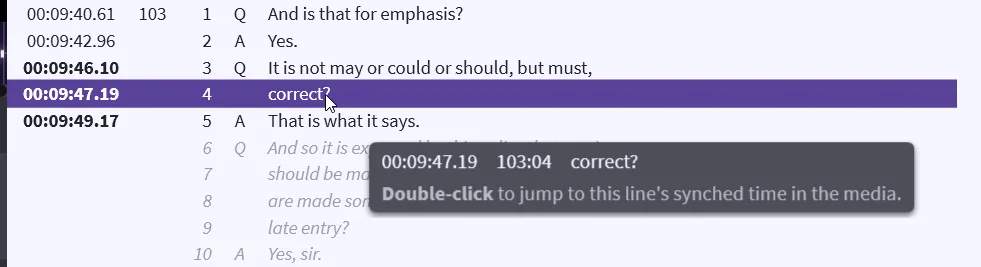
Select the line(s) on the transcript that you want to fix and press Backspace to clear their timecodes. Clearing a few lines before and a few lines after makes this easier.
-
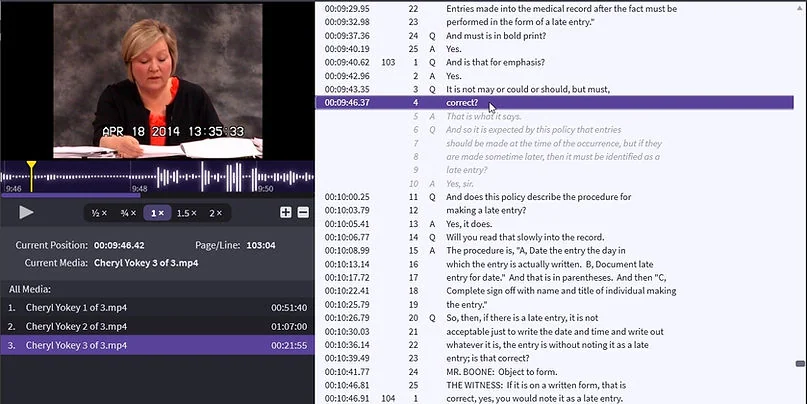
Double-click on the transcript text on the last correct, synchronized line with timecode. This moves the video to that line.
-
Press the spacebar to start playback and syncing, then press it again at the end of every line to set the new sync points.

-
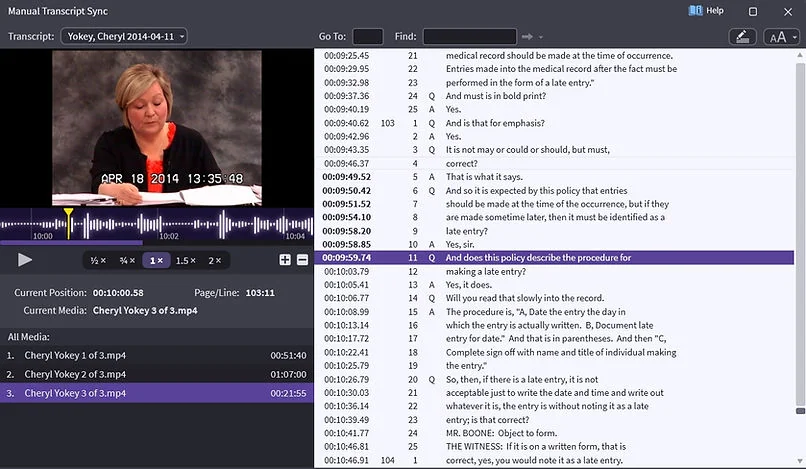
Each time you hit the space bar, notice the timecode is set and bolded. Press the Enter key to stop.
-
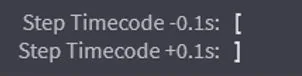
You can also adjust timecodes manually by selecting the transcript line and using the [ and ] shortcuts. Timecodes for individual lines are forced to remain between the previous and next sync points.
-
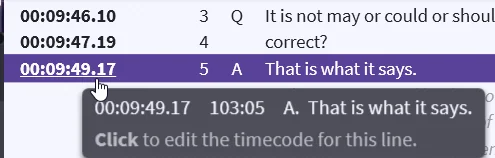
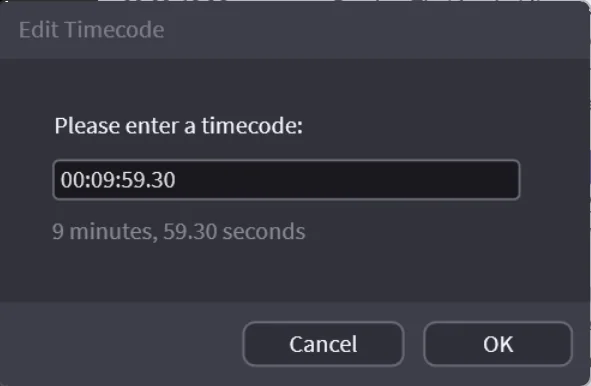
To type a new time, click the timecode.
-
Click Save to save your progress, or Save and Close when you are done or want to finish later.
manual sync, sync tool, timecode, out of sync, edit sync
Still stuck? Email support@oncuetech.com.