



Accessibility
Updated October 31, 2026
OnCue can be operated from the keyboard, can be enlarged without other software, and exposes its user interface to assistive technology through Microsoft UI Automation.
Turn on Full Keyboard Navigation
OnCue is built for presenting in court, where single keys such as the arrow keys, Space and letters act as presentation hotkeys. For that reason, full keyboard navigation of the user interface is an option that you turn on, rather than the default.
Note: When you turn this on, some of your hotkeys no longer work as expected, such as the default for Next Page (right arrow). You can remap the keys for convenience.
From the menu:
- Choose Edit > Preferences (Alt+E, then P).
- Open the General page and find the Accessibility group.
- Select Full keyboard navigation, then close Preferences.
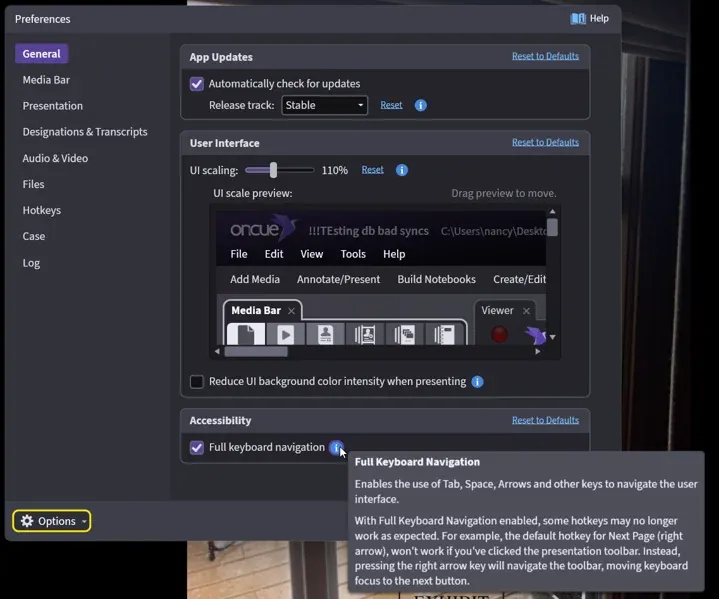
What changes when it is on:
- Tab and Shift+Tab move through every button, check box, list, tab and toolbar, not only text boxes and lists.
- A bright yellow, two-pixel outline shows which control has keyboard focus.
- Space and Enter operate the focused control.
- Some single-key hotkeys give way to the focused control. For example, the right arrow normally shows the next page, but if focus is on the presentation toolbar it moves to the next toolbar button instead. Click or focus the viewer to use presentation hotkeys again.
Getting Around with the Keyboard
| Task | Shortcuts |
|---|---|
| Open the menu bar | Alt, then the underlined letter (Alt+F File, Alt+E Edit, Alt+V View, Alt+T Tools, Alt+H Help) |
| Move between controls | Tab, Shift+Tab |
| Move within a list, tree, menu or toolbar | Arrow keys |
| Expand or collapse a folder in the media tree | Right arrow, Left arrow |
| Open a context menu | Shift+F10 or the Menu key |
| Go to the Properties pane | F4 |
| Go to the Dashboard | F6 |
| Go to the Designation Editor | F7 |
| Go to the Viewer | F8 |
| Switch panes with the pane navigator | Ctrl+Tab (with Full keyboard navigation on) |
| Edit the selected record | F2 |
| Copy and paste items in the media tree (instead of dragging) | Ctrl+C, Ctrl+V, or Paste Before / Paste After / Add to Notebook in the context menu |
| Stop presenting, or clear the viewer | Esc |
| Show or hide the scrolling transcript text on deposition video | T |
Leaving the media bar: the Tab key stays inside the media bar. Use Ctrl+Tab, one of the pane keys above (F4, F6, F7, F8), or Alt to reach the menu bar.
In the media tree you can also type the first characters of an ID or name to jump to it (type-to-select, in Preferences > Media Bar).
Hotkeys
Almost every command has a hotkey, and every hotkey can be changed.
- Preferences > Hotkeys lists the commands by category. Double-click a command to change its hotkey. In the editor, Clear removes the hotkey and Reset restores the default.
- OnCue uses single-letter hotkeys for presentation tools (for example C, H, Z). If single keys are triggered by accident, for instance by speech-recognition software, clear or reassign them here. The number keys 1 to 9 (Go to Page) cannot be changed, but they act only while the viewer or a presentation display has focus.
- Help > Hotkey Reference Guide creates a printable list of the current hotkeys.
Making OnCue Easier to See
- UI Scale: Preferences > General > UI Scale enlarges all text and controls from 50% to 200%. It applies to the main window and to most dialogs.
- Windows display scaling (Settings > System > Display > Scale) is also followed.
- The viewer and presentation toolbars have their own size setting in each toolbar’s options menu.
- Windows Magnifier and other screen magnifiers can be used with OnCue.
- OnCue uses its own dark color theme. Windows high-contrast themes and the Windows “Text size” setting are not applied to the OnCue interface; use UI Scale or display scaling instead.
Screen Readers
OnCue’s menus, dialogs, lists, grids and standard controls are exposed through Microsoft UI Automation and can be used with screen readers such as Narrator, NVDA and JAWS. Turn on Full keyboard navigation first.
Known Limitations in OnCue 4.6
- Creating, moving and resizing annotations (callouts, highlights, redactions, shapes and zoom areas) requires a mouse or other pointing device.
- The document and video viewing area are not described to screen readers.
- Status messages in the status bar (for example “Media not found”) are shown for 2.5 seconds and are not announced by screen readers.
- With Full keyboard navigation off, the text of a message box is not read automatically when it opens. With the option on, the message text receives focus and is read.
- Some icon-only buttons on the viewer and presentation toolbars are announced by their tooltip rather than by name.
- The Edit Keyboard Shortcut dialog must be closed with a pointing device, because it records every key you press, including Esc and Tab.
- Pane splitters and column widths can be changed only with a pointing device.
- The explanations behind the “i” information buttons are tooltips. With Full keyboard navigation on, move focus to the button to read them.
We are working to remove these limitations in future releases.
Getting Help
If you need help using OnCue with assistive technology, need this information in another format, or want to report an accessibility problem, email support@oncuetech.com. For training, email training@oncuetech.com.
OnCue’s Accessibility Conformance Report (VPAT) is available on request.
accessibility, keyboard navigation, screen reader, hotkeys, UI scale, VPAT
Still stuck? Email support@oncuetech.com.