



Reordering and Renumbering Document Pages
Updated January 2, 2025
You can reorder pages in OnCue without changing the underlying document. This is useful when a document begins with a title page or when scanned pages are out of order.
If a document starts on a page other than 1, you can change the starting ID number.
Note: This method also works for reordering annotations.
Reordering Pages
You can drag and drop your pages to reorder a document.
-
In the Documents tab, select the document.
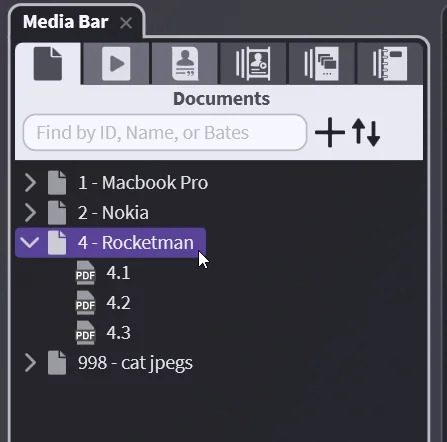
-
Drag and drop the pages to reorder them. In this example, page 2 is now the first page of Exhibit 4.
Note: You can drag a title page to the end of the document, or delete it from OnCue without deleting it from the underlying PDF.
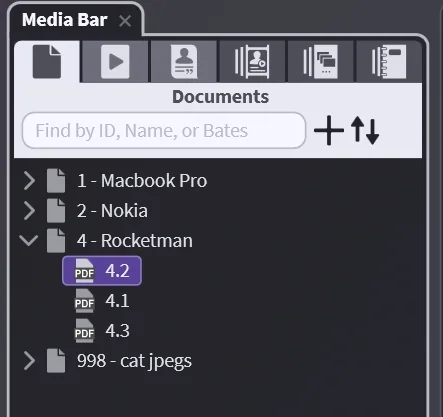
-
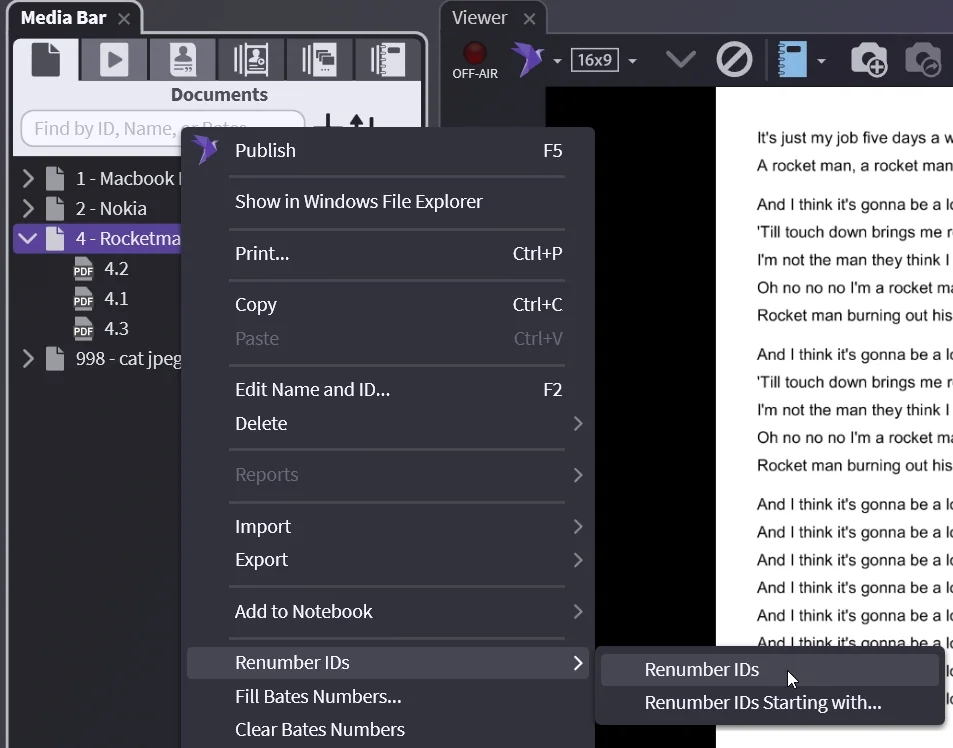
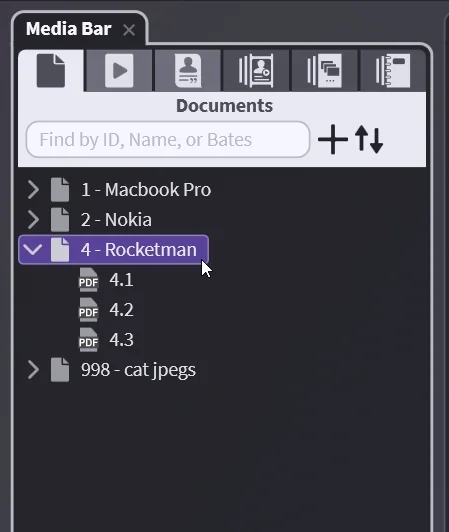
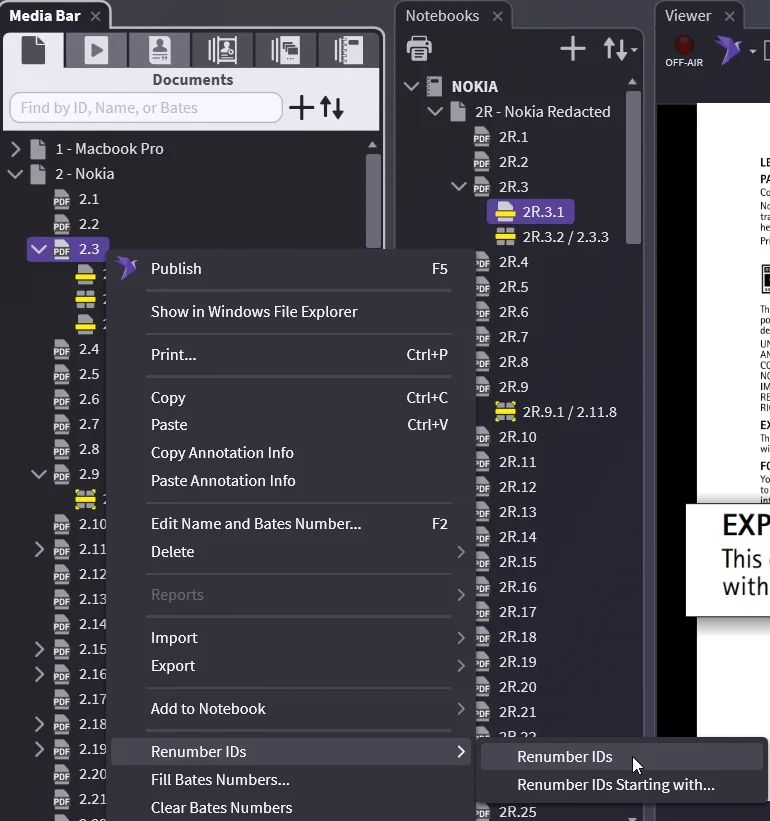
Now right-click on your document, choose Renumber IDs, and choose Renumber IDs again. This renumbers your document starting at 1.
Changing the Starting Page Number
-
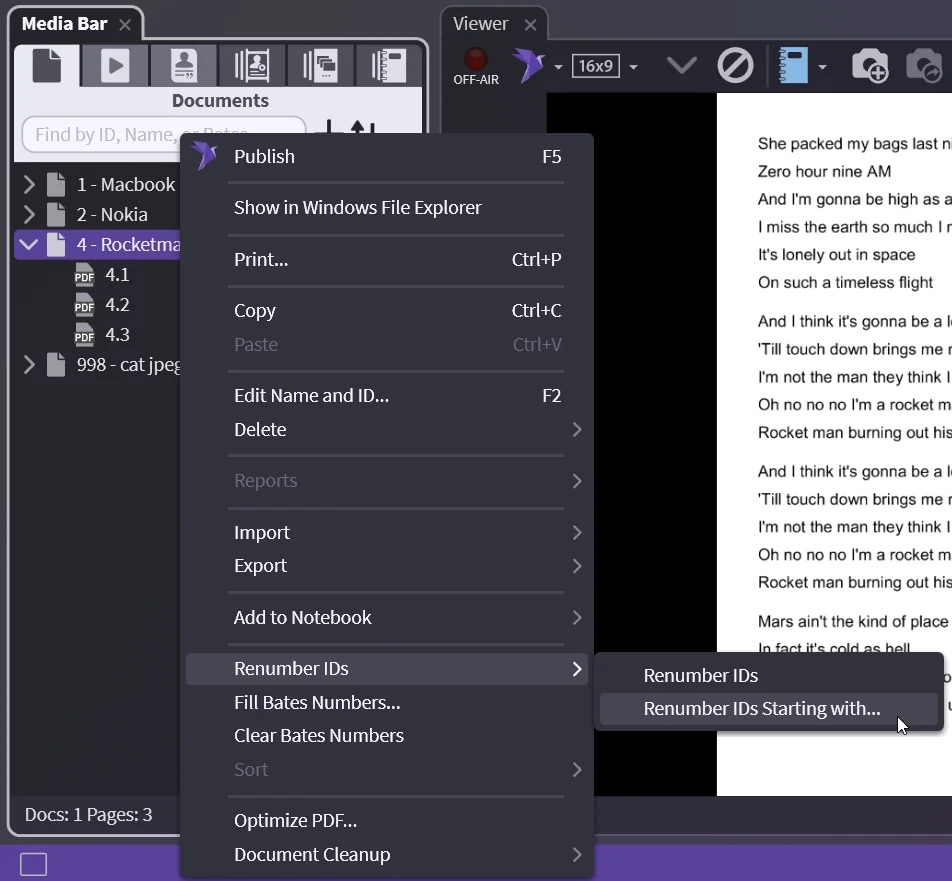
In the Documents tab, right-click the document, select Renumber IDs, and then Renumber IDs Starting with…
-
Enter the new starting number and click OK.
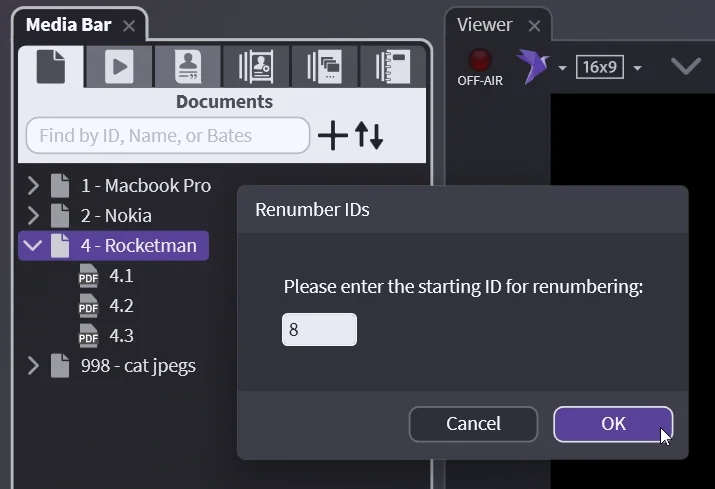
Automatic renumbering always assigns consecutive numbers.
You cannot change individual page IDs. To assign alternate IDs, use the Bates or Name field.
Reordering and Renumbering Annotations
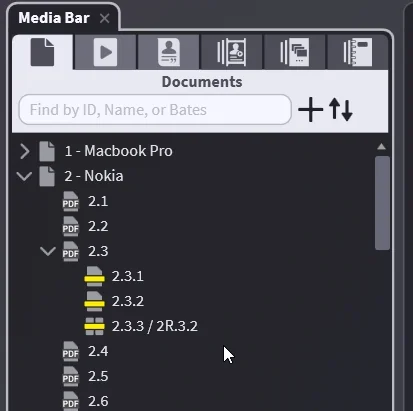
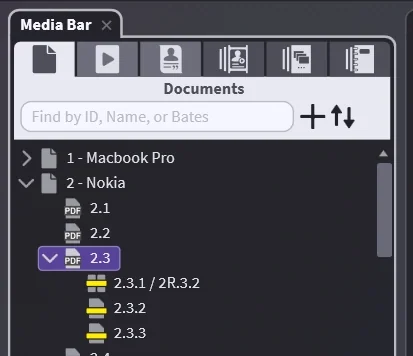
You can drag and drop your annotations to reorder them underneath a page the same way you reorder pages in a document.
-
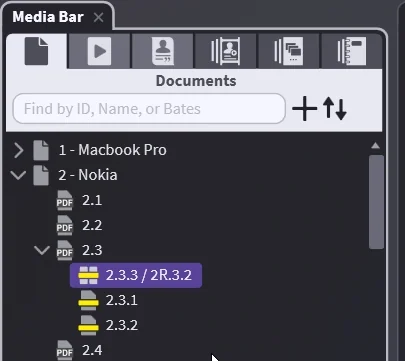
Drag your annotations in the order you want them. This is useful if you plan to use the keyboard arrow hotkeys to cycle through saved annotations, and you are presenting them in a different order from the one in which you created them.
-
Unless you need to keep the original annotation IDs, renumber them sequentially: right-click the page and select Renumber IDs.
reorder pages, renumber IDs, page order, starting ID, title page, drag and drop, reorder annotations
Still stuck? Email support@oncuetech.com.