



Replacing Documents
Updated January 7, 2026
OnCue offers two ways to replace a document, whether pages were added or the whole document changed.
Note: Replacing a document can affect its saved annotations. OnCue does not compare page content; it detects only the number of pages and updates accordingly.
If you received a new version of a PDF with the same file name and you don’t have any existing annotations, you have two choices.
-
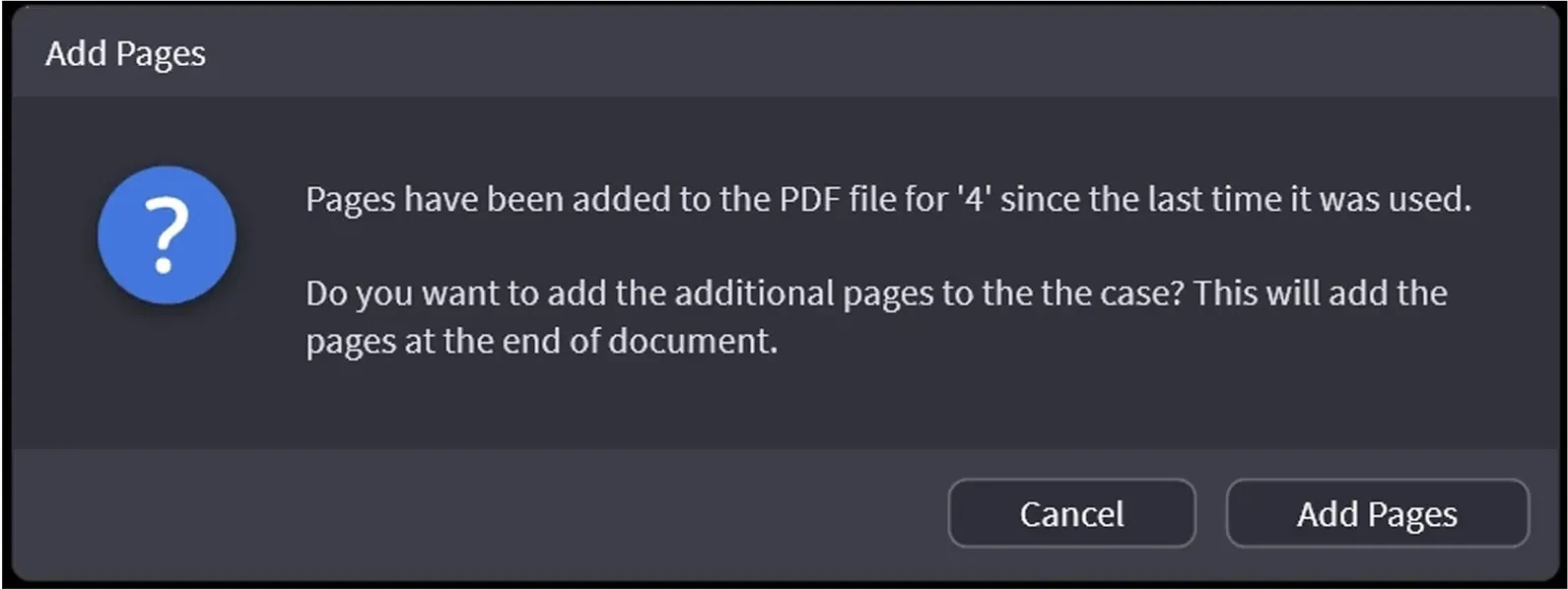
You can replace the document in the _documents folder. In this example, a new version of document 4 was saved to the _documents folder. The next time you click on the document in OnCue, OnCue shows this message only if the new version has more pages than the original.
-
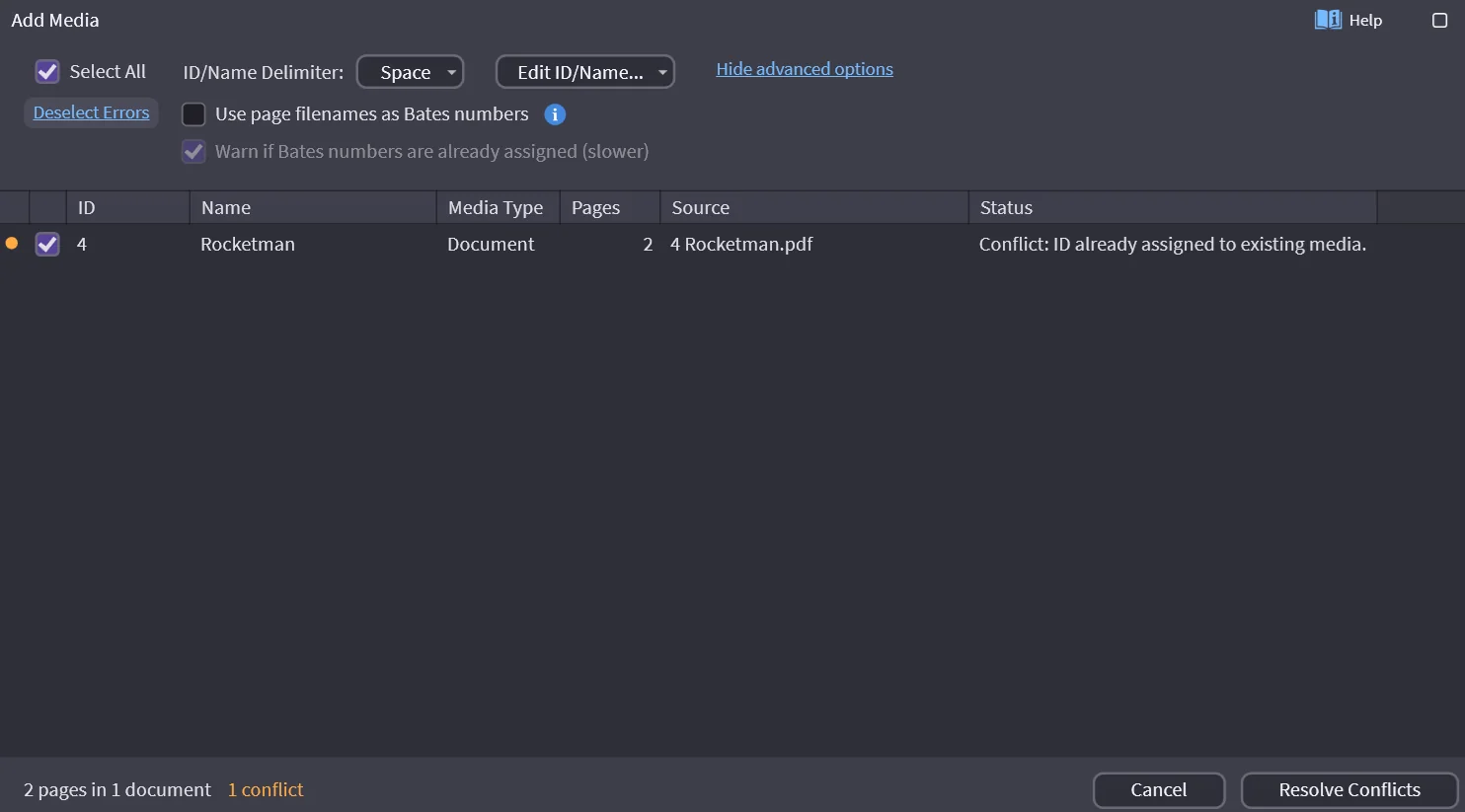
You can use Add Media to add the document again, as you did the first time. This is a good option if you have multiple replacements.
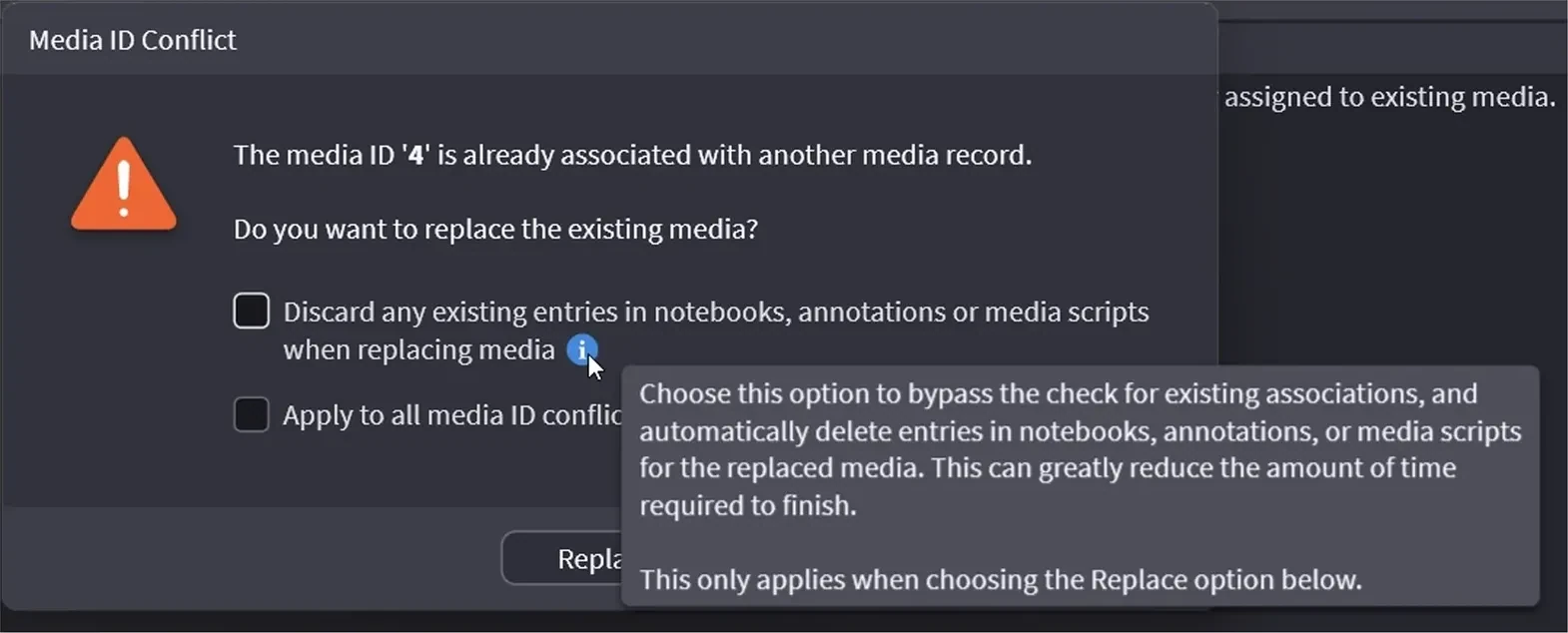
In the Add Media dialog box, click Resolve Conflicts.
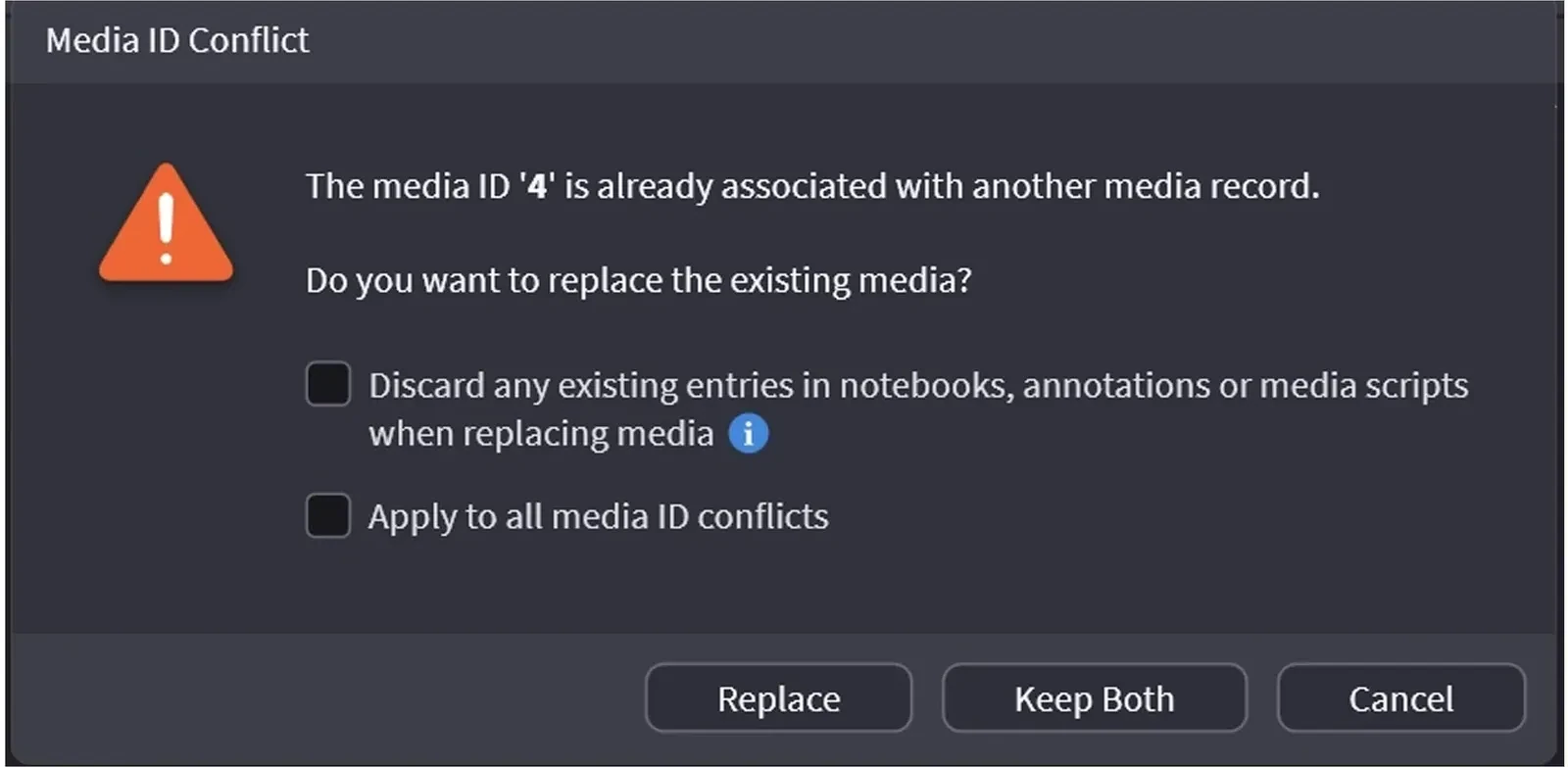
If the document is in notebooks, you can choose to keep those entries in the notebooks. If you want to discard existing information, check the box.
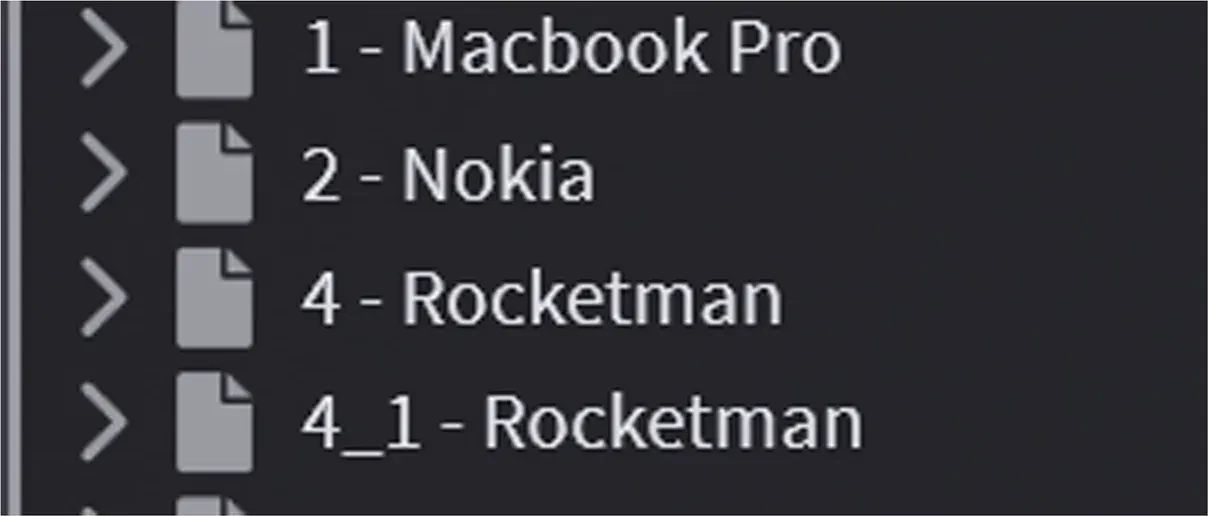
If you choose Keep Both, OnCue adds the replacement below the original with a _# suffix. This is useful when you have an original and a redacted version: keep both and change the IDs accordingly.
Note: If the page order has changed, OnCue cannot detect it, and annotations may shift to other pages. If you only added pages at the end, existing annotations are unaffected.
replace document, new version, updated PDF, resolve conflicts, keep both
Still stuck? Email support@oncuetech.com.