



Saving Annotations
Updated January 13, 2025
OnCue saves annotations (treatments) as separate items you can recall later.
How to Save Annotations
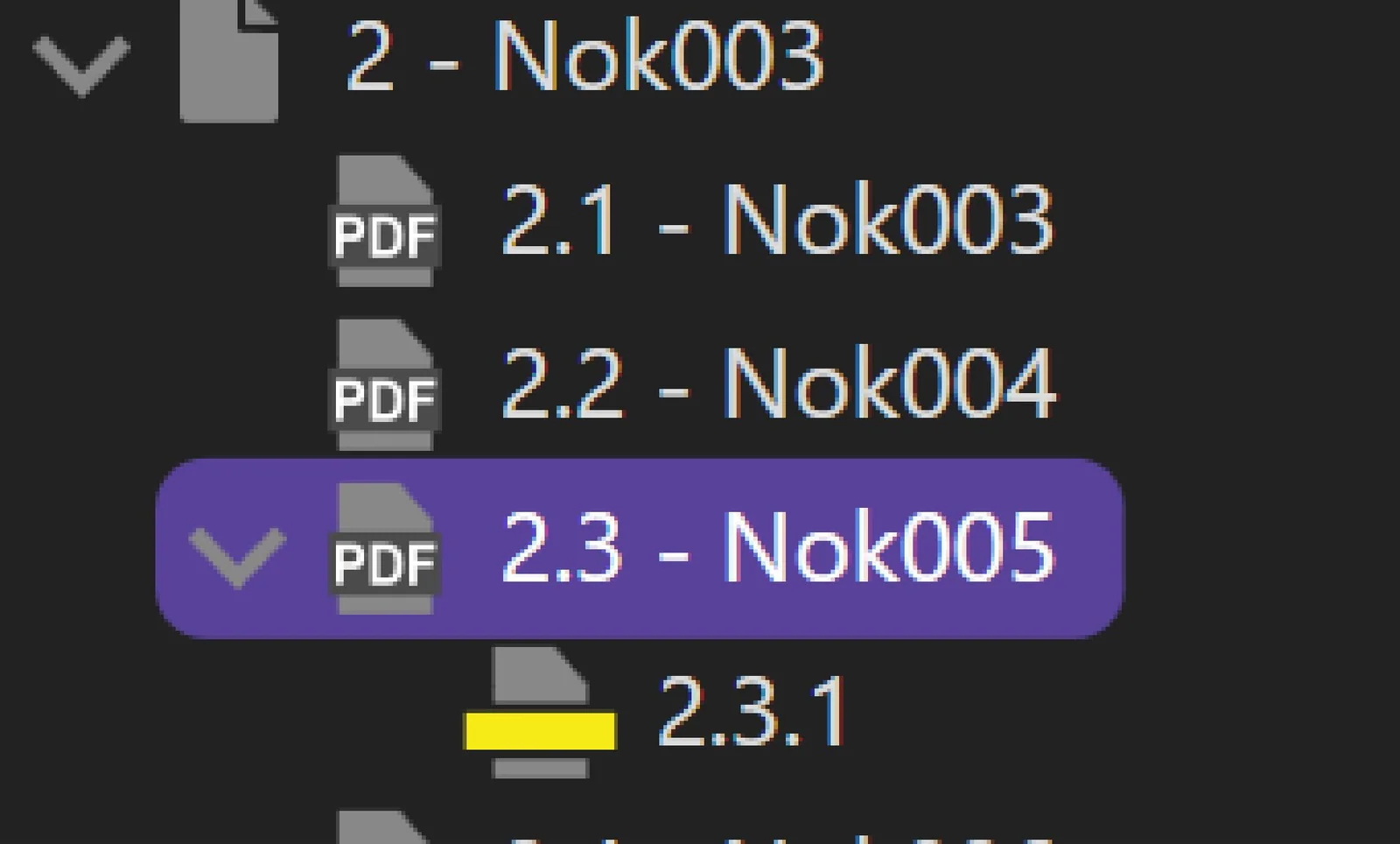
To save an annotation (treatment, mark-up) press Ctrl + S after making a highlight, callout, underline, or other annotation. A new saved annotation with its own ID will be immediately available under the source page in the document tree. For example, if you saved an annotation on Media ID 2.3, the new annotation Media ID would be 2.3.1.
 You can also click Save Annotations on the toolbar.
 Want to update an existing annotation? Make your changes and hit “Ctrl + U” or click the “Update Annotations” icon on the toolbar. This changes your existing annotation and leaves your numbering the same. OnCue does not create a separate JPG or BMP of your annotation, so updating is simple.
This also works on a linked document.
You can update an existing annotation while showing the video at the same time in Presentation. For example, you can move a callout off the video and click Update Annotations without replaying the video.
Related articles:
save annotation, Ctrl+S, save mark-up, presentation annotations
Still stuck? Email support@oncuetech.com.