



Editing Text in a Designation
Updated July 22, 2025
After tuning, a designation may still show text at the beginning or end that isn’t spoken in the clip. You can edit a designation’s text without changing the original transcript. This way, the text that scrolls under the video in Presentation Mode matches what is spoken.
There are two ways to edit designation text: double-click the text in the editor, or click the pencil icon.
Double-Clicking Text in the Editor
Double-click on a line of text in the editor. Highlight the text you want to change and delete or edit it. This method changes one line at a time.
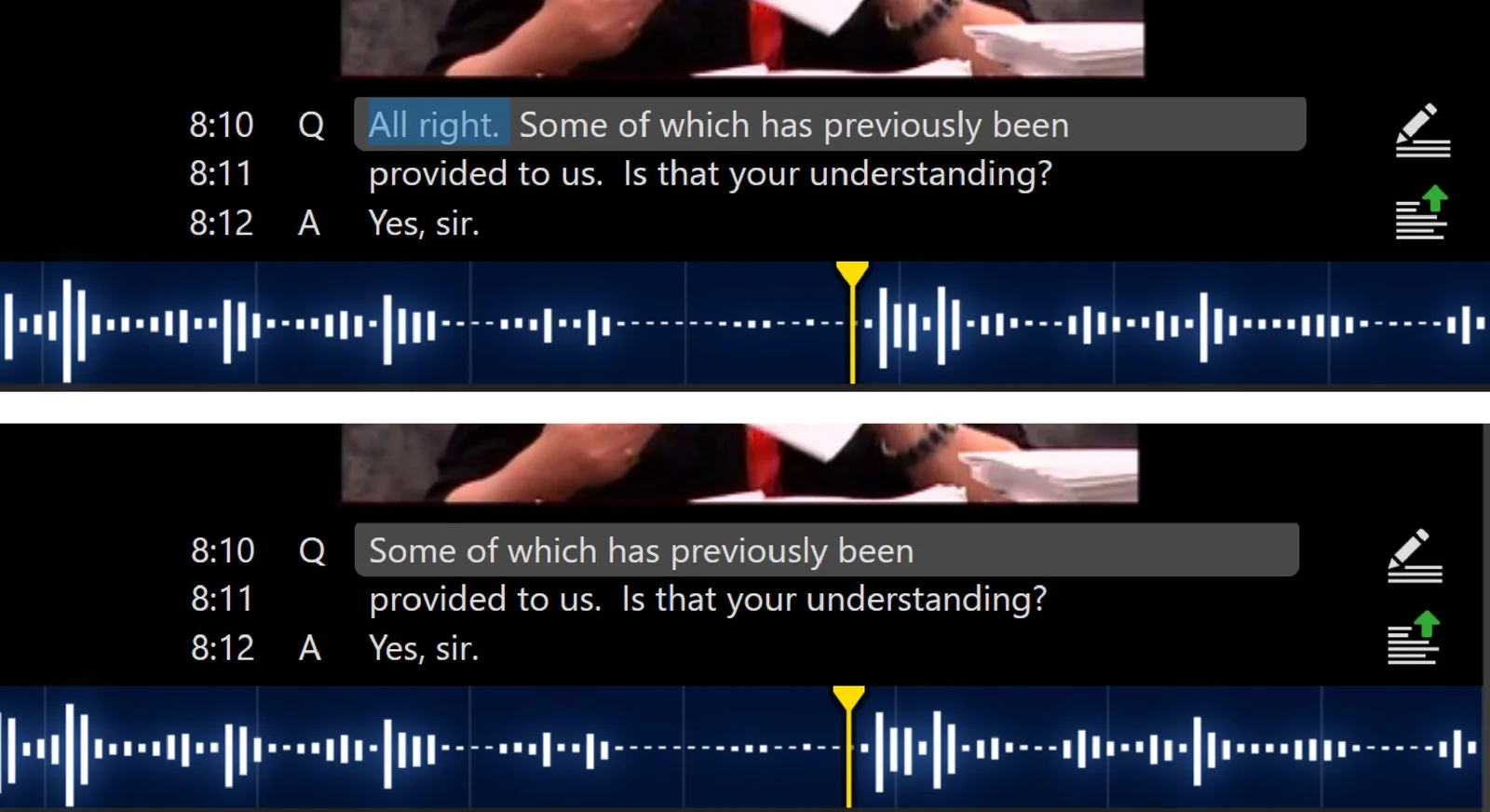
To edit the beginning and end of a designation together, use the pencil icon.
Using the Pencil Icon
Click the pencil icon next to the scrolling text above the edit bar. A text box opens with the entire designation.
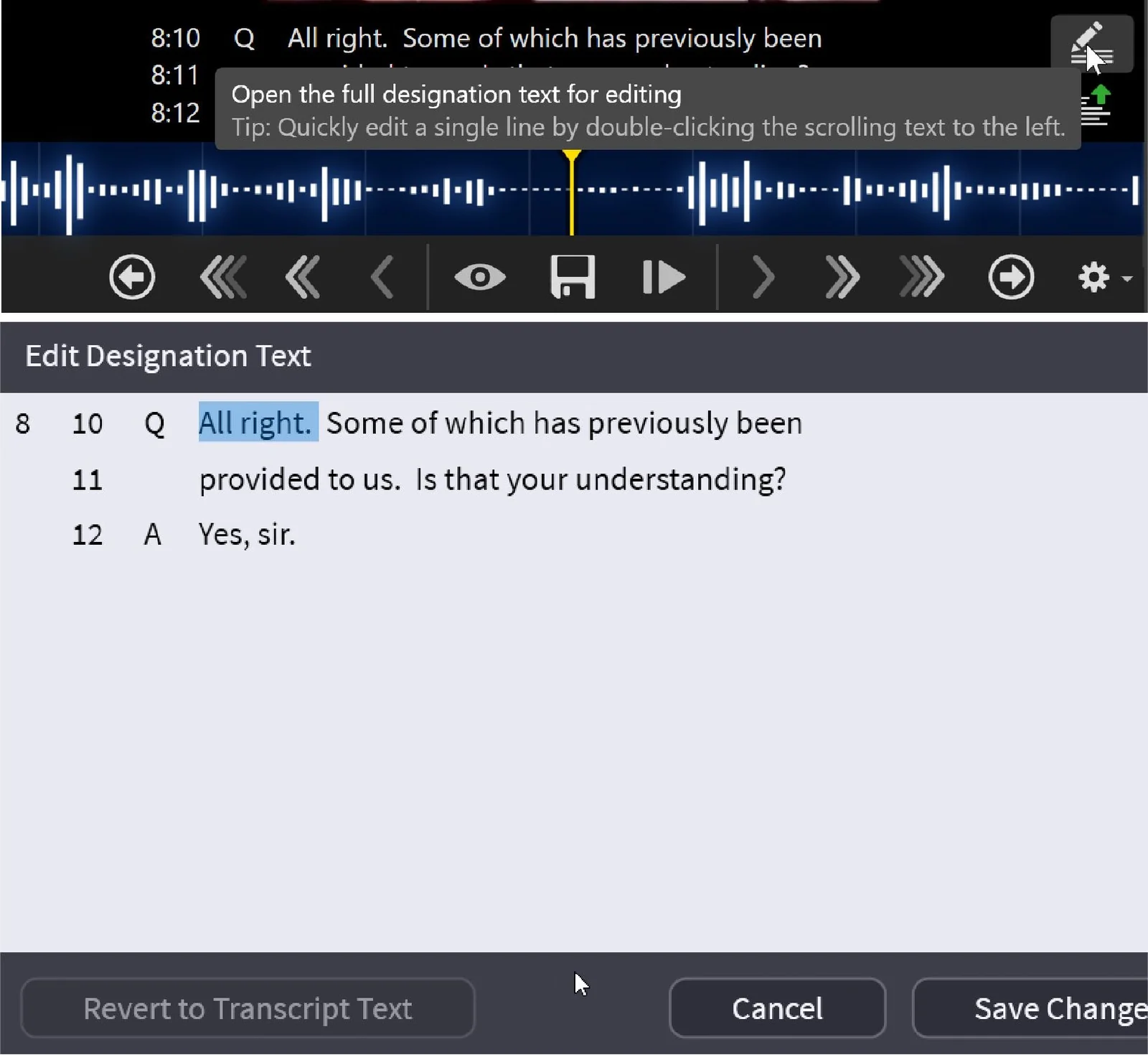
Delete any text at the beginning or end that you don’t want to scroll on screen, and click Save Changes. You can revert to the transcript text at any time, even after saving, with the Revert button.
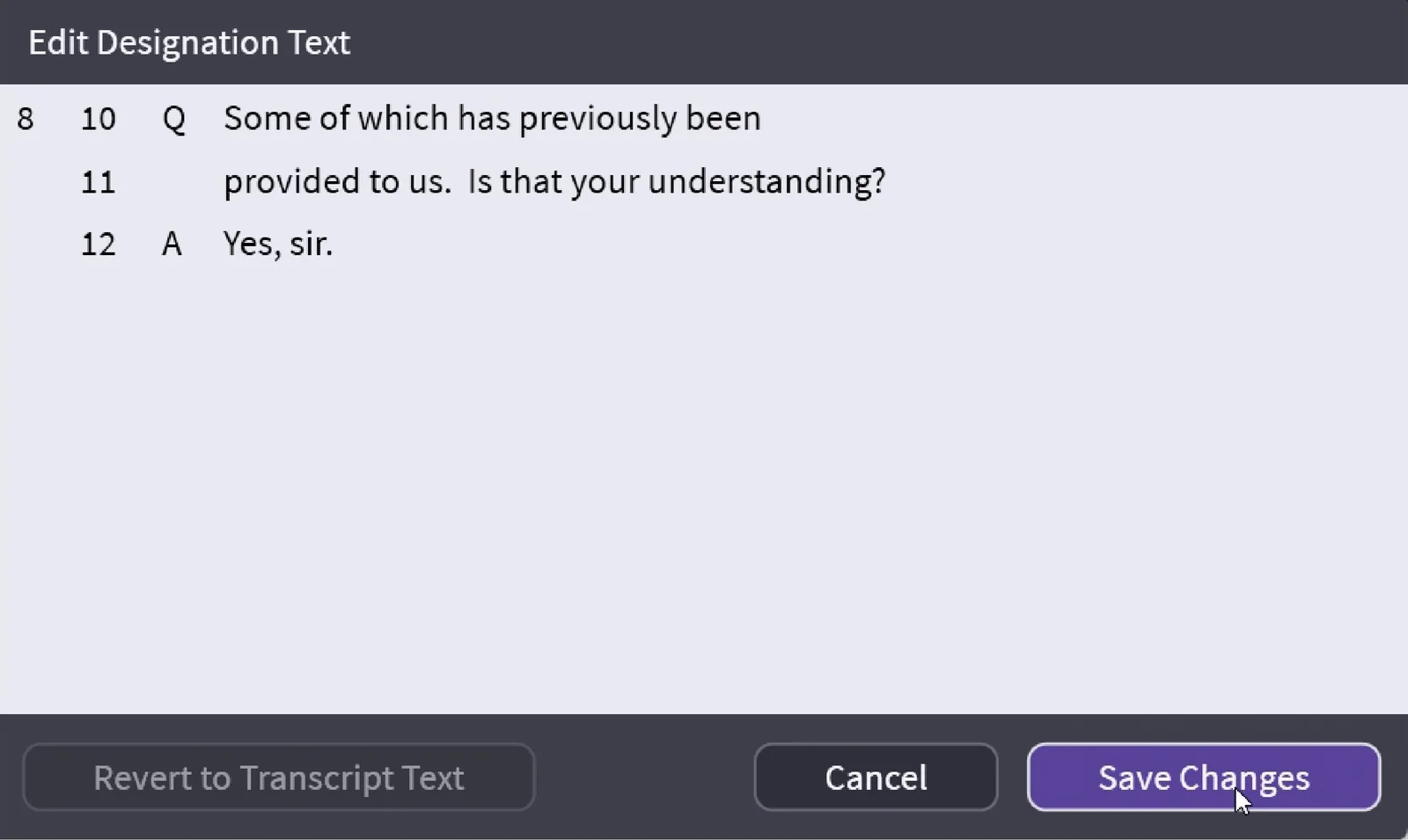
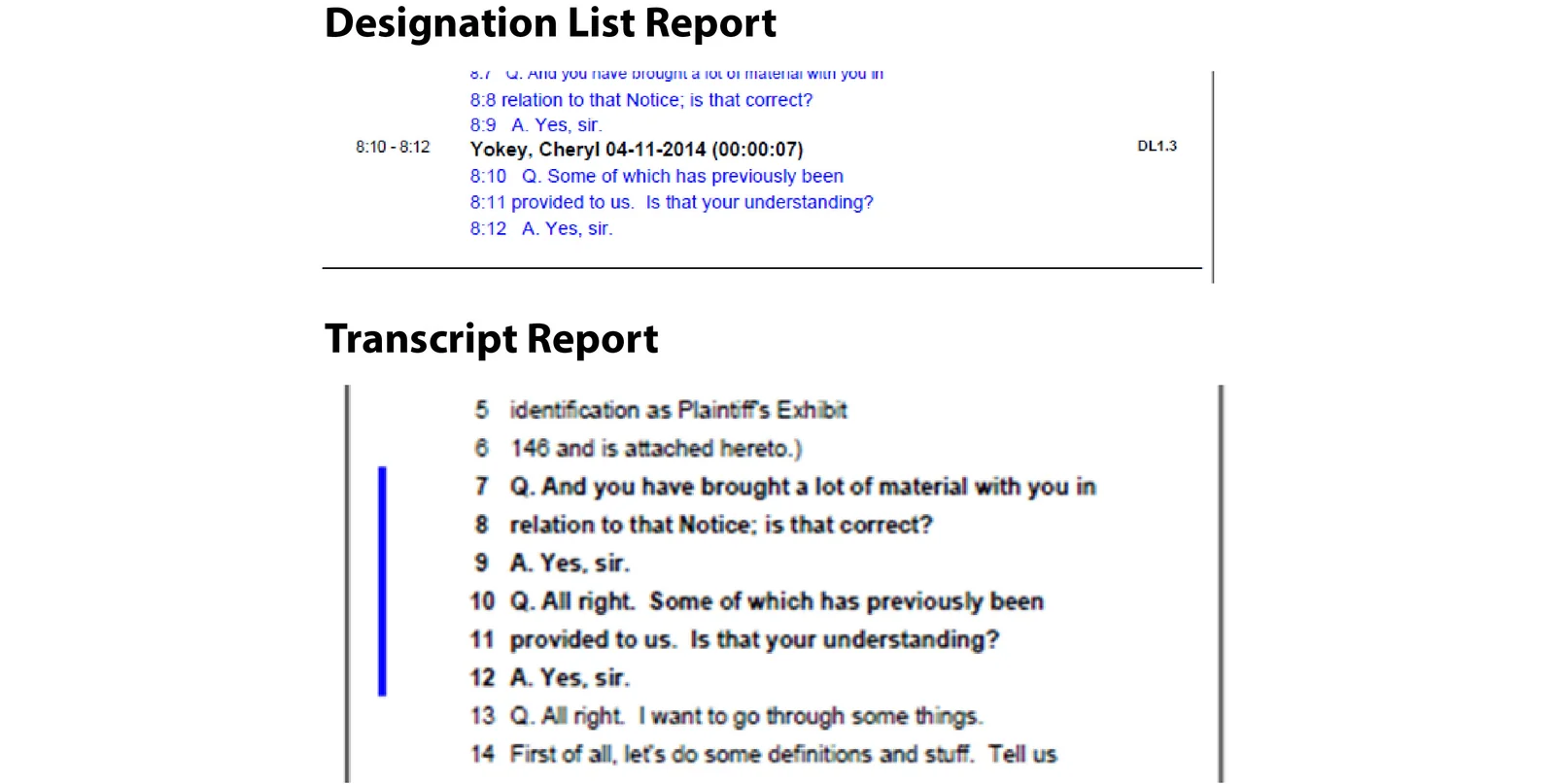
After you click away from the designation and back again, the change appears in the Designation Editor. In the image below, note that the transcript has not changed. Scrolling text changes are specific to each designation and if you were to designate the same page/line again, this edit would not apply.
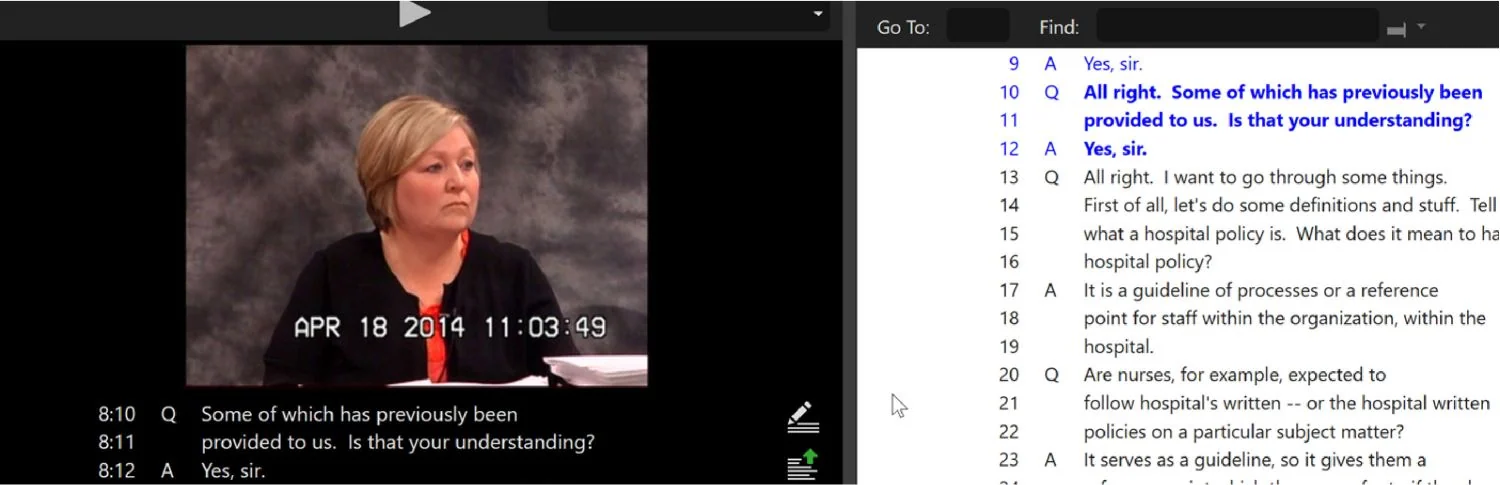
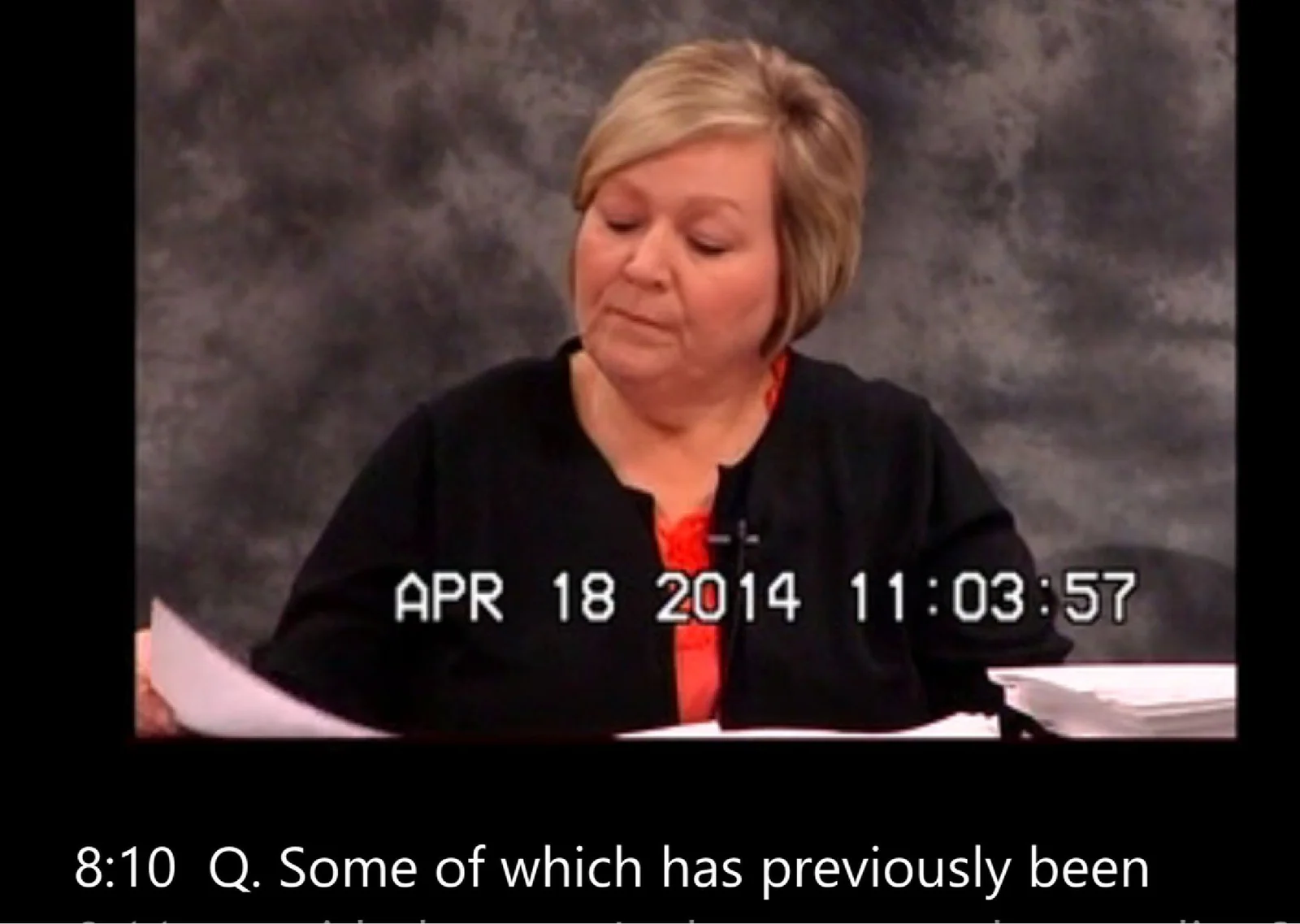
In Presentation Mode, the scrolling text now matches the video.
If you run a Designation List Report, the removed text does not appear. A Transcript Report uses the original transcript and does not show these edits.
edit text, transcript text, typo, correct designation text
Still stuck? Email support@oncuetech.com.