



Global Transcript Edits
Updated January 13, 2025
You can edit transcript text, for example to remove the deponent’s name from line 1.
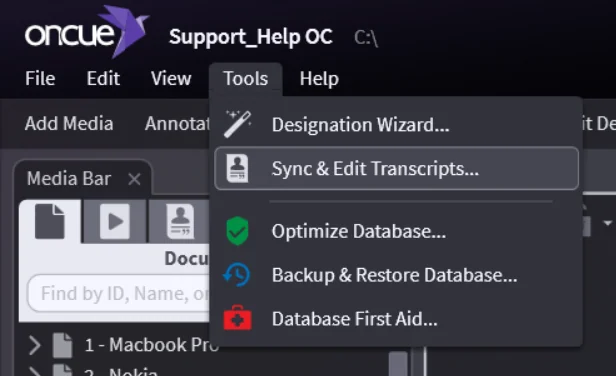
Select Tools > Sync & Edit Transcripts.
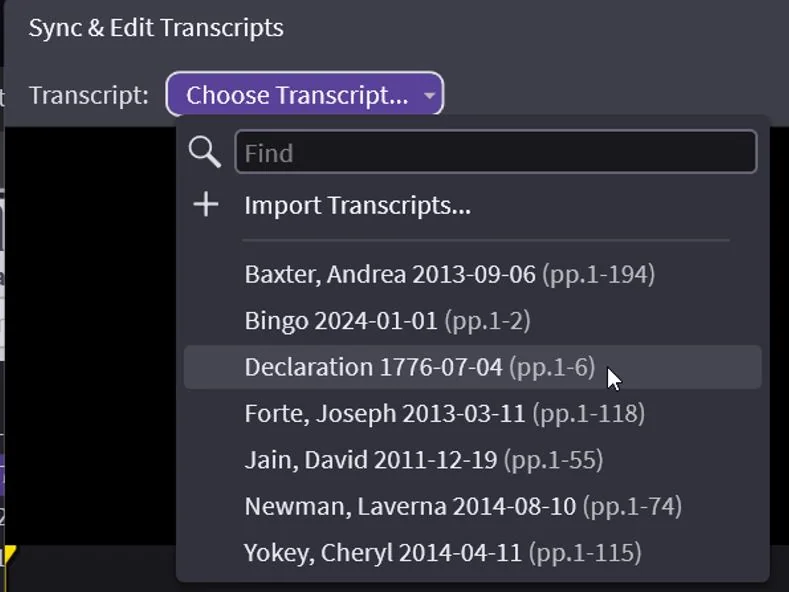
Click Choose Transcript and select the transcript you would like to edit.
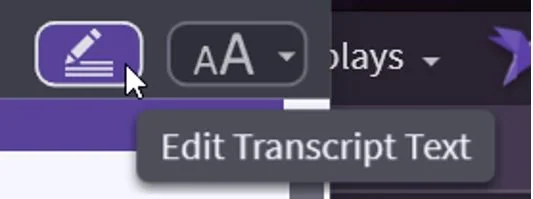
Now that your transcript is loaded, click on the pencil in the upper right corner. Text changes apply everywhere the transcript is used, except designations whose text you edited manually.
You can go to a specific line and you can search for a word or words.
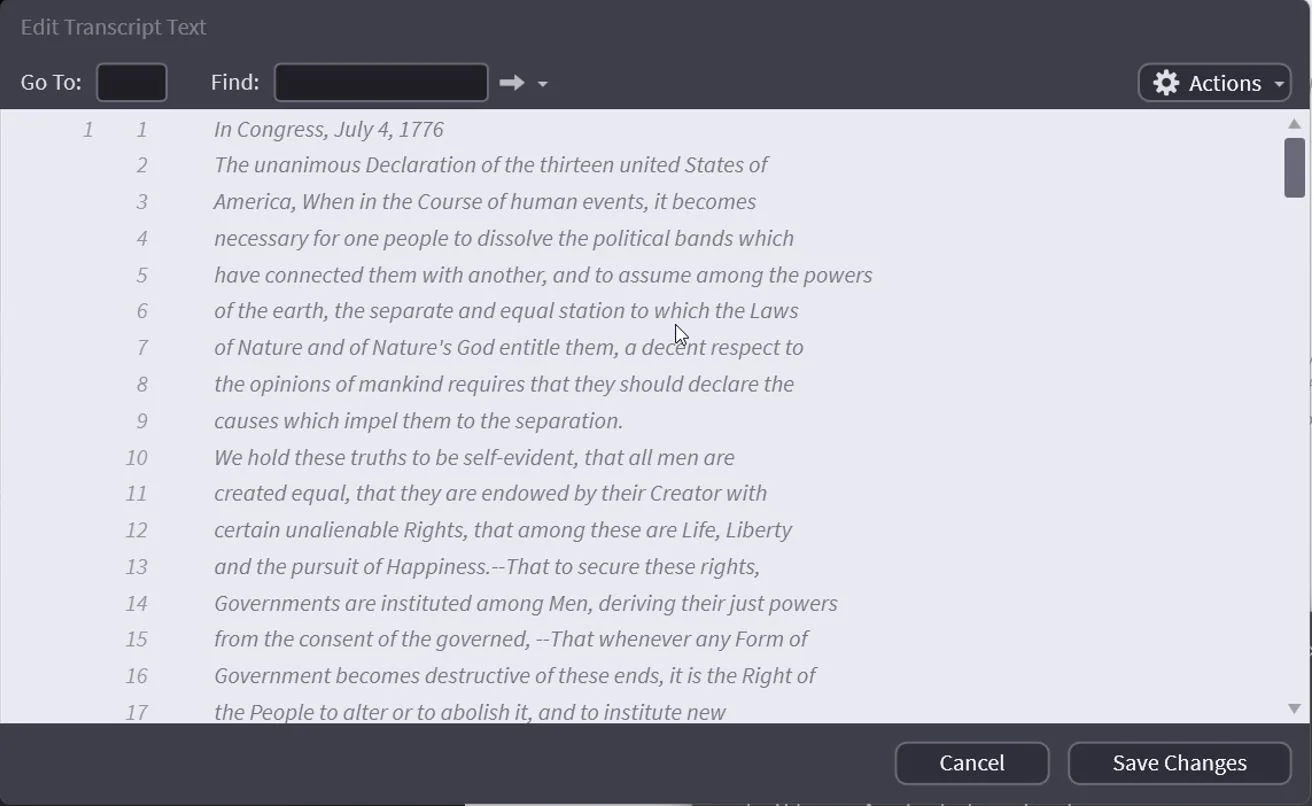
Type a word and choose an option from the dropdown.
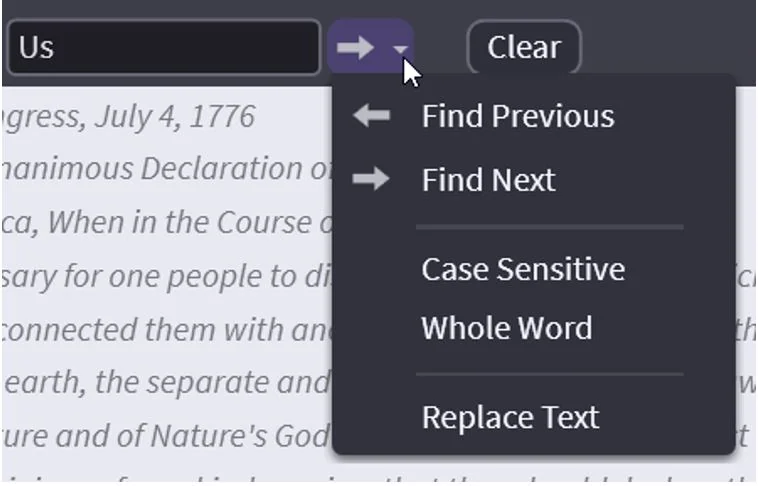
You can move to those words using the arrows.

You can click in the transcript and change a specific word.
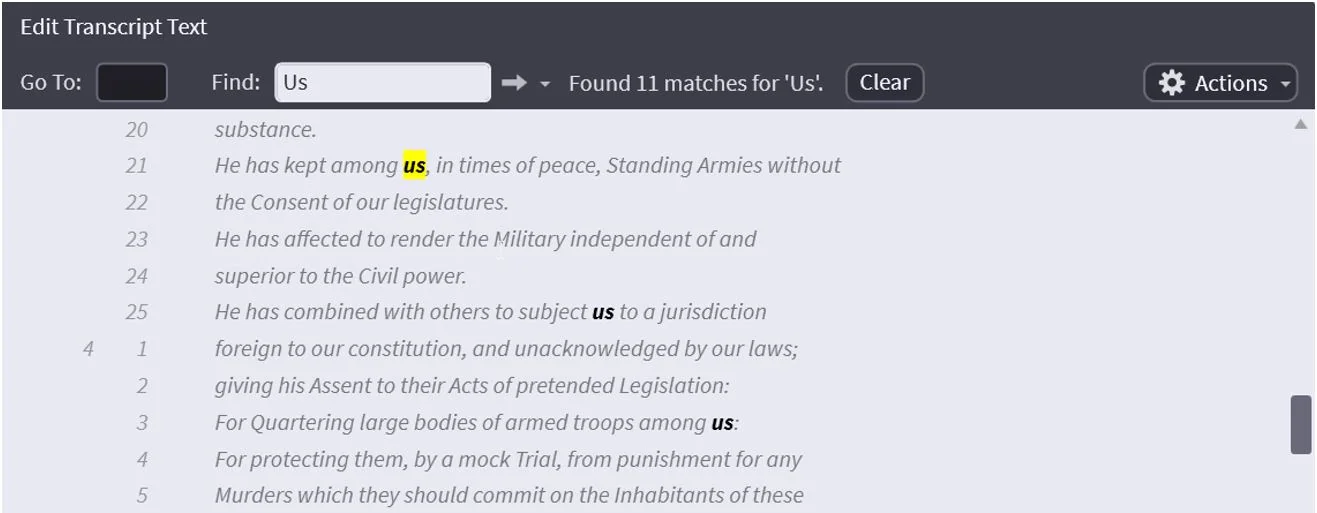
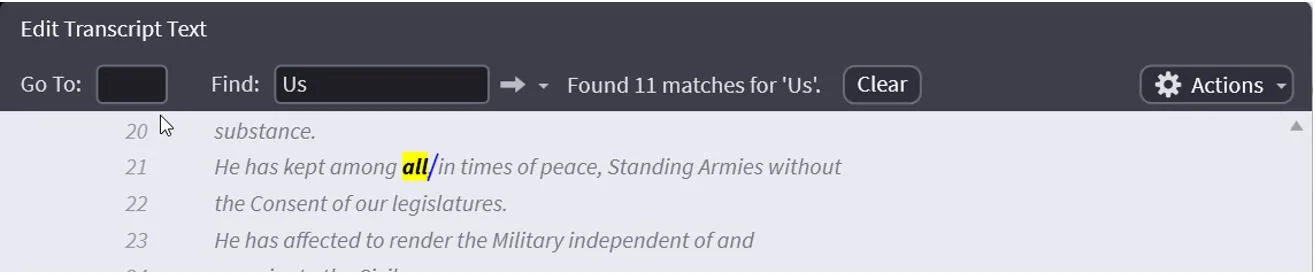
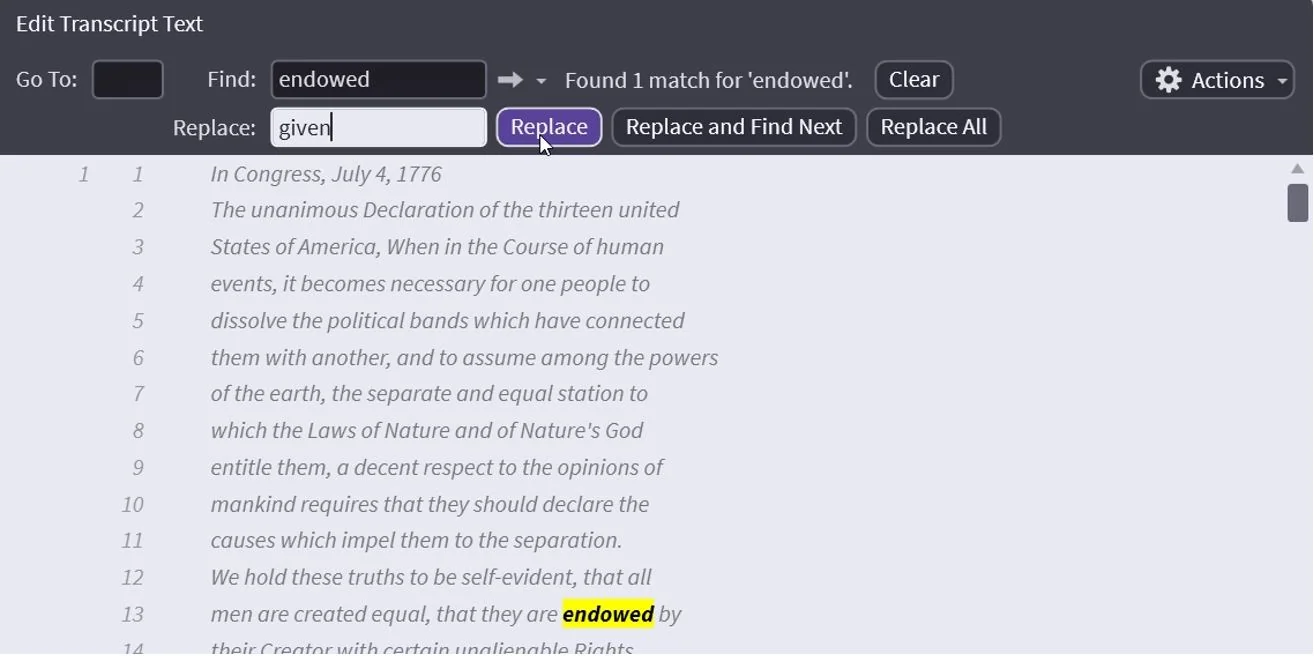
Or you can change every instance. Be sure to select Whole Word when you do this.
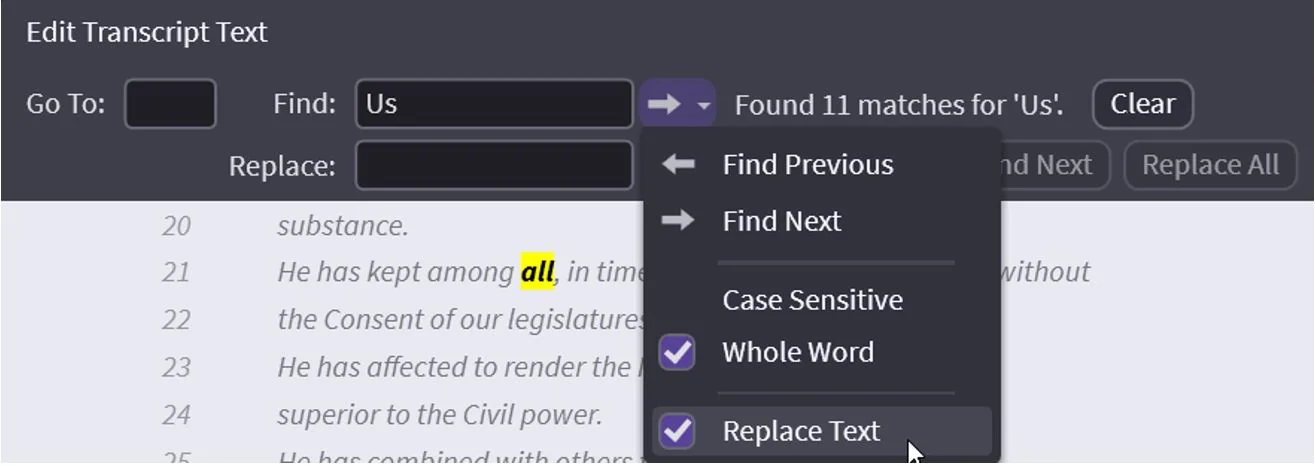

This changes the entire transcript. To discard the change, click Don’t Save Changes.
Once saved, this cannot be undone; to restore the original text you must add the transcript again.
Tip: Use the search arrow to go to the first instance. Matching words are shown in bold so you can spot the changes.
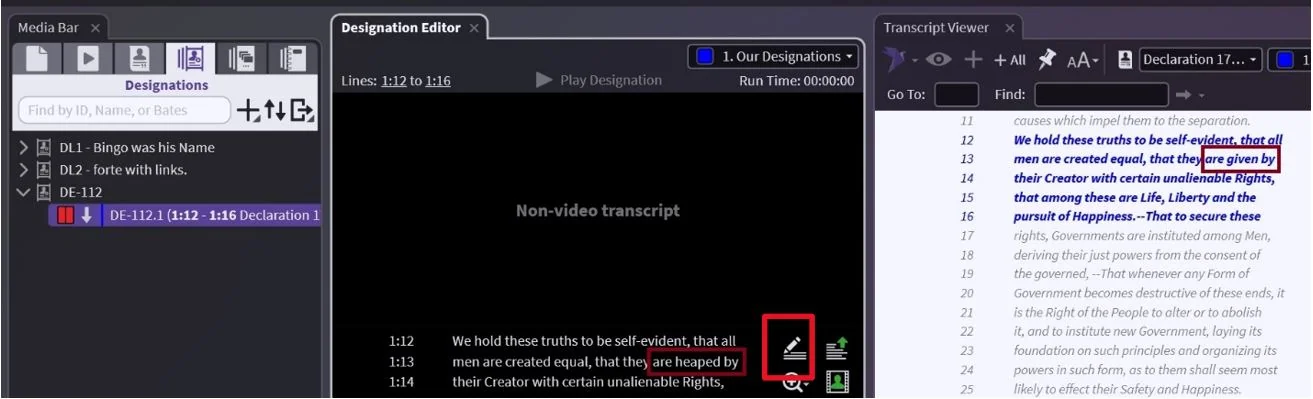
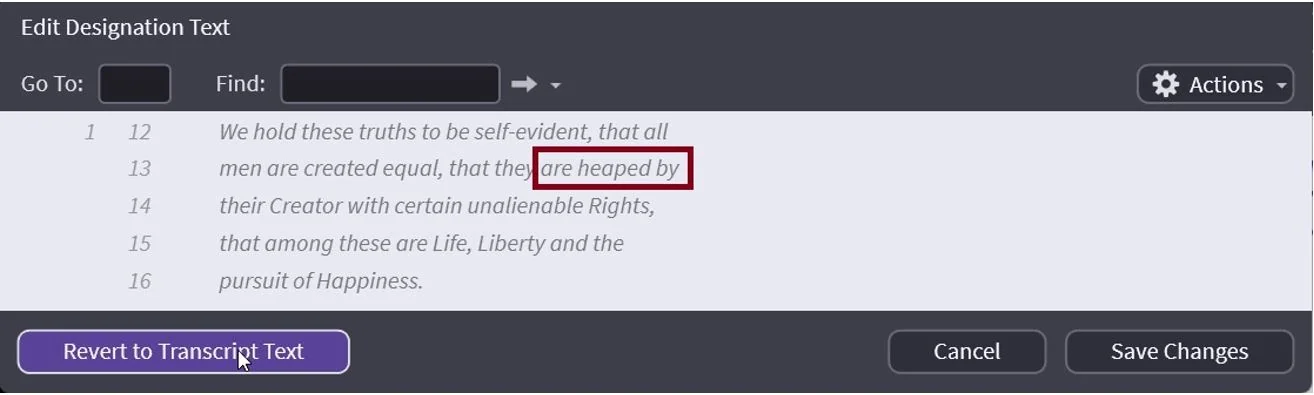
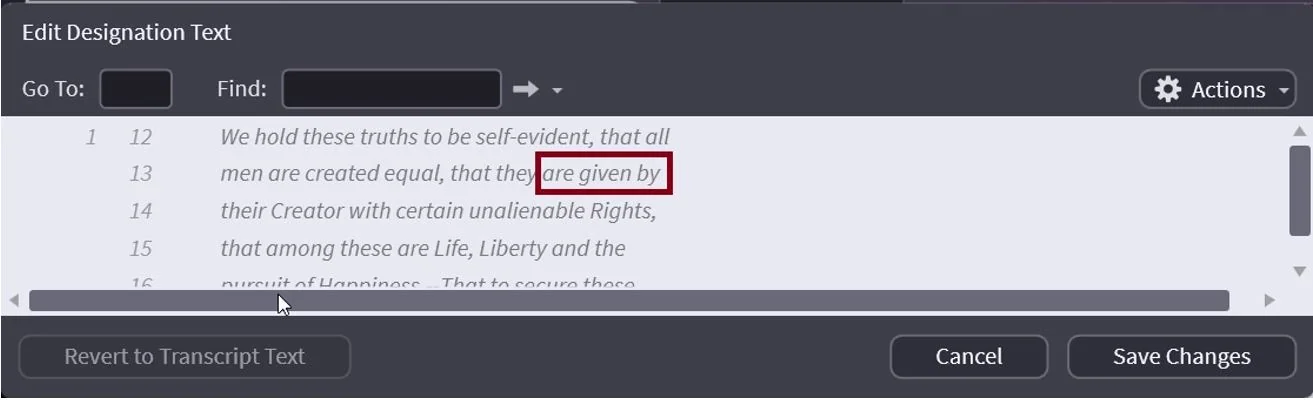
Note: If you edited the text of a designation, the global change is not applied to it. Your text edit in the designation remains the same. You can go to an individual designation, click the pencil and select Revert to Transcript Text.
The edited designation keeps its text; designations you have not edited show the new text.
Click the pencil in the Designation Editor and select Revert to Transcript Text.
See Editing Text in a Designation for more information.
find and replace, global edit, edit transcript text, spelling, names
Still stuck? Email support@oncuetech.com.