



Editing Designations – Page/Line Edits
Updated July 22, 2025
You can edit the page and line ranges of designations in several ways.
Merging Pages
A list with each page as a separate designation is harder to report on and fine-tune. You can merge the pages.
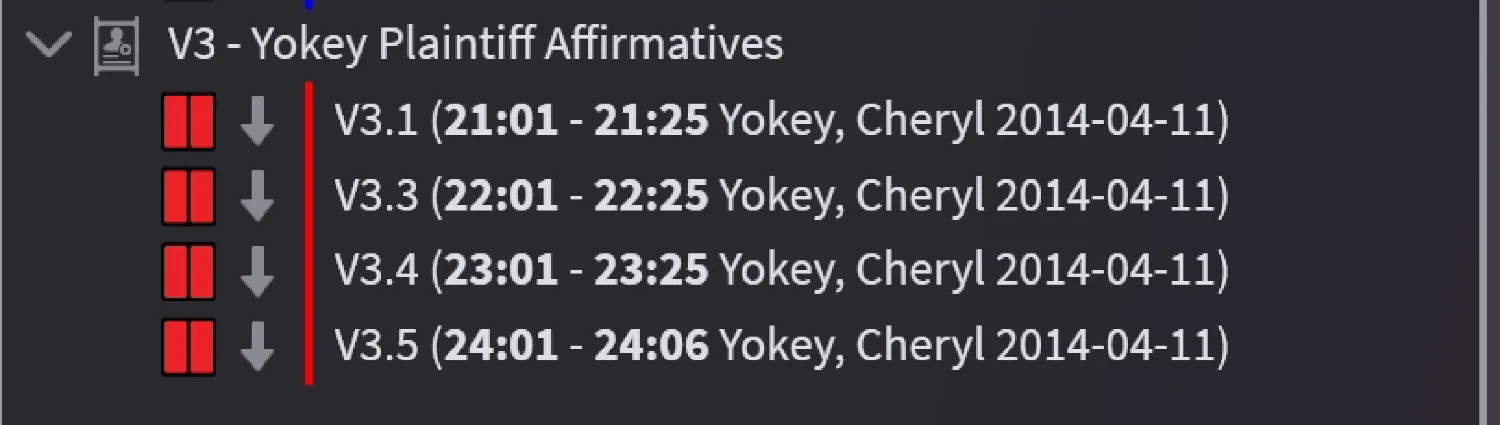
Right-click on the list and select Merge Page-to-Page.
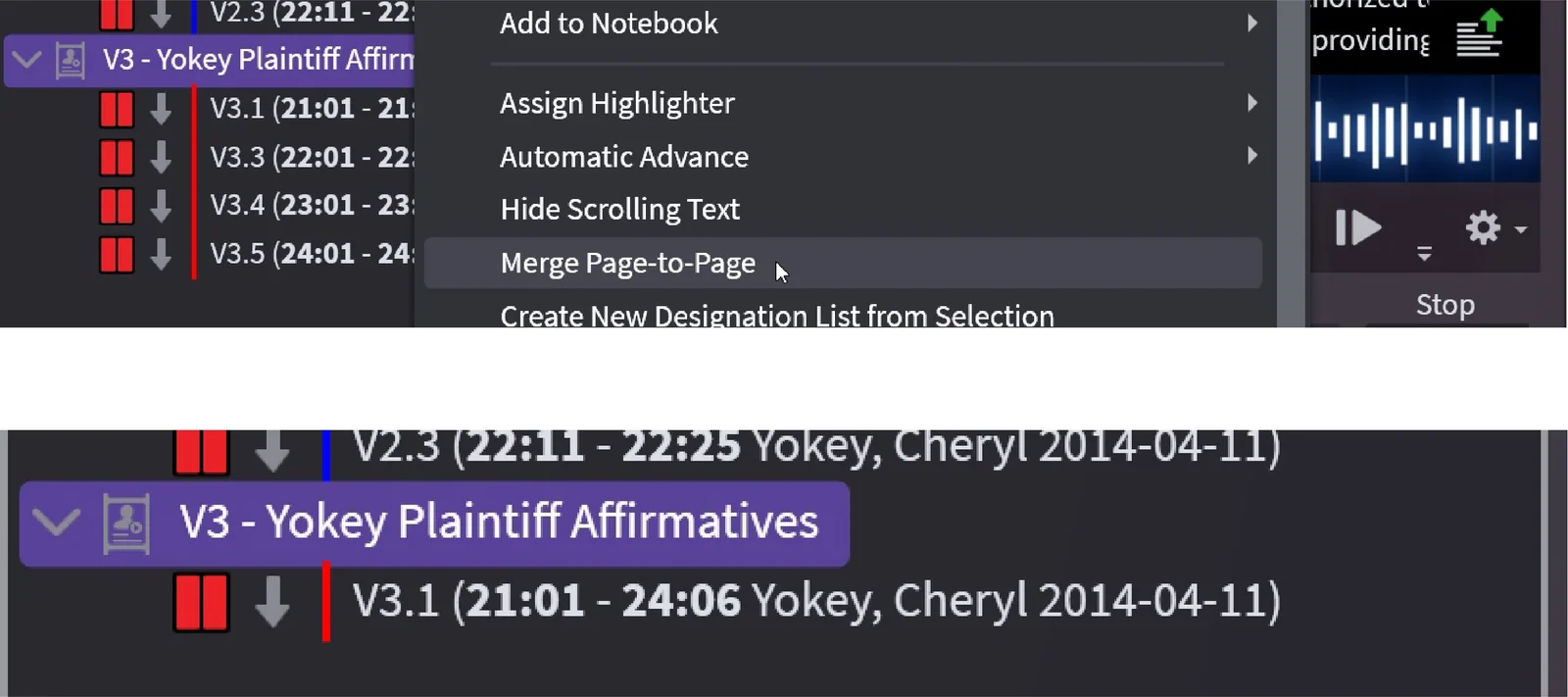
Consecutive designations are now merged for cleaner reports and playback.
Changing the Lines or Pages of a Designation
You can change the pages and lines of an existing designation in two ways.
- Editing in the Designation Editor
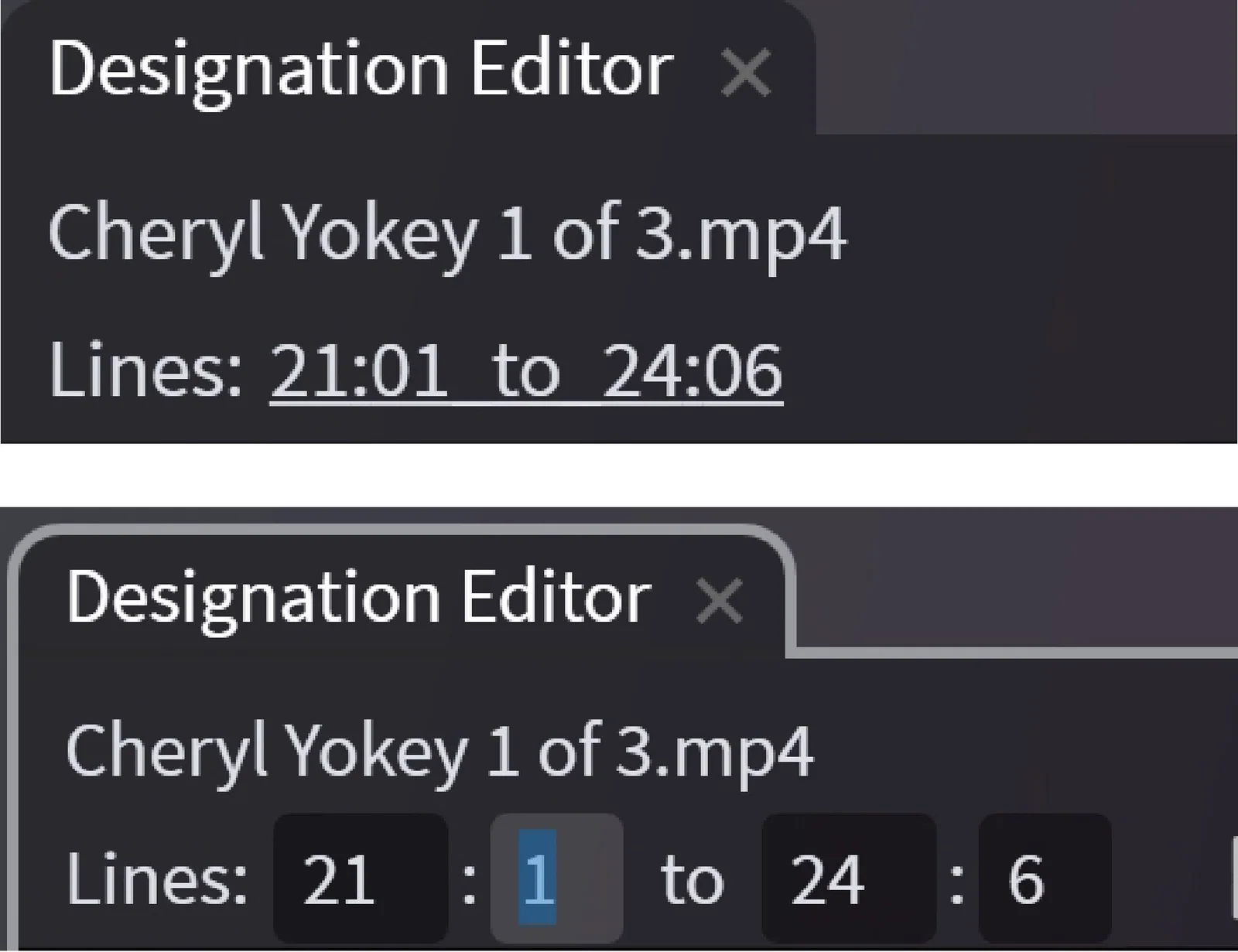
At the top of the Designation Editor you will see Lines: ##:## to ##:##.
Click it, edit the range, and press Enter.
-
Editing in the Transcript Viewer
Left-click on the designation you want to edit. It will show on the transcript.
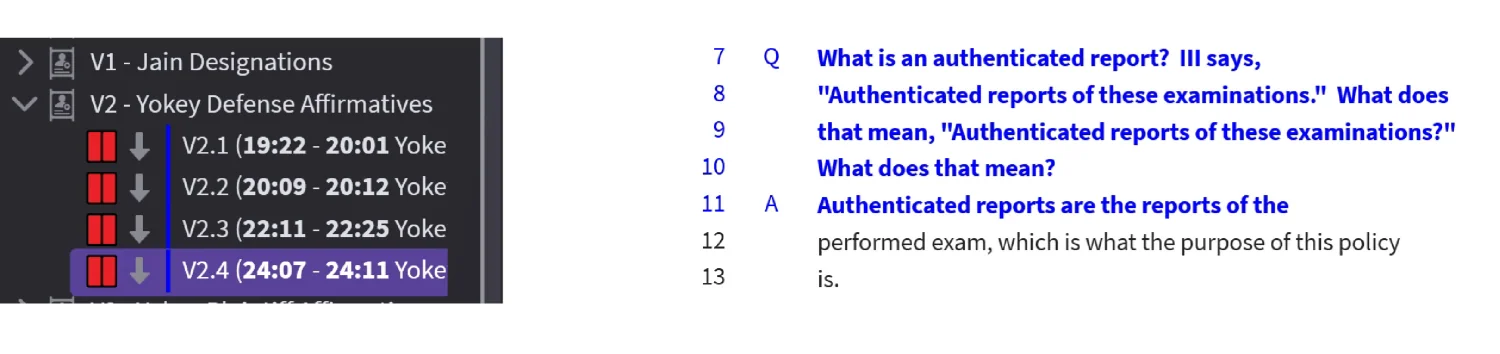
Highlight the new page and line range on the transcript, right-click, and select Edit Start/Stop to Selection.
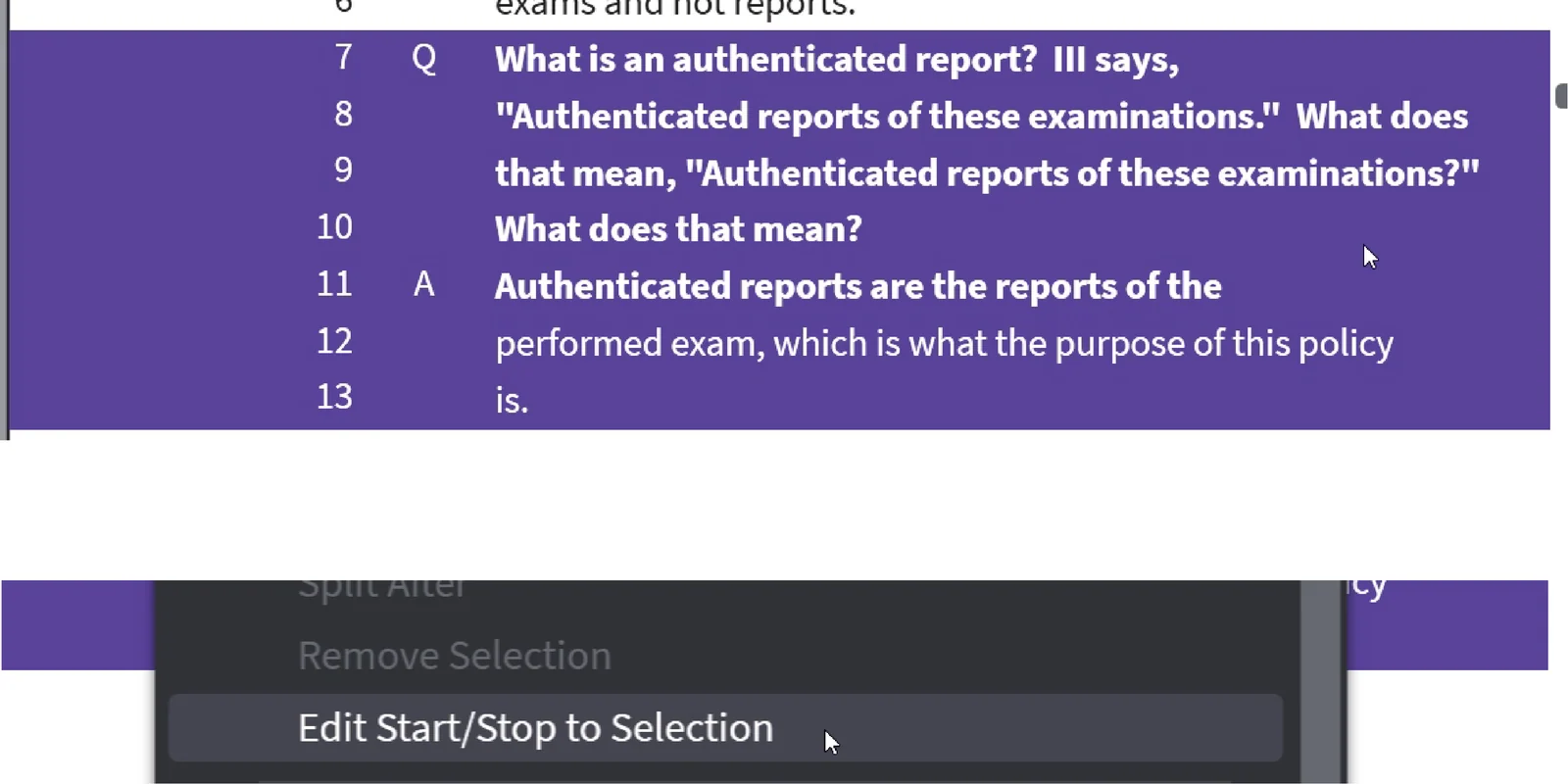
The designation is updated.
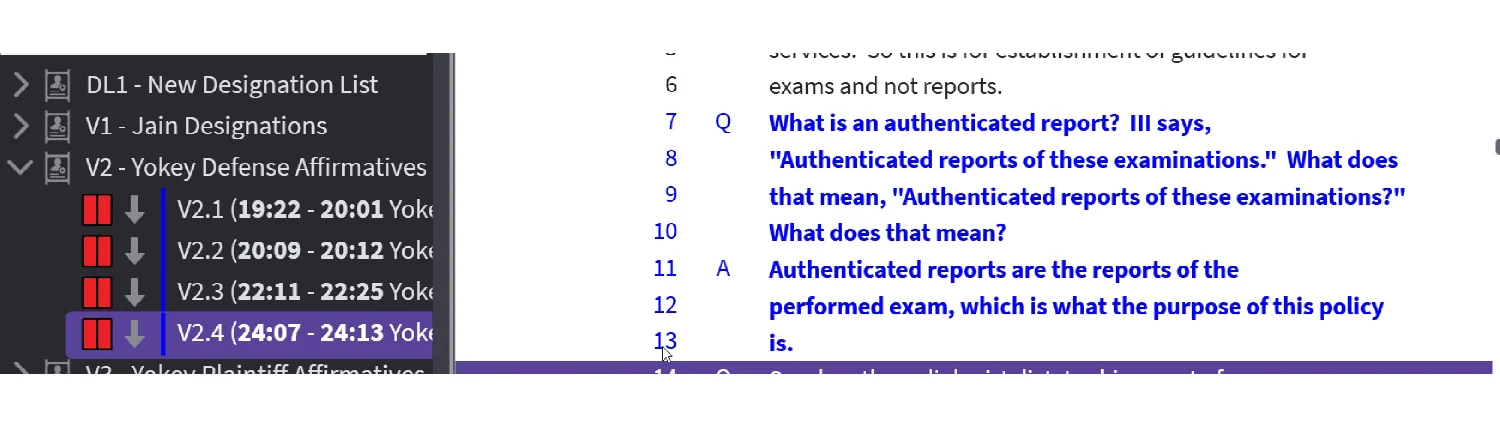
edit designation, page line, change range
Still stuck? Email support@oncuetech.com.