



Playback of Designation Lists
Updated October 31, 2026
Presenting a designation list is the same as presenting any other media in OnCue.
Important: The underlying deposition video files must be copied to the root of the _synchedvideos folder in your OnCue case (not to subfolders). OnCue looks for the video in this folder.
How to Present
To play back a designation list, select its Media ID in Production, then press the Publish button on the Workflow Ribbon or use the F5 hotkey.
You can also launch a blank Presentation screen in OnCue by hitting Ctrl + F5. Click on the blank screen and then type X + Media ID and then hit ENTER.
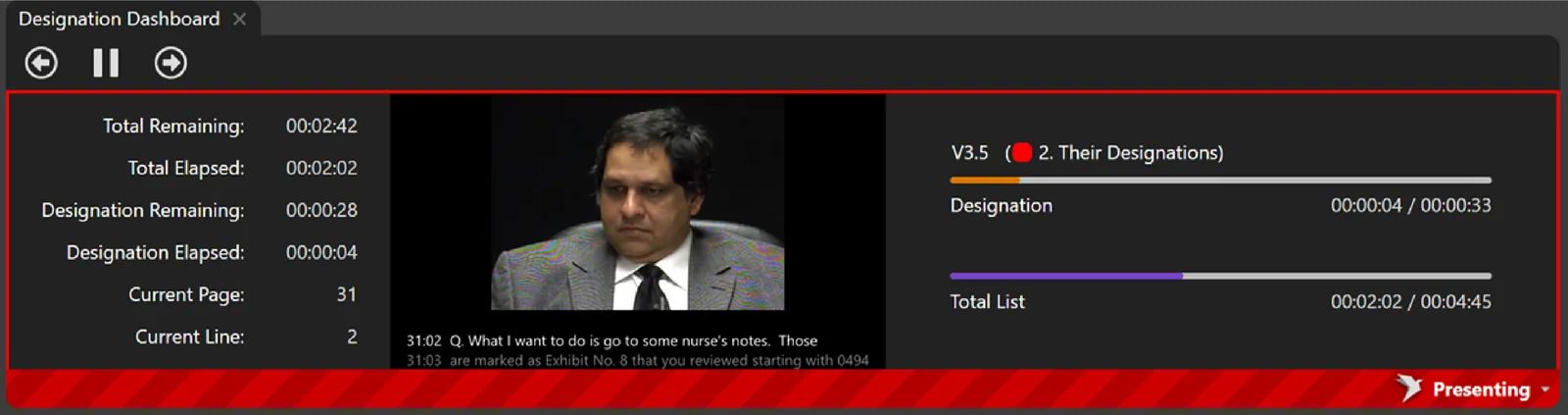
When playing designations, you will see the Designation Dashboard on your production screen.
There are navigation buttons on the Designation Dashboard.
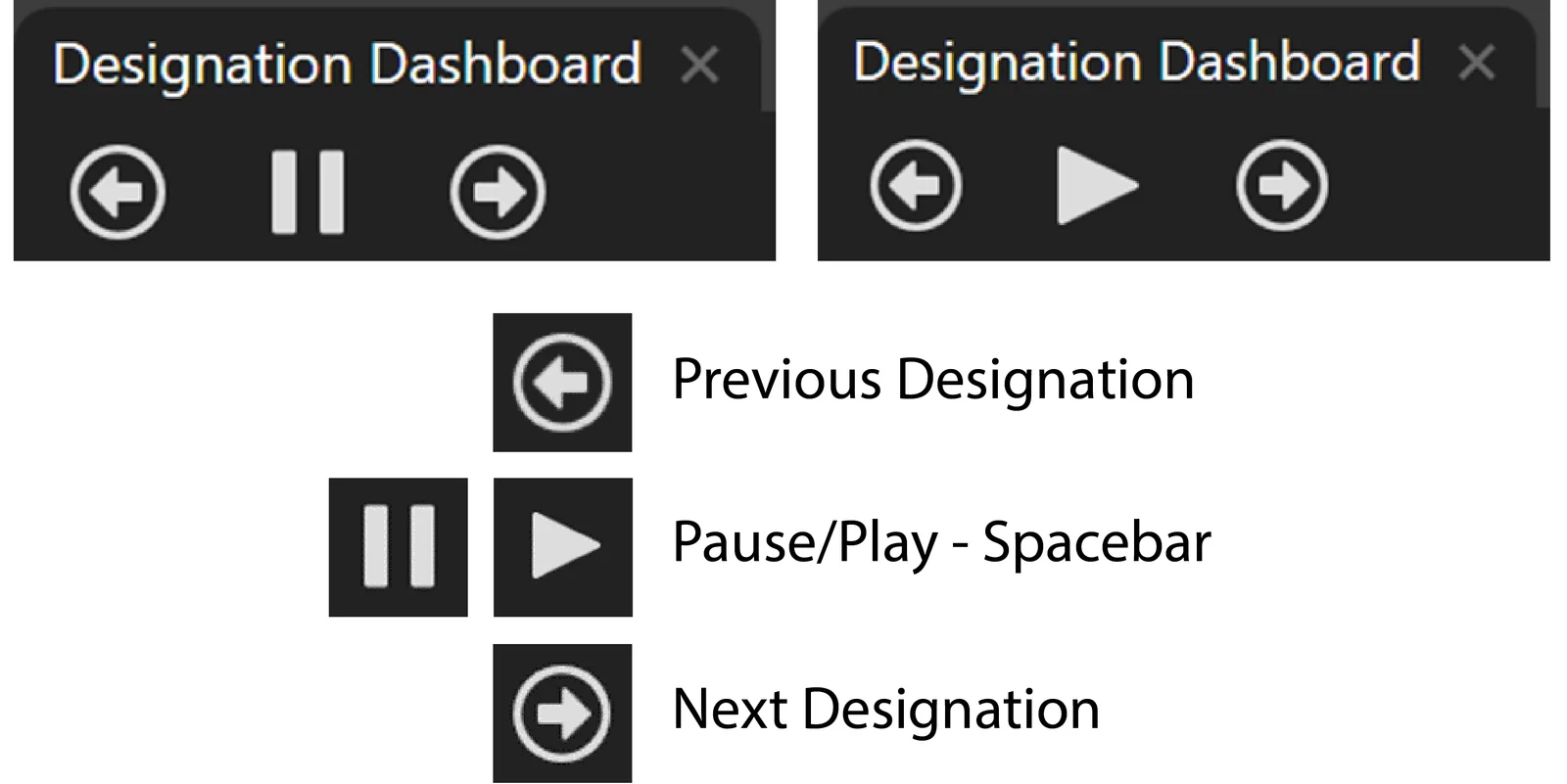
Note: If you select an individual designation and not the Designation List, it will start from that designation and either play to the end of the list or stop after that designation, depending on your auto-advance settings.
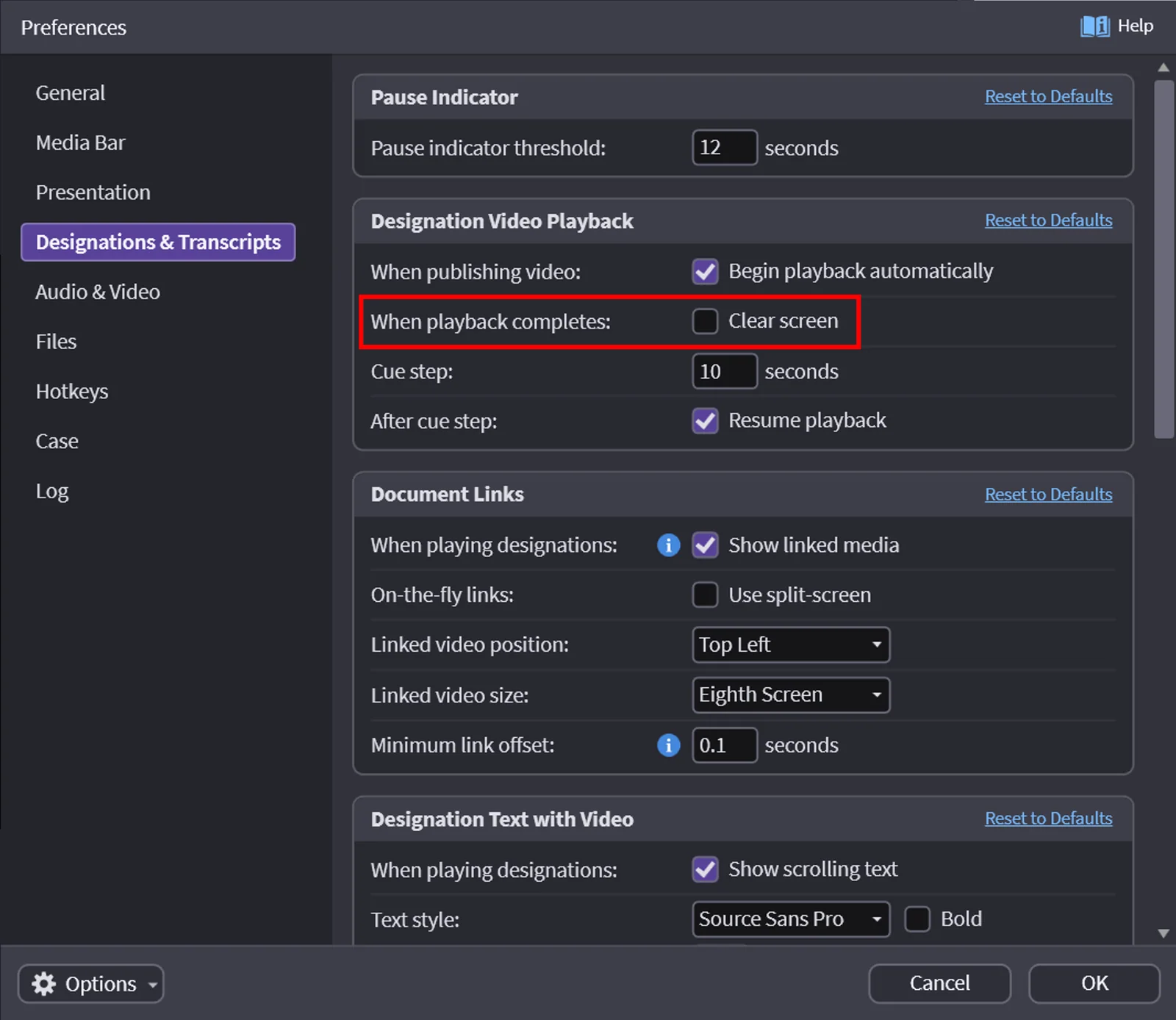
You can also set your designation list to clear the screen upon completion, in Edit > Preferences > Designations & Transcripts.
Designation lists with links play back the same way as those without. A few tips:
- If you forget to clear a link, press Ctrl + F to return the video to full screen and clear the document.
- Anything you can do to a document on its own (highlight, callout, zoom), you can do to a linked document.
- Need to hide the video on-the-fly during playback? Press Shift + V (press it again to bring the video back).
Starting a Designation List Paused
Want your designation lists to start paused instead of playing automatically?
-
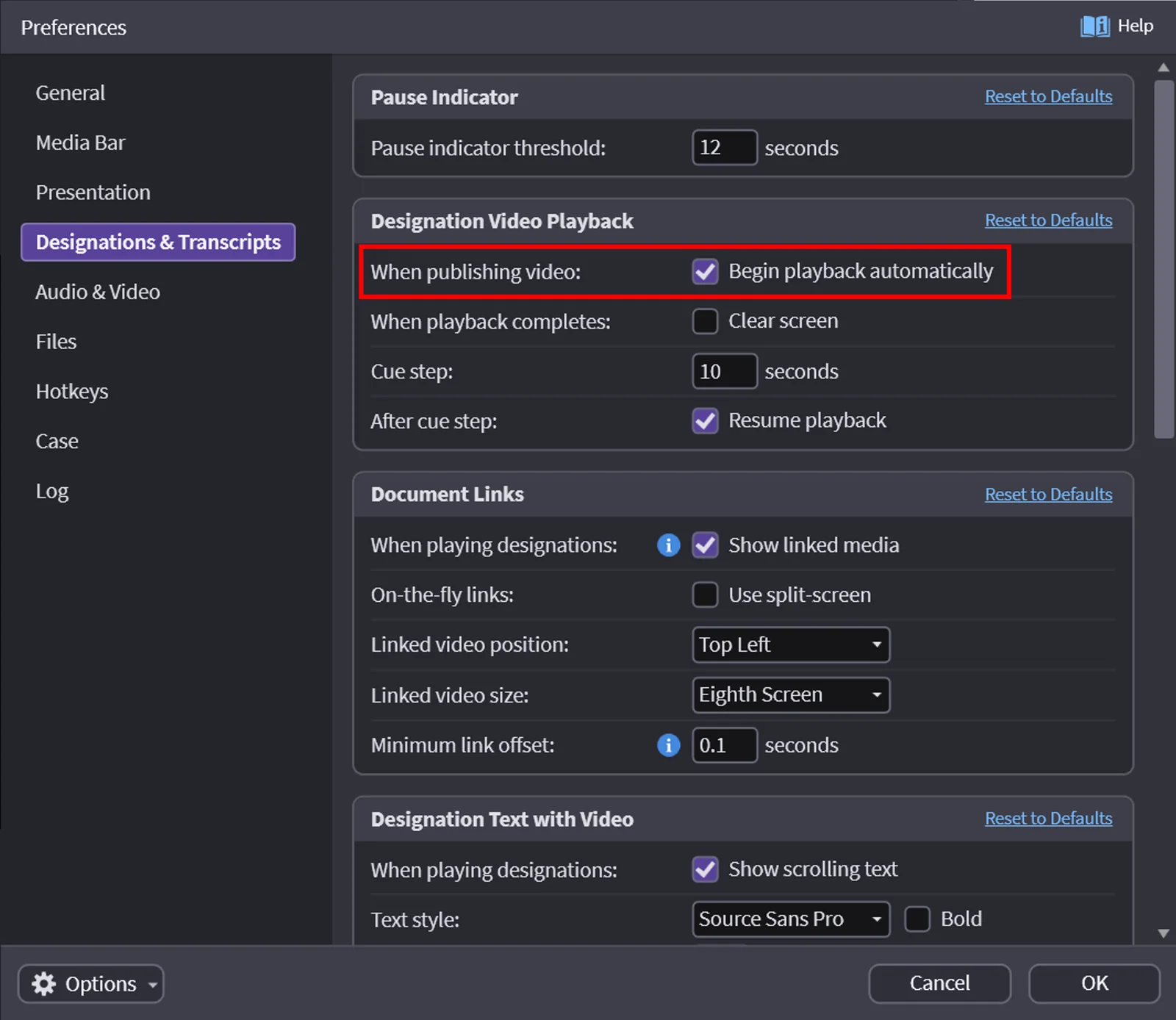
Go to Edit > Preferences > Designations & Transcripts
-
Clear Begin playback automatically.
How to Turn Off Links When Playing Designations (Two Ways)
If the judge rules against linked exhibits just before you play a designation list, you can keep linked documents from displaying in Presentation. There are two ways.
Option 1: Publish without linked media
This is the quickest way. Right-click the list and select Publish without Linked Media. This does not remove the links, and they play as usual the next time you publish the list.

Option 2: Global setting for all lists
- Go to Edit > Preferences > Designations & Transcripts
- Under Document Links, uncheck Show linked media.
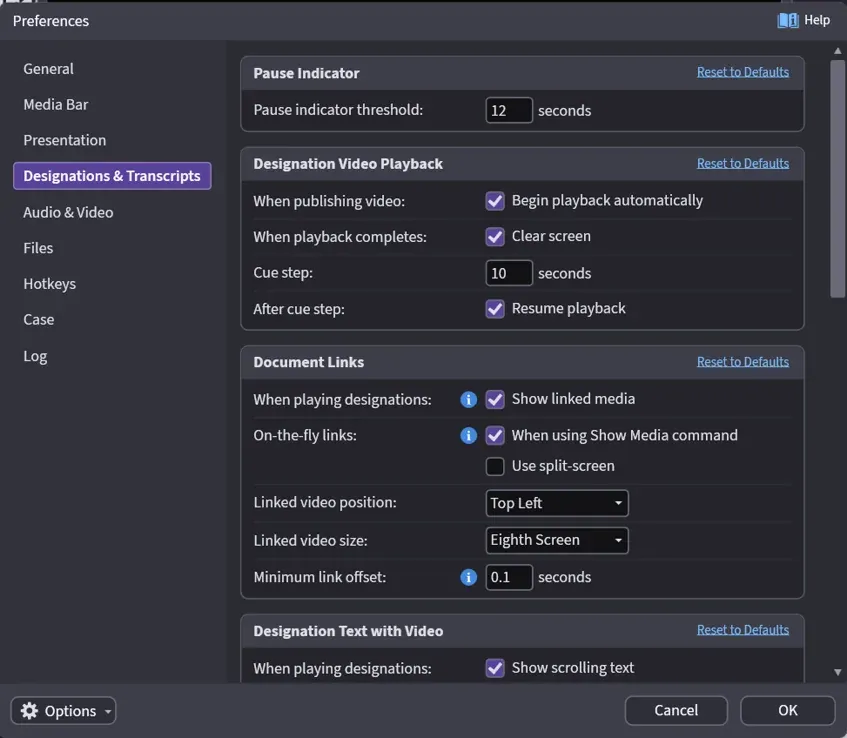
Note: This is a global setting and will impact every designation that is played.
Adding Custom Designation Playback Rates
The playback rate of designations can be changed by using the playback rate controls on the toolbar while presenting, but what if the rate you’d like the video to playback isn’t listed? You can add it as a custom playback rate.
Click on the Edit menu and go to Preferences. Click on Options in the bottom left corner and select Show Advanced Settings.
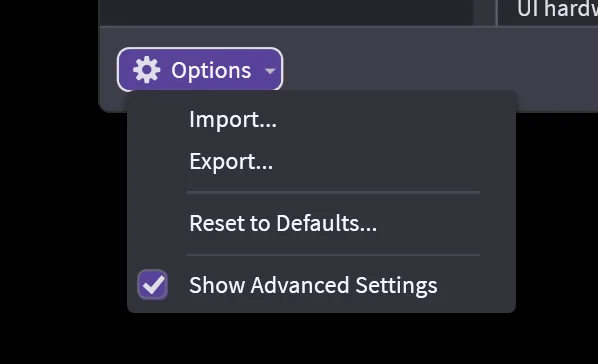
Click on Audio & Video on the left and add the custom playback rates you’d like. In this example, 0.42 is added:
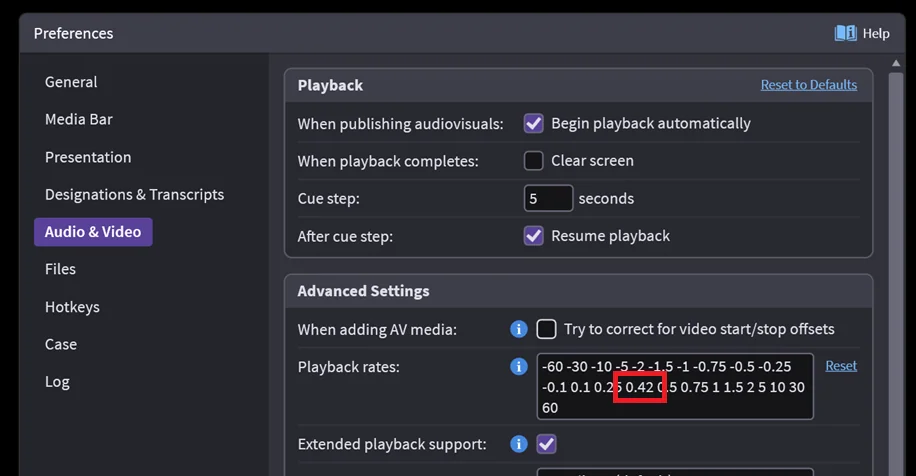
After adding the custom playback rate, you can click on the Slow Forward button on the toolbar in presentation mode to cycle through available speeds and the new 0.42x rate is available:

play designations, designation playback, auto-advance, present depositions
Still stuck? Email support@oncuetech.com.