



Printing Documents
Updated January 1, 2026
This article answers
- Can I export documents with the IDs or names in OnCue?
OnCue does not add IDs or names to exported files. To produce documents labeled with IDs or names, print them; OnCue offers many print options.
Printing Documents
First, select the desired media in the Media Bar or Notebook.
Then right-click and select Print… or use the hotkey Ctrl + P.
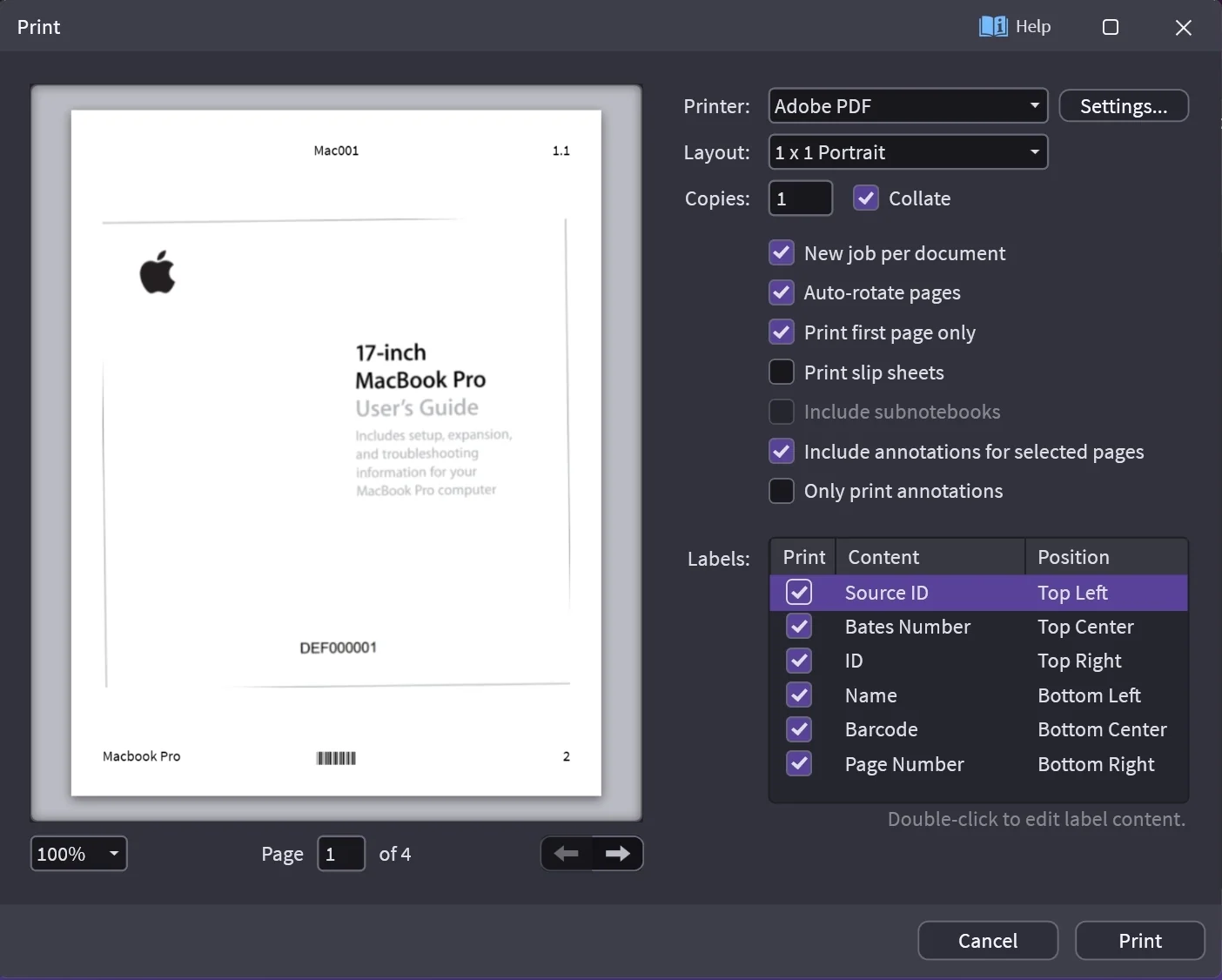
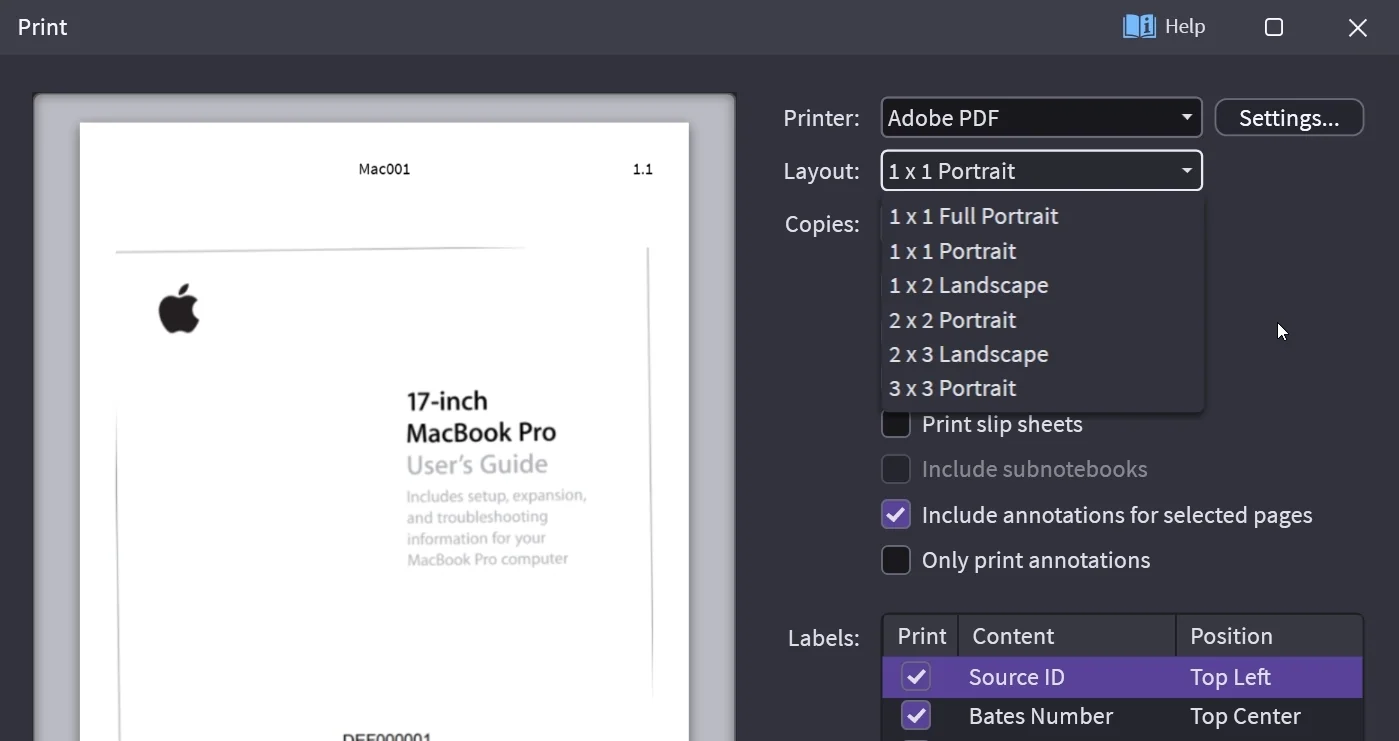
Layout Options
Printing Options:
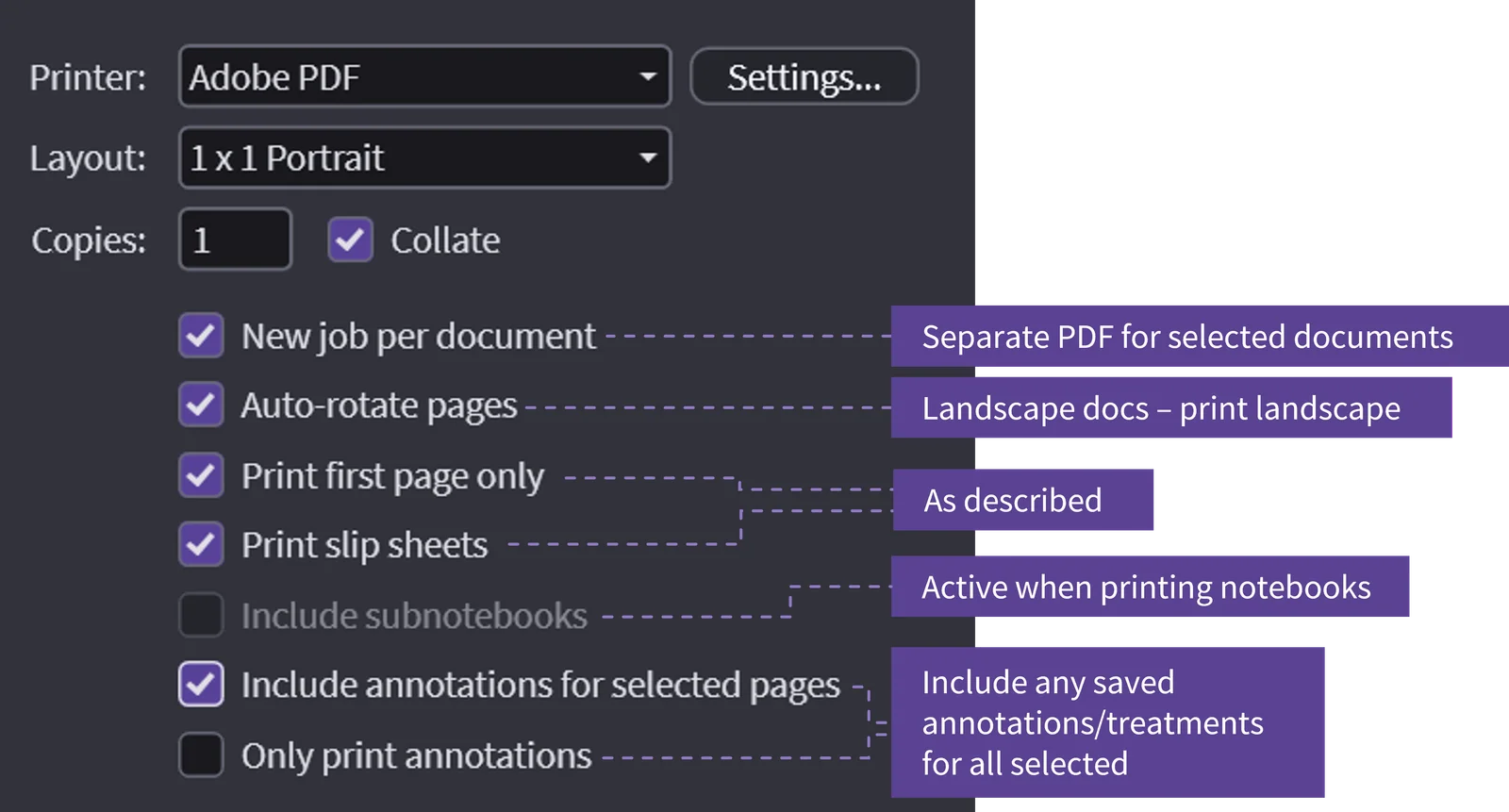
- New job per document – Sends each selected document as a separate print job (a separate PDF when printing to PDF)
- Auto-rotate pages – Prints landscape documents in landscape orientation
- Print first page only – As described
- Print slip sheets – Inserts a separator page between documents
- Include subnotebooks – Active when printing notebooks
- Include annotations for selected pages – Includes saved annotations for all selected pages
- Only print annotations – Will only print saved annotations/treatments for all selected
Label Options:
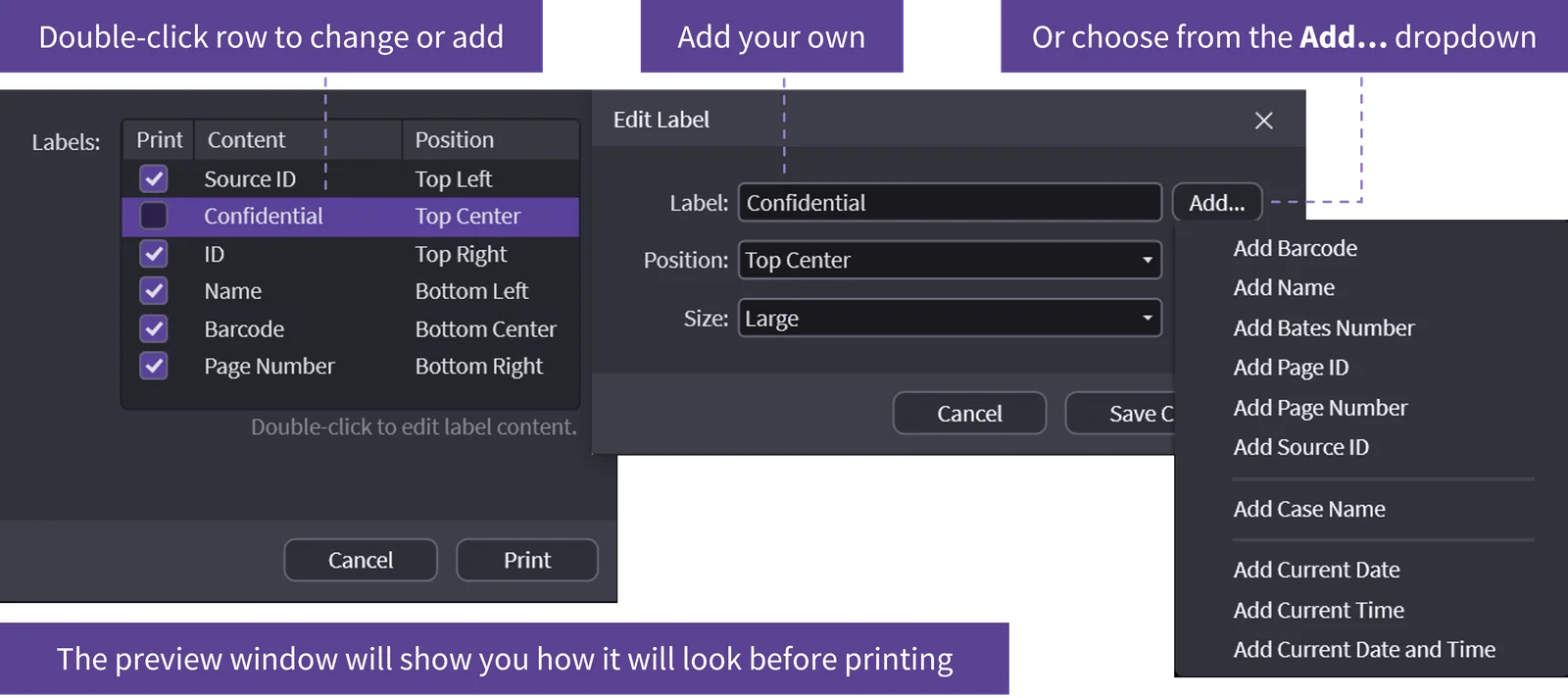
Double-click a row to change a label, or choose a new label from the Add… dropdown.
The preview window shows how the printout will look.
Note: OnCue cannot change Adobe Acrobat print settings, such as “Prompt for file name” or the output folder; change them in Acrobat. This must be done outside of OnCue.
print, Ctrl+P, print labels, print IDs, print barcodes, export with IDs
Still stuck? Email support@oncuetech.com.