



Displaying Designations and Designation Lists as Text Only
Updated January 1, 2026
In addition to synchronized deposition video, you can display designations as text. This is useful when you have designations but no video, or prefer not to show the video. You can display the designations without using the transcript PDF.
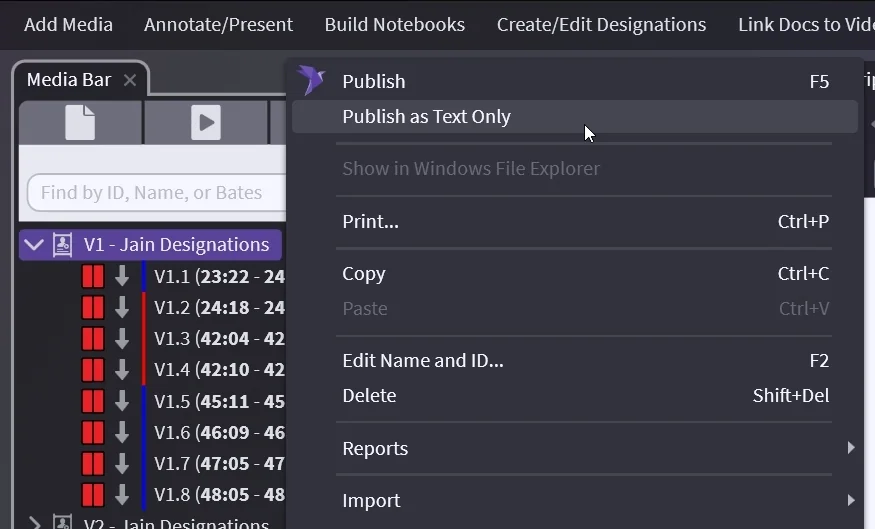
Right-click any designation or list and select Publish as Text Only.
How to Publish a Full List
-
Right-click on your designation list and select Publish as Text Only. If Automatic Advance is on (arrows point down), the whole list is published.
-
Right-click and hold to pan through the testimony.
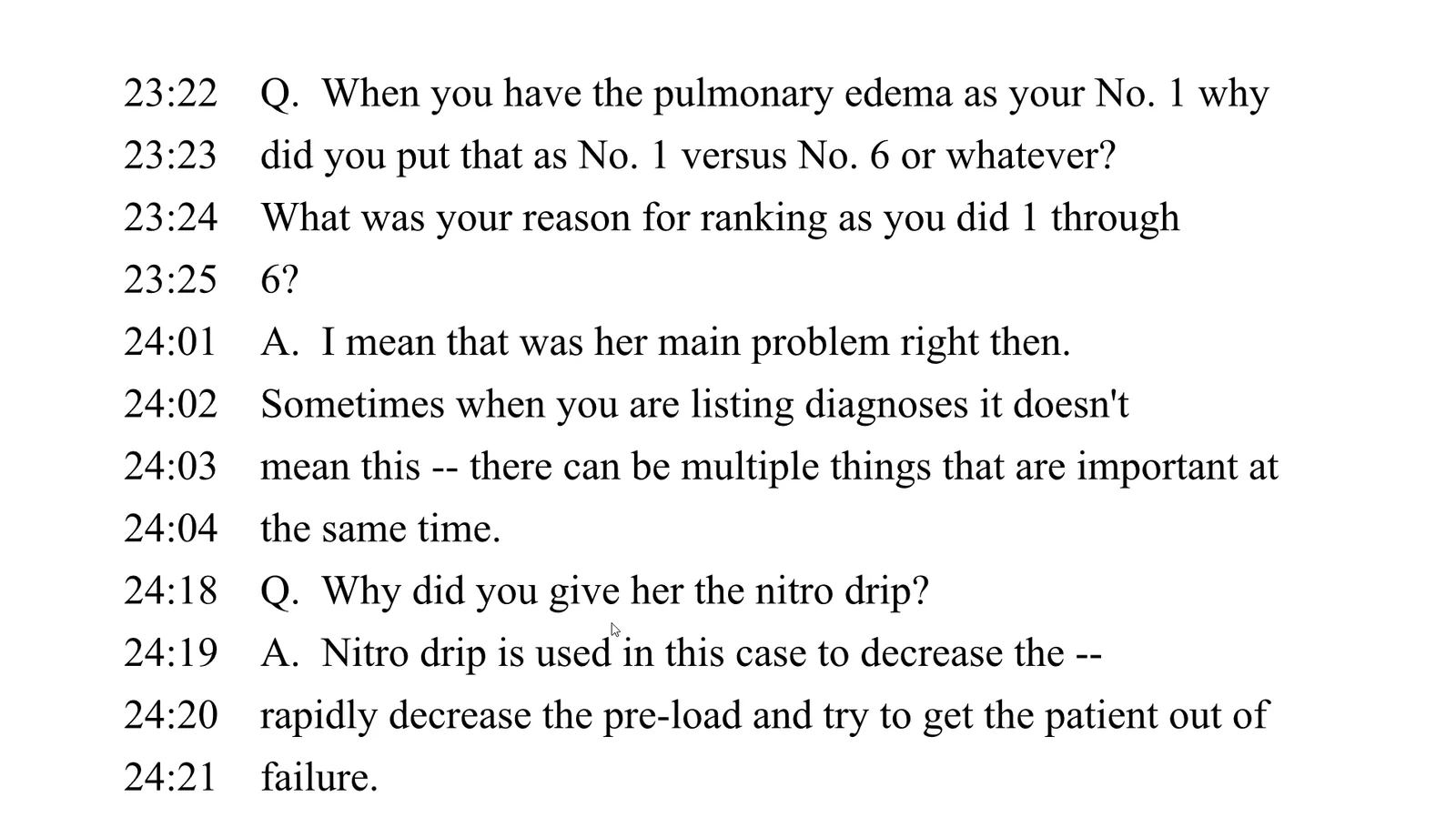
Notice how it shows all the designations:
How to Publish a Single Designation
This works the same way as presenting an impeachment designation.
-
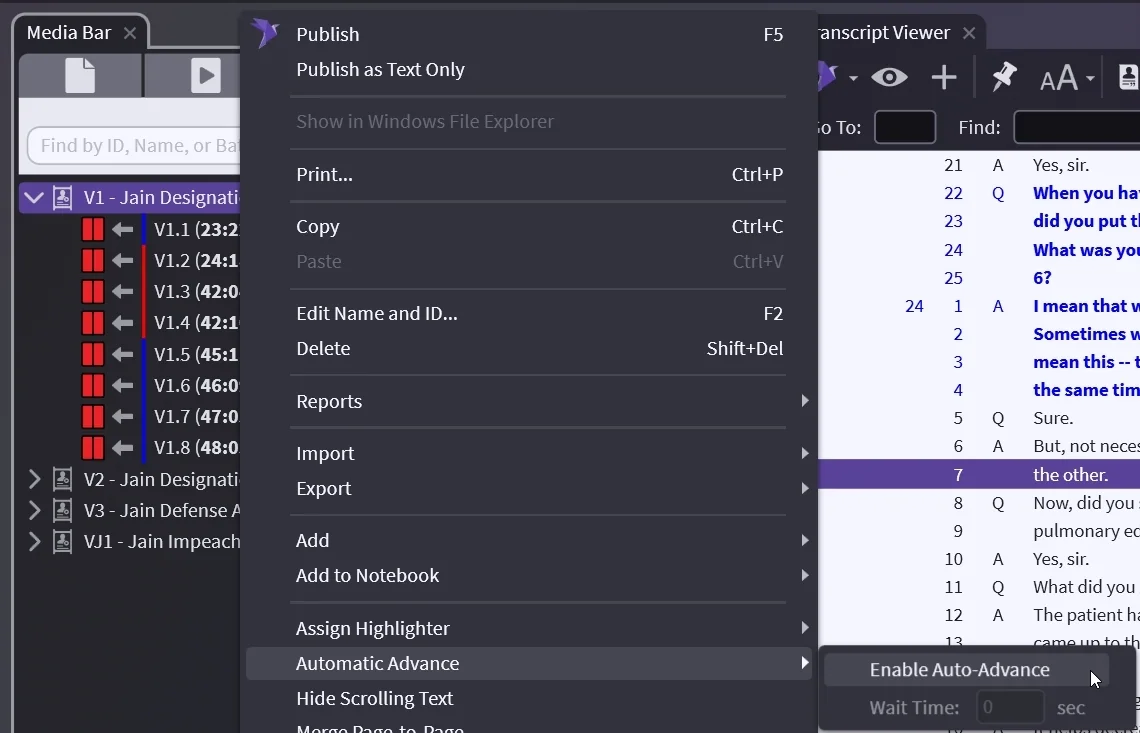
Right-click, select Automatic Advance and make sure it is unchecked. All the arrows now point left.
-
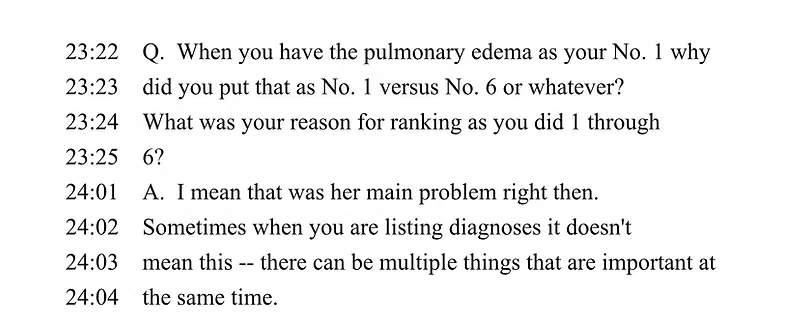
You can now Right-click, select Publish as Text Only and it shows only the designation you are on.
To display two designations as one, see Creating Impeachment Designation Lists.
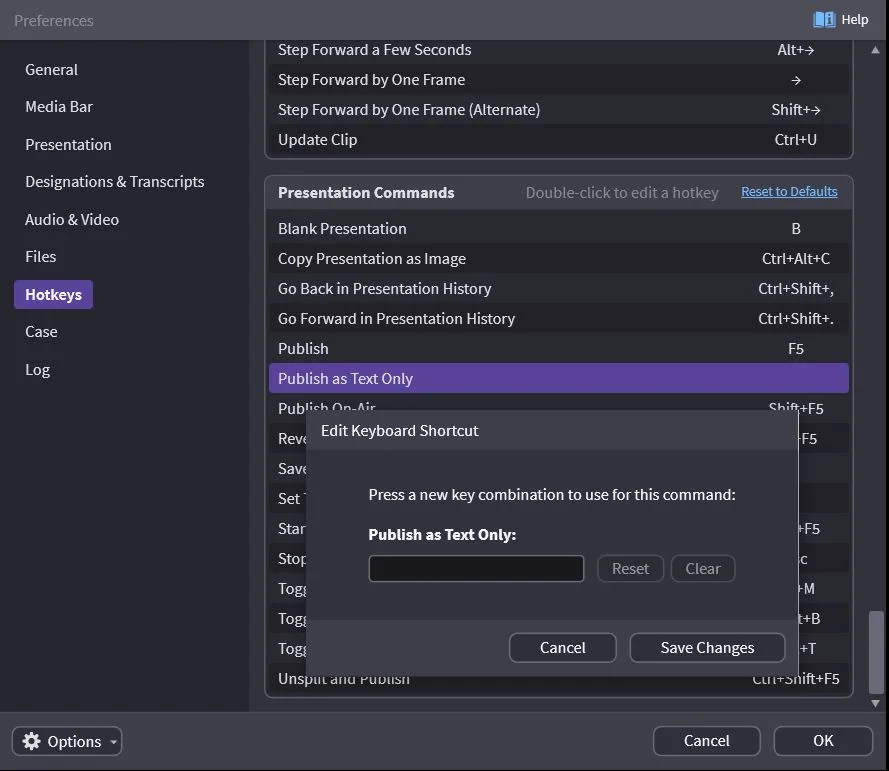
Tip: You can assign a hotkey to Publish as Text Only; see OnCue Hotkeys and OnCue Preferences - Hotkeys for more information.
text only, no video, read designations, display as text
Still stuck? Email support@oncuetech.com.