



Presenting in OnCue
Updated January 13, 2025
Once you have added and organized your materials in OnCue, you are ready to present.
How to Present in OnCue
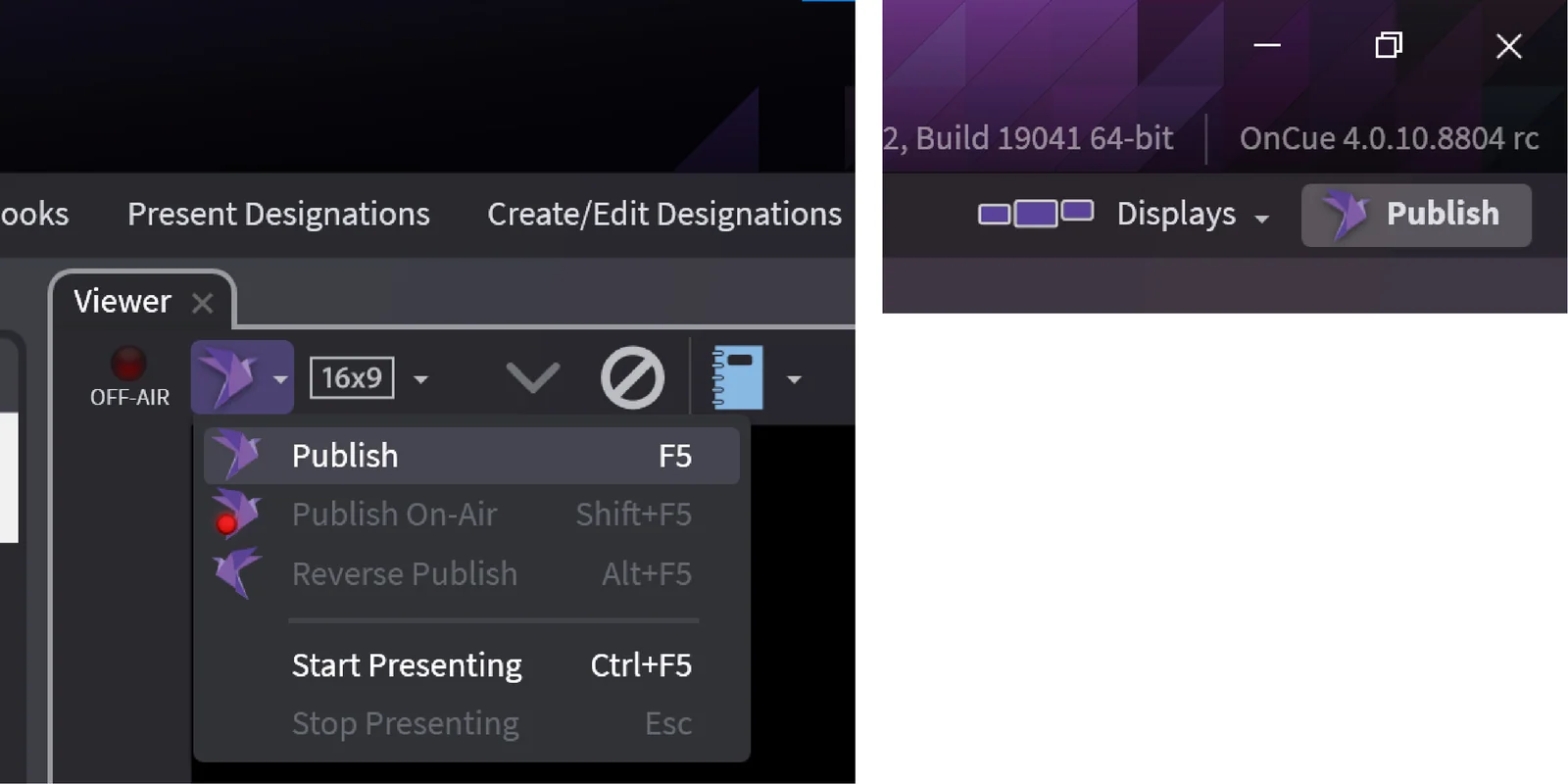
After you select a document or other media item, you can send it to Presentation by clicking the bird icon in the Viewer (or in the Workflow Ribbon on the right-hand side), or by pressing F5.
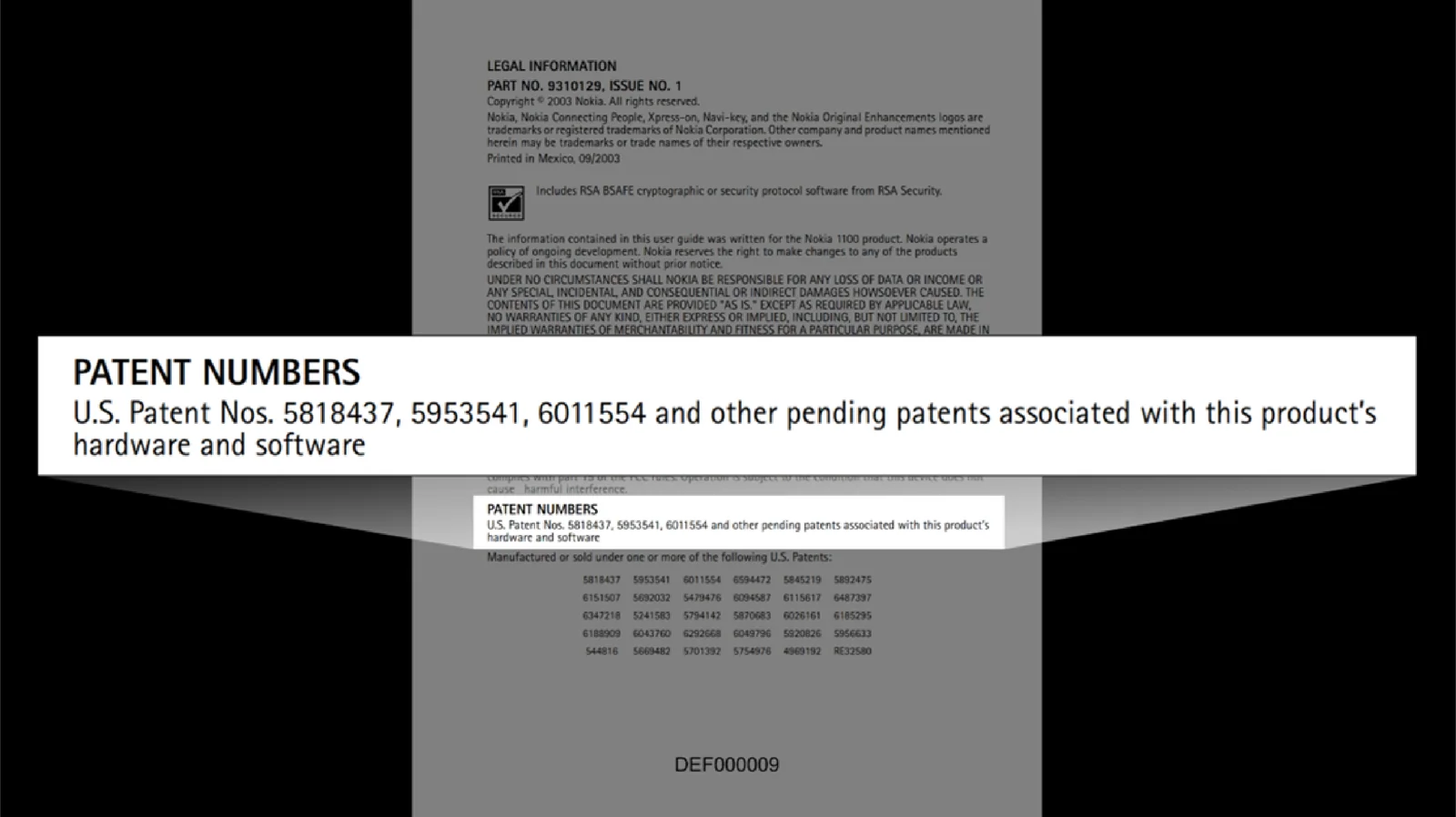
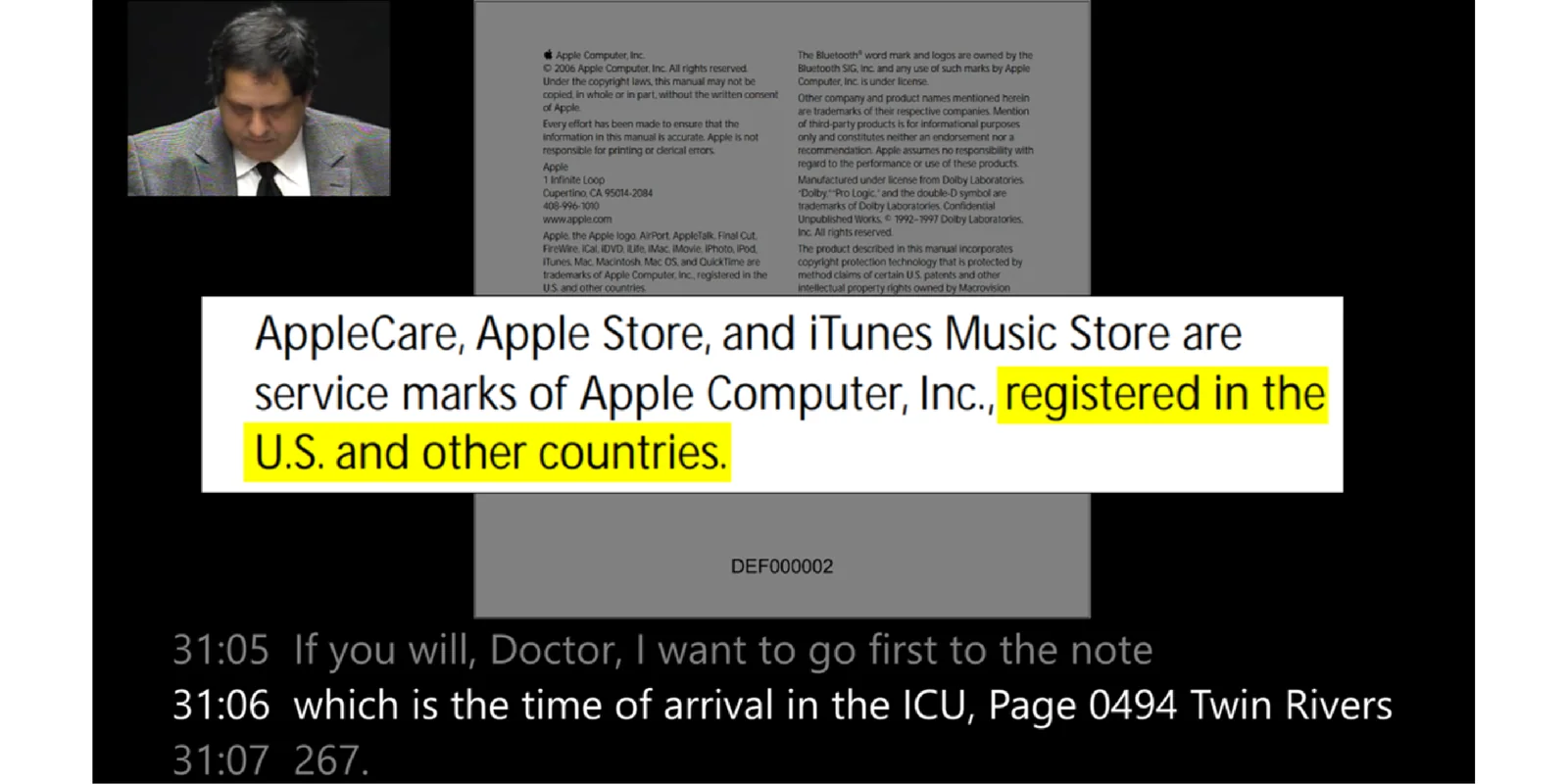
This is what your audience will see in Presentation (the display mode of OnCue). You can annotate on the fly, change pre-saved annotations, play back deposition designations, and perform any other task needed to present your case.
Document with Callout:
Video with Linked Document:
You can also start presenting with a blank screen by selecting Start Presenting or hitting Ctrl + F5. Once Presentation is your active screen, you can bring up any document by ID, name, or Bates number: type X, then the value, then press Enter. For example: X + ID + Enter, X + Name + Enter, or X + Bates number + Enter.
Note: Be careful with duplicate names. OnCue allows them, and it brings up the first match in the database.
Tip: Once on a document, you can go directly to a page by typing the page number and pressing Enter. For example, 48 + ENTER takes you to page 48 of the document (Don’t type X first when going to a page: X + 48 + ENTER looks for a document whose ID, Name, or Bates Number is “48.”)
You can also navigate to the last page of a document by pressing End, and return to the first page by pressing Home. You can change these shortcuts; see OnCue Hotkeys.
For more information, see the other articles in the Presentation section.
present, presentation mode, courtroom, publish, display exhibits
Still stuck? Email support@oncuetech.com.