



Scrolling Text (Closed Captioning)
Updated January 13, 2025
If your video is synchronized, OnCue displays the transcript text below the video while it plays in Presentation. See About Synchronized Transcripts for more information.
Scrolling Text (Closed Captioning)
You can change how the program deals with text in Presentation. You can set the number of lines and the line spacing for all designations. You can also have your text scroll with highlighter colors. See Edit > Preferences > Designations & Transcripts for all options.
You can turn off scrolling text at three levels.
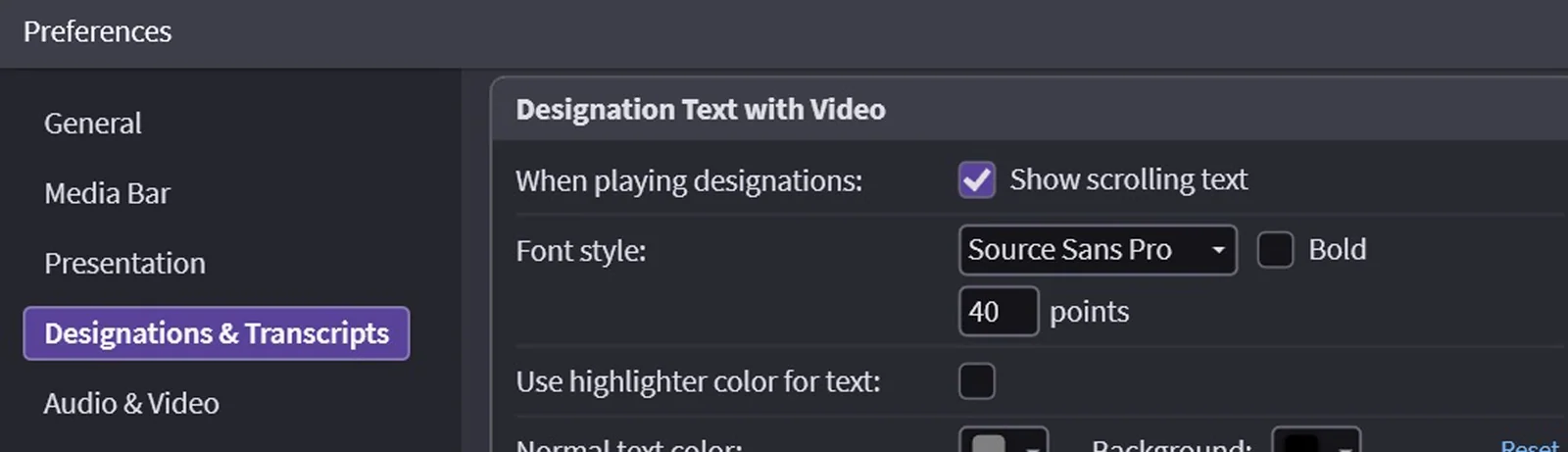
To turn it off for the entire case, go to Edit > Preferences > Designations & Transcripts and clear Show scrolling text.
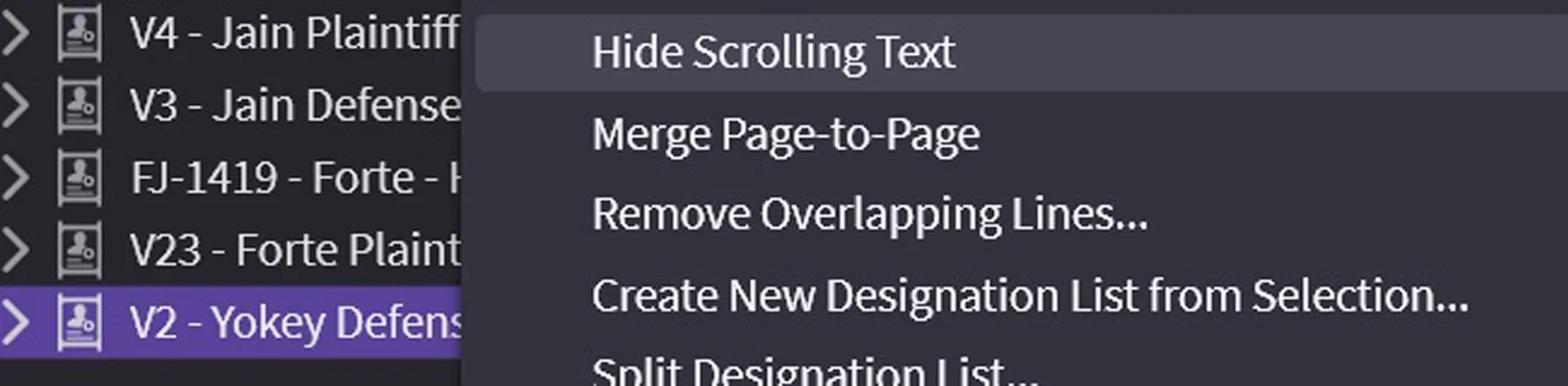
Only want to turn off scrolling text for one list? Right-click the list and select Hide Scrolling Text. You can right-click on the same list and click Show Scrolling Text from the context menu to turn it back on.
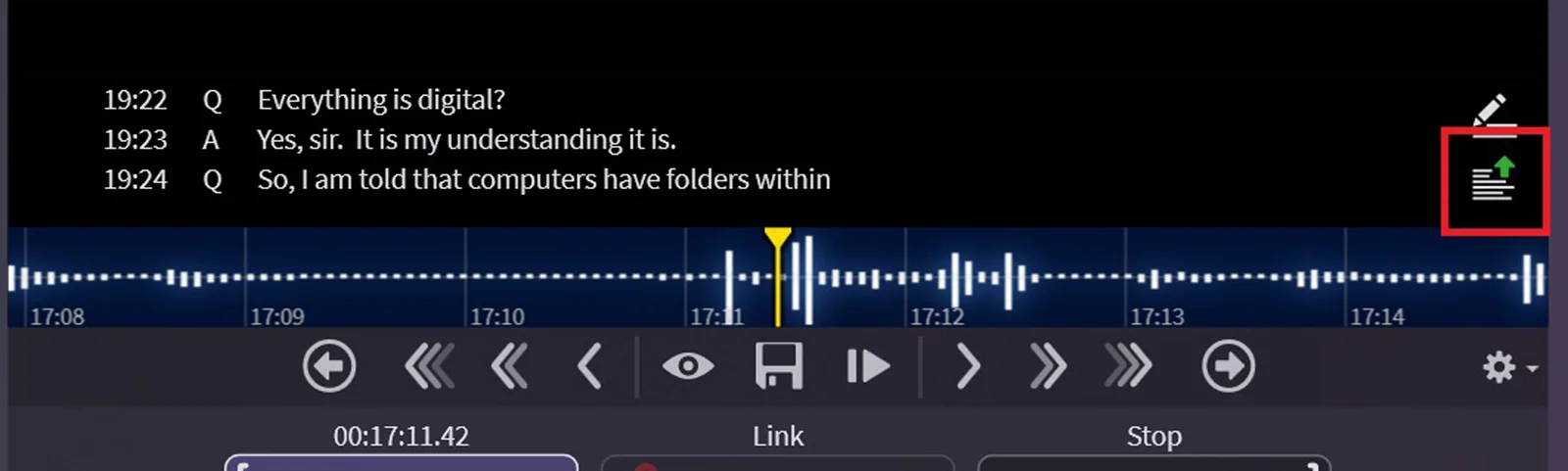
You can also turn scrolling text on or off for a single designation. Use the switch above the waveform on the right side of the Designation Viewer pane to set whether scrolling text shows while that designation plays.
To show or hide scrolling text during playback, press T in Presentation.
scrolling text, closed captions, captions, transcript text on video
Still stuck? Email support@oncuetech.com.