



designations/removing-lines-from-existing-designationsDesignationsdesignations15How do I remove objections or other lines from a designation?How do I remove objections or other lines from a designation?remove lines, objections, sustained objection, cut lines2025-09-29/articles/removing-objections
Removing Lines from Existing Designations
Updated September 29, 2025
This article answers
- How do I remove objections or other lines from a designation?
You can remove objections or any other lines from a designation with the right-click menu. You can only remove lines that are part of a designation.
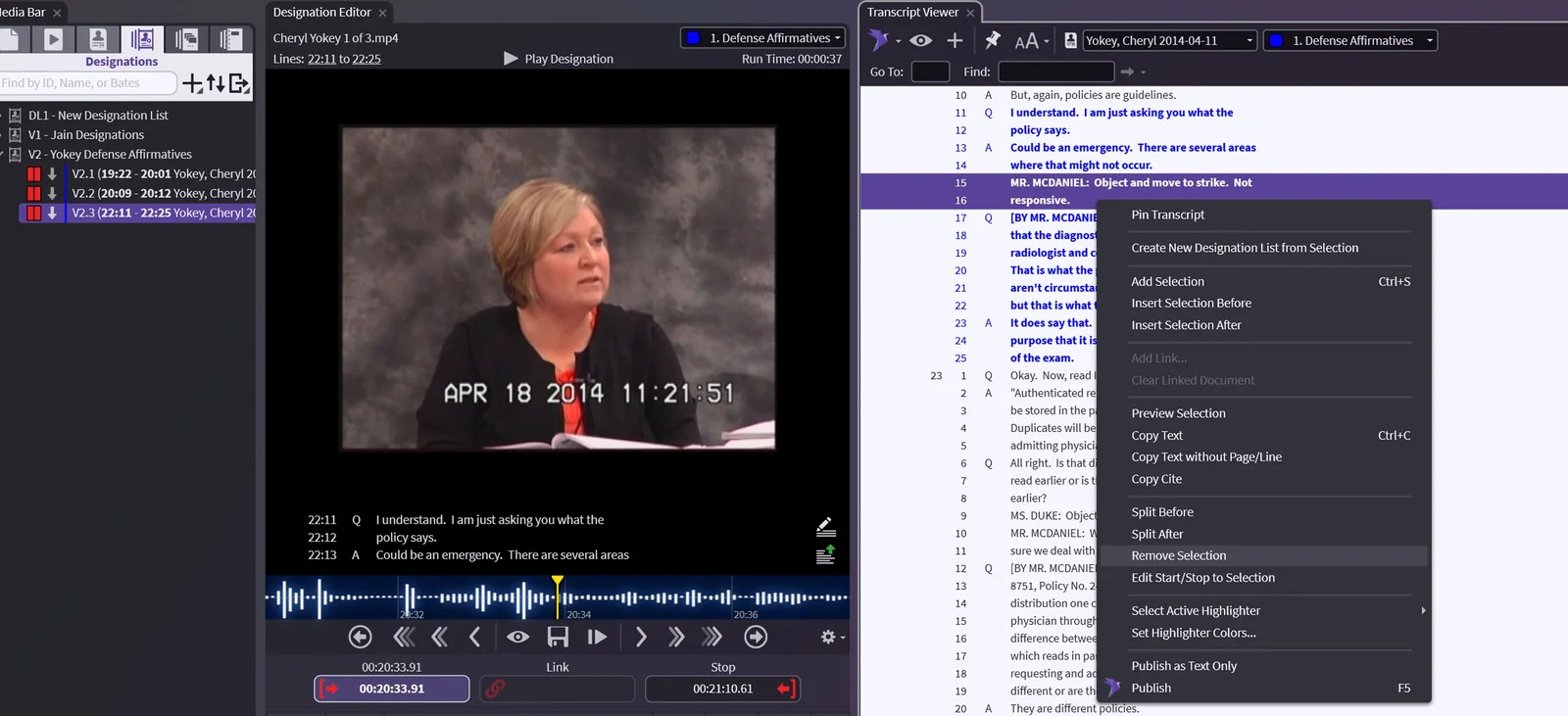
- Select the designation you want to remove lines from.
- Select the text that you would like to remove.
- Right-click the selected text and select Remove Selection.
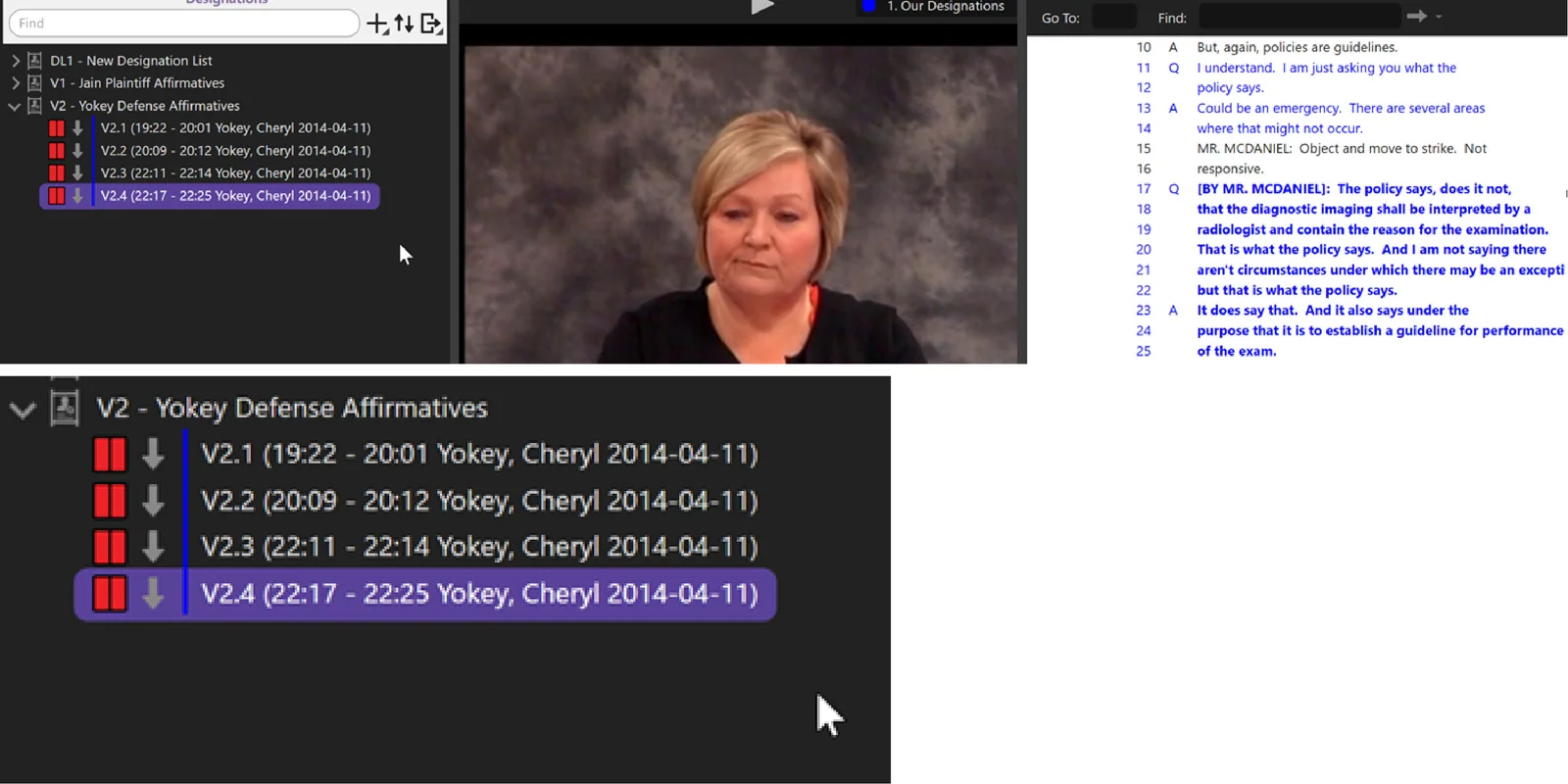
- OnCue updates the designation list and starts a new designation after the removed portion.
Right-Click Menu – Transcript Viewer
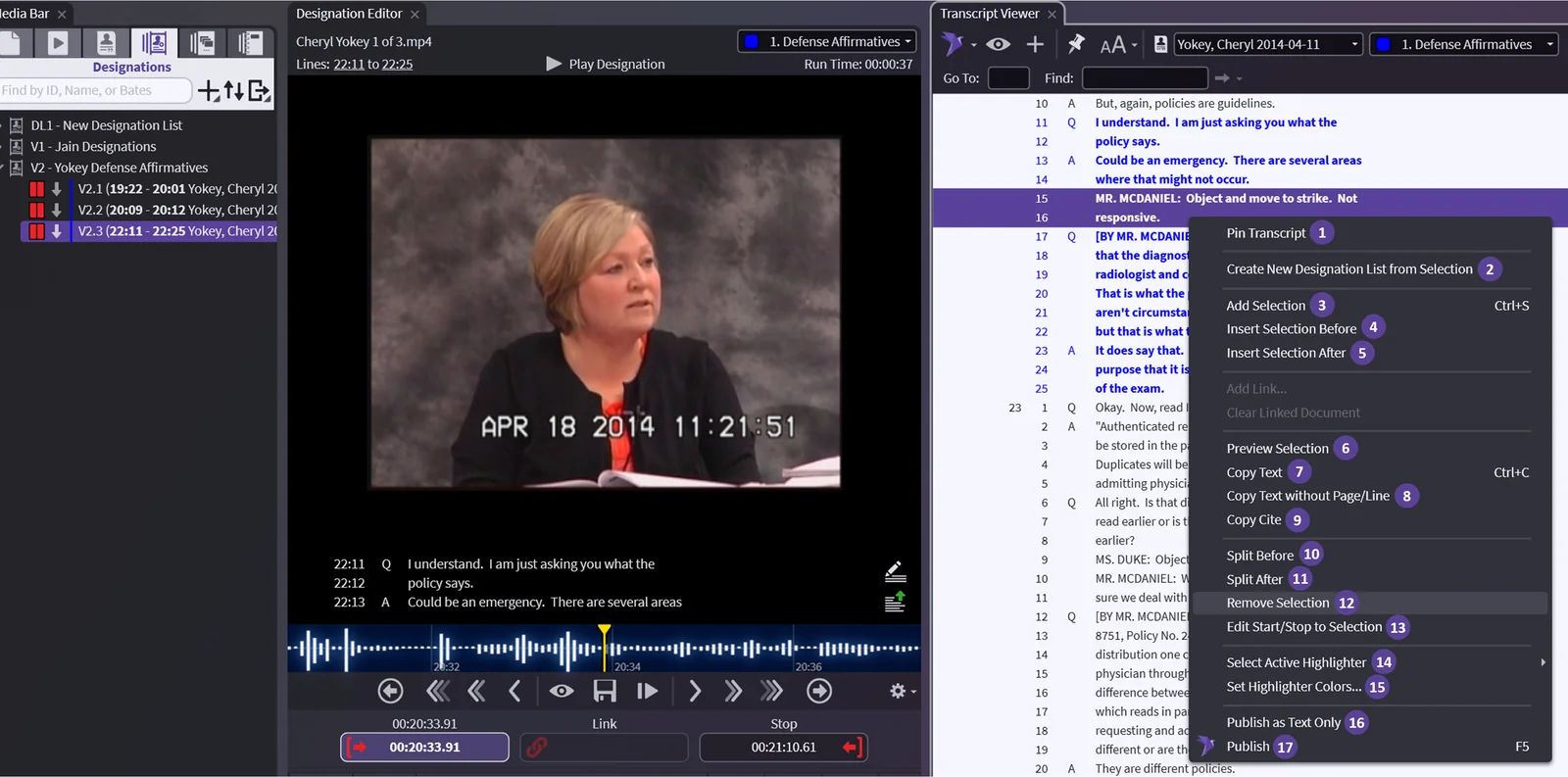
- Pin Transcript – Keeps the current transcript in the Transcript Viewer when you select a designation from a different transcript
- Create New Designation List from Selection – Creates new list from selected portion
- Add Selection – Add selected portion to the chosen designation list
- Insert Selection Before – Insert selected portion before your chosen designation
- Insert Selection After – Insert selected portion after your chosen designation
- Preview Selection – Plays the selected text’s video, untuned
- Copy Text – Copies text with page/line to your clipboard
- Copy Text without Page/Line – Copies only the text to your clipboard
- Copy Cite – Copies only the page/line to your clipboard
- Split Before – Splits the designation into two designations before the selection
- Split After – Breaks your designation into two separate designations AFTER the selected portion
- Remove Selection – Deletes selected portion from a chosen designation
- Edit Start/Stop to Selection – Changes the selected designation’s page and lines to match the selection in the Transcript Viewer (use with care)
- Select Active Highlighter – Sets the color for your next selection
- Set Highlighter Colors… – Sets up your highlighter colors (see Designation Highlighters)
- Publish as Text Only – Shows the selection in Presentation Mode as scrolling text only, without video
- Publish – Show selected portion in Presentation
For more information about what you can do with the right-click menu, see our Understanding Your Right-Click Menu – Designations article.
remove lines, objections, sustained objection, cut lines
Still stuck? Email support@oncuetech.com.