



Displaying Multiple Pages (Split Screens)
Updated May 7, 2025
Presentation in OnCue has two panes. This means that 2 pages or an audiovisual and a page can be displayed in Presentation, either vertically (side by side) or horizontally (one on top of the other).
These split screens can be saved ahead of time. See Saving Annotations and Split Screen Page Lock. Each pane gets equal space. Click a pane to make it active, then annotate a document or zoom a video in it. For more information see the articles about Displaying Exhibits and Playback of Video and Audio Clips.
Hotkeys
- Vertical Split – /
- Vertical Split with next page – CTRL + /
- Horizontal Split – \
- Horizontal Split with next page – CTRL + \
- Horizontal Split with page scrolling – CTRL + Mouse Scroll Wheel
- Swap Split Panes – ALT + /
- Show Next in All Panes – CTRL + Right Arrow
- Unsplit and Publish: Ctrl + Shift + F5
How to Split
-
Bring up a document or audiovisual and press /
-
Left-click on the blank side (or press Tab) to make that zone active.
-
Manually enter the Media ID (X+ID+ENTER) or select a page or audiovisual in Production and press F5. (If On-Air is on, selecting the page or audiovisual in Production is enough.)
The / and \ hotkeys are toggles. Pressing either key again returns to a single pane on whichever side is active.
On-the-fly split screens: to show a single page after splitting, press Ctrl + Shift + F5; the active pane is published as a single page.
Notes about Pre-Saving and Locking Split Screens: If you have pre-saved and locked split screens, the next ID you publish appears exactly as saved, as a single or split screen (see the Split Page Lock article for more details).
You can split the screen horizontally, vertically, or (for documents only) by dragging the next page up or the previous page down.
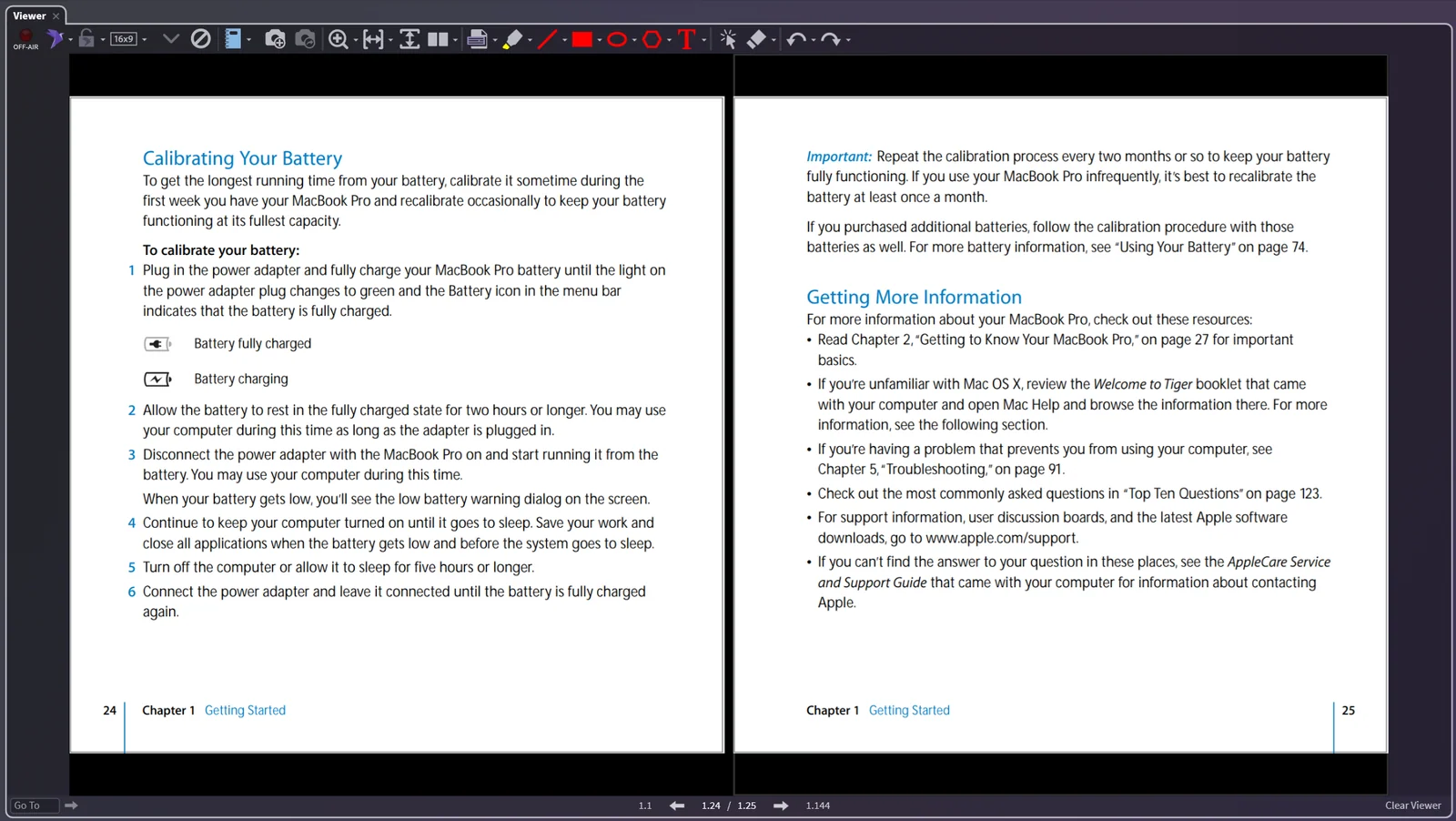
Horizontal Split Screens
Pressing the forward slash ( / ) will split the Viewer into 2 sections. By default, the second section will be blank but pressing CTRL + / will split the Viewer horizontally with next page of the document pulled up in the second section. Pressing forward slash again will remove the section without focus. The section with focus has a gray rectangle around it.
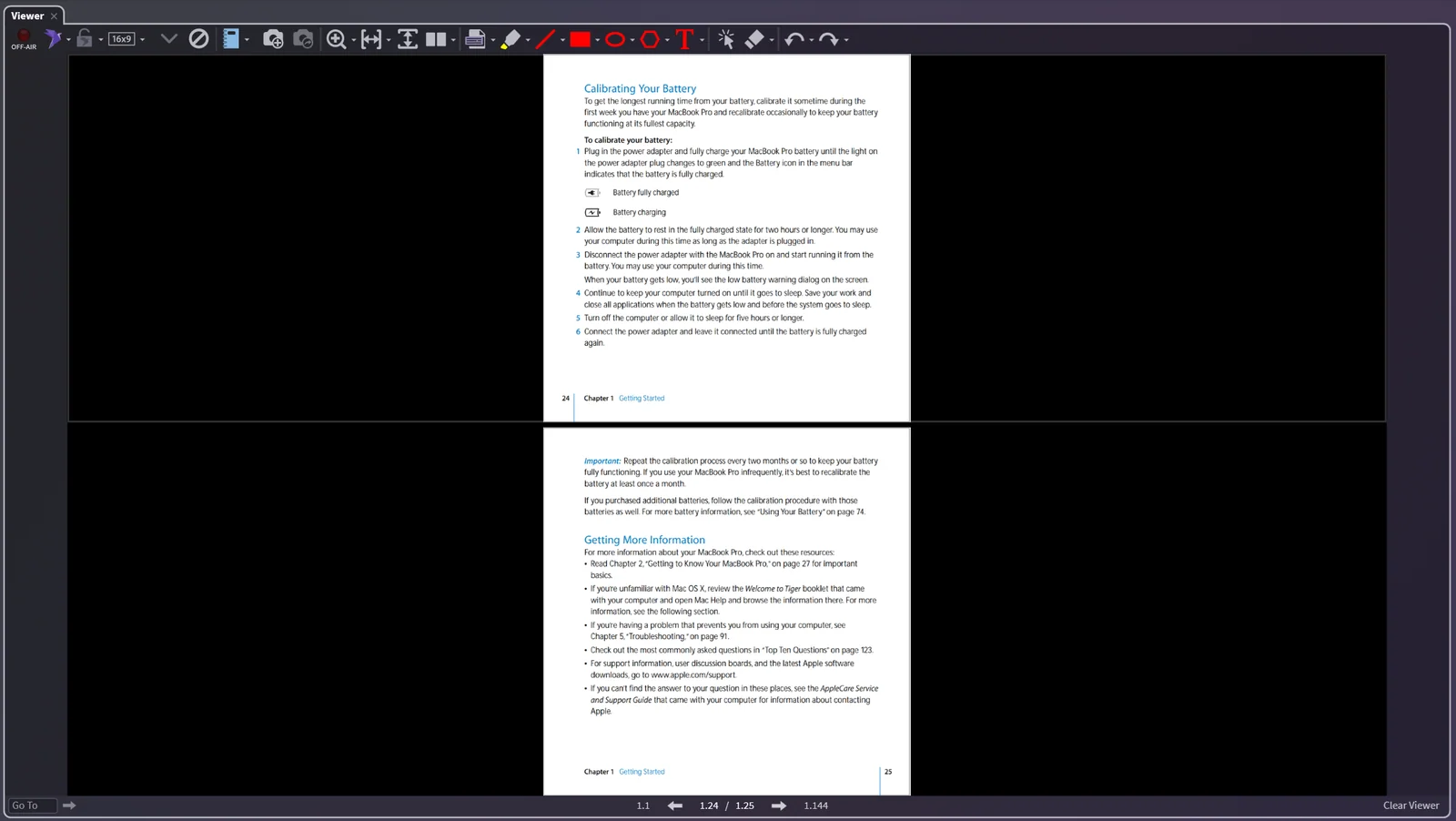
Vertical Split Screens
To split the screen vertically, press / in the Viewer. The same idea of bringing up the next page of the document works with CTRL + \ and pressing backslash again will remove the unfocused section.
Tip: To show the bottom of one page and the top of the next: Bring up your document, hit W and then page down to show the bottom of the page. Then press Ctrl + W + \ to split the screen with the top of the next page.
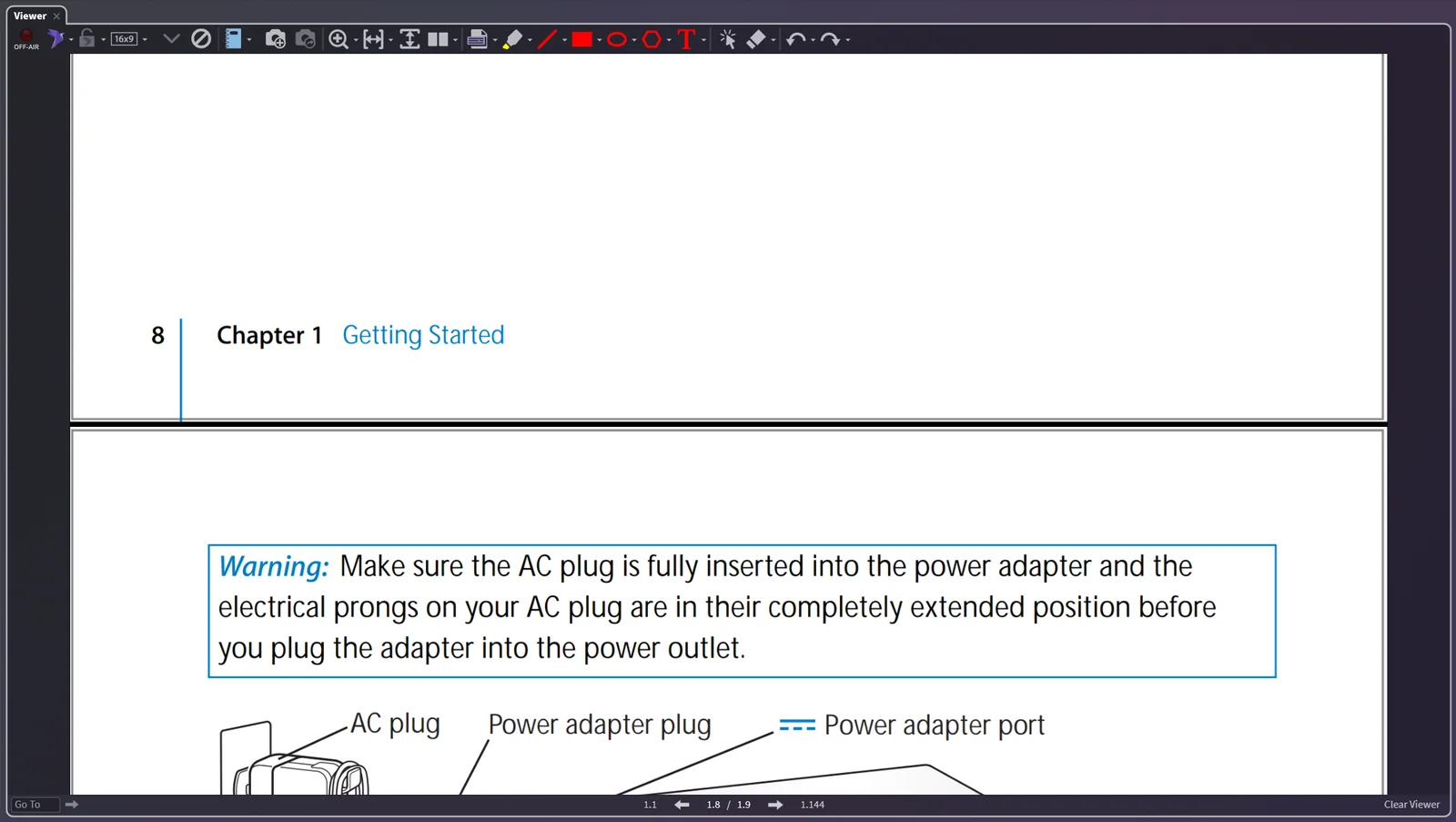
Page Dragging Split Screen
To show only part of the next page instead of an even split, drag the page.
To pull up the next page, position the mouse near the bottom of the Viewer, hold down Ctrl, then right-click and drag the mouse up from the bottom of the screen to drag the next page up. You can also CTRL + right-click and drag from the top of the page to pull down the end of the previous page from the top of the Viewer. Double-clicking on the section you’d like to keep will remove and clear the other section of the split screen.
Note: If you have zoomed or used full width in either pane, double-click once to clear the zoom and again to return to a single page.
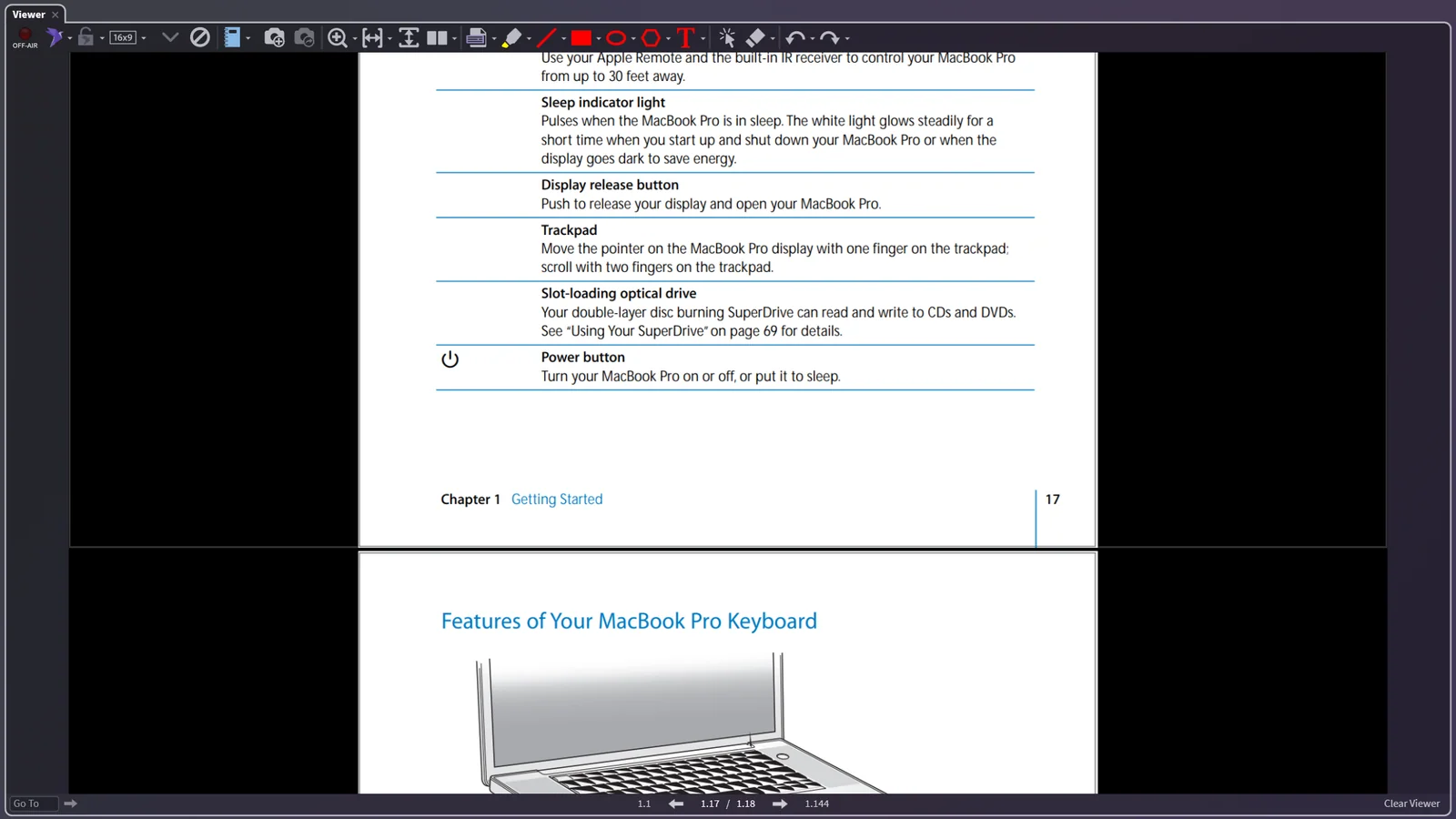
Note: If you hold down Ctrl while panning, the split line reappears at the bottom as soon as it moves off the top of the page no matter what part of the page you are on.
See Page Dragging Split Screen and Scrolling for more details.
How to Unsplit
The split screen is a toggle so you can use the / or \ to unsplit. You can also double-click on the active side to clear the split.
ON-AIR:
-
Blanking the screen (Esc once or B) and then clicking on a single page or typing X + ID will display only a single page.
-
Unsplitting displays the active pane (the one outlined in gray).
-
Double-clicking on the active side will also clear the split and leave the document you clicked on.
OFF-AIR (Working from the Viewer):
-
Blank both the Viewer and Presentation to display a single page.
-
CTRL + SHIFT + F5 is the hotkey for unsplit all and launch active pane in the Viewer.
-
Double-clicking on the active side (in both Viewer and Presentation) will also clear the split and leave the document you clicked on.
-
If you clear the split in Presentation only, the Viewer stays split; unsplit the Viewer before publishing a single page. You will need to unsplit the Viewer to launch a single page.
Note: Once Presentation is active, hotkeys apply to Presentation. Blanking Presentation and then trying to blank the Viewer un-blanks Presentation.
split screen, side by side, two pages, compare documents
Still stuck? Email support@oncuetech.com.