



Customize your Toolbars – Presentation
Updated January 13, 2025
The Viewer Pane and Presentation Mode of OnCue have independently controlled toolbars. You can choose which buttons each shows and how large they are.
The Presentation toolbar also allows you to present materials contained in Notebooks.
Document and video toolbars are different:
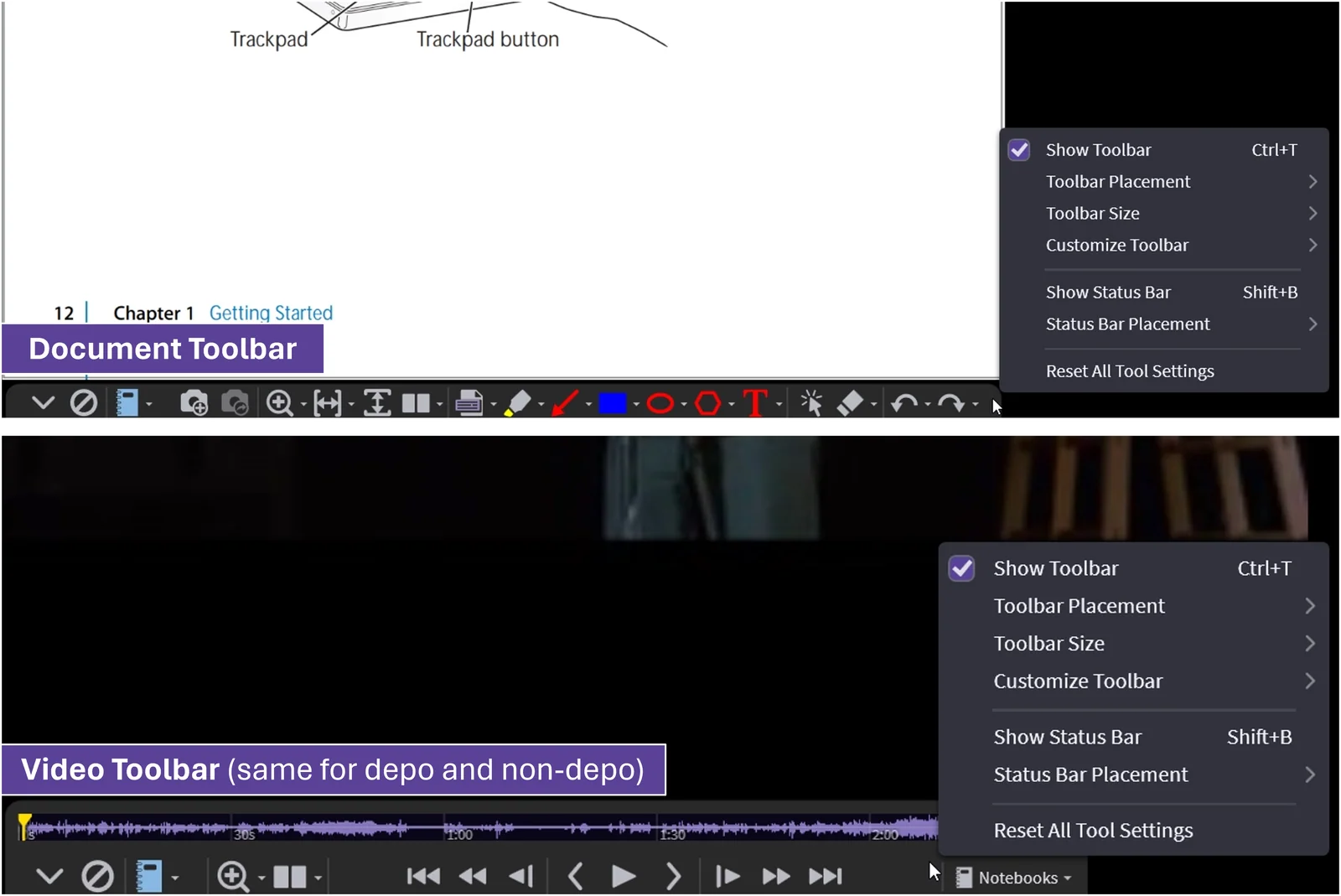
Toolbar Preferences (Before Using Presentation Mode)
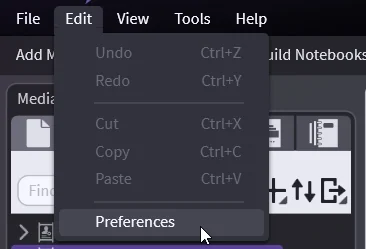
Select Edit > Preferences at the top of your screen.
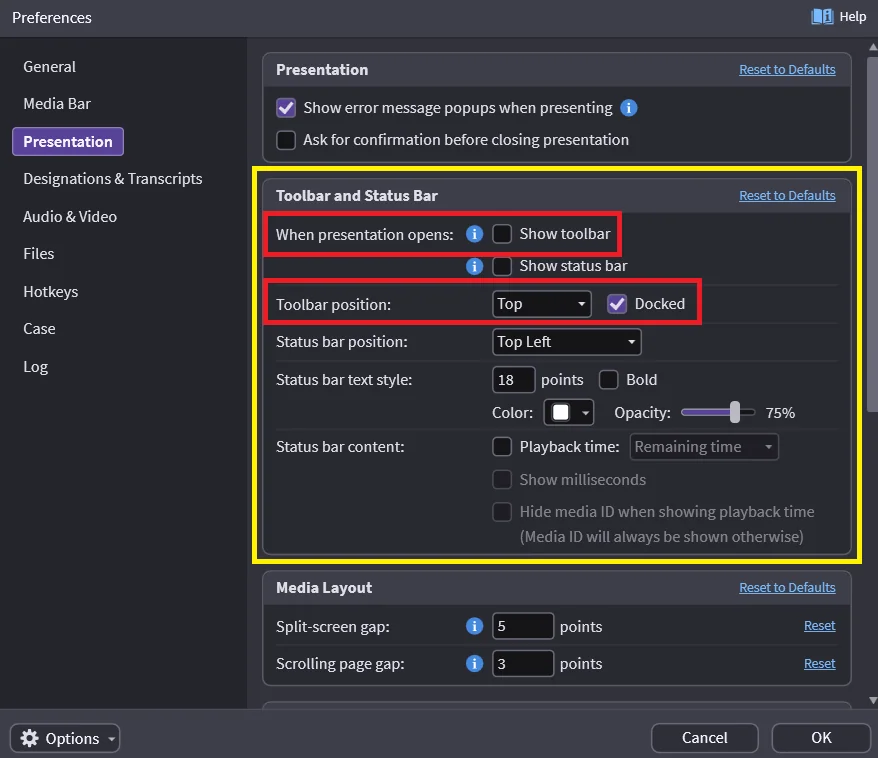
Select the Presentation section on the left-hand side.
Notice the items you can set:
-
Select this option to show the toolbar automatically when you publish to Presentation.
-
Select Docked to keep the toolbar from overlapping your document or video.
If you don’t want the toolbar to come up automatically, click Presentation to give it focus, then press Ctrl + T to toggle the toolbar off and on.
Customizing the Presentation Screen Toolbar
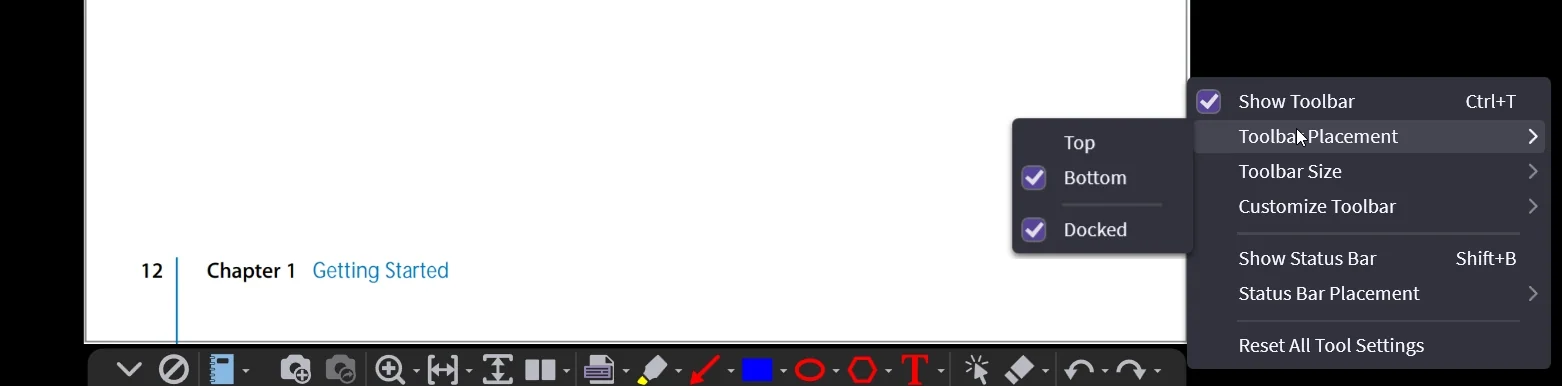
Right-click on the toolbar:
-
Change the placement of the toolbar with Toolbar Placement:
-
Change the size of icons with Toolbar Size:
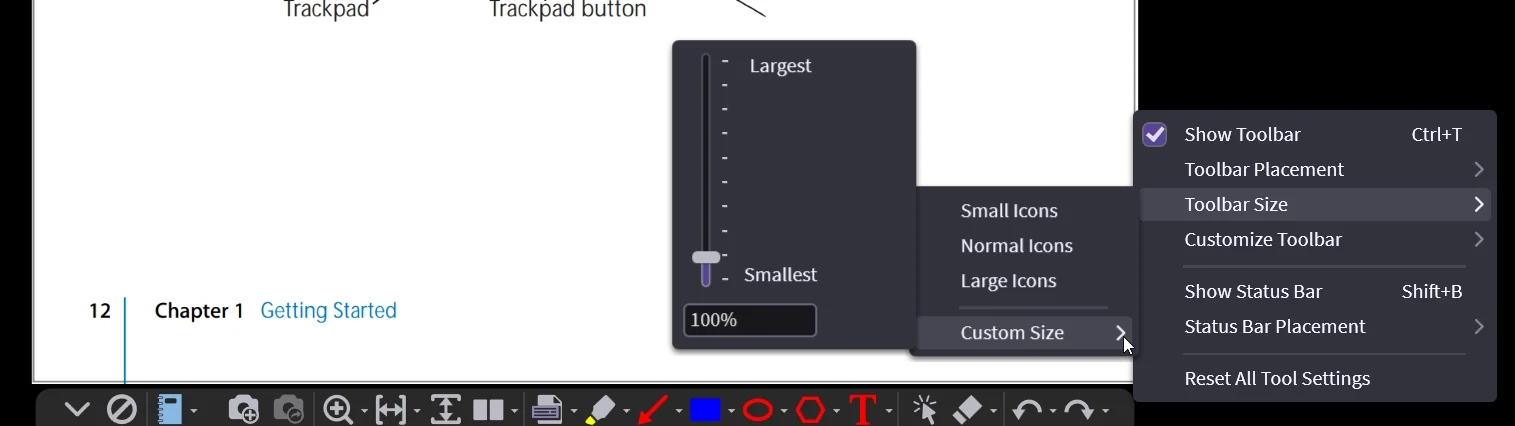
-
Change which tools appear on the toolbar with Customize Toolbar:
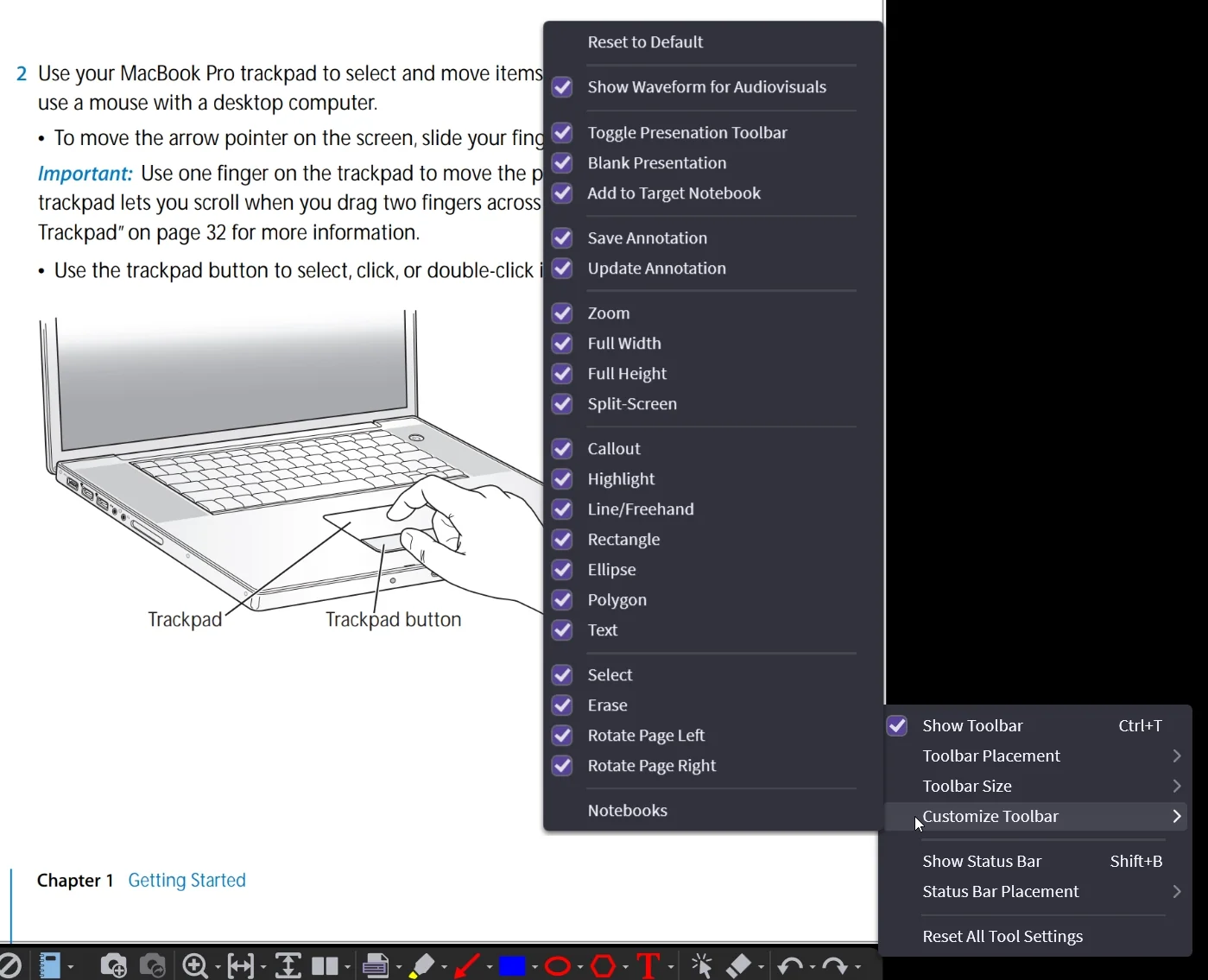
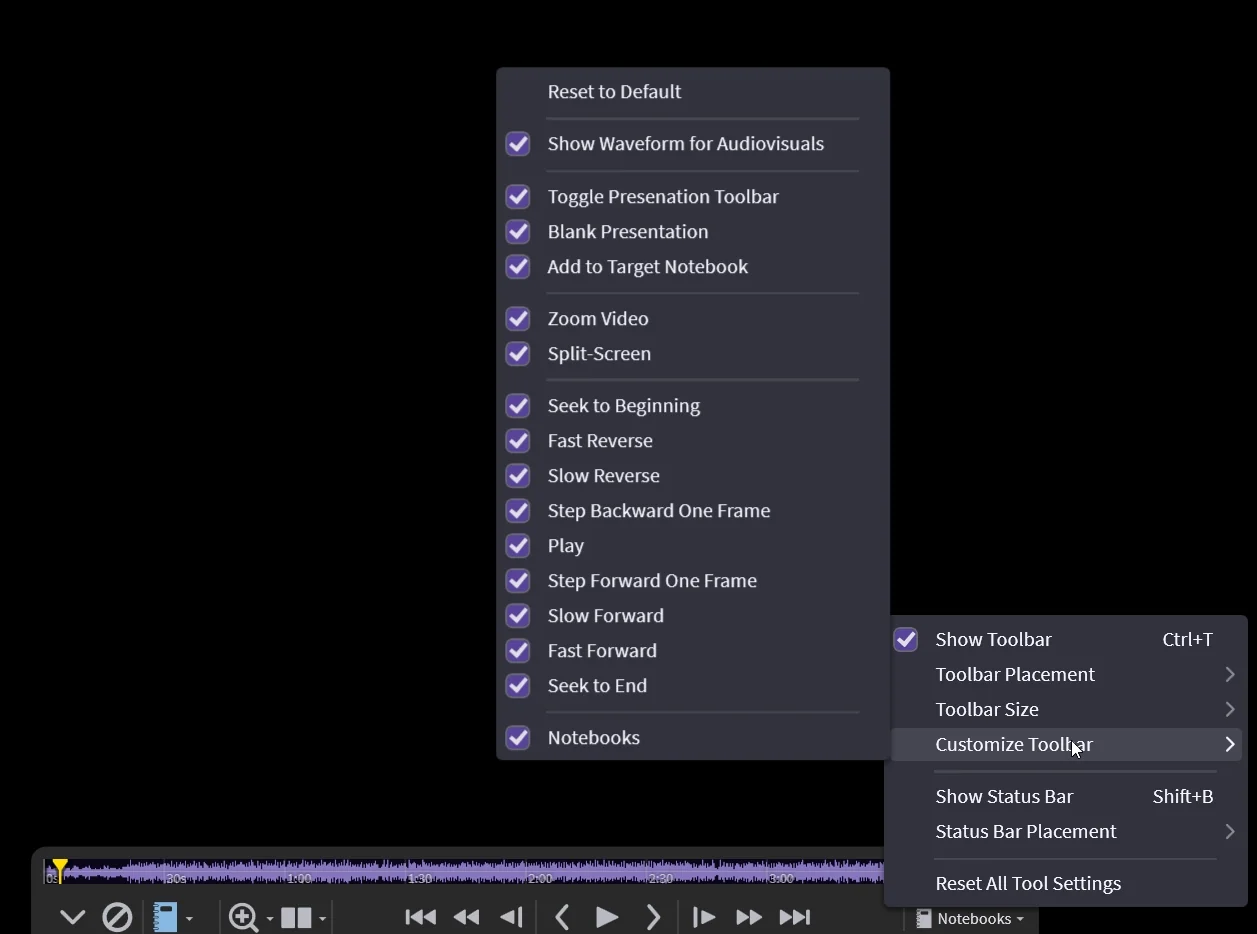
-
Change the status bar location with Status Bar Placement:
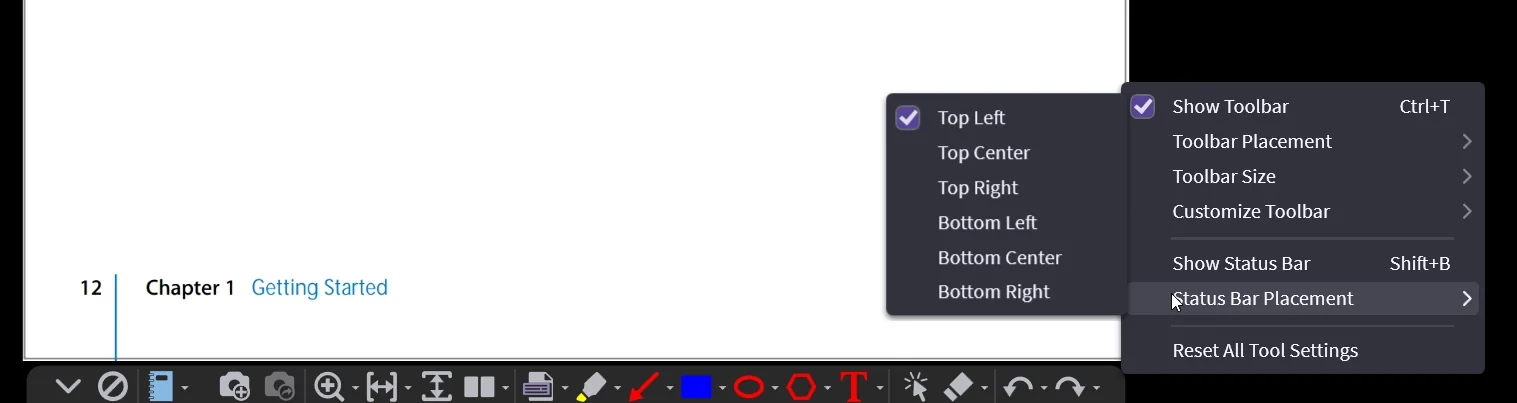
Show Notebook Items from Presentation Toolbar
When you customize the toolbar, select Notebooks.
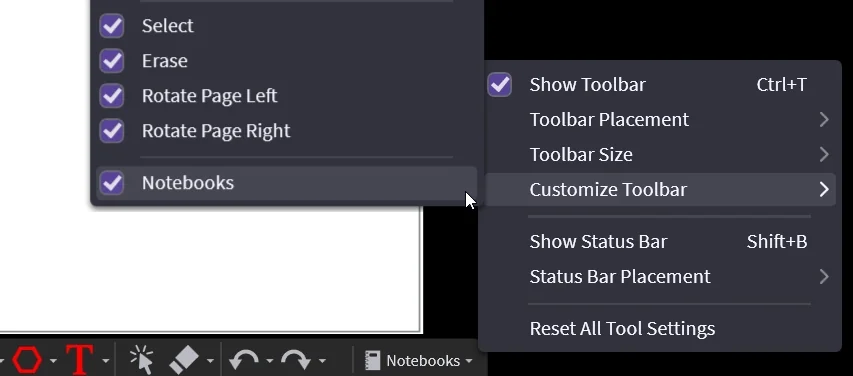
Click the Notebooks button to show your notebooks.
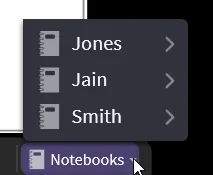
Choose an item in a notebook. Selecting it brings the document up on the screen.
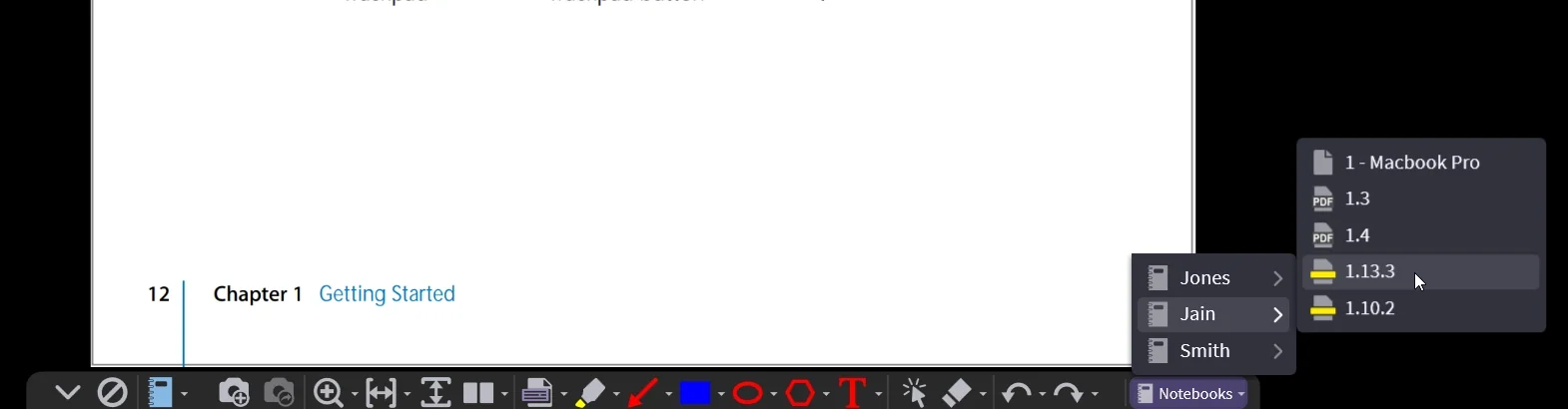
customize toolbar, presentation toolbar, add buttons, remove buttons
Still stuck? Email support@oncuetech.com.