



Advanced Fine-Tuning Designations
Updated July 23, 2025
This article answers
- How do I make the deposition video clips start and stop where I need them to?
- How do I remove long pauses or remove a word in the middle of a sentence?
Designation Lists are the page/line clips of the deposition testimony for the purpose of playback in court. You will need a synchronized transcript file (.mdb or an OnCue xml) and the raw deposition video to use this feature (see Adding Synchronized Transcripts). This article covers removing pauses and words from the middle of a designation, and hiding or zooming the video.
Removing a Pause in the Middle of a Line
So, you are tuning your designations and hit a long pause or there is a word in the middle of a sentence that must be removed or a sneeze that needs to be tuned out. OnCue can split a designation into two designations so you can tune out what you don’t need without changing the play order.
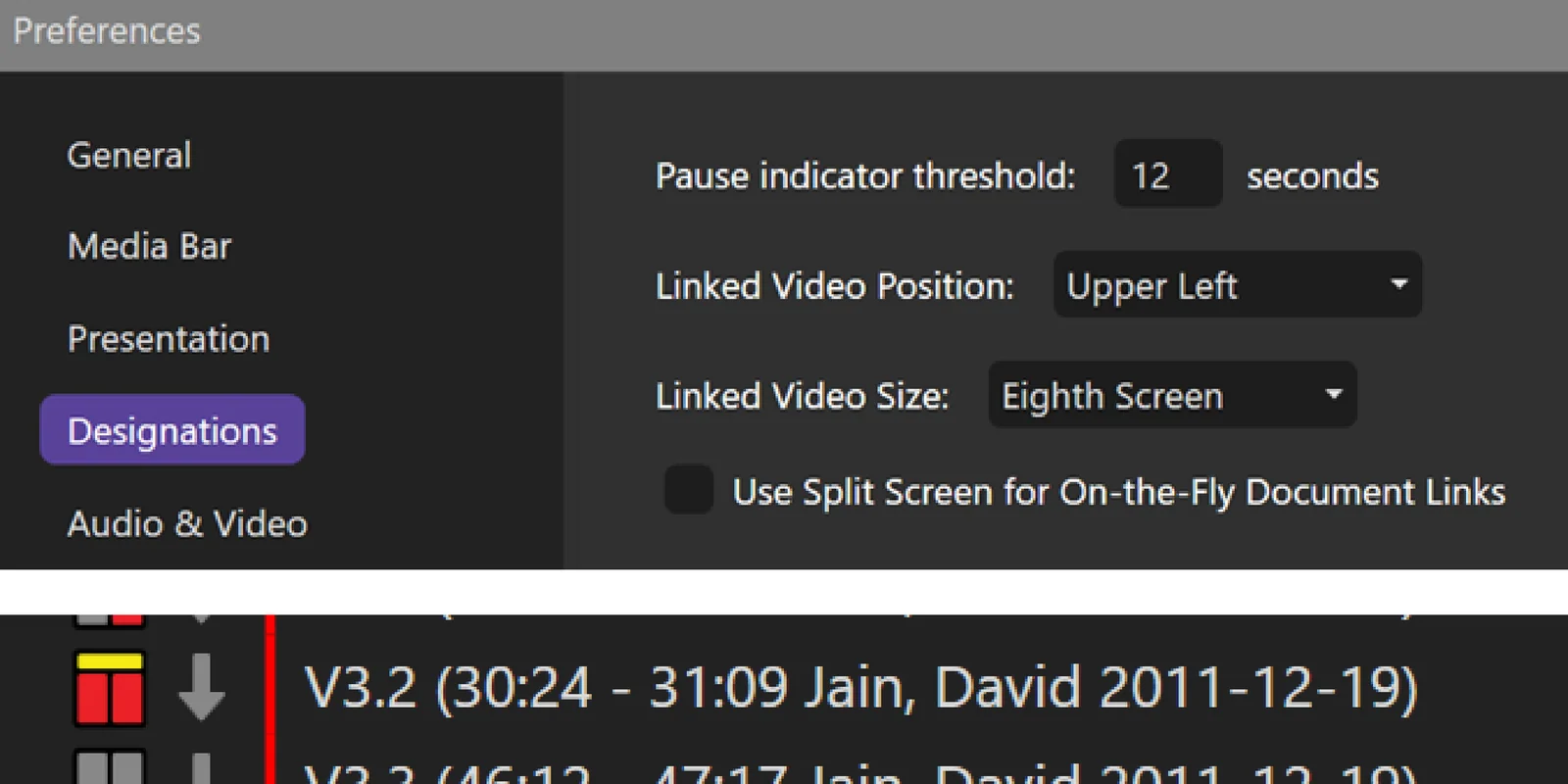
OnCue shows where a line in a designation is unusually long. We refer to this as “Pause Detection.” You can set the Pause Indicator Threshold (in seconds) in Edit > Preferences > Designations.
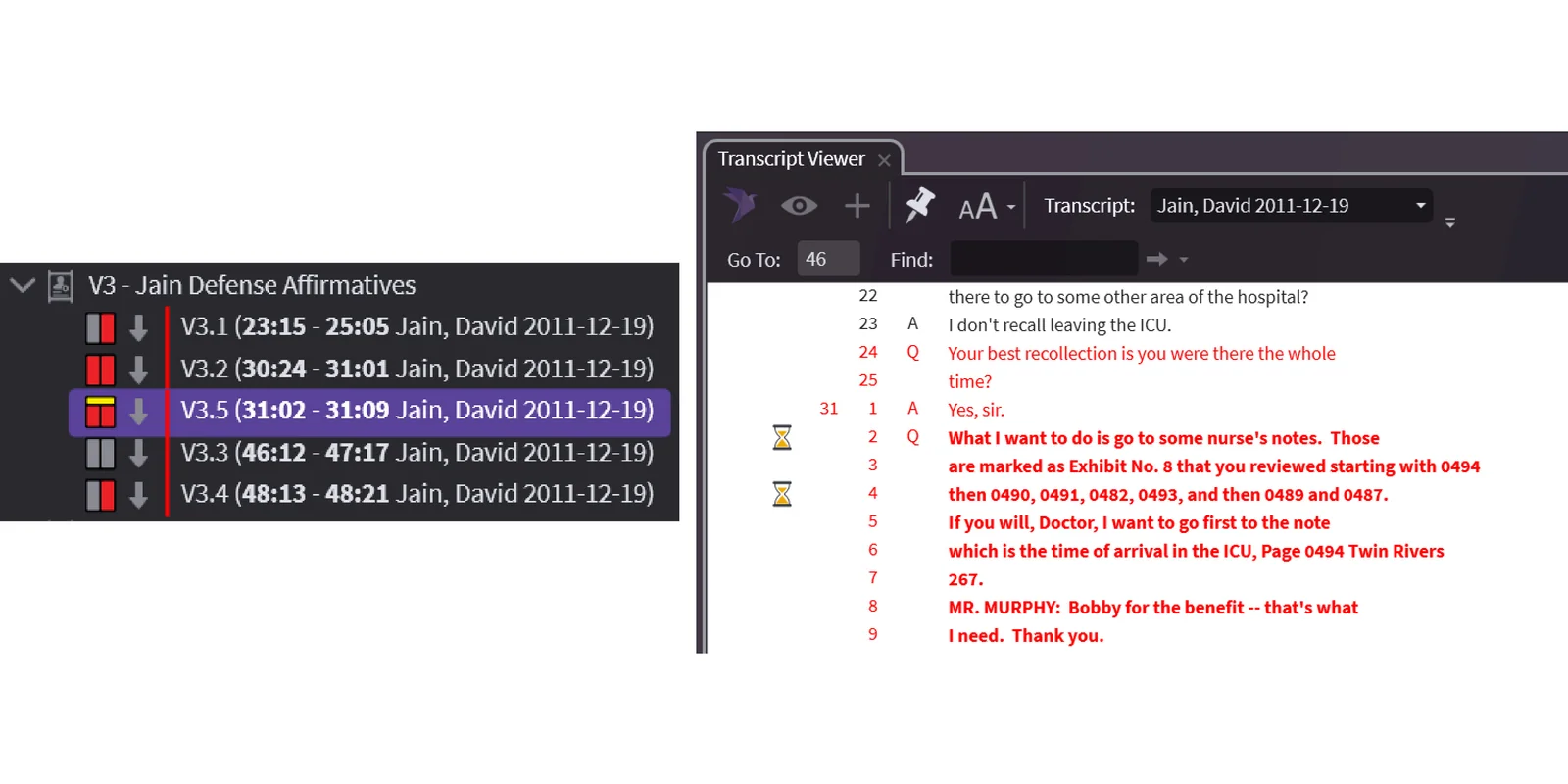
A yellow bar above the tuning icon in the Designation List marks a detected pause or long line.
The transcript will also have the hourglass.
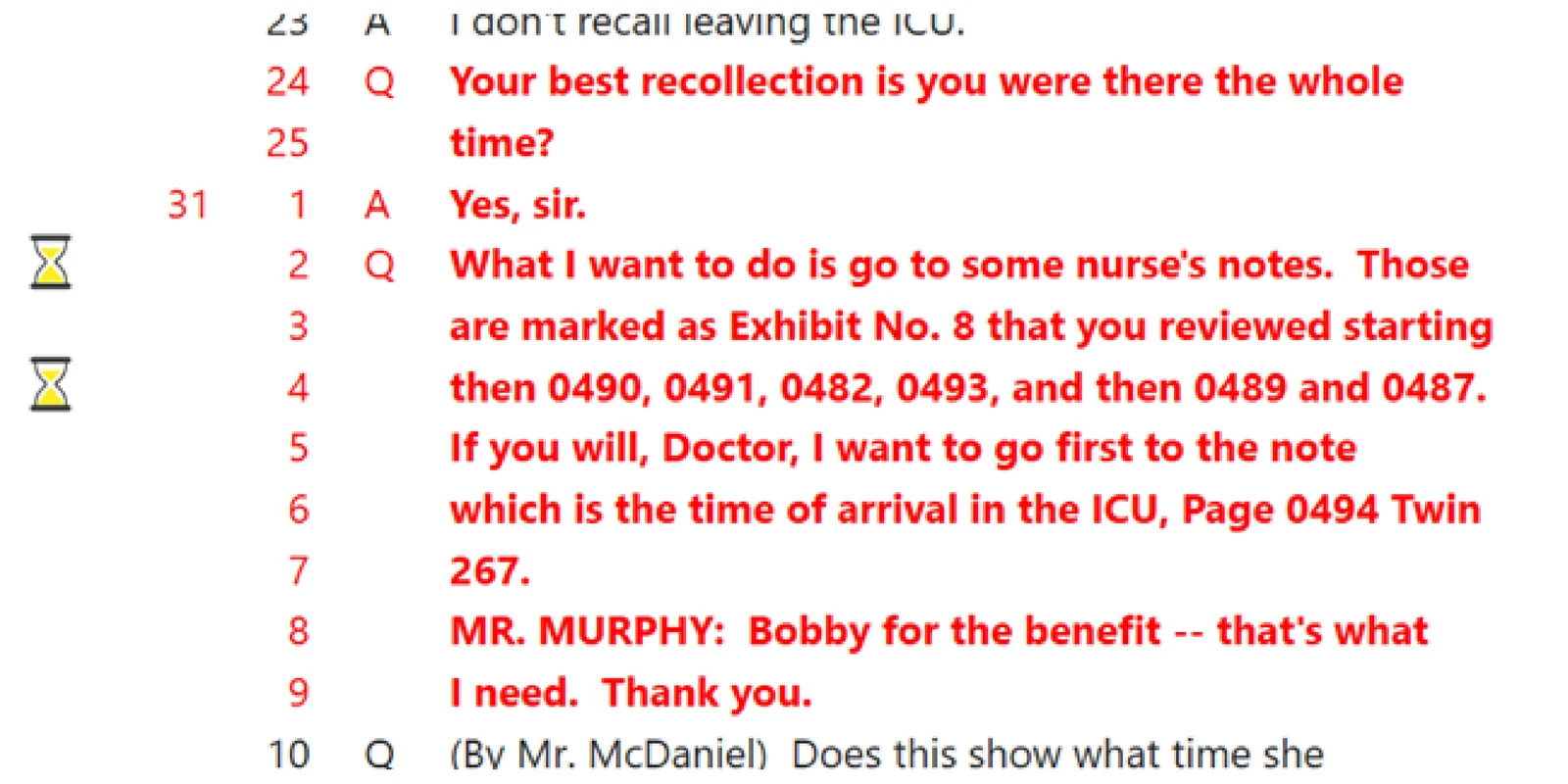
As described in Basic Fine-Tuning Designations, the yellow bar marks a line longer than the pause threshold (12 seconds by default). This may be a long pause between lines or a slow speaker. Looking at the transcript, there are two hourglasses.
- Click the designation you want to tune, and check that its text is bold in the Transcript Viewer.
- The first step is to preview the video to see where the pause exists.
- Highlight the transcript text you want to preview, then right-click and select Preview Selection.
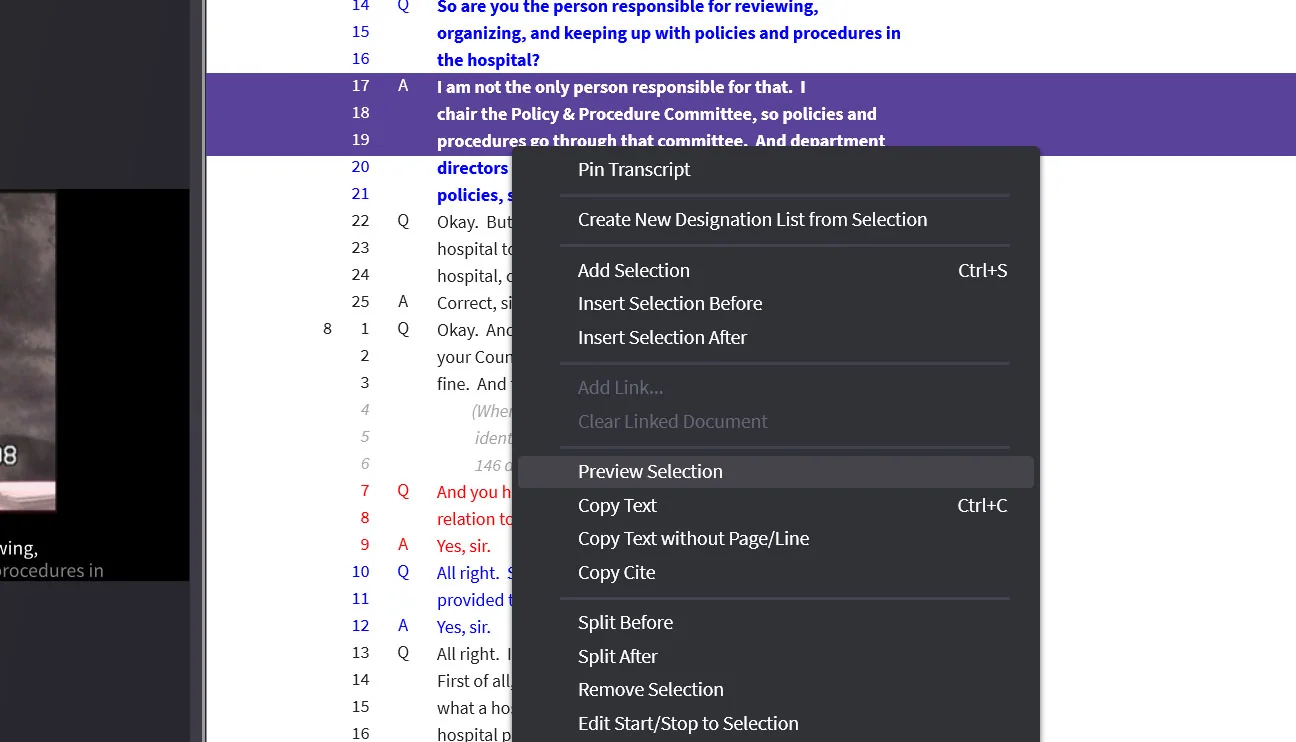
In this example, the preview shows a long pause before the question on line 32:2. Highlight that line, right-click, and select Split Before (or Split After).
The designation is now split into two consecutive designations, and you can tune out the pause at the start of the second.
Removing Words in the Middle
You can also remove words from the middle of a line.
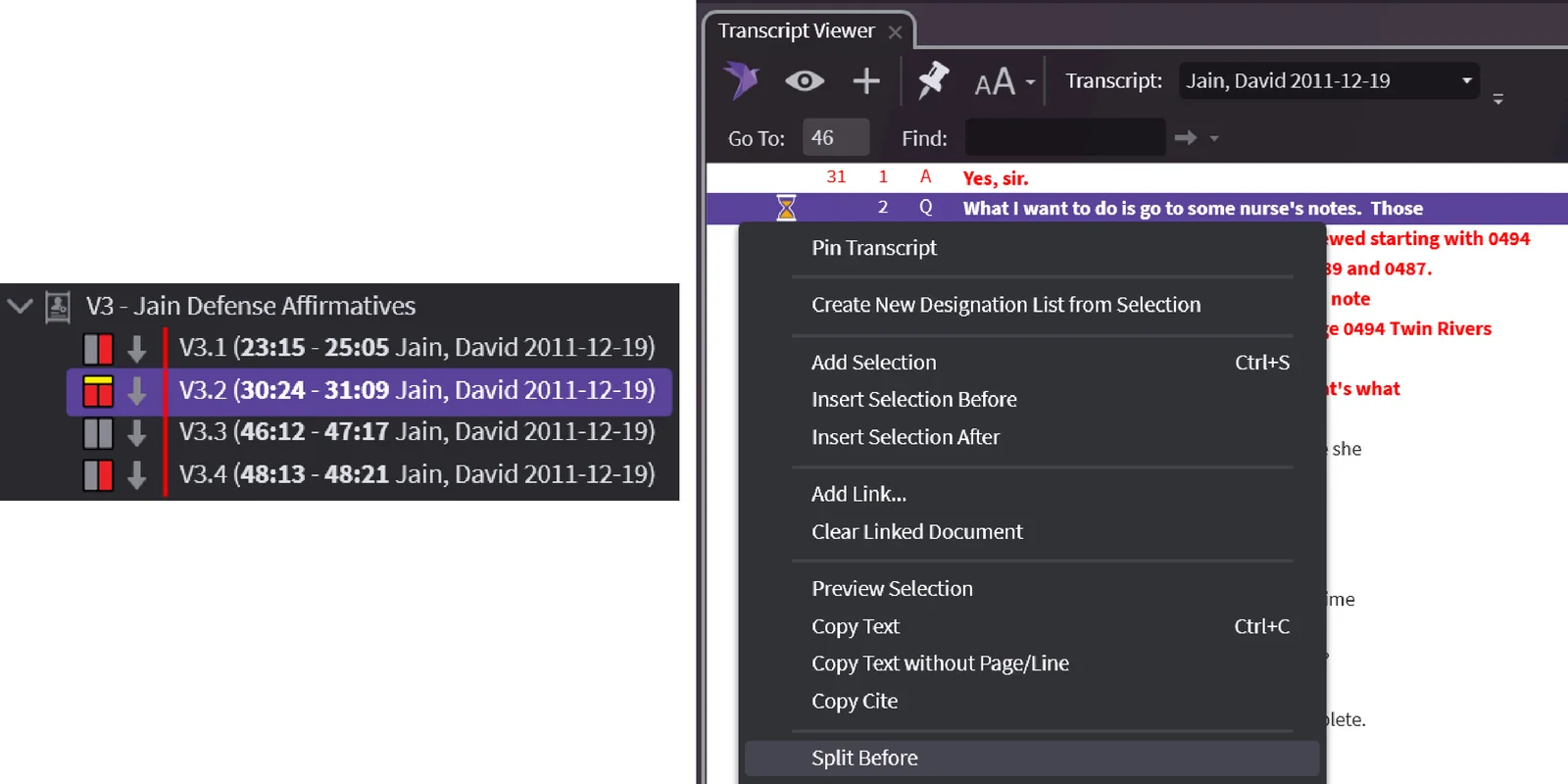
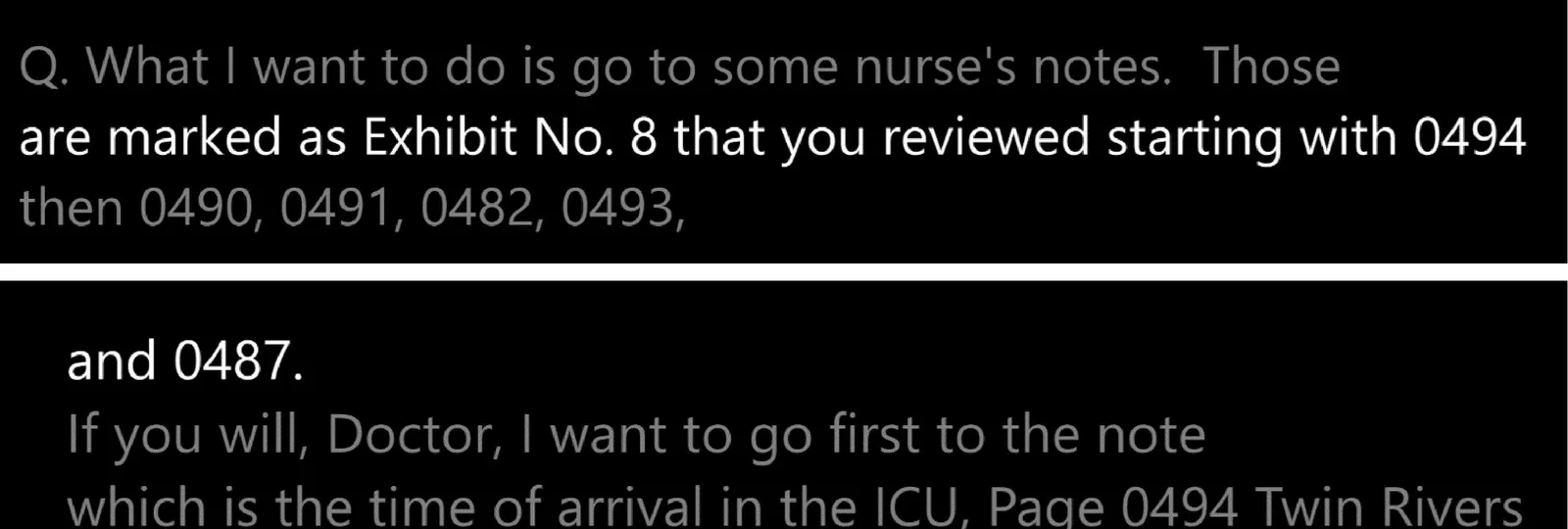
We are going to use Split Before again. Select the line that contains the words you need to remove. Let’s say in this instance we need to remove “and then 0489” but leave “and 0487” in.
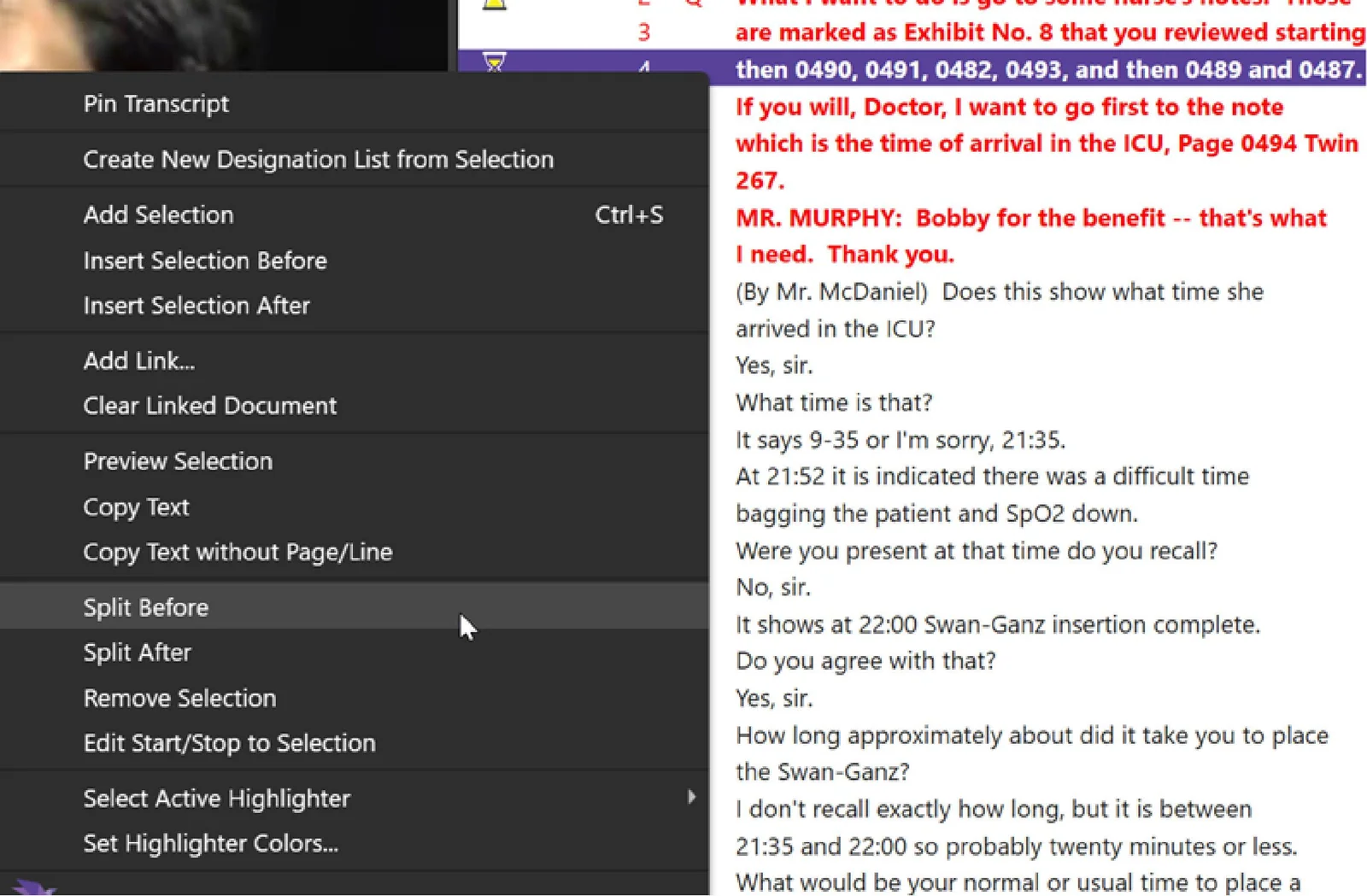
Choose Split Before (or Split After). You now have two separate designations to adjust.
Select the designation that needs the line, highlight the line on the transcript, right-click, and choose Edit Start/Stop to Selection.
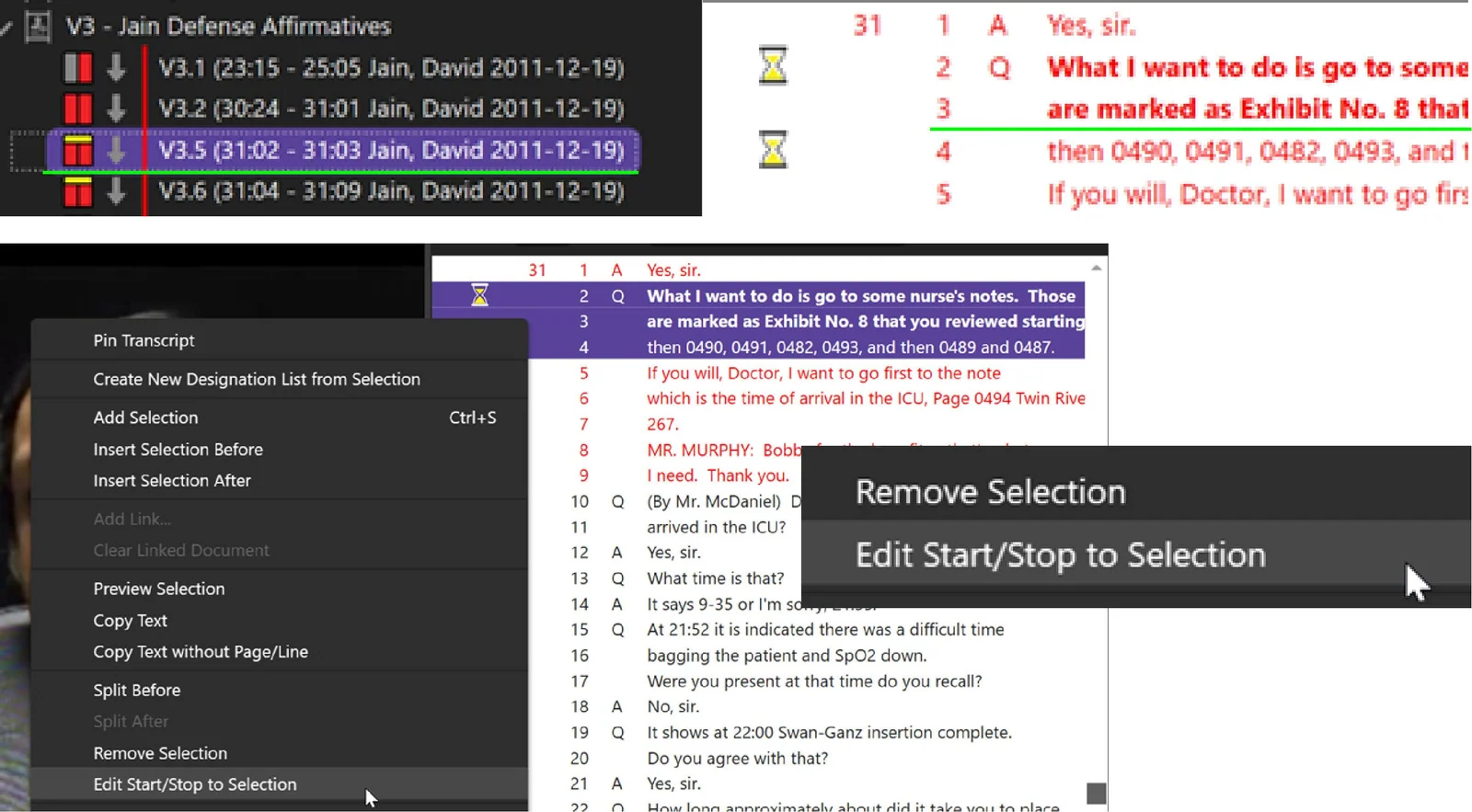
With the line now duplicated in both designations, you can edit the text of each.

Review the Editing Text in a Designation article on how to do this.
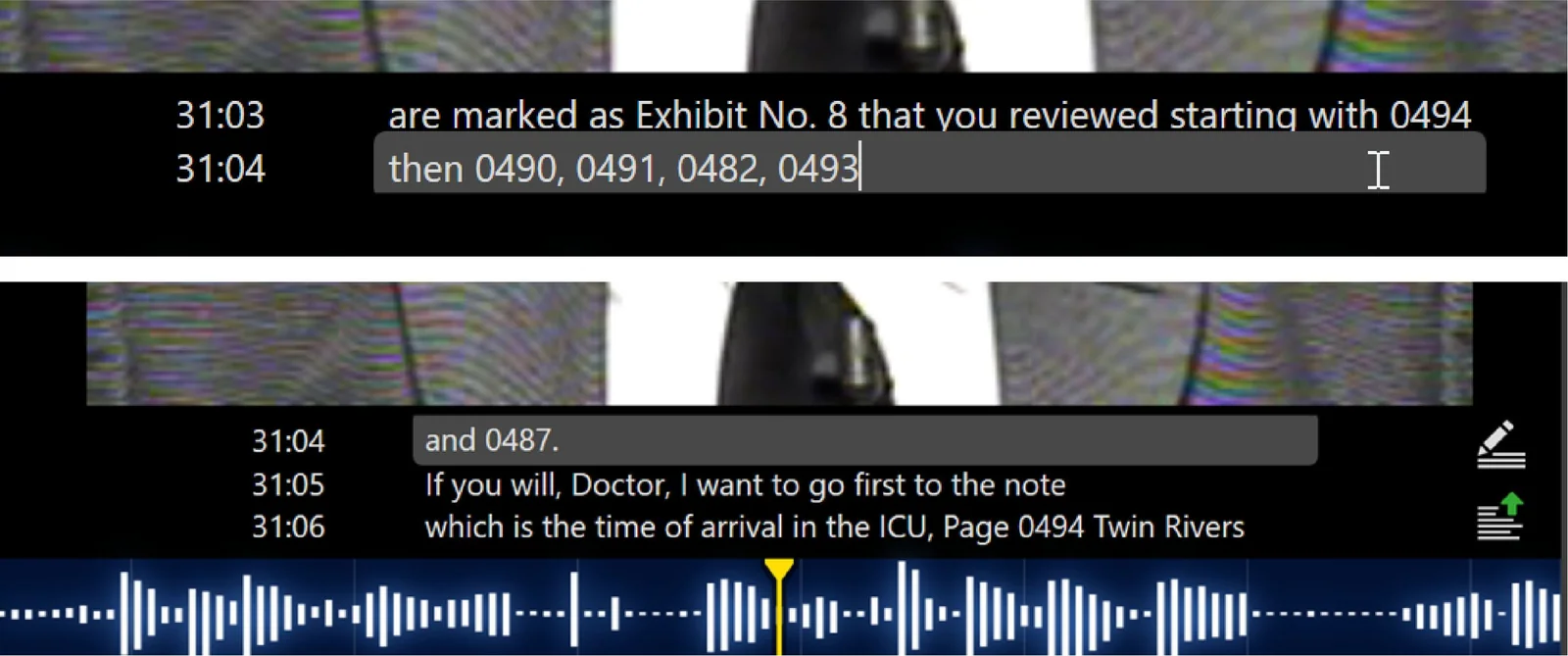
Fine-tune each designation to exclude the unwanted words. The removed words will no longer appear in the scrolling text in Presentation Mode.
Zoom and Hide Video
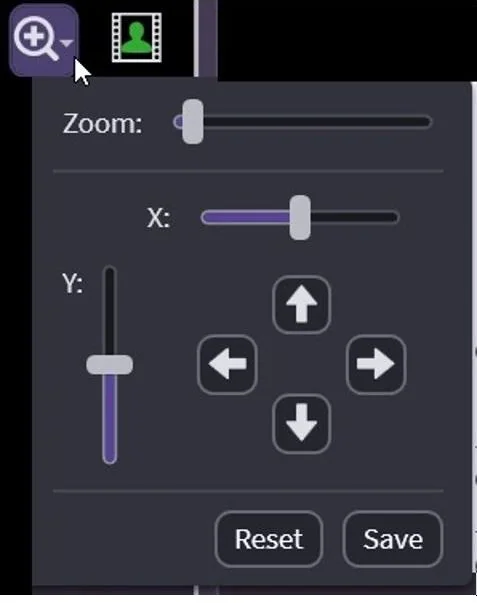
You can hide or zoom the video for individual designations, for example to keep unwanted documents in the video off screen. You can zoom and hide per designation.
Hide: To hide the video for a designation, click the Hide Video button in the Designation Editor.

Zoom: Zoom in on part of the video and save the zoom for that designation.
Right-Click Menu
For more information about what you can do with the right-click menu, see our Understanding your Right-Click Menu - Designations article.
advanced tuning, waveform, precise timing, fine-tune
Still stuck? Email support@oncuetech.com.