



Displaying Exhibits - Extended Desktop
Updated January 13, 2025
Your audience should see only the Presentation screen, never what is behind the curtain. This article covers the extended desktop method; see Displaying Exhibits (On-Air) for the other.
If you are in the production side of OnCue, you can launch any exhibit, video, designation, designation list or media script by selecting it and pressing either:
-

the Publish button in the Workflow Ribbon –

the OnCue bird icon in the Viewer (or the hotkey F5)
You can launch a blank screen in OnCue by hitting Ctrl + F5.
Click the blank Presentation screen, type X and the Media ID, then press Enter. For example, X27.4 + Enter brings up page 4 of exhibit 27. X is the default key; you can change it (see Presentation Settings and Preferences).
Note: You can also bring up a document by Name or Bates Number using this method.
Tip: Once a document is displayed, you can go to a page by typing the page number and pressing Enter. For example, 48 + ENTER takes you to page 48 of the document (X + 48 + ENTER will try to find an ID, Name, or Bates Number “48” so don’t hit X first if you are navigating to a page number).
You can also use the Go To field in the lower-left corner of the Viewer to choose a page. The Clear Viewer button in the bottom right corner of the Viewer will clear the selected media from the Viewer.
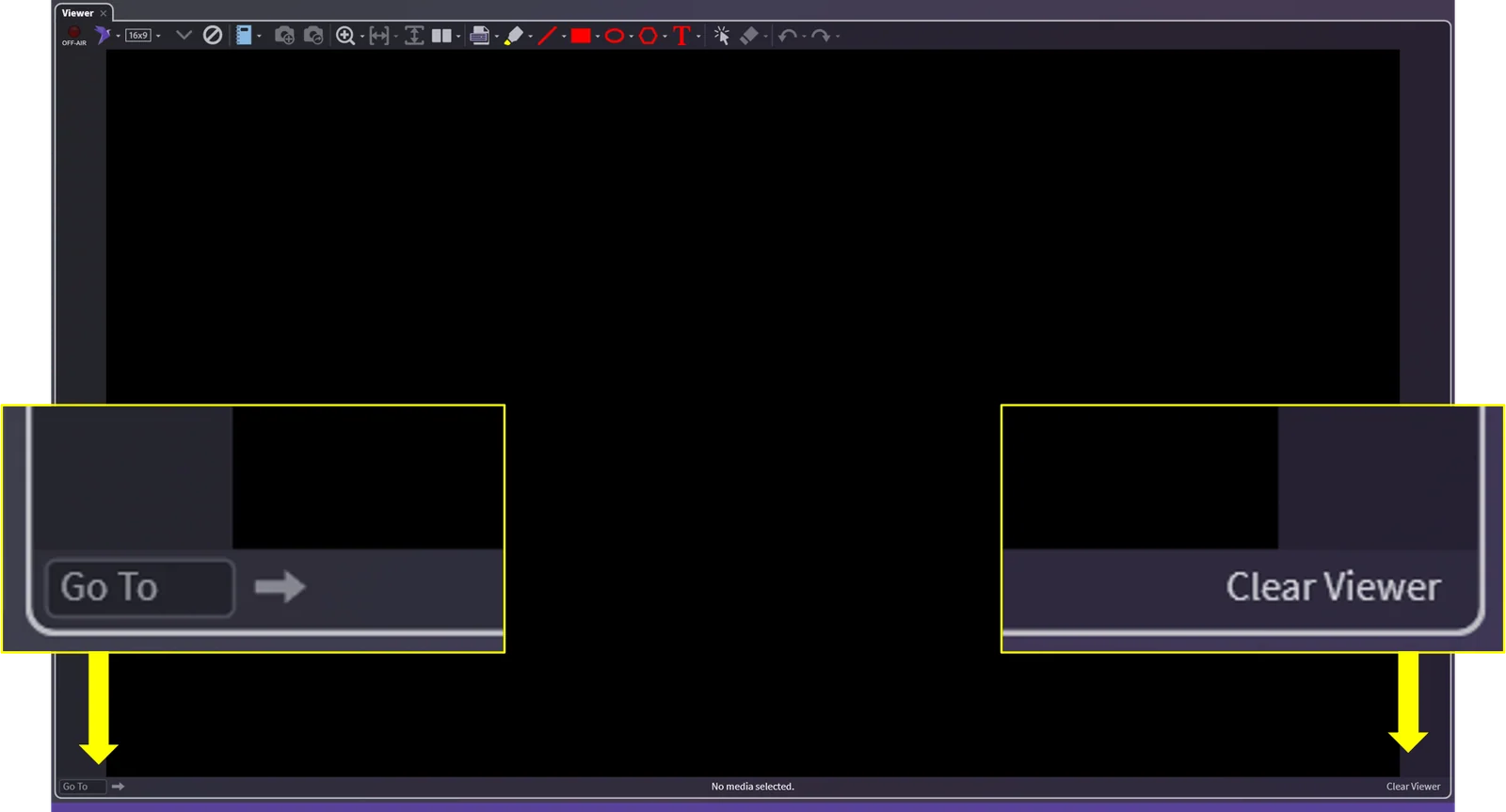
extended desktop, second monitor, presentation screen
Still stuck? Email support@oncuetech.com.