



Adding Pages to Documents
Updated July 27, 2025
OnCue handles added pages differently for PDFs and for folders of individual image files (such as TIFF, JPG, and PNG).
Adding Pages to PDFs
OnCue recognizes when you add pages to your underlying PDF. If you want to replace a page, you can replace it in the PDF and OnCue will recognize the new page. Before you change the PDF, make sure the document is not open in the OnCue Viewer.
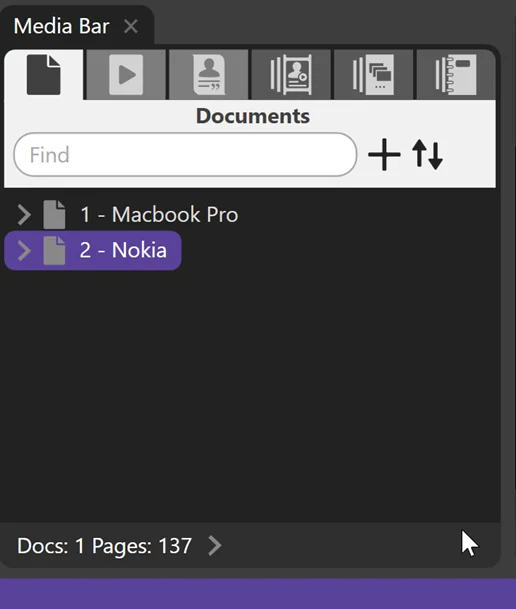
Example:
In this example, the document named “Nokia” has 137 pages (shown at the bottom of the Viewer).
After you add pages to the PDF in your _documents folder and save it, OnCue shows a message the next time you click the document.
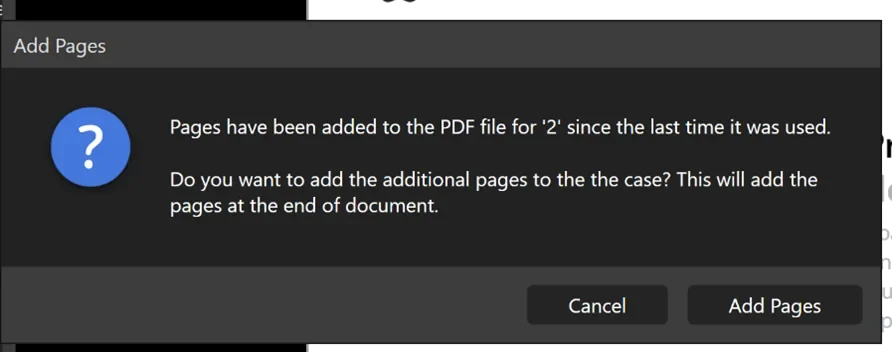
Add the pages, then press F9 to refresh. If you are changing a document and adding pages in the middle, the same dialog box appears. OnCue reads the pages in order. If the document has saved annotations, they may shift to different pages.
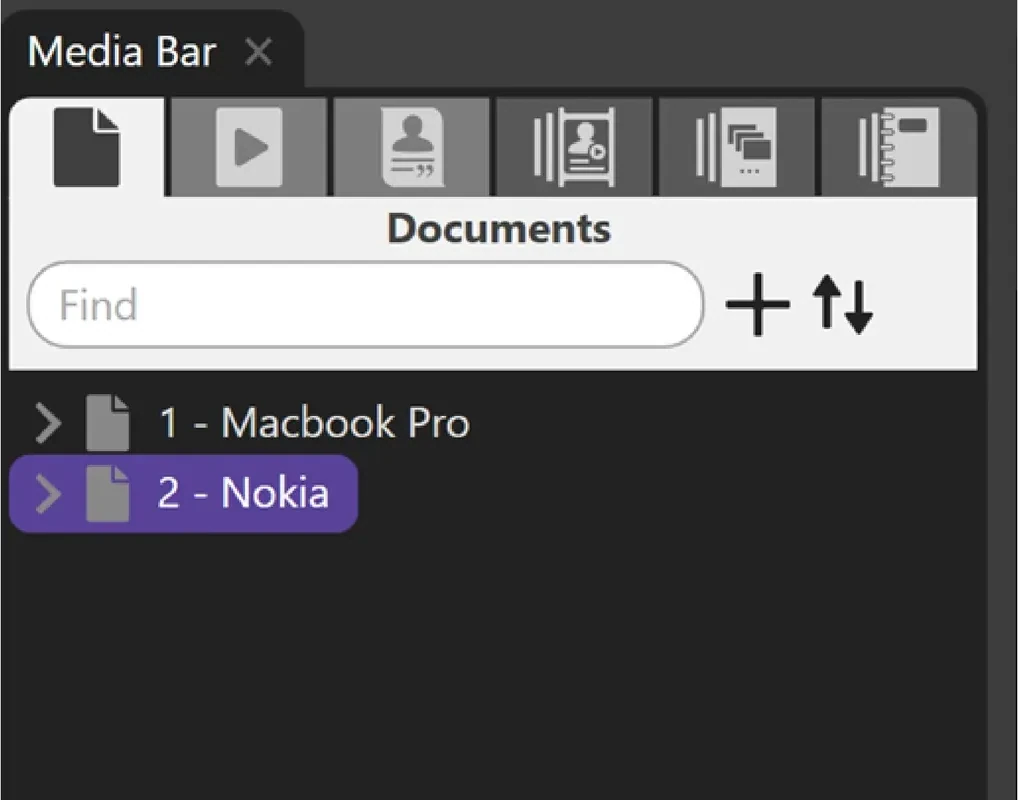
Deleting Pages
The same principle applies to deleting pages from a PDF. If you delete a page on one of your underlying documents, OnCue detects the change and prompts you to confirm it.
Adding Pages to Image Files (TIFF, JPG, PNG)

Example:
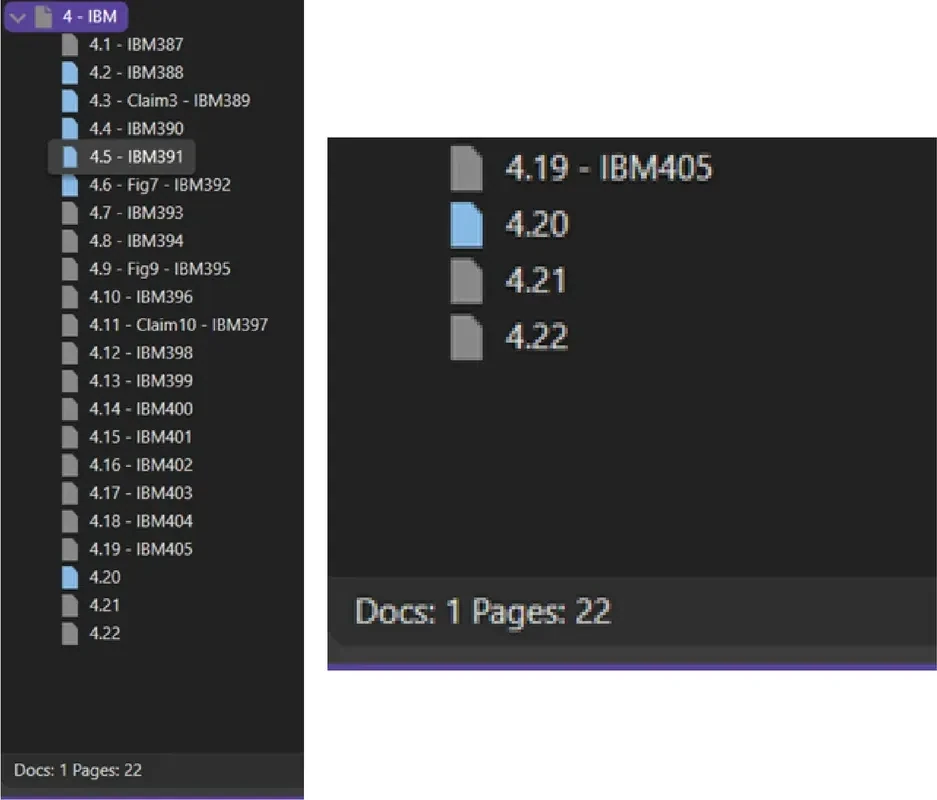
In this example, document “4 - IBM” has 19 pages.
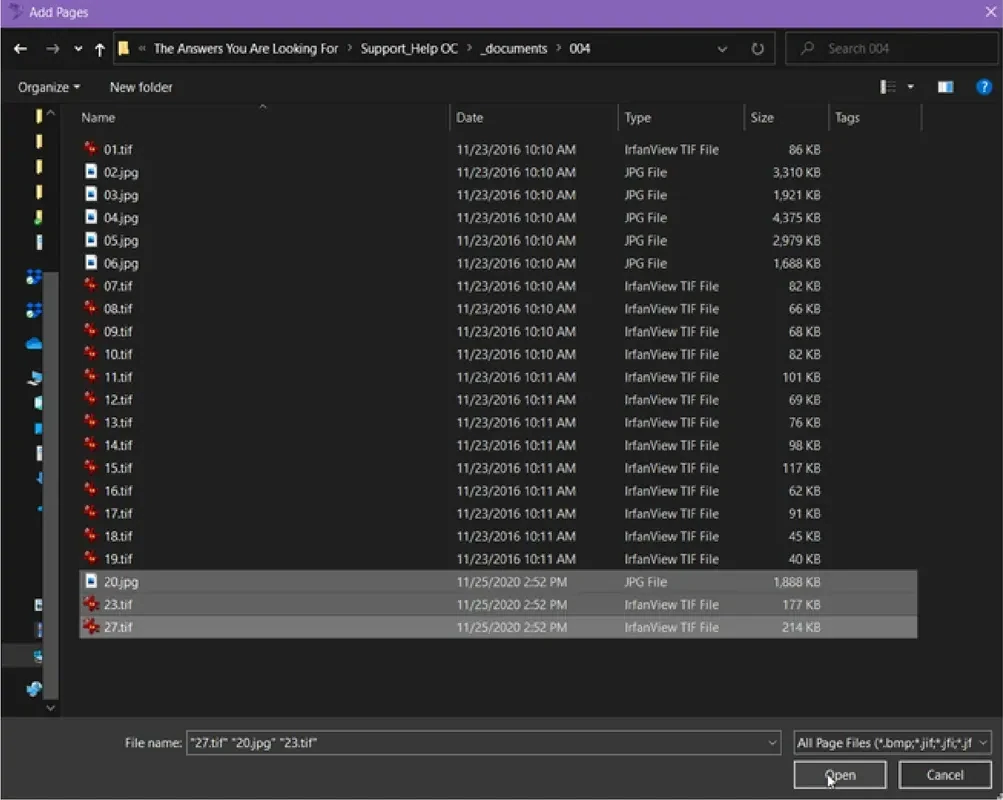
Using Windows File Explorer, copy the new image pages into the document’s folder (in this example, the 004 folder) (20.jpg, 23.tif, 27.tif are new pages).

Back in OnCue, right-click the document (4 - IBM) and select Add Pages.
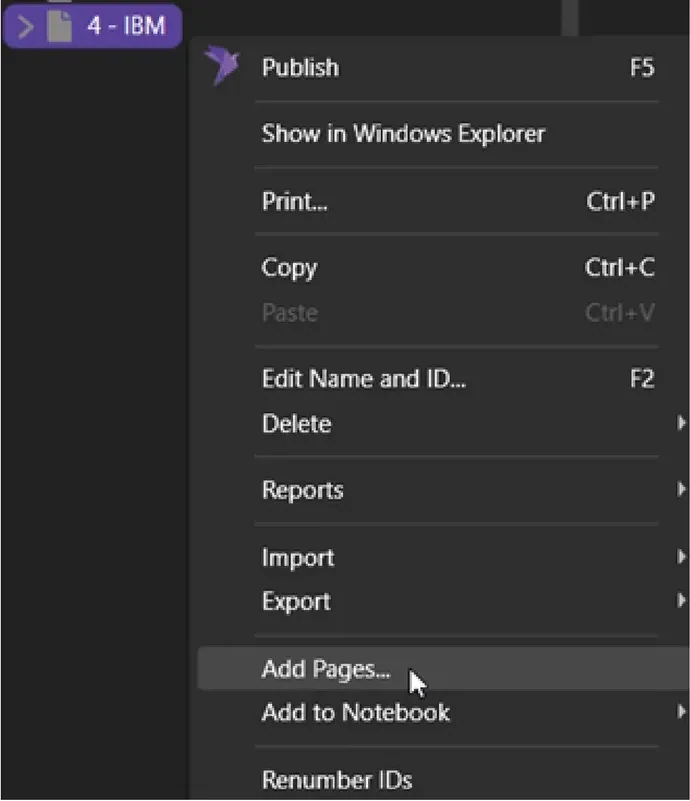
In the dialog box that opens, select the pages and click Open.
OnCue assigns the new pages the next available page IDs, regardless of their file names.
Reordering and Renumbering Document Pages
Did you know you can reorder pages inside OnCue without messing with the original/underlying document? Is the first page a title page and the next page is 1? Or maybe the scanned document is out of order?
You can change your starting ID number. Does your document start with page 2?
Note: this method also works reordering annotations.
Fixing a Non-Page Number Start Page
You can drag and drop your pages to reorder a document.
-
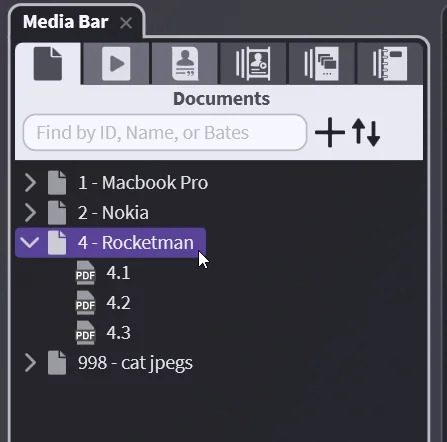
Choose the document you want under the document tab.
-
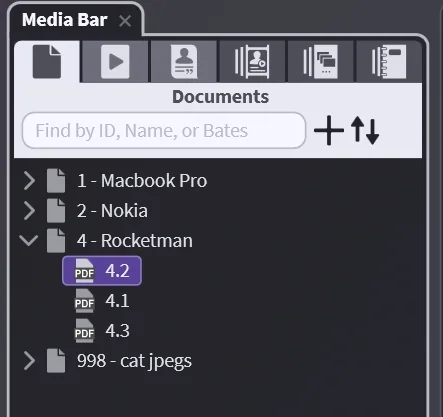
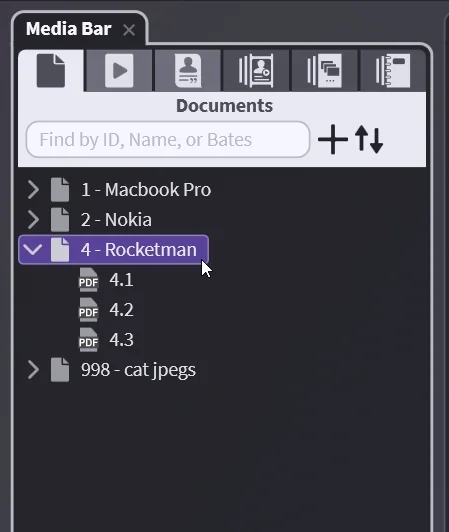
Drag and drop the pages to reorder them. Page two is now the first page in Exhibit 4 in the image below.
Note: You can drag a title page to the bottom of the document or just delete the page without deleting it from the underlying PDFs.
-
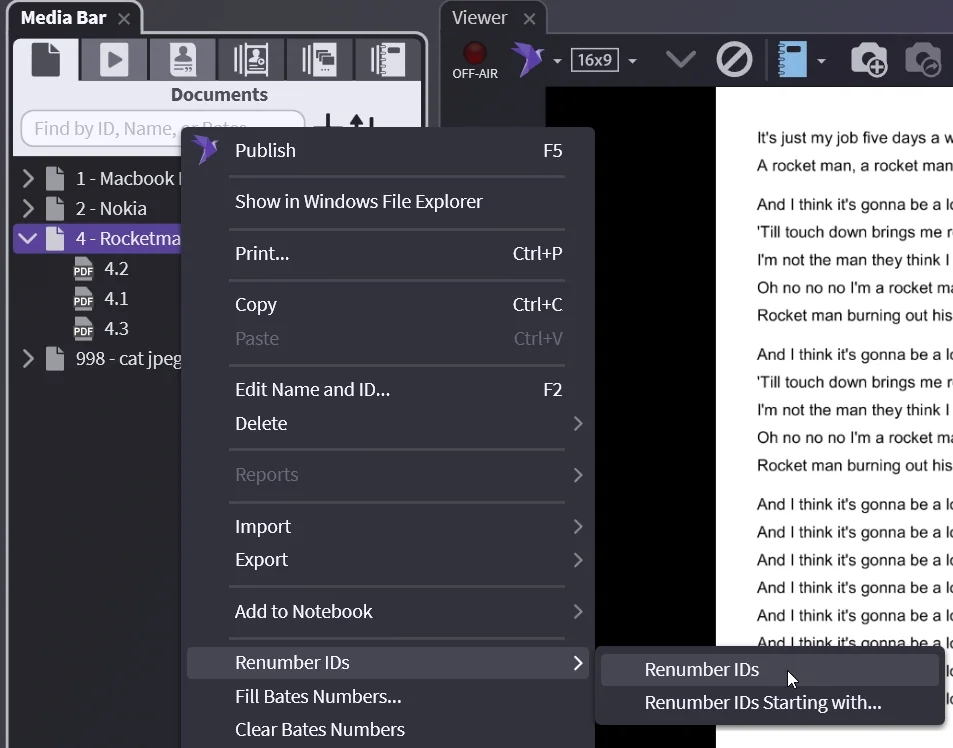
Now right-click on your document, choose Renumber IDs, and choose Renumber IDs again. This renumbers your document starting at 1.
Fixing a Non-Page 1 Start Page
-
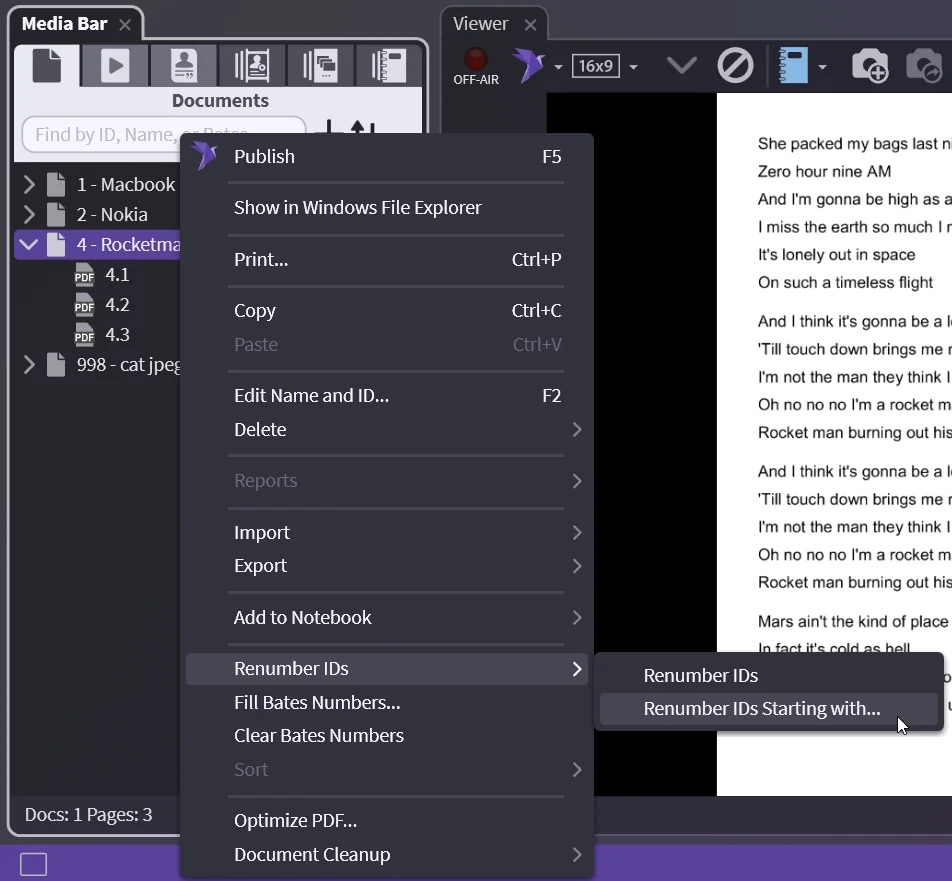
Choose the document you want under the document tab, Right-click, select Renumber IDs, and then Renumber IDs Starting with…
-
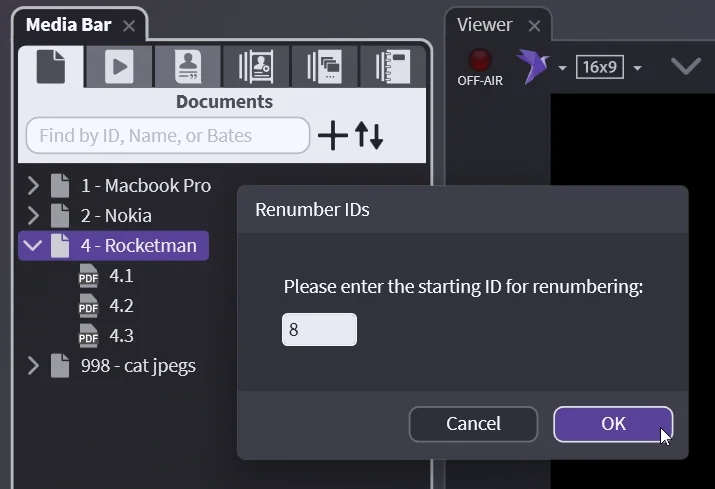
Change to your new starting number and Select Okay.
OnCue will only do consecutive numbers for auto-numbering.
You cannot change individual page IDs. To assign alternate IDs use the Bates or Name field.
insert pages, delete pages, page count changed, refresh, F9, non-PDF pages, TIFF, JPG
Still stuck? Email support@oncuetech.com.