



Native File Notebook Shortcuts
Updated January 2, 2025
This article answers
- Can OnCue open PowerPoint, Excel, or AutoCAD files?
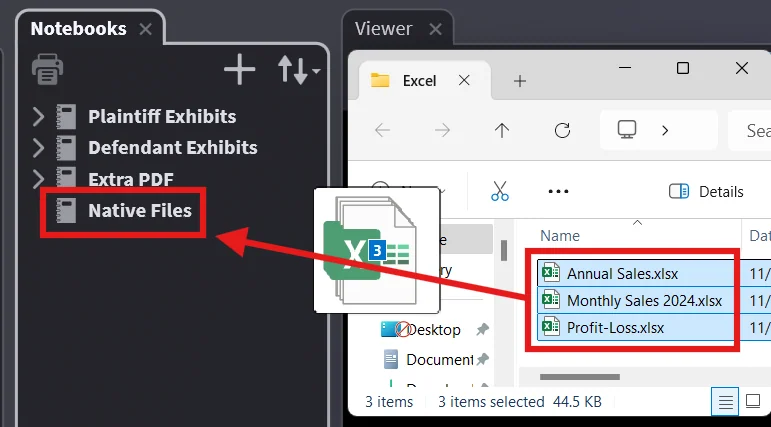
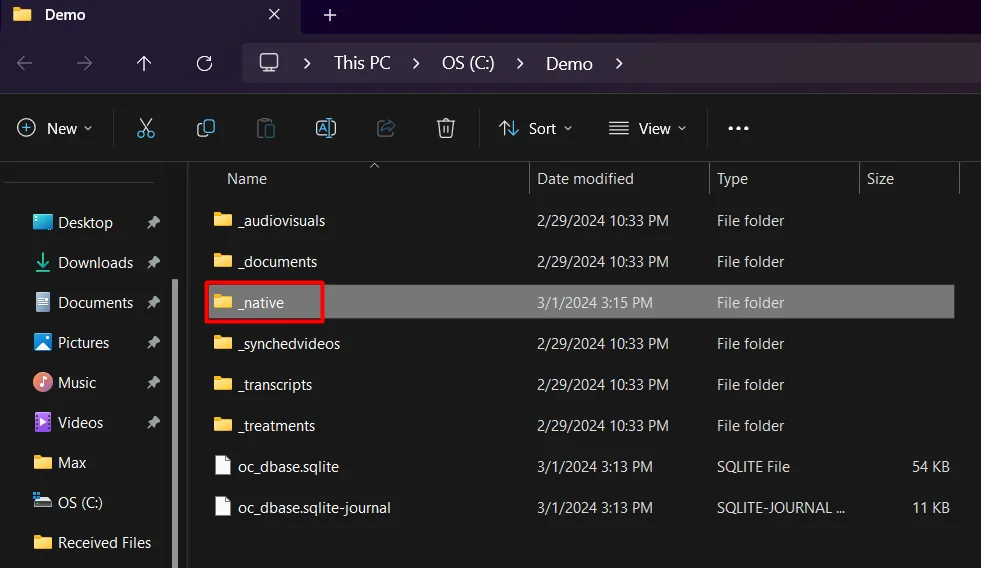
You can add native file shortcuts to a notebook. OnCue cannot display PowerPoint, Excel, or Word files. The file is not imported into OnCue; instead, OnCue copies the original file to a folder called _native in your case folder and creates a shortcut link in OnCue that will open the file in the default application for that file type for example, a .pptx file opens in PowerPoint.
Note: OnCue’s annotation tools are not available for native files, because they open outside OnCue.
Adding Native Files in OnCue
Drag the native file into any notebook. You cannot add native files with Add Media.
Note: Native files never appear in the Media Bar.
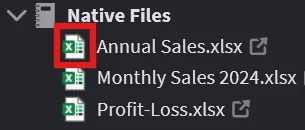
When you expand the notebook, the native file appears with its file-type icon.
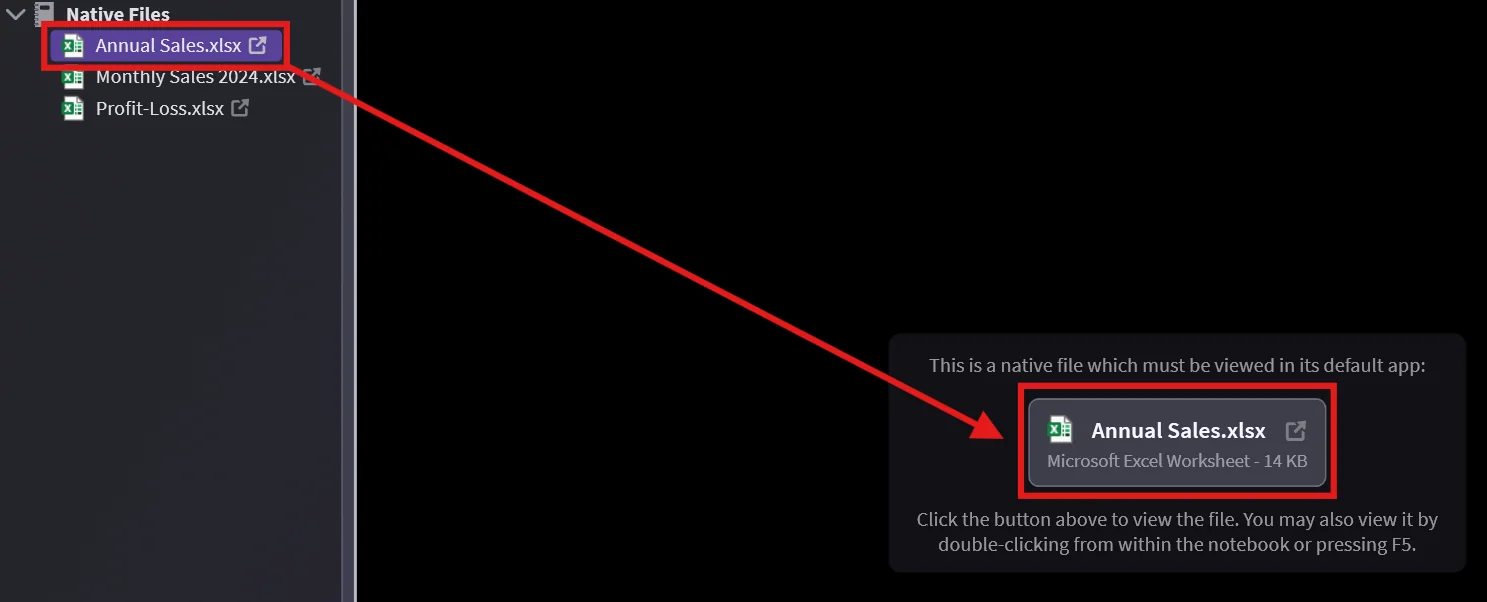
Ready to show it? To open the file, use any of these:
- Double-clicking on the native file shortcut
- Using the Hotkey (F5) or pressing the Publish button
- Clicking the prompt shown in the Viewer
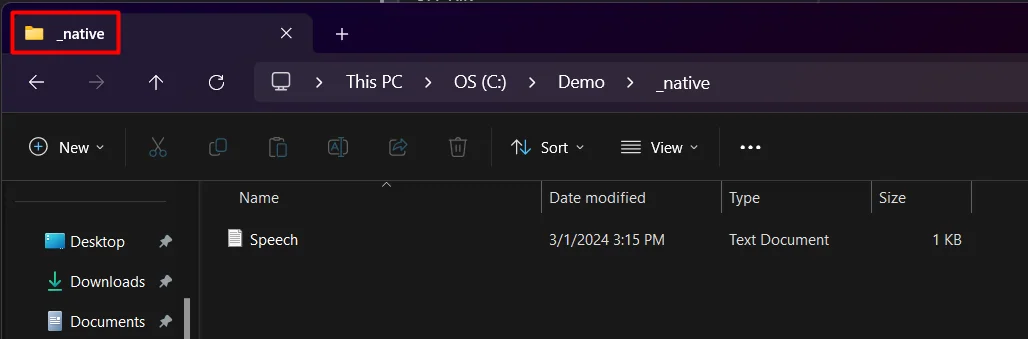
The _native folder in your case folder:
native files, shortcuts, open in native application, Excel, PowerPoint
Still stuck? Email support@oncuetech.com.