



Creating Impeachment Designation Lists
Updated July 23, 2025
There are a few methods people use for impeachment designations:
- On-the-fly method. Find the page/lines on the transcript viewer, select the text on the transcript, and then select Publish or Publish as Text Only (See Presenting Impeachment Designations On-the-fly article).
- Single list method. Create an impeachment list and use the auto-advance arrows to separate the clips.
- Separate list method. Create a separate list for each impeachment clip. This can be done individually, or you can take a designation list and split it on the Auto-Advance Arrows (see Split Designation Lists).
This article explains the second method. Before you begin, review the Creating Designation Lists and Designation List – Parts Explained articles.
Creating an Impeachment List
Create and select your impeachment list. By default, all designations play consecutively, as the downward arrows show. This is the default for all designation lists.
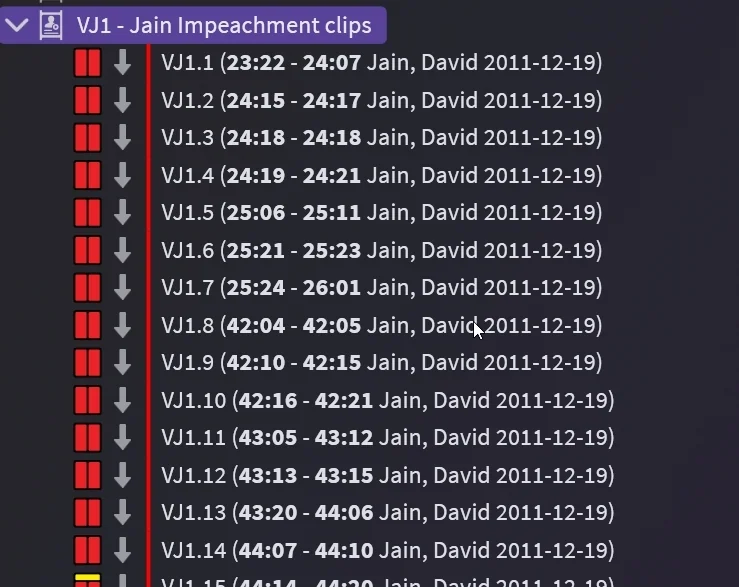
Right-click on the list and select Automatic Advance > Enable Auto-Advance to clear the checkmark.

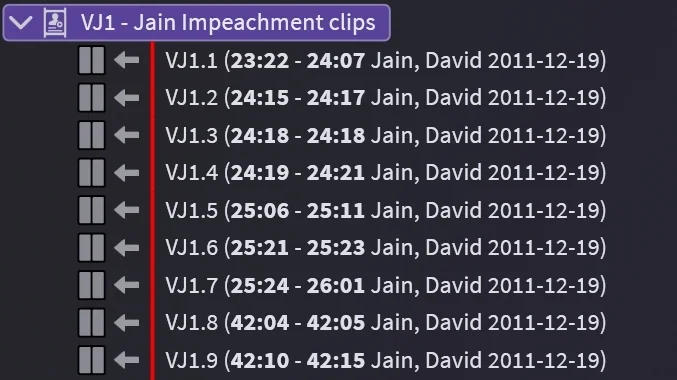
Unchecking Enable Auto-Advance changes the Auto-Advance Arrows in the list to point left. A left-pointing arrow means playback stops after that designation.
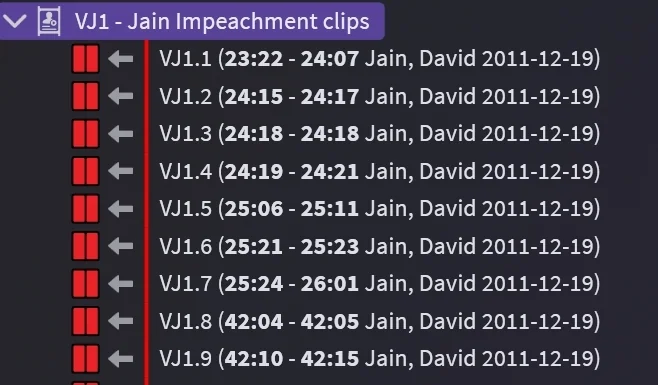
After fine-tuning (see Basic Fine-Tuning Designations and Advanced Fine-Tuning Designations articles) your designations are ready to go. When you publish a designation, only that designation plays.
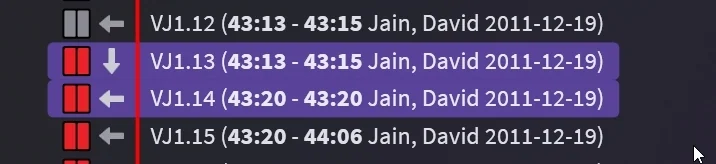
If an impeachment clip spans more than one designation, you can double-click the auto-advance arrow to change whether it advances or stops. In the image below, publishing VJ1.13 will also play VJ1.14. Playback will stop after VJ1.14 plays.
impeachment, impeach, prior testimony, cross-examination
Still stuck? Email support@oncuetech.com.