



Creating Designation Lists
Updated July 21, 2025
Designation Lists are page/line clips of deposition testimony for playback in court. You need a synchronized transcript file (.mdb or OnCue .xml) and the raw deposition video to use this feature (see Adding Synchronized Transcripts). There are several ways to create Designation Lists in OnCue: manually, by importing lists, and with the Designation Wizard. This article explains how to create a list manually and add individual designations.
Note: You can create designation lists using just the transcript text file if you don’t have a video. Creating lists and running reports work the same way; only presentation differs. See Displaying Designations as Text Only for more information on displaying designations as text.
Important: Copy the deposition video files to the root of the “_synchedvideos” folder in your OnCue case (not to subfolders). OnCue looks for the video in this folder.
Creating a Quick Designation List
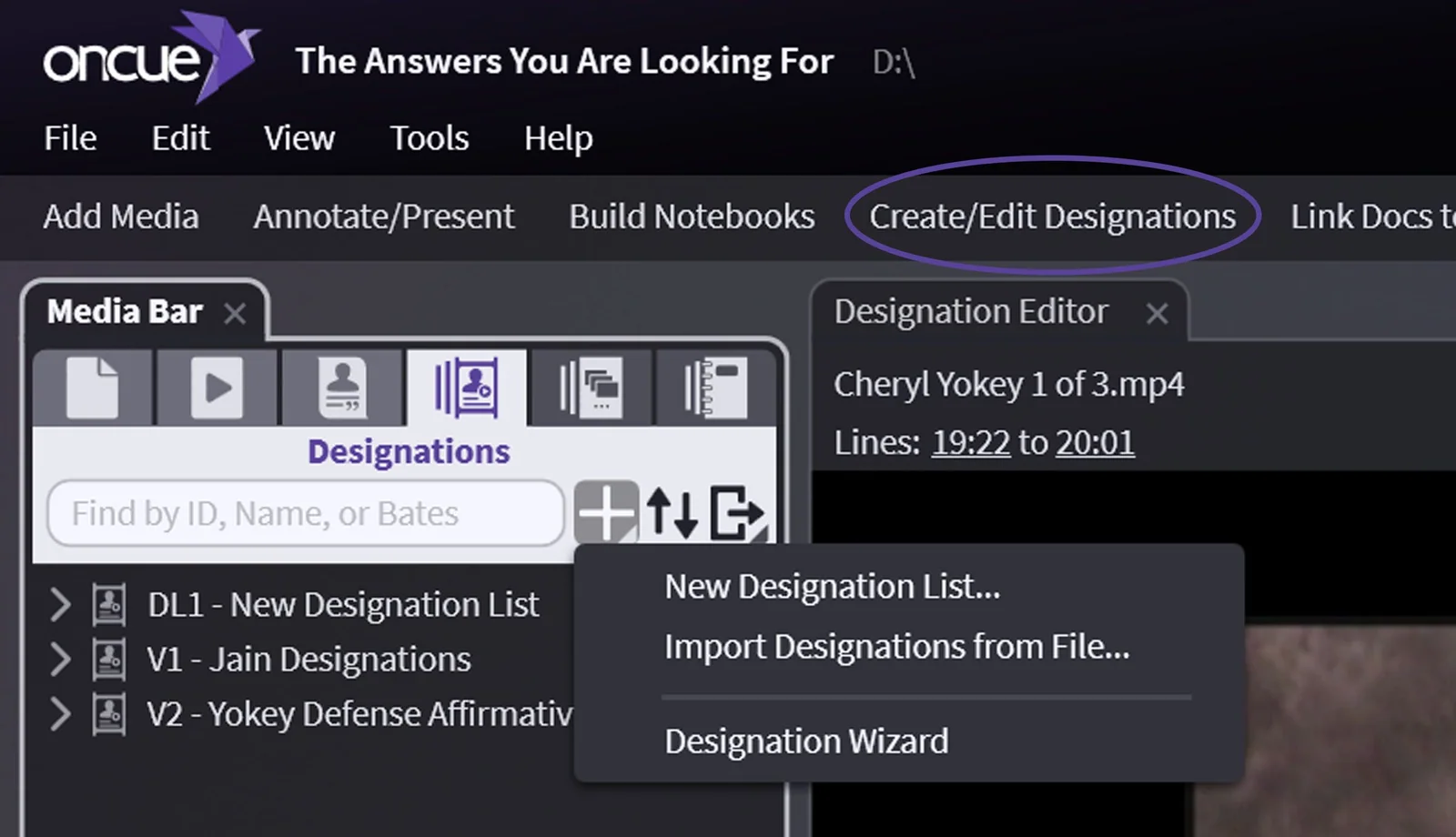
To create your Designation List, click the Create/Edit Designations layout on the Workflow Ribbon. Under the Designations section of the Media Bar, click the + sign and select New Designation List.
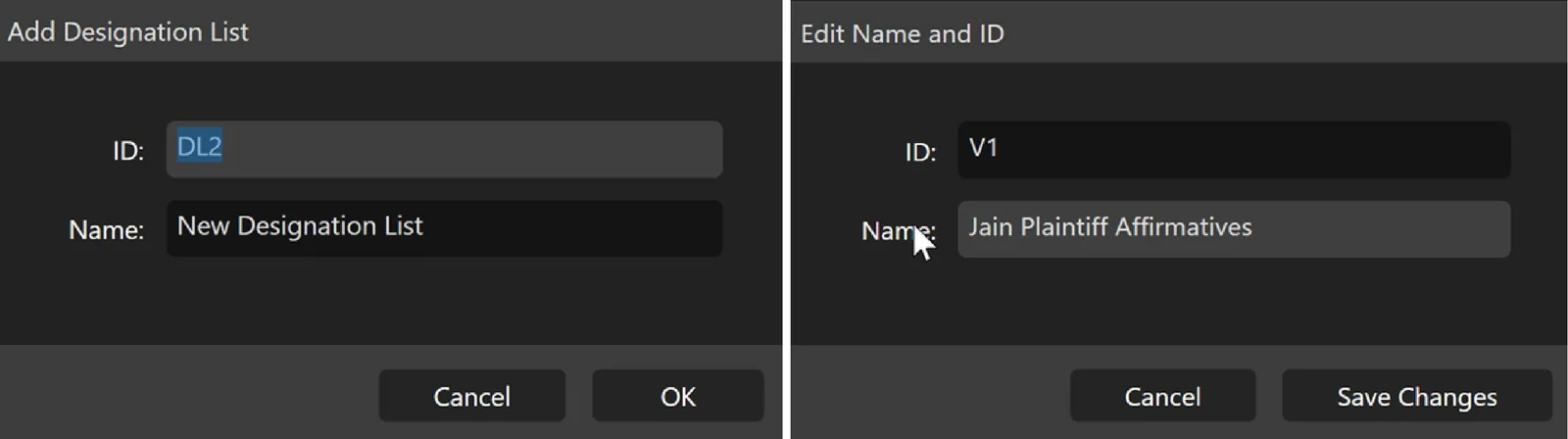
A dialog box opens where you can change the ID and Name.
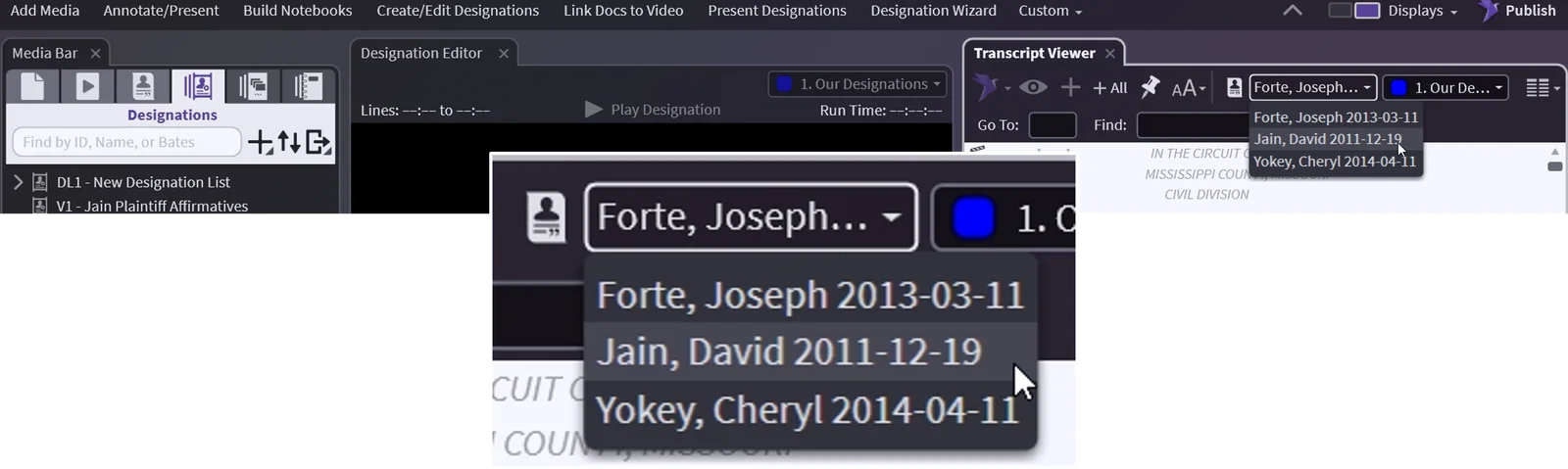
Select a Transcript from either the Media Bar or from the drop-down menu on the Transcript Pane toolbar.
Once you have created the Designation List, you can add the page/line designations. There is no limit to the number of designations you can have in a List, and you can designate from different Transcripts within the same Designation List if desired.
Click and drag to select the transcript text you want to play. You can then either click Add Selection on the toolbar, right-click the selected text and select Add Selection, or press Ctrl+S.
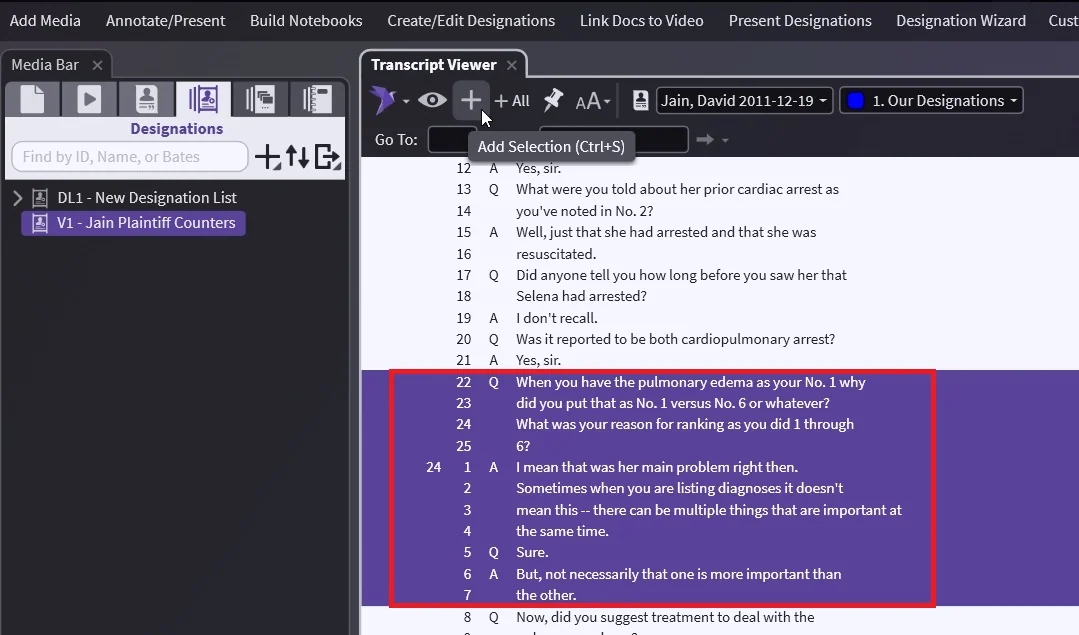
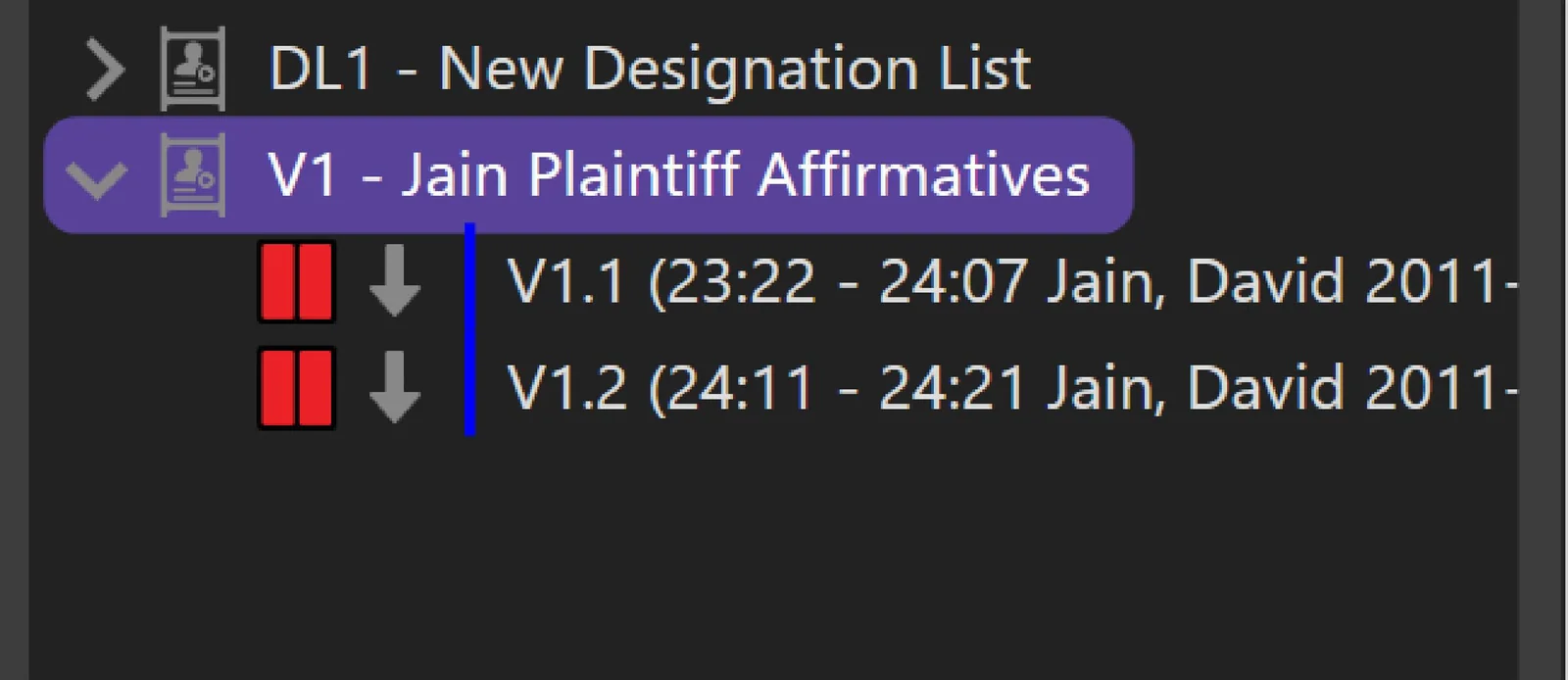
The Designation List in the Designations tab will expand, and you’ll see your new designation appear below the ID.
The highlighter color will be the last used color but can also be changed prior to adding the designation by selecting a color from the Highlighter dropdown menu.
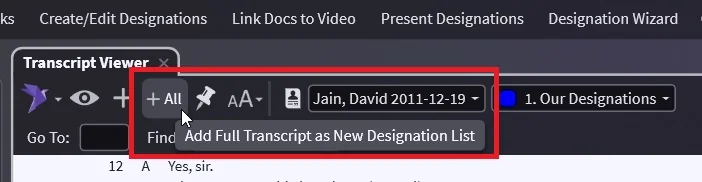
You can also designate the entire deposition in one list.
Creating a New Designation List from a Selection of Existing Designations
First, select the Designation Lists or individual designations you want to compile into the new list.
Right-click and select Create New Designation List from Selection.
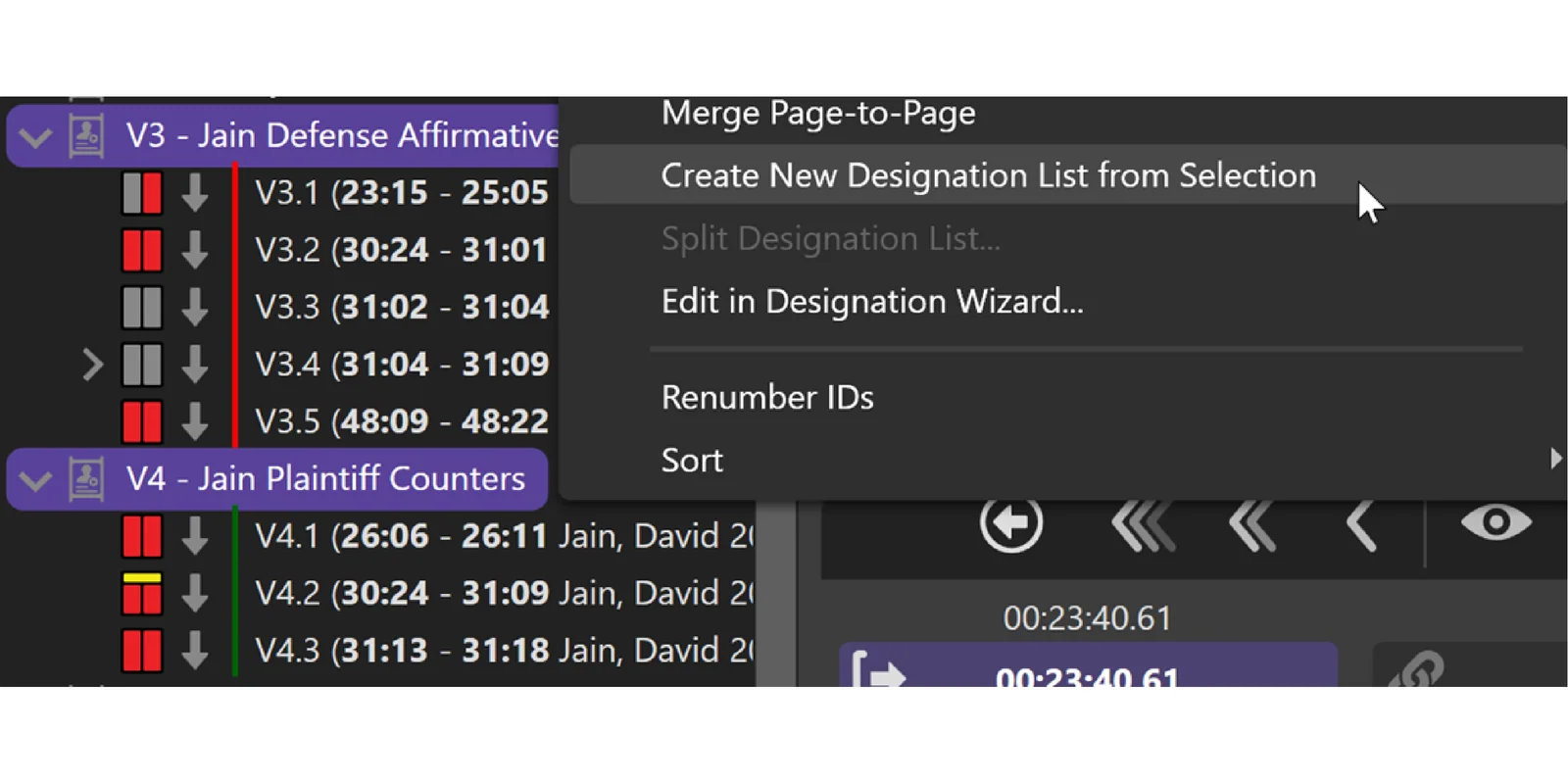
Enter an ID and a name. OnCue appends the selected lists one after another.
For more information about this, check out our Copying Designations & Merging Lists article.
Using the Designation Wizard
Adding designations manually is quickest for one or two at a time. To enter a list you have been given, or to change an existing list, use the Designation Wizard. You can find an in-depth explanation in the Designation Wizard article.
Importing Designations
For hundreds or thousands of page/line ranges, import them instead. Designation List Imports can be created outside of OnCue in a text file. You can find information about these files in our Importing Designation Lists article.
Right-Click Menu
For more information about what you can do with the right-click menu, see our Understanding Your Right-Click Menu – Designations article.
Designation List Tips
- A single designation list can include multiple transcripts, including different dates or deponents.
- New designation lists play through to the end by default; change the auto-advance arrows to stop between clips.
designation list, create clips, deposition clips, page line, new list
Still stuck? Email support@oncuetech.com.