



Adding Documents
Updated October 14, 2026
This article answers
- What file types does OnCue support?
- Why won't my PDF add to OnCue?
About Documents
The ability to organize, annotate, and quickly display documents helps OnCue users work quickly in the courtroom. Documents can be any trial exhibit, photograph, demonstrative, or other static image. The list at the end of this article shows the file types OnCue supports.
In the root database folder you created, there is a folder called _documents. OnCue copies the documents you add into this folder. Placing them there first saves time, because OnCue does not need to copy them during registration.
Adding Documents
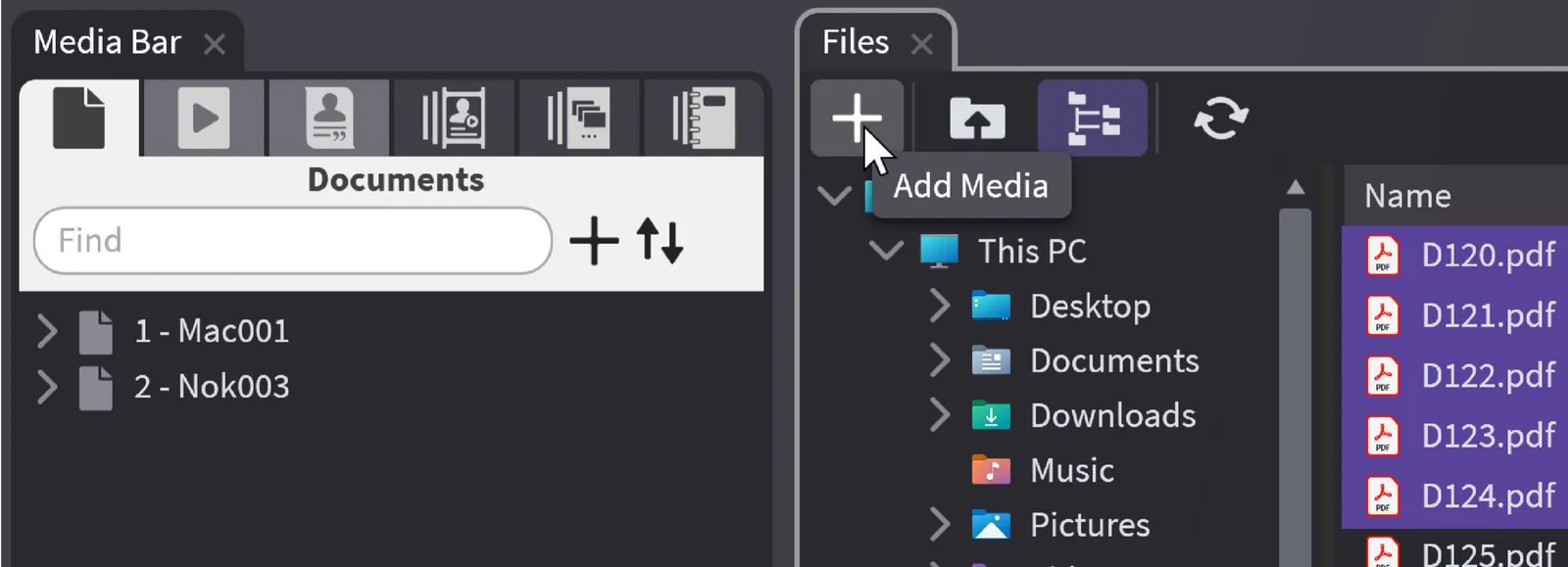
To add documents to an OnCue case, start by selecting Add Media on the Workflow Ribbon. You can then browse to your documents, or click the + in the Documents section of the Media Bar to jump directly to the _documents folder of your current case.
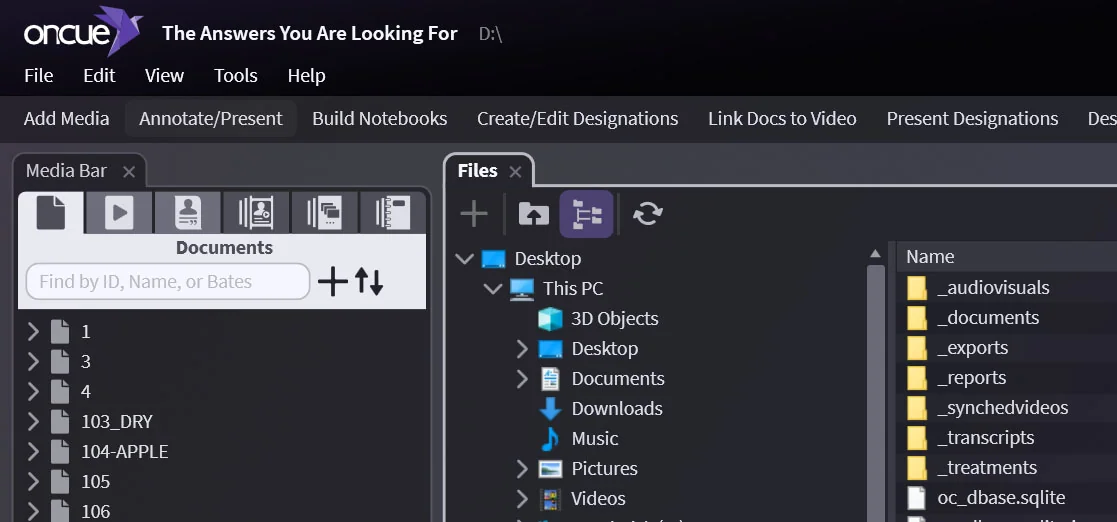
After selecting the files or folders to be added, drag them to the Documents section of the Media Bar, or click + at the top of the Files pane.
OnCue opens the Add Media dialog box.
Please note: IDs do not include punctuation, symbols, or leading zeros. These characters will be dropped from the ID when adding or renaming.
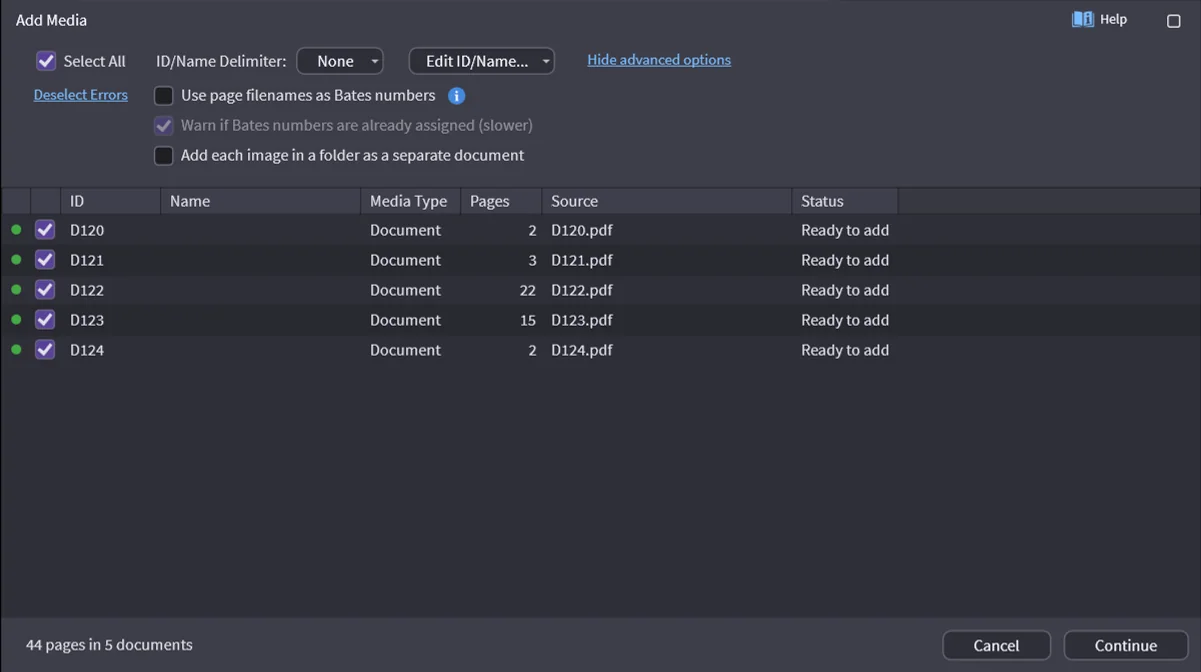
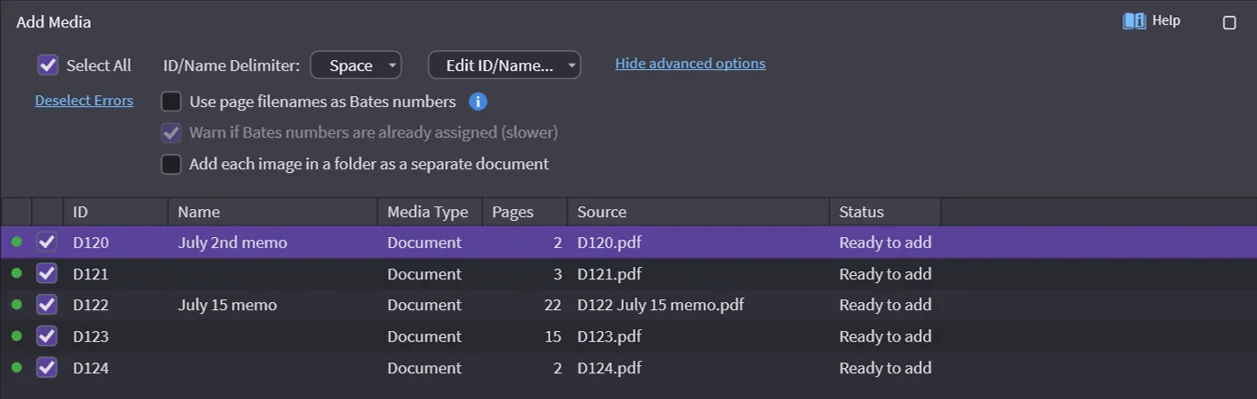
You can change the character (the delimiter) that separates the ID from the Name, if the file name includes a Name. OnCue treats everything after the first delimiter (here, a space) as the Name.
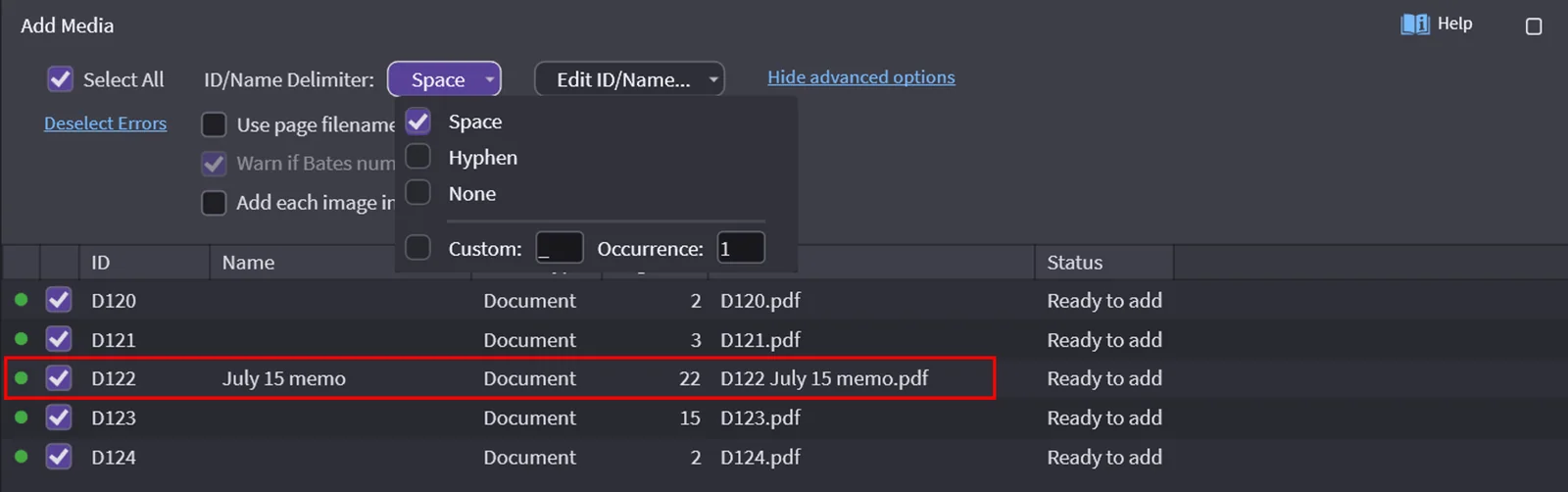
Example:
D100 July 15th Memo.PDF
D100 becomes the ID, and everything after the first space becomes the Name, so you know in advance how each document will appear.
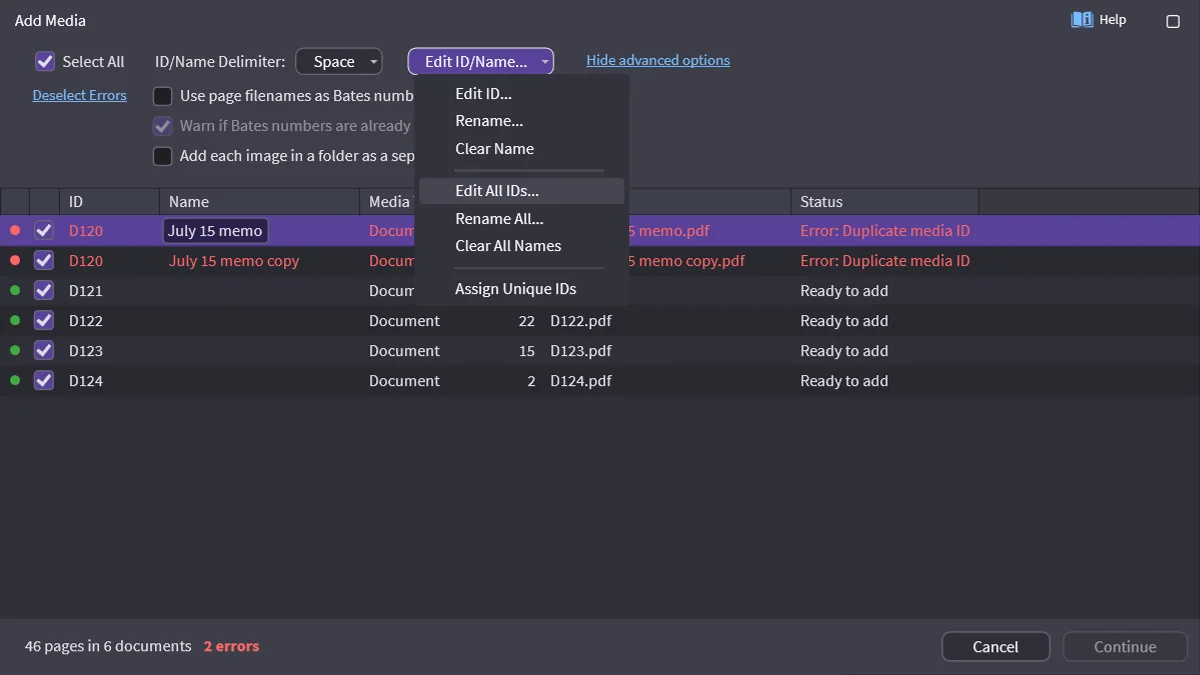
You can also change IDs and Names, one at a time or all at once.
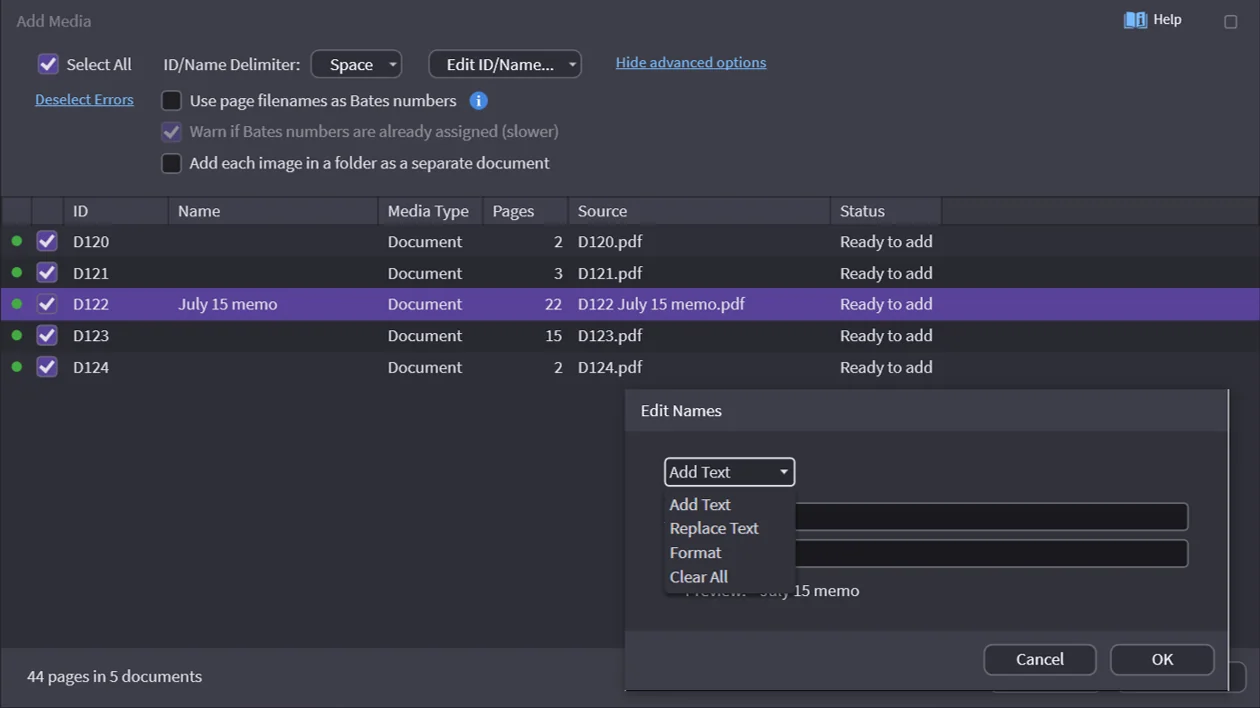
This changes only how OnCue identifies the file; the source file name does not change.
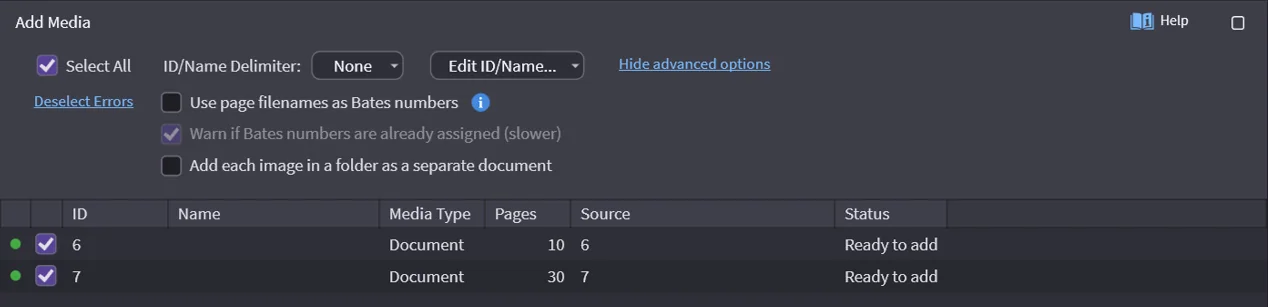
By default, OnCue loads all single-page images in a folder as one document. Place the single-page TIFF files for each exhibit in their own folder; the folder name supplies the ID and Name. OnCue does not support multipage TIFF files.
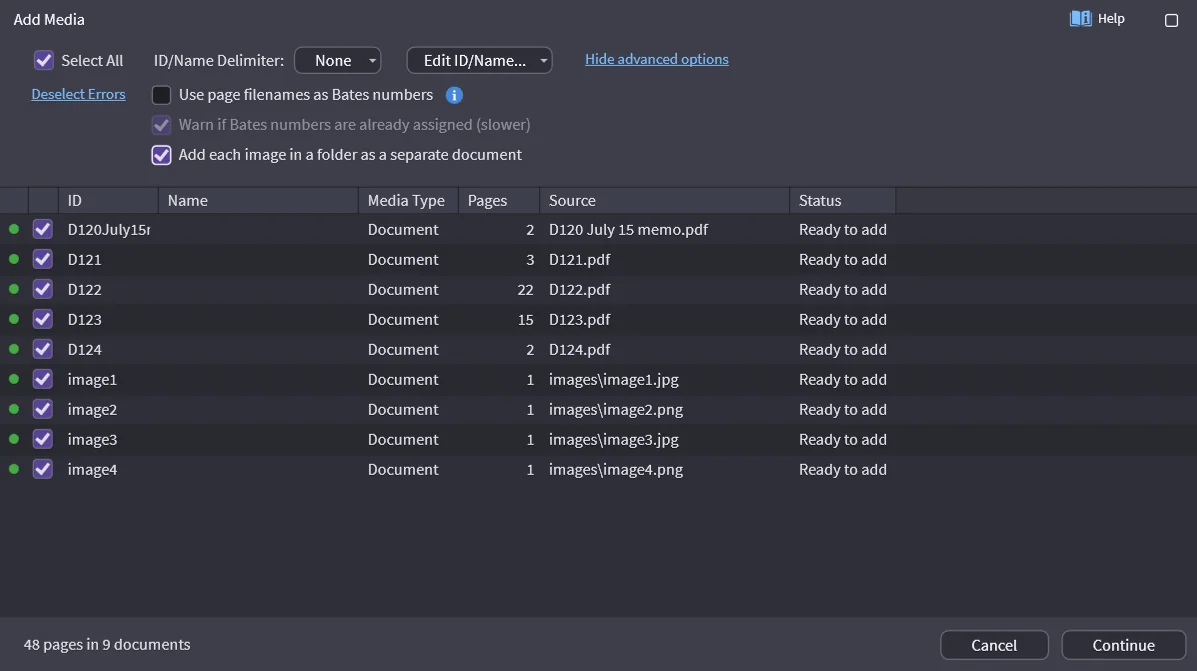
If your files in a folder are intended to be individual exhibits and not added as a single ID, check Add each image in a folder as a separate document. Notice that the IDs for each individual image reflect their file name shown in the Source column.
OnCue reads the PDF you added. If you change that PDF in the _documents folder after adding it, OnCue detects the change.
OnCue does not support load files.
Supported File Types
OnCue supports BMP, GIF, JIF, JFI, JFIF, JPE, JPEG, JPG, PNG, TIFF, TIF, and PDF files.
Errors and Issues
If you have duplicates or an issue with a PDF, OnCue tells you. OnCue does not inspect a file’s contents, so it cannot tell whether a file is secured, password-protected, or corrupt. It flags those documents and you can look at them outside of OnCue to determine the issue.
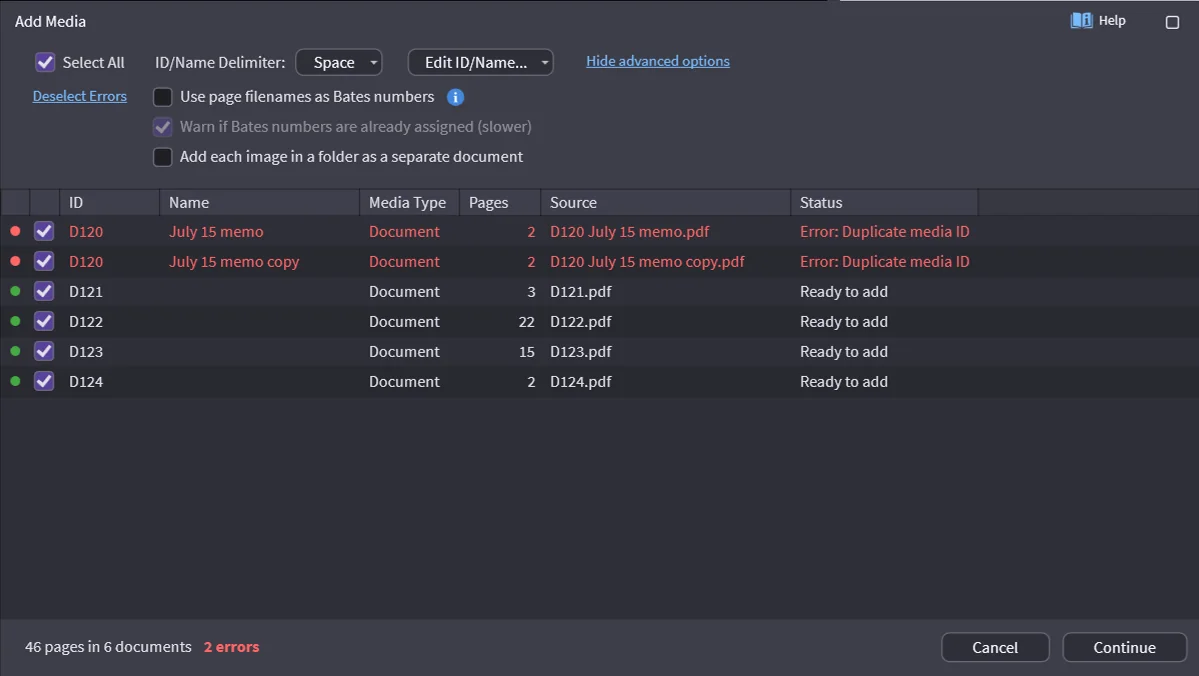
Fixing Duplicates
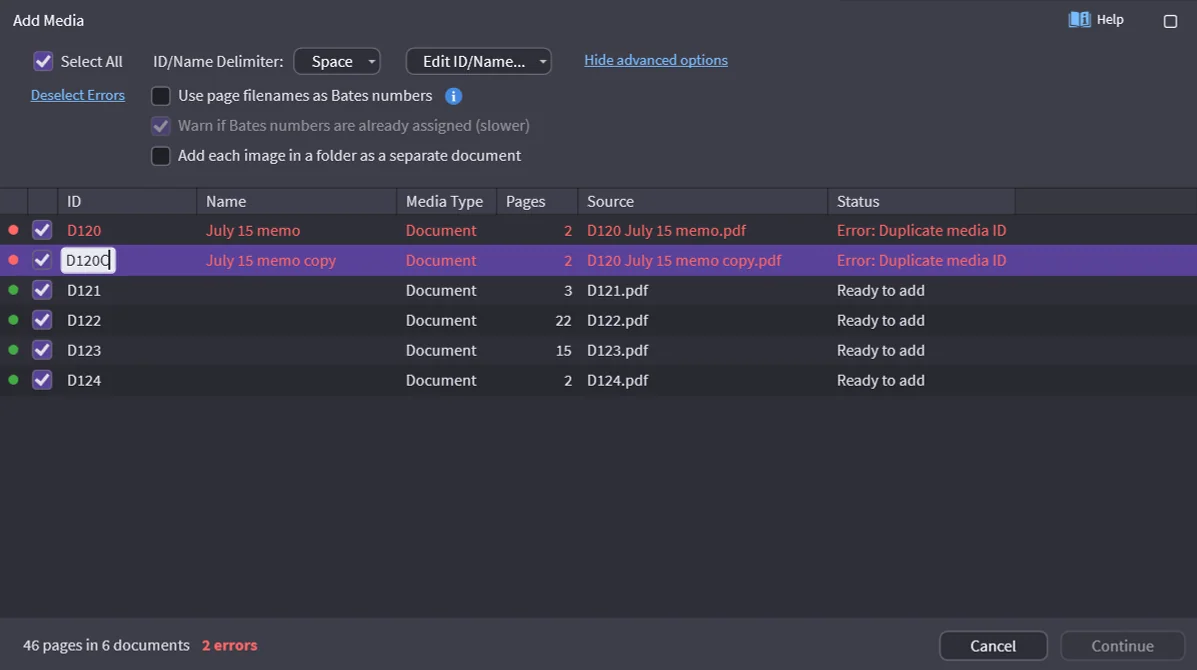
You can also fix your duplicates right in the Add Media dialog box. Click the ID or Name you want to rename.
You can also edit all of your IDs at once. Use the Edit ID/Name dropdown.
Documents That Don’t Start on Page 1
Sometimes you will have to work with documents that do not start with page 1. Right-click the document and select Renumber IDs to change your page IDs to match the document. See Reordering and Renumbering Document Pages article for more details on how to do this.
add media, import documents, register documents, supported file types, PDF, TIFF, JPG, _documents folder, ID delimiter, duplicate documents
Still stuck? Email support@oncuetech.com.