



Designation Highlighters
Updated July 23, 2025
This article answers
- How do I show which party my designations belong to?
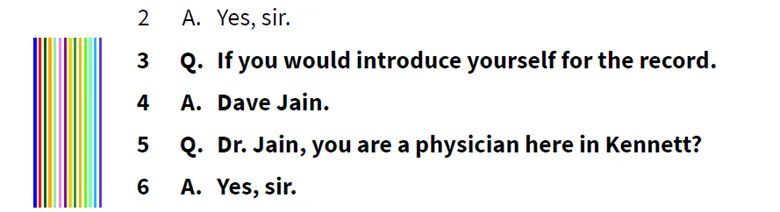
Highlighter colors mark groups of designations in the transcript, such as each party’s designations.
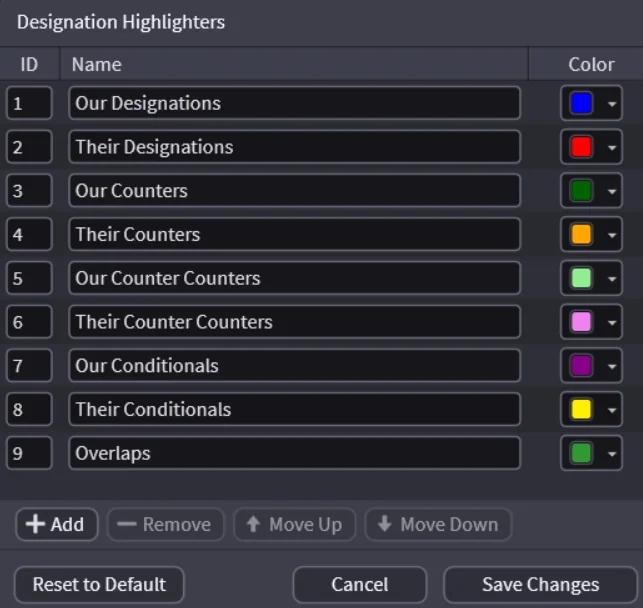
Setting Highlighter Colors
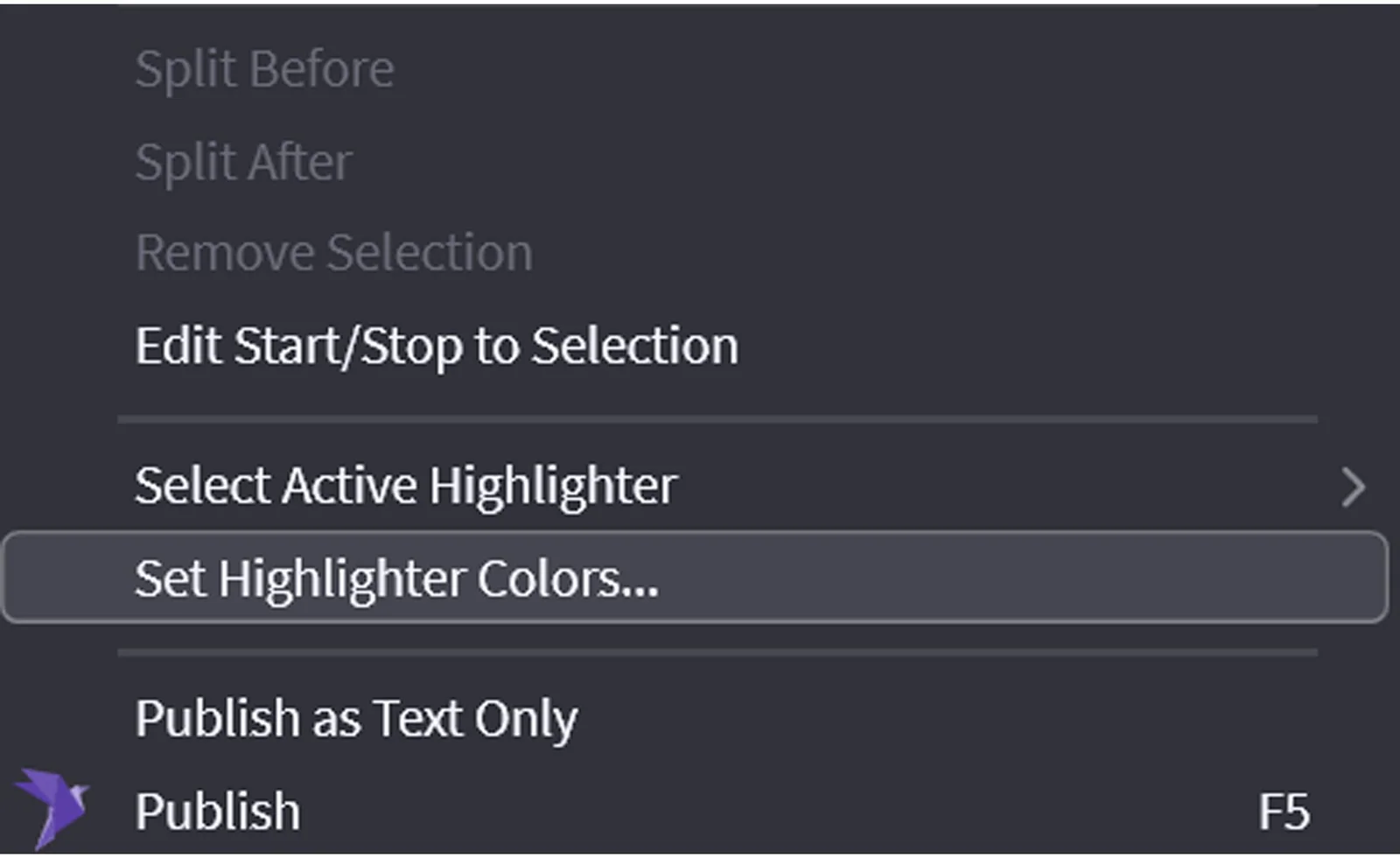
The highlighter colors can be edited by right-clicking the Transcript Viewer pane and selecting Set Highlighter Colors.
A window opens where you can choose colors and enter a description for each. Note the number in the left column. This is the highlighter number. It is used in Designation List import files and sets the order for sorting by highlighter. Changing the color here changes the color globally.
In other words, if you change the color for #2 here to yellow, anything in the database that has been designated with highlighter 2 will be highlighted in yellow. To rename a highlighter, click its name and type. To change its color, use the drop-down button.
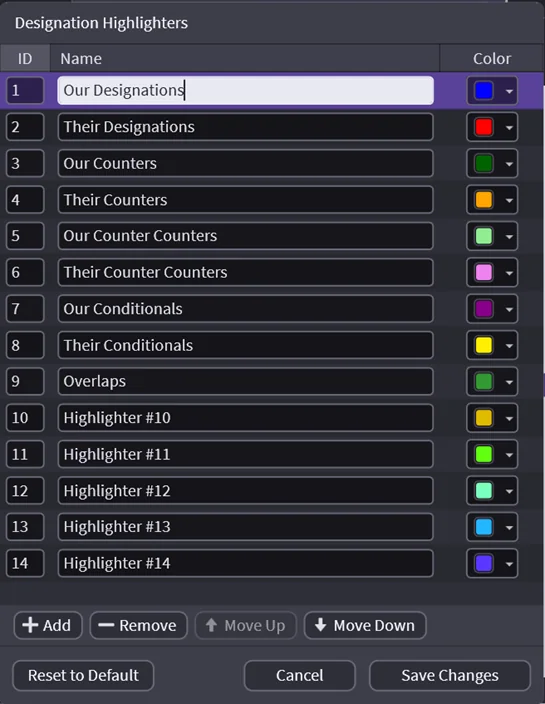
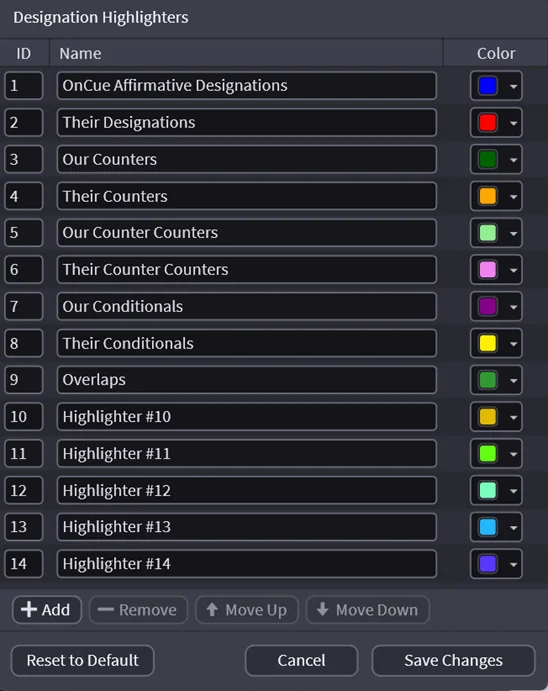
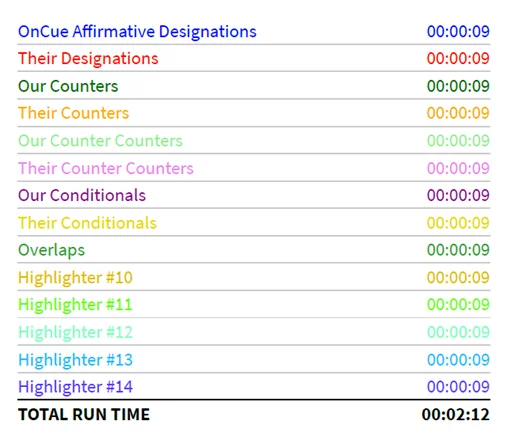
You can add as many colors as you like, but more colors make a Transcript Report harder to read. The image below shows 14 colors on a Transcript Report.
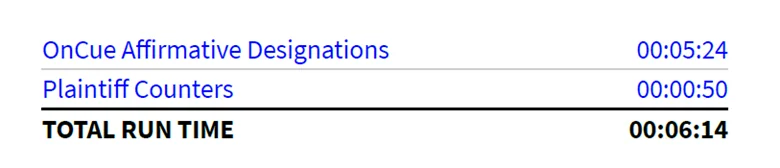
The cover page of a Transcript Report and Designation List Report show the total time for each highlighter.

Two highlighters can share a color but have different highlighter numbers.
The cover page of a report with 14 highlighter colors:
See Deposition Designation Reports for more information.
highlighter, highlight color, assign highlighter, color code
Still stuck? Email support@oncuetech.com.